Adding Database Objects to Your Report
The term database objects is used to describe the various forms of data that can be added to a report. Specifically, Crystal Reports can use the following types of database objects as data sources for a report:
- Tables or system tables
- Views
- Synonyms
- Stored procedures
- SQL Commands
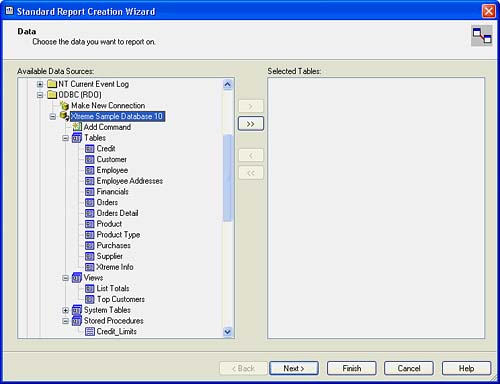
Database objects are listed underneath connections in the Data explorer and are grouped by object type. In Figure 1.8, the various database objects are shown for the Xtreme Sample Database. In this case, there are tables, views, system tables, and stored procedures. The Add Command node gives you the ability to add SQL commands to this report.
Figure 1.8. The Data Explorer presents database objects in their logical categories.
TIP
You can control the objects that are displayed in the Data Explorer by setting selection, description, and filtering options accessed from either the Database tab of the Options dialog under the File menu or the Options menu option off the database's right-click context menu. This can be particularly useful when you are reporting off databases with hundreds of tables.
The following sections describe the most common database object types in further detail.
Reporting on Tables
Tables are the most basic form of a data structure. Simply put, a table is a set of fields bound together to represent something in the real world. A Customer table might contain fields that describe all the customers of a given business. An Employee table might store information about a corporation's employees such as name, title, or salary.
To add a table to a report, select the table in the Data Explorer and click the arrow (>) button. The table is added to the Selected Tables list on the right side of the dialog below its corresponding connection. Most database administrators give the tables meaningful names; however, sometimes tables can have quite archaic names, such as RM564_321. A name like this isn't very descriptive, so it would be useful to rename this table to something more meaningful. To rename a table, select it in the Selected Tables list and press the F2 button (F2 is a standard convention for renaming things in Windows). In Crystal Reports, renaming a table is referred to as aliasing a table.
Reporting on Views
A view is a query stored by the database that returns a set of records that resemble a table. Views often perform complex query logic, and good database administrators create them to simplify the job of people (like report developers) extracting data out of the database. For example, the Top Customers view in the Xtreme Sample Database returns all customers who have sales of more than $50,000. From a report developer's perspective, views act just like tables and can be added to the report in the same way.
Reporting on Stored Procedures
Stored procedures, in the context of Crystal Reports, are similar to views in that they are predefined queries in the database and return a set of records. The major difference is that a stored procedure can be parameterized. This means that rather than having a preset query that returns the same data every time it is run, stored procedures return different data based on the values of parameters passed in.
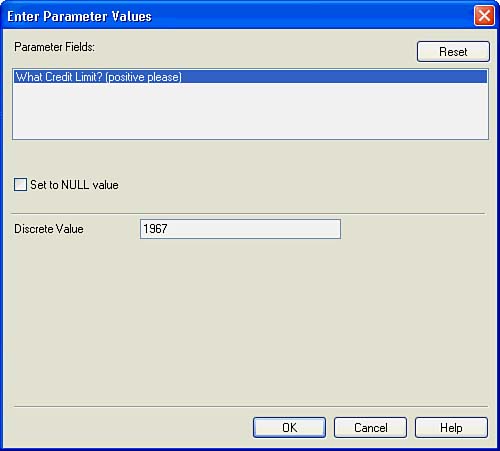
Adding a stored procedure to a report works much the same way as tables and views. However, if the stored procedure has a parameter, a dialog appears when you attempt to add the stored procedure to the report. This is shown in Figure 1.9. The dialog asks you to provide values for each of the stored procedures' parameters. After you complete this and click the OK button, focus returns to the Data Explorer and the stored procedure is shown in the list of selected tables. At this time, a parameter is created in the report that corresponds to the stored procedure parameter, and any values that parameter is given are passed to the underlying stored procedure.
Figure 1.9. Adding a stored procedure with a parameter invokes the Enter Parameter Values dialog.
Reporting on SQL Commands
When reporting from tables, views, and stored procedures, Crystal Reports generates a query behind the scenes using the Structured Query Language (SQL). This is beneficial because the report developer does not need to understand the complexity of the SQL language, but rather can just drop fields onto the report and get data back that matches those fields. However, sometimes report developers are quite experienced with databases and specifically, the SQL language. Because of this, they sometimes prefer to write their own SQL query rather than have Crystal Reports generate it for them. For an introduction to the SQL language, refer to Appendix A, "Using SQL Queries in Crystal Reports."
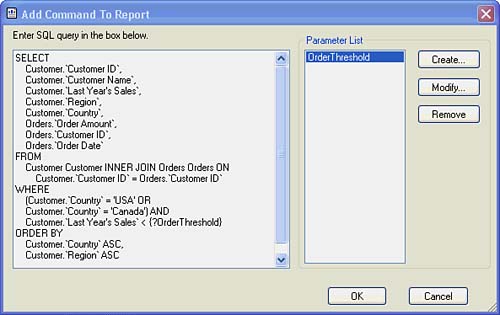
SQL Commands enable you to use your own prebuilt SQL query and have the Crystal Reports engine treat that query like a black box. This means that any query, whether simple or very complex, that returns a set of records can be used as a data source for a Crystal Report. To create a SQL Command, select the Add Command item under the database connection, and then click the arrow (>) button. This initiates a dialog that enables the user to type in a SQL query. Figure 1.10 illustrates a typical query.
Figure 1.10. Adding a typical SQL Command to a report.
After the query is typed in and the OK button is clicked, focus returns to the Data Explorer, and the newly created command is represented as 'Command' underneath its corresponding connection. As with all database objects, selecting the command and pressing the F2 button enables the user to rename the object.
One key feature of SQL Commands is parameterization. If you had to create a static SQL query, much of the power of SQL Commands would be lost. Fortunately, SQL Commands in Crystal Reports support parameters. Although parameters can be used in any part of the SQL Command, the most common scenario would be to use a parameter in the WHERE clause of the SQL statement to restrict the records returned from the query. To create a parameter, click the Create button in the Add Command to Report dialog. This initiates a dialog that enables the user to specify a name for the parameter, text to use when prompting for the parameter value, a data type, and a default value. After the OK button is clicked, the parameter appears in the Parameter list. To use this parameter, place the cursor where the parameter should be used in the SQL query, and double-click the parameter name. Figure 1.11 illustrates a simple SQL Command with an 'OrderThreshold' parameter.
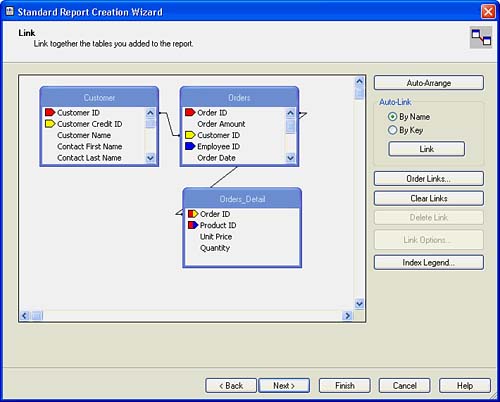
Figure 1.11. You can link multiple tables together in the Report Wizard.
When a SQL Command is created with a parameter, the report developer is prompted for a parameter value. This works much the same way as parameterized stored procedures in that a parameter is created automatically in the report that maps to the SQL Command parameter.
CAUTION
Unlike version 9, SQL Commands can no longer be centrally stored and accessed in a centralized Crystal Repository without the Crystal Enterprise product. In fact, the Crystal Repository and all its reusable objects are now only available through Crystal Enterprise. A Repository Migration Wizard is distributed with Crystal Enterprise to facilitate a quick migration from the V.9 Crystal Reportsbased Repository.
Part I. Crystal Reports Design
Creating and Designing Basic Reports
- Creating and Designing Basic Reports
- Introducing the Crystal Reports Designer
- Understanding Data and Data Sources
- Introduction to the Data Explorer
- Adding Database Objects to Your Report
- Joining Database Objects Together
- Understanding the Different Join Types
- Using the Report Creation Wizards
- Understanding the Crystal Reports Gallery
- Using the Standard Report Creation Wizard
- Creating a Report Without Wizards
- Troubleshooting
Selecting and Grouping Data
- Selecting and Grouping Data
- Introduction
- Understanding Field Objects
- Working with Groups
- Understanding Drill-down Reports
- Troubleshooting
Filtering, Sorting, and Summarizing Data
- Filtering, Sorting, and Summarizing Data
- Introduction
- Filtering the Data in Your Report
- Learning to Sort Records
- Working with the Sort Expert
- Creating Effective Summaries
- Troubleshooting
Understanding and Implementing Formulas
- Understanding and Implementing Formulas
- Introduction
- Using the Formula Workshop
- Using the Workshop Formula Editor
- Creating Formulas with the Formula Expert
- Using the Formula Extractor to Create Custom Functions
- The Multi-Pass Reporting Process of the Crystal Reports Engine
- Troubleshooting
Implementing Parameters for Dynamic Reporting
- Implementing Parameters for Dynamic Reporting
- Introduction
- Understanding the Value of Parameters
- Creating and Implementing Parameters Fields
- Using Parameters with Record Selections
Part II. Formatting Crystal Reports
Fundamentals of Report Formatting
- Fundamentals of Report Formatting
- Introduction
- Positioning and Sizing Report Objects
- Modifying Object Properties for Formatting Purposes
- Exploring the Format Editor Dialog Common Options
- Combining and Layering Report Objects
- Configuring Report Page and Margin Properties
Working with Report Sections
- Working with Report Sections
- Introduction
- Formatting Report Sections
- Modifying Report Section Properties
- Using Multiple Report Sections
- Troubleshooting
Visualizing Your Data with Charts and Maps
- Visualizing Your Data with Charts and Maps
- Introduction to Charts and Maps
- Using the Chart Expert
- Using the Map Expert
- Modifying Chart and Map Properties
- Troubleshooting
Custom Formatting Techniques
- Introduction
- Making Presentation-Quality Reports
- Common Formatting Features
- Conditional Formatting Using Data to Drive the Look of a Report
Part III. Advanced Crystal Reports Design
Using Cross-Tabs for Summarized Reporting
- Using Cross-Tabs for Summarized Reporting
- Introduction to Cross-Tabs
- Benefits of Cross-Tabs
- Using the Cross-Tab Wizard
- Using Top N with Cross-Tabs Reports
- Using Advanced Cross-Tab Features
Using Record Selections and Alerts for Interactive Reporting
- Using Record Selections and Alerts for Interactive Reporting
- Creating Advanced Record Selection Formulas
- Adding Alerting to Your Reports
- Performance Monitoring and Tuning
Using Subreports and Multi-Pass Reporting
- Using Subreports and Multi-Pass Reporting
- Understanding Subreports
- Understanding Linked Versus Unlinked Subreports
- Considering Subreport Execution Time and Performance
- Using Variables to Pass Data Between Reports
- Emulating Nested Subreports
- Troubleshooting
Using Formulas and Custom Functions
- Using Formulas and Custom Functions
- Becoming More Productive with Formulas
- Choosing a Formula Language: Crystal Versus Basic Syntax
- Using Brackets in Formulas
- Using Characters in Formulas
- Recent Improvements to Formulas
Designing Effective Report Templates
- Designing Effective Report Templates
- Understanding the Importance of Reuse in Reporting
- Understanding Report Templates
- Using Report Templates
- Using Existing Crystal Reports as Templates
- Understanding How Templates Work
- Creating Useful Report Templates
- Using Template Field Objects
- Using Report Templates to Reduce Report Creation Effort
- Applying Multiple Templates
Additional Data Sources for Crystal Reports
- Additional Data Sources for Crystal Reports
- Understanding the Additional Crystal Reports Data Sources
- Connecting to COM-based Data Sources
- Connecting to Java-based Data Sources
- Understanding Solution Kits for Crystal Enterprise
- Troubleshooting
Multidimensional Reporting Against OLAP Data with Crystal Reports
- Multidimensional Reporting Against OLAP Data with Crystal Reports
- Introduction to OLAP
- OLAP Concepts and OLAP Reporting
- Recently Added or Changed OLAP Features in Crystal Reports
- Using the OLAP Report Creation Wizard and OLAP Expert
- Advanced OLAP Reporting
- Introduction to Crystal Analysis
Part IV. Enterprise Report Design Analytic, Web-based, and Excel Report Design
Introduction to Crystal Repository
- Introduction to Crystal Repository
- What Is the Crystal Repository?
- Why Implement the Crystal Repository?
- Installing the Crystal Repository
- Adding Objects to and from the Repository
- Migration of the Crystal Enterprise Repository
- Troubleshooting
Crystal Reports Semantic Layer Business Views
- Crystal Reports Semantic Layer Business Views
- Introduction to Business Views
- Why Implement Business Views?
- Performance and Implementation Considerations
- Business Views Architecture and Implementation
- Troubleshooting
Creating Crystal Analysis Reports
- Creating Crystal Analysis Reports
- Introduction
- Introducing Crystal Analysis
- Accessing OLAP Data with Crystal Analysis
- Designing Crystal Analysis Reports and Applications
- Adding Crystal Analysis Objects to a Report
- Troubleshooting
Advanced Crystal Analysis Report Design
- Advanced Crystal Analysis Report Design
- Introduction
- Advanced Crystal Analysis Designer Tools
- Custom Calculations and Advanced Data Analysis
- Setting Report Options
- Troubleshooting
- Crystal Analysis in the Real World MDX
Ad-Hoc Application and Excel Plug-in for Ad-Hoc and Analytic Reporting
- Ad-Hoc Application and Excel Plug-in for Ad-Hoc and Analytic Reporting
- Introducing Ad-Hoc Reporting Conceptually
- Introducing the Crystal Enterprise Ad-Hoc Reporting Application
- Crystal Reports Excel Plug-in
- Crystal Analysis Excel Plug-in
Part V. Web Report Distribution Using Crystal Enterprise
Introduction to Crystal Enterprise
- Introduction to Crystal Enterprise
- What Is Crystal Enterprise?
- Why Implement a Crystal Enterprise Solution?
- Versions of Crystal Enterprise
- Understanding the Core Functions of Crystal Enterprise
Using Crystal Enterprise with Web Desktop
- Using Crystal Enterprise with Web Desktop
- Introduction
- Crystal Enterprise User Launchpad
- Crystal Enterprise Web Desktop
- Customizing the Web Desktop and Report Viewers
- Publishing to the Web Desktop
- Customizing the Web Desktop
- Troubleshooting
Crystal Enterprise Architecture
- Crystal Enterprise Architecture
- Introduction
- Crystal Enterprise Architecture Overview
- The Client Tier
- The Application Tier
- The Server Tier: Introduction to the Crystal Enterprise Framework
- The Server Tier: Overview of the Crystal Enterprise Services
- The Data Tier
- The Crystal Enterprise Architecture in Action
- Taking Advantage of the Crystal Enterprise Distributed Architecture
- Extending Crystal Enterprise
Planning Considerations When Deploying Crystal Enterprise
- Planning Considerations When Deploying Crystal Enterprise
- Ensuring a Successful Crystal Enterprise Implementation
- Approaching the Project
- Identifying Business Pain
- Establishing Project Requirements
- Understanding Organizational Reporting Requirements
- Troubleshooting
Deploying Crystal Enterprise in a Complex Network Environment
- Deploying Crystal Enterprise in a Complex Network Environment
- Introduction
- Understanding Network Protocols
- Understanding Firewall Types
- Configuring the Crystal Enterprise Architecture for Your Network Environment
- Interaction Between the WCS and the WC
- Deploying Crystal Enterprise with an IP Packet Filtering Firewall
- Using Crystal Enterprise with NAT
- Exploring the NAT and Crystal Enterprise Relationship
- Crystal Enterprise and Proxy Servers
Administering and Configuring Crystal Enterprise
- Introduction
- Using the Crystal Management Console
- Managing Accounts
- Managing Content
- Introducing Servers
- Managing Crystal Enterprise System Settings
- Using the Crystal Configuration Manager
Part VI. Customized Report Distribution Using Crystal Reports Components
Java Reporting Components
- Java Reporting Components
- Overview of the Crystal Reports Java Reporting Component
- Understanding the Java Reporting Components Architecture
- Differences with the Java Reporting Engine
- Configuring the Application Server
- Delivering Reports in Web Applications
- Using the Crystal Tag Libraries
- Exporting Reports to Other File Formats
- Printing Reports from the Browser
- Common Programming Tasks
- Troubleshooting
Crystal Reports .NET Components
- Crystal Reports .NET Components
- Understanding Microsofts .NET Platform
- Understanding the Different Crystal .NET Components
- An Overview of the Crystal Reports 10 .NET Components
- The Report Designer
- The Report Engine Object Model
- Delivering Reports with the Windows Forms Viewer
- Delivering Reports with the Web Forms Viewer
- Database Credentials
- Setting Parameters
- Troubleshooting
COM Reporting Components
- COM Reporting Components
- Understanding the Report Designer Component
- Building Reports with the Visual Basic Report Designer
- Programming with the Report Engine Object Model
- Delivering Reports Using the Report Viewer
- Troubleshooting
Part VII. Customized Report Distribution Using Crystal Enterprise Embedded Edition
Introduction to Crystal Enterprise Embedded Edition
- Introduction to Crystal Enterprise Embedded Edition
- Introduction to Crystal Enterprise Embedded Edition
- Understanding Crystal Enterprise Embedded Edition
- Crystal Enterprise Embedded Edition Samples
- DHTML Report Design Wizard
- Troubleshooting
Crystal Enterprise Viewing Reports
- Crystal Enterprise Viewing Reports
- Viewing Reports over the Web
- Introduction to the Crystal Report Viewers
- Understanding the Report Source
- Implementing the Page Viewer
- Implementing the Part Viewer
- Implementing the Interactive Viewer
- Implementing the Grid Viewer
- Troubleshooting
Crystal Enterprise Embedded Report Modification and Creation
- Introduction
- Deploying RAS Environments
- Loading Report Files
- Locating RAS Components in a Network Architecture
- Installing the RAS SDK
- Best Practices in RAS Exception Handling
- The RAS SDK in Action
Part VIII. Customized Report Distribution Using Crystal Enterprise Professional
Introduction to the Crystal Enterprise Professional Object Model
- Introduction to the Crystal Enterprise Professional Object Model
- Understanding the Crystal Enterprise Object Model
- Establishing a Crystal Enterprise Session
- Querying the Crystal Enterprise Repository
- Viewing Reports
- The Crystal Enterprise Java SDK
- Accessing the Java SDK
- Troubleshooting
Creating Enterprise Reports Applications with Crystal Enterprise Part I
- Creating Enterprise Reports Applications with Crystal Enterprise Part I
- Advanced Scenarios with the Crystal Enterprise Object Model
- Scheduling Reports
- Scheduling to a Destination
- Using Crystal Enterprise Notifications
- Scheduling to a Server Group
- Scheduling to a Specific Format
- Setting Database Credentials
- Troubleshooting
Creating Enterprise Reporting Applications with Crystal Enterprise Part II
- Creating Enterprise Reporting Applications with Crystal Enterprise Part II
- Querying the Crystal Enterprise InfoStore
- Creating and Responding to Crystal Enterprise Alerts
- Creating Schedulable Program Objects
- Troubleshooting
Appendix A. Using Sql Queries In Crystal Reports
Creating Enterprise Reporting Applications with Crystal Enterprise Part II

EAN: 2147483647
Pages: 341
