GDI+ Namespaces and Classes in .NET
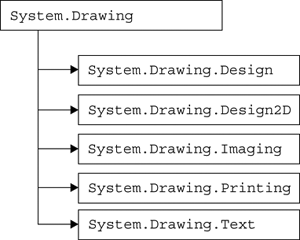
In the .NET Framework library, six namespaces define managed GDI+: System.Drawing, System.Drawing.Design, System.Drawing.Drawing2D, System.Drawing.Imaging, System.Drawing.Printing, and System.Drawing.Text. Figure 1.3 shows these namespaces. To use any of the classes defined in these namespaces, you must include them in your application.
Figure 1.3. The GDI+ namespaces in the .NET Framework library
Note
The .NET Framework class library is also referred as the .NET runtime class library or base class library (BCL).
This section will provide an overview of GDI+ namespaces, their contents, and why and when to use them. These classes and their members will be discussed in more detail in subsequent chapters, according to how they're categorized.
Note
If you are already aware of the .NET Framework library's GDI+ objects and class hierarchy, you may want to skip the rest of this chapter.
1.4.1 The System.Drawing Namespace
The System.Drawing namespace defines basic GDI+ functionality. This namespace contains the Graphics class, which provides methods for filling and drawing graphics objects. It also provides classes that encapsulate GDI+ primitives such as rectangles, points, brushes, and pens. Brush and its derived classes are used to fill interiors of graphics objects such as ellipses, rectangles, and polygons with the specified color and pattern. The Pen class is used to draw lines and curves with a specified color.
Table 1.1 briefly describes the classes of the System.Drawing namespace. We will not discuss these classes in depth here; they are discussed in more detail in later chapters.
The System.Drawing namespace also contains some structures that we will be using throughout this book. These structures are CharacterRange, Color, Point, PointF, Rectangle, RectangleF, Size, and SizeF.
In addition, this namespace defines some delegates and enumerations, which we will discuss in later chapters.
|
Class |
Description |
|---|---|
|
Bitmap |
Encapsulates a bitmap, which is an image (with its properties) stored in pixel format. |
|
Brush |
An abstract base class that cannot be instantiated directly. The Brush class provides functionality used by its derived brush classes and represents a brush graphics object. A brush is used to fill the interior of a graphical shape with a specified color. |
|
Brushes |
Represents brushes with all the standard colors. This class has a static member for each standard color. For example, Brushes.Blue represents a blue brush. |
|
ColorConverter |
Provides methods and properties to convert colors from one type to another. |
|
ColorTranslator |
Provides various methods to translate colors from one type to another. |
|
Font |
Provides members to define the format of font text, name, face, size, and styles. The Font class also provides methods to create a Font object from a window handle to a device context or window handle. |
|
FontConverter |
Provides members that convert fonts from one type to another. |
|
FontFamily |
Defines a group of typefaces having a similar basic design and certain variations in styles. |
|
Graphics |
A key class that encapsulates drawing surfaces. Among many other things, the Graphics class provides members to draw and fill graphical objects. |
|
Icon |
Represents a Windows icon. The Icon class provides members to define the size, width, and height of an icon. |
|
IconConverter |
Provides members to convert an Icon object from one type to another. |
|
Image |
Provides members to define the size, height, width, and format of an image. The Image class also provides methods to create Image objects from a file, a window handle, or a stream; and to save, rotate, and flip images. It is an abstract base class, and its functionality is used through its derived classes: Bitmap, Icon, and Metafile. |
|
ImageAnimator |
Provides methods to start and stop animation, and to update frames for an image that has time-based frames. |
|
ImageConverter |
Provides members to convert Image objects from one type to another. |
|
ImageFormatConverter |
Defines members that can be used to convert images from one format to another. |
|
Pen |
Defines a pen with a specified color and width. A pen is used to draw graphical objects such as a line, a rectangle, a curve, or an ellipse. |
|
Pens |
Provides static members for all the standard colors. For example, Pens.Red represents a red pen. |
|
PointConverter |
Defines members that can be used to convert Point objects from one type to another. |
|
RectangleConverter |
Defines members that can be used to convert Rectangle objects from one type to another. |
|
Region |
Represents a region in GDI+, which describes the interior of a graphics shape. |
|
SizeConverter |
Defines members that can be used to convert size from one type to another. |
|
SolidBrush |
Inherited from the Brush class. This class defines a solid brush of a single color. |
|
StringFormat |
Provides members to define text format, including alignment, trimming and line spacing, display manipulations, and OpenType features. |
|
SystemBrushes |
Defines static properties. Each property is a SolidBrush object with a Windows display element such as Highlight, HighlightText, or ActiveBorder. |
|
SystemColors |
Defines static properties of a Color structure. |
|
SystemIcons |
Defines static properties for Windows systemwide icons. |
|
SystemPens |
Defines static properties. Each property is a Pen object with the color of a Windows display element and a width of 1. |
|
TextureBrush |
Inherited from the Brush class. This class defines a brush that has an image as its texture. |
|
ToolboxBitmapAttribute |
Defines the images associated with a specified component. |
1.4.2 The System.Drawing.Design Namespace
As its name suggests, the System.Drawing.Design namespace provides additional functionality to develop design-time controls such as custom toolbox items, graphics editors, and type converters. The classes of the System.Drawing.Design namespace are described briefly in Table 1.2.
Besides the classes discussed in Table 1.2, the System.Drawing.Design namespace also defines a few interfaces, delegates, and enumerations. Table 1.3 lists the interfaces defined in this namespace.
1.4.3 The System.Drawing.Drawing2D Namespace
The System.Drawing.Drawing2D namespace defines functionality to develop advanced two-dimensional and vector graphics applications. This namespace provides classes for graphics containers, blending, advanced brushes, matrices, and transformation. Table 1.4 briefly describes these classes.
Besides the classes discussed in Table 1.4, the System.Drawing.Drawing2D namespace provides dozens of enumerations. We will discuss these enumerations when we use them in examples in later chapters.
1.4.4 The System.Drawing.Imaging Namespace
Basic imaging functionality is defined in the System.Drawing namespace. The System.Drawing.Imaging namespace provides functionality for advanced imaging. Before an application uses classes from this namespace, it must reference the System.Drawing.Imaging namespace.
Table 1.5 briefly describes the classes of the System.Drawing.Imaging namespace. These classes and their use are discussed in more detail in Chapter 8.
1.4.5 The System.Drawing.Printing Namespace
The System.Drawing.Printing namespace defines printing-related classes and types in GDI+. Before an application uses classes from this namespace, it must include the namespace.
Table 1.6 briefly discusses the classes provided by the System.Drawing.Printing namespace. These classes and their use are discussed in more detail in Chapter 11.
1.4.6 The System.Drawing.Text Namespace
The System.Drawing.Text namespace contains only a few classes related to advanced GDI+ typography functionality. Before an application uses classes from this namespace, it must include the namespace. Table 1.7 describes these classes; they will be discussed in more detail in Chapter 5.
|
Class |
Description |
|---|---|
|
BitmapEditor |
User interface (UI) for selecting bitmaps using a Properties window. |
|
CategoryNameCollection |
Collection of categories. |
|
FontEditor |
UI for selecting and configuring fonts. |
|
ImageEditor |
UI for selecting images in a Properties window. |
|
PaintValueEventArgs |
Provides data for the PaintValue event. |
|
PropertyValueUIItem |
Provides information about the property value UI for a property. |
|
ToolboxComponentsCreatedEventArgs |
Provides data for the ComponentsCreated event, which occurs when components are added to the toolbox. |
|
ToolboxComponentsCreatingEventArgs |
Provides data for the ComponentsCreating event, which occurs when components are added to the toolbox. |
|
ToolboxItem |
Provides a base implementation of a toolbox item. |
|
ToolboxItemCollection |
Collection of toolbox items. |
|
UITypeEditor |
Provides a base class that can be used to design value editors. |
|
Interface |
Description |
|---|---|
|
IPropertyValueUIService |
Manages the property list of the Properties window. |
|
IToolboxService |
Provides access to the toolbox. |
|
IToolboxUser |
Tests the toolbox for toolbox item support capabilities and selects the current tool. |
|
Class |
Description |
|---|---|
|
AdjustableArrowCap |
Represents an adjustable arrow-shaped line cap. Provides members to define the properties to fill, and to set the height and width of an arrow cap. |
|
Blend |
Gradient blends are used to provide smoothness and shading to the interiors of shapes. A blend pattern contains factor and pattern arrays, which define the position and percentage of color of the starting and ending colors. The Blend class defines a blend pattern, which uses LinearGradientBrush to fill the shapes. The Factors and Positions properties represent the array of blend factors and array of positions for the gradient, respectively. |
|
ColorBlend |
Defines color blending in multicolor gradients. The Color and Position properties represent the color array and position array, respectively. |
|
CustomLineCap |
Encapsulates a custom, user-defined line cap. |
|
GraphicsContainer |
Represents the data of a graphics container. A graphics container is created by Graphics.BeginContainer followed by a call to Graphics.EndContainer. |
|
GraphicsPath |
In GDI+, a path is a series of connected lines and curves. This class provides properties to define the path's fill mode and other properties. This class also defines methods to add graphics shapes to a path. For instance, the AddArc and AddCurve methods add an arc and a curve, respectively, to the path. Wrap, Transform, Reverse, and Reset are some of the associated methods. |
|
GraphicsPathIterator |
A path can contain subpaths. This class provides the ability to find the number of subpaths and iterate through them. Count and SubpathCount return the number of points and the number of subpaths in a path, respectively. |
|
GraphicsState |
Represents the state of a Graphics object. |
|
HatchBrush |
Hatch brushes are brushes with a hatch style, a foreground color, and a background color. This class represents a hatch brush in GDI+. |
|
LinearGradientBrush |
Represents a brush with a linear gradient. |
|
Matrix |
Encapsulates a 3x3 matrix that represents a geometric transformation. This class defines methods for inverting, multiplying, resetting, rotating, scaling, shearing, and translating matrices. |
|
PathData |
Contains the data in the form of points and types that makes up a path. The Points property of the class represents an array of points, and the Types property represents the types of the points in a path. |
|
PathGradientBrush |
Represents a brush with a graphics path. PathGradientBrush contains methods and properties for blending, wrapping, scaling, and transformation. This class encapsulates a Brush object that fills the interior of a GraphicsPath object with a gradient. |
|
RegionData |
Represents the data stored by a Region object. The Data property of this class represents the data in the form of an array of bytes. |
|
Class |
Description |
|---|---|
|
BitmapData |
Often we don't want to load and refresh all data of a bitmap because rendering each pixel is not only a slow process, but also consumes system resources. With the help of the BitmapData class and its LockBits and UnlockBits methods, we can lock the required data of a bitmap in memory and work with that instead of working with all the data. |
|
ColorMap |
Defines a map for converting colors. ColorMap is used by the ImageAttributes class. |
|
ColorMatrix |
Defines a 5x5 matrix that contains coordinates for the ARGB space. ColorMatrix is used by the ImageAttributes class. |
|
ColorPalette |
Defines an array of colors that make up a color palette. ColorPalette is used by the ImageAttributes class. |
|
Encoder |
Represents an encoder, which represents a globally unique identifier (GUID) that identifies the category of an image encoder parameter. Encoder is used by the EncoderParameter class. |
|
EncoderParameter |
An encoder parameter, which sets values for a particular category of an image. This class is used in the Save method with the help of EncoderParameters. |
|
EncoderParameters |
An array of EncoderParameter objects. |
|
FrameDimension |
Provides properties to get the frame dimensions of an image. |
|
ImageAttributes |
Contains information about how image colors are manipulated during rendering (for more information, see Chapter 7). |
|
ImageCodecInfo |
Retrieves information about the installed image codecs. |
|
ImageFormat |
Specifies the format of an image. |
|
Metafile |
Defines a graphic metafile, which contains graphics operations in the form of records that can be recorded (constructed) and played back (displayed). |
|
MetafileHeader |
Stores information about a metafile. |
|
MetaHeader |
Contains information about a Windows-format (WMF) metafile. |
|
PropertyItem |
Encapsulates a metadata property to be included in an image file. |
|
WmfPlaceableFileHeader |
Defines a placeable metafile. |
|
Class |
Description |
|---|---|
|
Margins |
Specifies the margins of a printed page. The Bottom, Left, Right, and Top properties are used to get and set the bottom, left, right, and top margins, respectively, of a page in hundredths of an inch. |
|
MarginsConverter |
Provides methods to convert margins, including CanConvertFrom, CanConvertTo, ConvertFrom, and ConvertTo. |
|
PageSettings |
Specifies settings of a page, including properties such as Bounds, Color, Landscape, Margins, PaperSize, PaperSource, PrinterResolution, and PrinterSettings. |
|
PaperSize |
Specifies the paper size. Its properties include Height, Width, PaperName, and Kind. The Kind property is the type of paper, represented by the PaperKind enumeration, which has members that represent A3, envelopes, sheets, ledgers, and so on. |
|
PaperSource |
Specifies the paper tray from which the printer gets paper, with properties Kind and SourceName. SourceName is a type of PaperSource enumeration, which defines members based on the Kind property. |
|
PreviewPageInfo |
Provides print preview information for a single page. The Image property returns the image of the printed page, and the PhysicalSize property returns the size of the printed page in 1/1000 inch. |
|
PreviewPrintController |
Displays a document on a screen as a series of images for each page. The UseAntiAlias property gets and sets the anti-aliasing when displaying the print preview. |
|
PrintController |
Controls how a document is printed. The class provides four methods: OnStartPage, OnStartPrint, OnEndPage, and OnEndPrint. |
|
PrintDocument |
Starts the printing process. Creates an instance of this class, sets the printing properties that describe how to print, and calls the Print method to start the process. |
|
PrinterResolution |
Provides properties to return a printer resolution. The Kind, X, and Y properties return the printer resolution, horizontal resolution in dots per inch (dpi), and vertical printer resolution in dpi, respectively. |
|
PrinterSettings |
Provides methods and properties for setting how a document is printed, including the printer that prints it. Some of the common properties are MinimumPage, MaximumPage, Copies, MaximumCopies, PrinterName, and so on. |
|
PrinterSettings.PaperSizeCollection |
Collection of PaperSize objects. |
|
PrinterSettings.PaperSourceCollection |
Collection of PaperSource objects. |
|
PrinterSettings.PrinterResolutionCollection |
Collection of PrinterResolution objects. |
|
PrinterUnitConvert |
Specifies a series of conversion methods that are useful when interoperating with the Win32 printing application program interface (API). |
|
PrintEventArgs |
Provides data for the BeginPrint and EndPrint events. |
|
PrintingPermission |
Controls access to printers. |
|
PrintingPermissionAttribute |
Allows declarative printing permission checks. |
|
PrintPageEventArgs |
Provides data for the PrintPage event. |
|
QueryPageSettingsEventArgs |
Provides data for the QueryPageSettings event. |
|
StandardPrintController |
Specifies a print controller that sends information to a printer. |
|
Class |
Description |
|---|---|
|
FontCollection |
Abstract base class for installed and private font collections. It provides a method to get a list of the font families contained in the collection. Two derived classes from the FontCollection class are InstalledFontCollection and PrivateFontCollection. |
|
InstalledFontCollection |
Represents the fonts installed on the system. |
|
PrivateFontCollection |
Represents a collection of font families built from font files that are provided by the client application. |
GDI+: The Next-Generation Graphics Interface
- GDI+: The Next-Generation Graphics Interface
- Understanding GDI+
- Exploring GDI+ Functionality
- GDI+ from a GDI Perspective
- GDI+ Namespaces and Classes in .NET
- Summary
Your First GDI+ Application
- Your First GDI+ Application
- Drawing Surfaces
- The Coordinate System
- Tutorial: Your First GDI+ Application
- Some Basic GDI+ Objects
The Graphics Class
- The Graphics Class
- Graphics Class Properties
- Graphics Class Methods
- The GDI+Painter Application
- Drawing a Pie Chart
Working with Brushes and Pens
- Working with Brushes and Pens
- Understanding and Using Brushes
- Using Pens in GDI+
- Transformation with Pens
- Transformation with Brushes
- System Pens and System Brushes
- A Real-World Example: Adding Colors, Pens, and Brushes to the GDI+Painter Application
Colors, Fonts, and Text
- Colors, Fonts, and Text
- Accessing the Graphics Object
- Working with Colors
- Working with Fonts
- Working with Text and Strings
- Rendering Text with Quality and Performance
- Advanced Typography
- A Simple Text Editor
- Transforming Text
Rectangles and Regions
- Rectangles and Regions
- The Rectangle Structure
- The Region Class
- Regions and Clipping
- Clipping Regions Example
- Regions, Nonrectangular Forms, and Controls
Working with Images
- Working with Images
- Raster and Vector Images
- Working with Images
- Manipulating Images
- Playing Animations in GDI+
- Working with Bitmaps
- Working with Icons
- Skewing Images
- Drawing Transparent Graphics Objects
- Viewing Multiple Images
- Using a Picture Box to View Images
- Saving Images with Different Sizes
Advanced Imaging
- Advanced Imaging
- Rendering Partial Bitmaps
- Working with Metafiles
- Color Mapping Using Color Objects
- Image Attributes and the ImageAttributes Class
- Encoder Parameters and Image Formats
Advanced 2D Graphics
- Advanced 2D Graphics
- Line Caps and Line Styles
- Understanding and Using Graphics Paths
- Graphics Containers
- Reading Metadata of Images
- Blending Explained
- Alpha Blending
- Miscellaneous Advanced 2D Topics
Transformation
- Transformation
- Coordinate Systems
- Transformation Types
- The Matrix Class and Transformation
- The Graphics Class and Transformation
- Global, Local, and Composite Transformations
- Image Transformation
- Color Transformation and the Color Matrix
- Matrix Operations in Image Processing
- Text Transformation
- The Significance of Transformation Order
Printing
- Printing
- A Brief History of Printing with Microsoft Windows
- Overview of the Printing Process
- Your First Printing Application
- Printer Settings
- The PrintDocument and Print Events
- Printing Text
- Printing Graphics
- Print Dialogs
- Customizing Page Settings
- Printing Multiple Pages
- Marginal Printing: A Caution
- Getting into the Details: Custom Controlling and the Print Controller
Developing GDI+ Web Applications
- Developing GDI+ Web Applications
- Creating Your First ASP.NET Web Application
- Your First Graphics Web Application
- Drawing Simple Graphics
- Drawing Images on the Web
- Drawing a Line Chart
- Drawing a Pie Chart
GDI+ Best Practices and Performance Techniques
- GDI+ Best Practices and Performance Techniques
- Understanding the Rendering Process
- Double Buffering and Flicker-Free Drawing
- Understanding the SetStyle Method
- The Quality and Performance of Drawing
GDI Interoperability
Miscellaneous GDI+ Examples
- Miscellaneous GDI+ Examples
- Designing Interactive GUI Applications
- Drawing Shaped Forms and Windows Controls
- Adding Copyright Information to a Drawn Image
- Reading and Writing Images to and from a Stream or Database
- Creating Owner-Drawn List Controls
Appendix A. Exception Handling in .NET

