Installing an Optical Drive
| Installation of a CD-ROM, CD-R, CD-RW, DVD-ROM, or rewriteable DVD drive can be as difficult or as easy as you make it. If you plan ahead, the installation should go smoothly. This section walks you through the installation of a typical internal (SCSI or ATA) and external (SCSI only) optical drive, with tips that often aren't included in the manufacturers' installation manuals. After you install the hardware, your job might be finished if you are running Windows and using a Plug and Play drive, or you might have to manually load the software necessary to access the drive. Note CD-ROM and DVD-ROM drives use the same ATA, SATA, and SCSI system interfaces and can be installed using the same basic procedures. Some DVD-ROM drives come with an MPEG-2 decoder board or MPEG decoder software that enables you to view DVD movies and video on your PC. If a board is included, it usually installs in a PCI bus slot like any other expansion card and performs the video decoding process that would otherwise fall to the system processor. Software decoding does not require a board and instead uses your processor to do the decoding work. Software decoding normally requires a fast processor (see the software manufacturer's recommendations for how fast); otherwise, the video appears jumpy, jerky, or unsynchronized with the sound. Although many premium DVD setups have included hardware decoding for this reason in the past, today's computers typically have 1GHz and faster processors to make software playback smooth. Also, many video cards now feature onboard DVD hardware decoding, eliminating the need for a separate DVD decoder. Note that a separate analog or digital audio connection typically exists between the drive and the sound card as well, used primarily for playing audio CDs. Avoiding Conflict: Get Your Cards in OrderRegardless of the type of installationinternal or external driveyou must have a functioning ATA or SCSI host adapter before the drive can function. In most cases, you will be connecting the optical drive to an existing ATA or SCSI adapter. If so, the adapter should already be configured not to conflict with other devices in your system. All you have to do is connect the drive with the appropriate cable and proceed from there. Most computers today have an ATA adapter integrated into the motherboard. However, if you are adding SCSI to your system for the first time, you must install a SCSI host adapter into an expansion slot and ensure it is configured to use the appropriate hardware resources, such as the following:
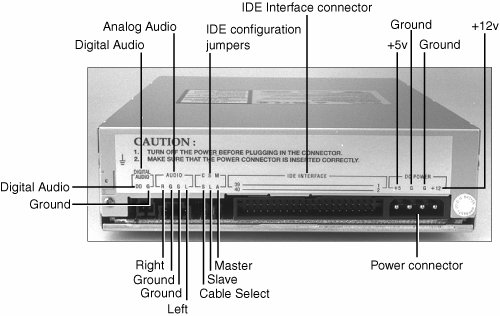
As always, Windows 9x/Me/2000/XP and PnP hardware can completely automate this process; however, if you're using another operating system, you might have to configure the adapter manually. Drive ConfigurationConfiguration of your new optical drive is paramount to its proper functioning. Examine your new drive and locate any jumpers (see Figure 12.11). For an ATA drive, here are the typical ways to jumper the drive:
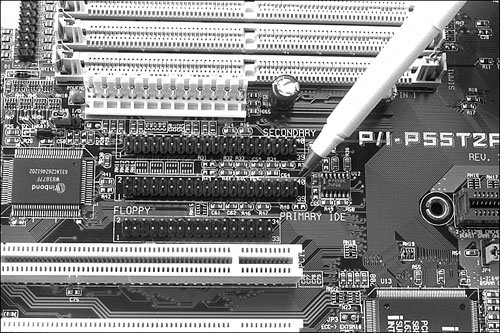
Figure 12.11. The rear connection interfaces of a typical ATA internal CD-ROM drive. If the drive is to be the only device on your secondary ATA interface, the factory settings are usually correct. Consult the manual to make sure this is so. When you use the CD-ROM or DVD-ROM as a secondary drivethat is, the second drive on the same ribbon cable with another devicebe sure it is jumpered as the slave drive, and configure the other device so it is the master drive (see Figure 12.12). In most cases, the drive shows up as the next logical drive, or the D: drive. Figure 12.12. An embedded ATA interface with primary and secondary ATA connections (the pen is pointing to the primary ATA connector). Caution Whenever possible, you should not connect a CD-ROM or DVD-ROM drive to the same channel as a hard disk drive because devices on the same channel can't simultaneously read or write data. If your computer has the two ATA channels standard in systems today, you should connect the optical drive to the secondary channel, even if you have only one hard disk drive on the primary.
Depending on how you look at it, SCSI drives can be a bit easier to configure because you need only to select the proper SCSI ID for the drive. By convention, the boot disk (the C: drive) in a SCSI system is set as ID0, and the host adapter has an ID of 7. You are free to choose any ID in between that is not being used by another device. Most SCSI devices use some type of rotating or pushbutton selector to cycle between the SCSI IDs, but some might use jumpers. SCSI devices are cabled together in a bus configuration. If your new SCSI drive falls at the end of the SCSI bus, you also must terminate the drive. Note that the SCSI bus refers to the physical arrangement of the devices, and not the SCSI IDs selected for each one. External (SCSI) Drive HookupUnpack the drive carefully. With the purchase of an external drive, you should receive the following items:
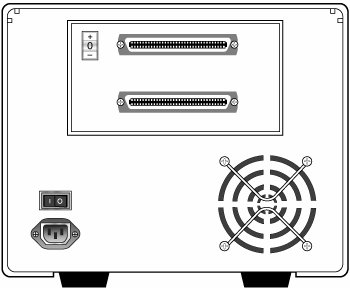
With the exception of the SCSI host adapter, this is the bare minimum you need to get the drive up and running. You'll probably also find a CD caddy, documentation for the drive, driver software, a SCSI terminator plug, and possibly a sampling of CDs to get you started. SCSI drives almost never come with the SCSI host adapter necessary to connect them to the system. Because SCSI is designed to support up to 7 devices on the same system (or up to 15 devices for Ultra2 SCSI), including a host adapter with every peripheral is impractical. Although a few computers have SCSI interfaces integrated into the motherboard, in most cases you have to purchase a SCSI adapter as a separate expansion card. To begin the installation, take a look at your work area and the SCSI cable that came with the drive. Where will the drive find a new home? You're limited by the length of the cable. Find a spot for the drive, and insert the power cable into the back of the unit. Be sure you have an outlet or, preferably, a free socket in a surge-suppressing power strip to plug in the new drive. SCSI devices generally use one of two cable types. Some older drives use a 50-pin Centronics cable, referred to as an A-cable. Most drives today, though, use a 68-pin cable called a P-cable. Plug one end of the supplied cable into the connector socket of the drive and one into the SCSI connector on the adapter card. Most external drives have two connectors on the backeither connector can be hooked to the PC (see Figure 12.13). You use the other connector to attach another SCSI device or, if the drive is at the end of the bus, to connect a terminator plug. Secure the cable with the guide hooks on both the drive and adapter connectors, if provided. Figure 12.13. External drive with dual SCSI connectors. Note A SCSI device should include some means of terminating the bus, when necessary. The terminator might take the form of a cableless plug you connect to the second SCSI connector on the drive, or the drive might be self-terminating, in which case there should be a jumper or a switch you can set to activate termination. Finally, your external drive should have a SCSI ID select switch on the back. This switch sets the identification number the host adapter uses to distinguish the drive from the other devices on the bus. The host adapter, by most manufacturers' defaults, should be set for SCSI ID 7, and some (but not all) manufacturers reserve the IDs 0 and 1 for use by hard disk drives. Be sure you set the SCSI ID for the CD-ROM or DVD-ROM drive to any other number6, 5, or 4, for example. The only rule to follow is to be sure you do not set the drive for an ID that is already occupiedby either the adapter or any other SCSI peripheral on the bus. Internal Drive InstallationUnpack your internal drive kit. You should have the following pieces:
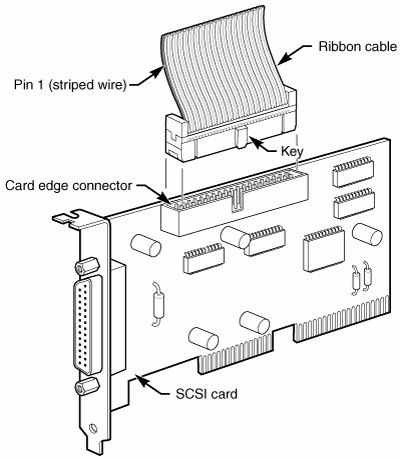
Your manufacturer also might have provided a power cable splittera bundle of wires with plastic connectors on each of three ends. A disc caddy and owner's manual might also be included. If you do not already have one in the computer, you also will need a SCSI host adapter to connect SCSI peripherals. Make sure the PC is turned off, and remove the cover from the case. Before installing a SCSI adapter into the PC's expansion bus, connect the SCSI ribbon cable to the adapter card (see Figure 12.14). Figure 12.14. Connecting a ribbon cable to a SCSI adapter. Ribbon Cable and Card Edge ConnectorThe ribbon cable should be identical on both ends. You'll find a red stripe or dotted line down one side of the outermost edge of the cable. This stripe indicates a pin-1 designation and ensures that the SCSI cable is connected properly to the card and drive. If you're lucky, the manufacturer has supplied a cable with notches or keys along one edge of the connector. With such a key, you can insert the cable into the card and drive in only one way. Unkeyed cables must be hooked up according to the pin-1 designation. Along one edge of your SCSI adapter is a double row of 50 brass-colored pins. This is the card edge connector. In small print along the base of this row of pins you should find at least two numbers next to the pins1 and 50. Aligning the ribbon cable's marked edge over pin 1, carefully and evenly insert the ribbon cable connector. Next, insert the adapter card into a free bus slot in the computer, leaving the drive end of the cable loose for the time being. Choose a bay in the front of your computer's case for your internal drive. Make sure it's easily accessible from the outside and not blocked by other items on your desk. You'll be inserting the CDs or DVDs here, and you'll need the elbow room. Remove the drive bay cover from the computer case. You might have to loosen some screws to do this, or the cover might just pop off. Inside the drive bay, you should find a metal enclosure with screw holes for mounting the drive. If the drive has mounting holes along its side and fits snugly into the enclosure, you won't need mounting rails. If it's a loose fit, however, mount the rails along the sides of the drive with the rail screws, and then slide the drive into the bay. Secure the drive into the bay with four screwstwo on each side. If the rails or drive don't line up evenly with four mounting holes, be sure you use at least two screwsone mounting screw on each side. Because you'll be inserting and ejecting many discs over the years, mounting the drive securely is a must. Once again, find the striped side of the ribbon cable and align it with pin 1 on the drive's edge connector. Either a diagram in your owner's manual or a designation on the connector itself tells you which is pin 1. The back of the drive has a four-pin power connector outlet. Inside the case of your PC, at the back of your floppy or hard disk, are power cordsbundled red and yellow wires with plastic connectors on them. You might already have a power connector lying open in the case. Take the open connector and plug it into the back of the power socket on the CD-ROM or DVD-ROM drive. These connectors can go in only one way. If you do not have an open connector, use a drive power splitter (refer to Figure 12.5). Disconnect an existing drive power cord from the device that uses the least power. Next, attach the splitter to the detached power cord. Plug one of the free ends back into the drive you removed the power from and plug the other into the CD-ROM or DVD-ROM drive. Note It's preferable to "borrow" power from the drive that consumes the least power so you don't overload the connection. Check the specification sheets for your drives to determine their power consumption. In general, devices that are physically smaller or that spin more slowly draw less power. If you have no choiceif the splitter and ribbon cable won't reach, for exampleyou can split off any power cord that hasn't already been split. Check the power cable to ensure that you have a line not already overloaded with another splitter. Do not replace the PC cover yetyou need to make sure that everything is running perfectly before you seal the case. You're now ready to turn on the computer. If everything runs normally, it's time to put that cover back on. SCSI Chains: Internal, External, or BothRemember, one of the primary reasons for using the SCSI interface for your CD-ROM or DVD-ROM drive is the capability to connect a string of peripherals from one adapter, thus saving card slots inside the PC and limiting the nightmare of tracking IRQs, DMAs, and I/O memory addresses. You can add hard drives, scanners, tape backup units, and other SCSI peripherals to this chain (see Figure 12.15). You must keep a few things in mind, however, and chief among them is SCSI termination. Figure 12.15. A SCSI chain of devices on one adapter card.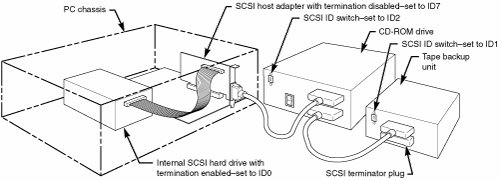 Example One: All External SCSI Devices. Say that you installed your CD-ROM or DVD-ROM drive and added a tape device to the SCSI bus with the extra connector on the back of the optical drive. The first device in this SCSI bus is the adapter card itself. Most modern host adapters are autoterminating, meaning they will terminate themselves without your intervention if they are at the end of the bus. From the card, you ran an external cable to the optical drive, and from the optical drive, you added another cable to the back of the tape unit. You must now terminate the tape unit as well. Most external units are terminated with a SCSI capa small connector that plugs into the unused external SCSI connector. These external drive connectors come in two varieties: a SCSI cap and a pass-through terminator. The cap is just that; it plugs over the open connector and covers it. The pass-through terminator, however, plugs into the connector and has an open end into which you can plug the SCSI cable. This type of connector is essential if your external drive has only one SCSI connector; you can plug the drive in and make sure it's terminatedall with one connector. Example Two: Internal Chain and Termination. On an internal SCSI bus, the same rules apply: All the internal devices must have unique SCSI ID numbers, and the first and last devices must be terminated. In the case of internal devices, however, you must check for termination. Internal devices typically have DIP switches or terminator packs similar to those on your adapter card. If you install a tape unit as the last device on the chain, it must have some means of terminating the bus. If you place your optical drive in the middle of the bus, you must deactivate its termination. The host adapter at the end of the chain must still be terminated. Note Most internal SCSI devices ship with terminating resistors or DIP switches onboard, usually the latter. Check your user manuals for their locations. Any given device can have one, two, or even three such resistors. Example Three: Internal and External SCSI Devices. If you mix and match external as well as internal devices, follow the same rules. The bottom example shown in Figure 12.16 has an internal CD-ROM drive, terminated and set for SCSI ID 6; the external hard drive also is terminated and is using SCSI ID 5. The SCSI adapter itself is set for ID 7 and, most importantly, its termination has been disabled because it is no longer at the end of the bus. Figure 12.16. Examples of various SCSI termination scenarios.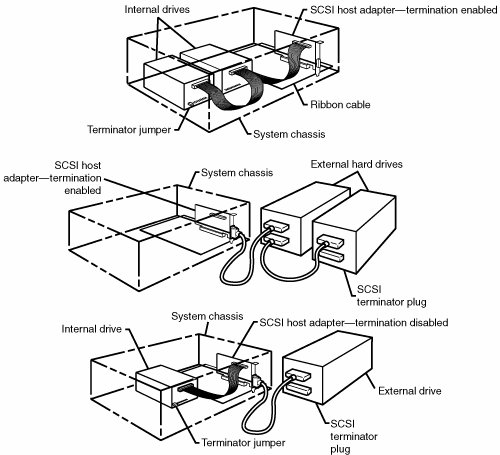 Note As with any adapter card, be careful when handling the card itself. Be sure to ground yourself first. To help you determine whether your SCSI interface card and devices are functioning properly, Adaptec supplies a utility program called SCSI Interrogator. Use it to determine which logical unit numbers (LUNs) are available for new devices. If you don't see any devices listed, you might have a termination problem. Shut down your system and your devices. Then, check terminator plugs, switches, or resistor packs. If they appear correct, turn on the external devices about 5 seconds before you start the system. A multiswitch power director with high-quality surge protection works well for this because it allows you to turn on individual devices. If the devices fail to show up after you restart the system, you might have a problem with the SCSI BIOS or device driver software. Check the documentation for your particular card and device to ensure you have installed the proper drivers. One peculiarity of the Adaptec SCSI Interrogator is that it lists a "host adapter #1" that's actually your ATA interface! If your SCSI card isn't working, both "host adapter #0" and "host adapter #1" are actually ATA. You can tell whether this is happening with Windows 9x because it will list "ESDI_506" as the driver version. |


EAN: 2147483647
Pages: 283