Troubleshooting LotusScript
In general, LotusScript problems can be divided into three distinct classificationscompile-time, run-time, and logic errors. There are numerous strategies and approaches for managing these types of problems. This section will review techniques to help manage each of these problem types. Lets start by defining the error classifications and then review strategies for managing them.
The Domino Designer client automatically compiles LotusScript code each time a design element is saved. As part of this built-in compile process, all code is checked for syntax errors and flagged. Errors flagged during this process are considered to be compile-time errors. Statements that fail to pass the syntax checks are subsequently highlighted in red. A short description of the problem is also displayed in the message bar. The message offers a clue for resolving the problem. All compile-time errors must be resolved for the design element to be saved. In addition to syntax checks during the compile, some very rudimentary syntax checks occur as statements are typed, such as checking for an incomplete statement.
The second type of problem, run-time errors, involves statements that pass the initial compile-time checks but that still contain invalid statements. This type of error can occur when the statements are structured correctly but are implemented or used incorrectly. Lets say, for example, you create an agent that runs when manually executed from the application interface but that fails when the same agent is changed to run on a scheduled basis. In this scenario, its possible that the agent contains references to the user interface (UI)also known as the front-end. Because scheduled agents interface with the application from the back-end (meaning there is no user interface to interact with), the agent fails.
The third type of problem, logic errors, occurs when the code compiles and runs but fails to produce the correct result. This type of error is related to the code logic. Perhaps, for example, an incorrect object is being referenced or the logical order in which statements are executed is incorrect. In any case, the net result differs from the expected result when the LotusScript code executes.
With the primary error classifications defined, the remainder of this chapter will focus on strategies to help resolve these issues.
Managing Compile-Time Errors
Compile-time errors are displayed in the Designer client as the design element is compiled or saved. When a syntax error is identified, a descriptive message is displayed in the message bar of the Designer client, and the associated statement lines are highlighted in red. These error messages are specifically related to the syntax of the LotusScript language.
For example, Figure 21.1 illustrates an error when displayed in the Designer client. In this example, the second code line is incomplete. Notice that a message is displayed in the message bar at the bottom of the screen.
Figure 21.1. Example syntax error "Unexpected End-of-line"
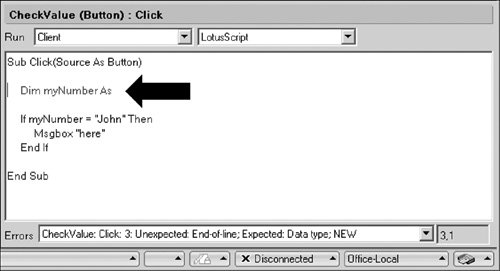
Interpreting the error message is usually a good place to start when this type of error is encountered. The error message provides a number of clues intended to help resolve the problem. In this case, the error message states the following:
CheckValue: Click: 3: Unexpected: End-of-line; Expected: Data Type; NEW
This message provides a host of information pertaining to the LotusScript error. Start by breaking down the information associated with the message. In this particular example, the message references the design object, event, statement number, and description of the syntax error encountered followed by a description of the expected syntax (see Figure 21.2).
Figure 21.2. Breakdown of LotusScript error message content

The first element in the message, CheckValue, references the Domino design that contains the syntax error, such as a form name, subroutine name, or agent name. In this particular example, the object happens to be an action button.
The next two message elements reference the event and statement line number associated with the error. In this case, the error occurs in the Click event on line number 3. These items enable you to locate the statement that has been flagged by the compiler. This line is typically highlighted in red. To locate the statement in the Designer client, place the cursor inside the Programmers pane. As you move the cursor up, down, left, and right within the window, the cursor position will be updated in the lower-right corner of the Designer client. Notice the 3,1 displayed in Figure 21.1. This represents the vertical and horizontal position: line 3, cursor position 1.
Following the line number indicator is a short description of the syntax error that was encounteredUnexpected: End-of-line. This message indicates that the compiler expected to find additional syntax statements but unexpectedly found the end of the statement line. In other words, something is missing from the code line.
The last message element briefly describes the syntax that the compiler expected to encounterExpected: Data Type; NEW. Upon closer examination of the code line, youll notice that the compiler was expecting to encounter a data type and possibly the keyword NEW for the myNumber variable. The corrected statement should read as follows:
Dim myNumber as Integer
At this point, all code now appears to pass the preliminary syntax checks, which occur as code is typed in the Programmers pane. However, a new error is generated when attempting to save the design element. First, a message is displayed (see Figure 21.3).
Figure 21.3. Design element not saved error message
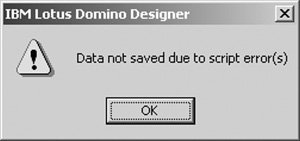
This is accompanied by the following error message in the Designer message bar. These messages are specifically produced because compile-time errors were encountered.
CheckValue: Click: 5: Type mismatch
Youll notice that this new message follows the same basic format and, for the most part, includes similar information. The compiler is still encountering difficulties with the CheckValue design element in the Click event. However, the statement that contains the compile error has moved to line number 5, and the problem encountered is a Type mismatch. In other words, the compiler is unable to proceed due to conflicting data types. In this example, line 5 is attempting to compare an Integer with a text string. To correct this problem, either the comparison value needs to be changed to a number or the declaration needs to be changed to a string.
Sub Click(Source As Button)

Dim myNumber As Integer

If myNumber = 1 Then
 Msgbox "here"
End If

End Sub
This illustrates a typical approach to solving compile-time errors. These are just two of the many error messages that can be produced by the compiler. There are many other syntax errors and related messages (too many to cover or explain in this publication) that could be produced. The key lesson here is to understand the process by which the compiler identifies errors and to understand how to interpret the associated error messages that are produced. Armed with this information, you can research LotusScript statement syntax or error messages using the Domino Designer Help or online support Web sites (described later in the chapter).
Tip
To open the Domino Designer help database, press F1 from the Designer client. Information can be sorted by the table of contents or by keyword index or searched based on a specified phrase. Click on the TIPS button to learn more about how to use the help database. Alternatively, select the File > Database > Open menu options. Locate and open the "Help" folder. Select and open the "Lotus Domino Designer Help" database.
Managing Run-time Errors
Run-time errors are generated when problems are encountered as the code executes from the Lotus Notes client. Here the code passes all preliminary syntax checks and compiles without error. However, as the code is executed, an error is encountered. This can occur when objects are referenced incorrectly or used in a manner other than their intended use.
As with compile-time errors, an error message is usually displayed when a run-time error is encountered. In most cases, the popup message is displayed with a brief description of the error. For example, Figure 21.4 illustrates a run-time error message. Youll notice that this error message provides no additional information pertaining to the potential source of the problem.
Figure 21.4. LotusScript variant error message

As a developer, there are three main steps you can take to troubleshoot run-time errorsdeclare all objects, incorporate error handling, and trace the code execution.
First, best practices suggest that you should explicitly declare all LotusScript objects. One way to ensure that all objects are properly declared is to have the following statement in the "Options" section for all LotusScript routines. When added, the Domino Designer client will verify that all LotusScript objects are appropriately declared.
Option Declare
Second, incorporate error handling in the LotusScript routine. Through the use of the On Error statement, you can trap and subsequently display the error number, error text string, line number, and module name associated with the error. This not only helps the developer troubleshoot the run-time error but also provides an opportunity to display a more user-friendly message. For example, in addition to run-time error information, the error handler could also include a message such as "A system error has occurred. Please report the following run-time error information to the help desk."
The On Error statement is used to manage errors encountered during run-time. When an error is encountered, program execution switches to the On Error section where additional code statements can be run. For example, you could branch to a block of code that manages error conditions and then resume program execution. Lets take a look at the following code to see how to implement conditional branching to manage errors.
Sub Click(Source As Button)

 ---------------------
  Set the "on error" condition
 ---------------------
 On Error Goto Oops
 Dim ErrorMsg As String

 ---------------------
  Normal program stuff
 ---------------------
 Dim Value1 As Integer
 Dim Value2 As Integer
 Value1 = 100
 Value2 = 0
 Msgbox "The answer is: " & Value1 / Value2

 ---------------------
  Exit subroutine statement
 ---------------------
Finished:
 Exit Sub

Oops:
 ---------------------
  Build and display the error message
 ---------------------
 ErrorMsg = "Error #" & Err & Chr$(10) &_
 |"| & Error$ & |"| & Chr$(10) & Chr$(10) & "Line " &_
 Erl & | in object: "| & Lsi_info(2) & |"|

 Msgbox ErrorMsg, 16, "Unexpected Error"
 Resume Finished

End Sub
There are four main components associated with this routine to manage run-time errors (as highlighted in bold). When a run-time error is encountered, the On Error statement is executed. In this case, a GoTo command branches execution to the Oops: section of code. Next, a message string is created using a variety of built-in functions and displayed to the user. This is followed by a Resume statement that branches execution to the Finished section to exit the subroutine.
Its important to understand that this implementation approach requires the Exit Sub statement. When an error is encountered, the message is displayed, and execution branches to this statement to halt further processing in the subroutine. However, under normal execution when no run-time error is encountered, this statement stops the execution of the Oops code. Without this statement, execution would continue, and a message would be displayed.
Finally, if still unable to resolve the error, or if you need additional information pertaining to object values, use the built-in LotusScript debugger. The debugger is a development tool thats incorporated into the Lotus Notes client. Using this tool, you can trace through the statements as they execute. Debugger benefits include the ability to
- Determine the code execution path
- Step through statements line-by-line
- Review object values during execution
- Skip or "step over" statements to manage the execution
- Terminate the execution
- Locate potential problem statements
|
A.21.1 |

To enable the debugger, select the File > Tools > Debug LotusScript menu options and open the database in the Lotus Notes client. An informational message will be displayed after the Debugger has been enabled (see Figure 21.5).
Figure 21.5. LotusScript debugger enabled message
Note
The debug tool can be enabled with the database open; however, some elements of the database design cannot be traced until after the database is closed and reopened.
With the debug tool enabled, repeat the steps necessary to reproduce the error message. The interactive debug interface will automatically launch and present information as soon as events are encountered in the application. There are several key areas of the Script Debugger that can be used to debug a LotusScript problem. Understanding how to navigate and use this tool can expedite the problem-solving process (see Figure 21.6).
Figure 21.6. Elements of the Debugger Interface
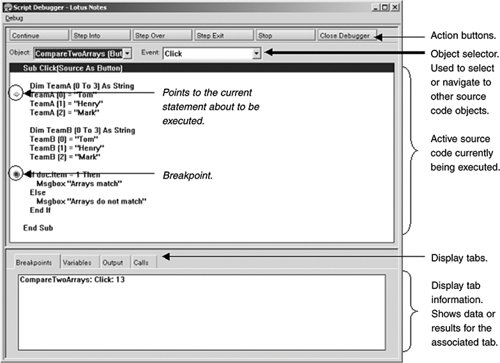
Action Buttons. There are six action buttons used to navigate the debug environment. After the tool is launched, select one of these actions in order to continue with the debug process. Depending on the button selected you can step line-by-line through the code or have the code automatically continue executing.
- Continue This button resumes normal execution. If breakpoints are set, execution will temporarily halt at the next specified point; otherwise, execution will resume without the debugger window displayed (but still active). However, the debugger window will relaunch if an error is encountered. When this occurs, the debug tool will open, and the statement in error will be highlighted.
- Step Into This button executes the current statement as indicated by the yellow pointer in the source code display pane.
- Step Over This button skips the current statement as indicated by the yellow pointer in the source code display pane and goes to the next statement in the source code.
- Step Exit This button terminates or exits the current block of code and continues with the next statement immediately following the code block.
- Stop This button halts the debugger environment but does not disable the feature. When clicked, control is returned to the Lotus Notes client. However, the debugger environment will relaunch as soon as the next action or event occurs within the database application.
- Close Debugger This button halts and deactivates the LotusScript debug environment. This is essentially the same as stopping the debugger and then deselecting the option by selecting the File > Tools > Debug LotusScript menu options.
Object and Event Selector. The Object and Event dropdowns are used to navigate to various source code routines. These options are handy when you want to set a breakpoint for a downstream location in code and then click the Continue button.
Source Code. This window automatically shows the active code-stream being executed. A yellow pointer will display to the left of the statement that is about to be executed. A red stop sign will display next to statements containing a breakpoint.
Display Tabs. The display tabs are used to sort the various types of display information. "Breakpoints" displays all defined breakpoints for the associated code. "Variables" displays the contents of various LotusScript objects that are in scope to the code being executed. In many cases, you will find this tab to be invaluable for debugging and understanding both run-time and logic errors. "Output" displays a history of all information text messages (such as those generated by a print statement) that are posted to the Lotus Notes client. "Calls" displays a history of the function or subroutine branches.
Information Display. This window shows information associated with the selected display tab. As statements are executed, additional information will be displayed in this section.
Breakpoints. Breakpoints are used to temporarily halt or pause the execution of a routine. This feature can be particularly handy when tracing an exceptionally large block of code. By setting a breakpoint, you can click the Continue button, and execution will continue until reaching the breakpoint. A breakpoint can be set by double-clicking on a particular statement or by selecting the option from the Debug menu. You can also clear the various breakpoints by selecting either Clear Breakpoint or Clear All Breakpoints from the Debug menu.
Tip
Remember to disable the debug environment when you e finished with it. Otherwise, the tool will relaunch with the next database you openincluding your mail database. If this happens, simply click the Close Debugger button to exit the tool. You may need to do this a couple times to exit from the tool. Leaving the debugger active will not affect the design or the database but can be a general annoyance.
Note
Lotus Notes also includes a Remote LotusScript Debugger for debugging LotusScript running on the server and an option to Show Java Debug Console for debugging Java code.
Managing Logic Errors
Logic errors are often the most difficult and challenging problems to resolve because no specific error message is produced at either compile-time or run-time. Resolution to functional or logical problems often requires a step-by-step trace of the program to thoroughly understand where things went askew. This can be achieved by enabling the LotusScript debugger and carefully observing the execution path and object values line-by-line. See the previous section, "Managing Run-time Errors," for additional information pertaining to the LotusScript debug tool.
In addition to the debug tool, a variety of supplemental approaches and techniques can help identify the potential problem areas and manage information as the code executes.
Messagebox Statement. The messagebox command is used to display a popup message via the user interface. This statement can be used to periodically display the contents of an object or particular location in the LotusScript routinesay, the entrance and exit points for the event.
Messagebox "Begin QUERYSAVE event"
Messagebox "The current field value is: " + doc.FIELD(0)
Messagebox "Exit QUERYSAVE event"
Print Statement. The print statement is another way to communicate messages and trace the application execution. However, instead of displaying messages in a popup window, the text string is displayed in the message bar located at the bottom of the Lotus Notes client. Similar to the messagebox statement, print statements could be inserted at the start, periodically within, and at the end of the subroutine or function. For databases stored on a Domino server, the print message is also displayed on the server console. For agents running on a server, the print message is also appended to the server log file.
Print "Begin COMPAREARRAY subroutine"
Print "The current field value is: " + doc.FIELD(0)
Print "Exit COMPAREARRAY subroutine"
Stop Statement. The stop statement is used to temporarily halt the LotusScript execution at the current statement, provided that the debugger is enabled. In other words, the statement acts as a breakpoint when encountered. This statement gives you the opportunity to review object values or continue the execution by manually stepping through statements. This statement can be added as a standalone statement or incorporated with other LotusScript statements. For example, if a field contains a null value, stop execution.
If doc.FIELD(0) = "" then Stop
Its important to note that this statement only executes if the debugging has been enabled. The statement is also ignored when incorporated in scheduled agents or agents called from the menu that run in the server background.
Continue Variable. Specific events, such as QuerySave on a form, include a Continue variable. This is a Boolean value that can be used to manage the completion of the event. A TRUE value indicates that the event can complete, whereas a FALSE value indicates that the event cannot complete. For example, setting this variable to FALSE in the form QuerySave event will prevent documents from being saved. This variable could be used in conjunction with data validation. If all field values are valid, the variable is set to TRUE, and the document can be saved. If field validation fails, set the variable to FALSE, and the document is not saved.
Continue = False

