Text Parsing Calculations
|
Although most people think of functions for doing dry stuff like math in a spreadsheet, you can also use functions in your database's text fields. Just as you can add and subtract numbers with number functions, you can use text functions to slice and dice the words in your database. For example, you might receive data from an outside source that needs major cleanup before you can use it. This data has people's first and last names in the same field; it's even got entire email messages crammed into a fieldaddress, subject, and bodywhen all you need is the email address. You can equip a temporary database with fields and text calculations to parse (think of it as sifting) the data into the form your better-designed database expects. Tip: Fixing data this way usually means that you do a find for a certain kind of bad dataif only some records have two email addresses in the same field, say. Use a calculation with the Records  Replace-Field Contents command. Do a find first, and then do a calculated Replace Field Contents that fixes the error. Replace-Field Contents command. Do a find first, and then do a calculated Replace Field Contents that fixes the error.
|
| POWER USERS' CLINIC Repeating Fields for Multiple Results |
|
What if one discount price isn't enough? Suppose you want to give your customers 5 percent off on orders of five or more, 10 percent off on orders of 10 or more, 15 percent off on orders of 15 or more, and so on. You could create more calculation fields with slight variations on the calculations you've already defined:
If you want seven price breaks, you have to define seven fields. And if you want to change the calculation slightly (for example, to give an additional 2 percent discount per break instead of 5 percent). you have to change every single field's calculation. This example is one of those cases where repeating fields come in handy. When you create a repeating calculation field, you have only one calculation, but you get multiple results. With only one calculation, though, FileMaker doesn't show you an obvious way to provide different discount rates. The secret ingredient is the Get(Calculation-RepetitionNumber) function. It returns the repetition number being calculated at the moment. For example, when FileMaker goes to calculate the third value in your repeating field, this function returns 3. With this function in mind, you can devise a single calculation that uses different discount rates depending on the repetition number: Min ( Max ( Price * (1 - Get(CalculationRepetitionNumber) * .5) ; Cost * 1.2 ) ; Price ) In this calculation, you replace the constant discount rate by the expression: (1 - Get(CalculatedRepetitionNumber) * .5) If you test this calculation with a few numbers, you see it results in an extra 5 percent discount for each subsequent repetition. Once you've defined a field like this, a lot of things become really easy: To add more price breaks, just change the number of repetitions in the Specify Calculation dialog box
|
10.3.1. The Concatenation Operator
In contrast to the wide variety of mathematical operators for working with numbers, there's only one that pertains specifically to textthe concatenation operator. Represented by the & sign (ampersand), it strings bits of text together. (When you need to chop and divide your text in order to parse it, you use a function instead of an operator, as described on Section 10.3.2.)
To use it, put it between units of text, as in the expression below:
"This is a " & "test"
The result of this calculation is This is a test.
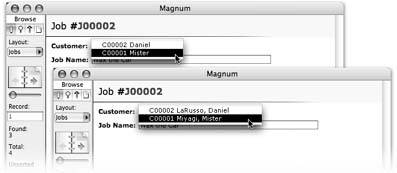
The concatenation operator lets you combine text from two different fields and make them work better together. For example, when you set up the Jobs layout in your database in Chapter 8, you had to settle for a compromise. When creating the value list for the Customer pop-up menu (Section 8.1), you could pick only one field to show along with the ID value. That example used the First Name field, but the full name would make the menu more useful. With a calculation, you can do just that.
Create a new field that shows what you want in your value list. Add a new calculation field to the Customers table, called Full Name. Use this calculation:
Last Name & ", " & First Name "
Some results might be "Gribble, Dale" or "Hill, Henry." Note that the calculation includes a comma and the appropriate spaces for separating data between your fields. Now you can modify the All Customers value list to take advantage of the new field. Just change it to use the new Full Name field instead of the First Name field. Figure 10-3 shows the result.
|
Tip: Concatenating fields are great for simplifying the display of data, but they have other uses, too. Instead of setting up a two key sort to sort customers by last name, then first name, now you can just sort on your Full Name field. You can also make a subsummary part (Section 6.9.4.7) that works when you sort on the Full Name field.
10.3.2. Text Function Types
FileMaker's text-handling functions come in two flavors: Text functions and Text formatting functions. Text functions handle tasks like the parsing mentioned above, or finding whether a particular string of characters occurs in a field. You can change all instances of specific characters within a field, or count text length, with text functions.
Text formatting functions change the way your text looks, like making a part of the text in a field bold and red. These functions are a lot more flexible than just making a field bold and red on your layout, because you can tell the calculation to search inside the field, find just the characters "Propane Sale!" and make them red, while it leaves all the surrounding text untouched.
10.3.3. Text Functions
Many of the text functions exist to help you parse textsplit it apart in useful ways. Sometimes one text value contains multiple useful pieces of information, and you need to look at them individually. If you're lucky, the information comes in a form that FileMaker already understands. If you're not so lucky, you have to do some extra work to tell FileMaker exactly how to divide the text value.
FileMaker can automatically break text up three ways: by characters, words, or values. When it does the dividing, it gives you three ways to decide which parts you want: Left, Middle, or Right.
10.3.3.1. Character functions
Parsing by character comes in handy when you have data that's in a well-known format and you need to access pieces of it. You can use functions to grab the first three digits of a Social Security number, the last four digits of a credit card number, or the style code buried inside a product number.
FileMaker can work with individual characters inside a text value. The first letter in a text value is number one; the second is number two; and so on. Then you can ask for the first few characters, or the last few, or just the fifth, sixth, and seventh.
Note: Every letter, number, punctuation mark, space, tab, carriage return, or other symbol counts as a character.
| POWER USERS' CLINIC A Calculation in a Button |
|
In Chapter 5, you learned how to create buttons on a layout and program them to perform all kinds of database duties at a click (Section 6.6.5.3). The only problem is, the more features you give your database, the more buttons you have to make. And some of the folks using your database need a completely different assortment of buttons than others. Fortunately, most button commands have one or more options you can set with a calculation. The calculation can adjust what the button does based on field data, user information, the current date or time, and so forth. Suppose you want a quick way to map your customer's location. Many Web sites provide free maps, and FileMaker has an Open URL button command that opens your Web browser and takes you to a specified Web page. With this command, and a calculation that produces the right Web address, you can add quick and easy mapping to your database. First, you need to figure out what the URL should look like. You can make this decision by going to a Web page similar to the one you want. For example, this address shows a map of FileMaker Inc.'s home base using Map Quest: http://www.mapquest.com/maps/map. adp?country=US&addtohistory=&address=5201+Patrick+ Henry+Drive&city=Santa+Clara&state=CA&zipcode=95052&homesubmit=Get+Map At first these lines might look like garbage, but if you look closely you can see the street address, city, state, and zip code in there. It wouldn't be hard to make a text calculation that produces this same Web address for a customer, based on the right fields:
You can now create the calculation. You probably want to paste a Web address, put quotes around it, and then set out inserting necessary fields in the right places. Be sure to end each section of the address with a quote, and use the & operator between each piece of text and each field. Here is a calculation from the address above: "http://www.mapquest.com/maps/map. adp?country=US&addtohistory=&address=" & Customers::Street Address & "&city=" & Customers::City & "&state=" & Customers::State & "&zipcode=" & Customers::Zip Code & "&homesubmit=Get+Map" When you're finished, click OK a couple times until you're back on your layout. You can now test your button in Browse mode. 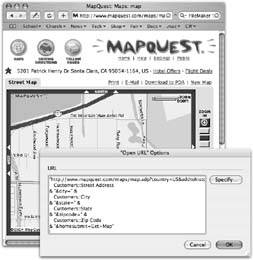 |
- The Left function returns the first few letters of a text value, eliminating the rest. You pass (that is, tell) the calculation the actual text value, and the number of letters you want. For example, to get a person's initials, you can use a calculation like this:
Left ( First Name ; 1 ) & Left ( Last Name ; 1 )
To get the first three digits of a Social Security number, you can use this calculation:
Left ( SSN ; 3 )
- The Right function does the same thing but starts from other end of the text value. If you want to record the last four digits of someone's credit card number, you can do it like this:
Right ( Credit Card Number ; 4 )
- If the information you want isn't on either end, you may need to use the Middle function instead. This function is a little different: It expects three parameters. Just as when using Left and Right, the first parameter is the text value FileMaker's inspecting. The second parameter is the starting position. Finally, you tell FileMaker how many characters you want.
For example, suppose you have a product database that uses a special coding system for each item. The code "SH-112-M" indicates shirt style 112, medium size. To pull out just the style number (that 112 in the middle of the product code), you want your calculation to grab three characters from the Product Number field, starting with the fourth character.
Middle ( Product Number ; 4 ; 3 )
10.3.3.2. Word functions
FileMaker also understands the concept of words. With word functions, you don't have to bother dealing with every single character.
In FileMaker's mind, a word is any stretch of letters, numbers, or periods that doesn't have any other spaces or punctuation in it. Most of the time, this definition means FileMaker does exactly what you expect: It sees the real words in the text. For example, each of the following is one word:
- FileMaker
- ABC123
- This.is.a.word
Any sequence of other characters isn't part of a word at all. Each of these has two words:
- FileMaker Pro
- ABC 123
- A-Test
- Two *** Words
Warning: If your text value doesn't have normal words (like a long URL, for example), you may have to pay special attention to the letters-numbers-periods rule to get the results you expect.
| FREQUENTLY ASKED QUESTION The Middle Way |
|
It looks like you can tell the Middle function to isolate characters anywhere in a text field, just by telling it which characters to count. So why do we need Left and Right functions when you can do the same thing with Middle? As the example on Section 10.3.3.2 suggests, the Middle function indeed provides all the power you need to pick text values apart character by character. For example, instead of: Left ( Model Number ; 3 ) You could do this: Middle ( Model Number ; 1 ; 3 ) It gets a little tougher to mimic the Right function, but it's possible. There are lots of places where one function can do the same thing as another (or a few others). For example, you can use Left and Right instead of Middle if you want. This calculation: Middle ( Product Number ; 4 ; 3 ) Can be rewritten like this: Right ( Left ( Product Number ; 7 ) ; 3 ) The good new is, there's no right answer. You can write your calculations any way you want, as long as they work. In fact, FileMaker developers have a grand tradition of finding creative ways to do something with less typing. Bear in mind, though, that sometime in the future you'll probably have to figure out what you were doing in a calculation so you can change it, fix it, or use it somewhere else. If a few extra keystrokes makes the calculation easier to understand, they may well be worth it. |
Along the same lines as the Character functions, FileMaker has three word-oriented functions called LeftWords, RightWords, and MiddleWords. Each takes two parameters, including the text value to examine, and a number or two to tell FileMaker which words you're interested in. You can use a LeftWords function to parse out a person's First and Middle Name if you ever get a file with all three names unceremoniously dumped into a single field.
- LeftWords returns all the text before the end of the specified word. For instance, this function:
LeftWords ( Preamble ; 3 )
Might return We the People. But if Preamble contained "This *** Is *** a *** Test" it would return This *** Is *** A instead. In other words, it doesn't just return the words. It returns everything before the end of the third word.
- Likewise, RightWords returns everything after the specified word's beginning, counting from the end. This calculation:
RightWords ( Revelations ; 1 )
Would return Amen.
- What would LeftWords and RightWords be without MiddleWords? You can probably guess how this function works: You pass in a text value, a starting word, and the number of words to return. It then returns everything from the beginning of the starting word through the end of the finishing word. The following calculation shows how it works; it returns "or not."
MiddleWords ( "To be, or not to be" ; 3 ; 2 )
10.3.3.3. Text value functions
How can text have a value? Well, to FileMaker, values are what fields hold, so a field's text is its value. If a field holds more than one chunk of text, each on its own line, FileMaker considers each a separate value, hence the term return-separated values. You can think of these bits of text as lines or paragraphs. Text value functions let you use those line breaks to parse text. This trick comes in handy more often than you think.
Here's a simple example to show how it works. Suppose you have a field called Colors with lists like this:
Red
Green
Blue
Orange
Yellow
FileMaker tells you this field contains five values, and you can work with them just like characters and words. For example, this LeftValue function returns "Red" and "Green:"
LeftValues ( Colors ; 2 )
Use the GetValue function when you need to parse out just one value from a list. The value you need has to be in a predictable place in the list, as in the whole-email-slammed-into-one-field example at the beginning of this section. Say the email comes to you like this:
Email From
Email To
Subject
Body
You could grab the Email To address with this function:
Get Value ( Email ; 2 )
FileMaker has RightValues and MiddleValues functions, too. See the box below for ideas on how to use them.
| POWER USERS' CLINIC Outsmarting the Smarties |
|
LeftValues and RightValues are helpful when you need to pull some items from a return-separated list (Section 6.2.5). But they're also helpful when you want to protect your database from people who know a few workarounds. Say you have a sales promotion going, where your best customers get to pick one free premium from a list of four items. So you've set up a field with a value list and a set of radio buttons. Everybody knows that you can choose only one item from a radio button set, right? Apparently not, because you've got some salespeople who know they can beat the system by Shift-clicking to select multiple radio buttons. (Those folks read Section 6.2.5.) All you have to do is add an Auto-Enter calculated value to your Premiums field. Make sure you uncheck the "Do not replace existing value (if any)" option. Here's how the calculation goes: RightValues (Premiums ; 1 ) Now your savvy salespeople can wear out their Shift keys, but they still can't select more than one item in the premium field, because your calculation holds the field to a single value. You can even add smarts to a Checkbox Set with a similar technique. Make this calculation: LeftValues ( Premiums ; 2 ) People using the program can't select more than two checkboxes. FileMaker knows the first two items they selected, and just keeps putting those same two back into the field, no matter how many checkboxes the sales people try to select. For another twist, change the calculation to: RightValues ( Premiums ; 2 ) Now FileMaker remembers the last two items that were selected and very cleverly deselects the oldest value, so that the field always contains the last two items selected from the Checkbox Set. |
10.3.3.4. Text counting functions
Another way to parse text is to simply count its individual parts. FileMaker has three related functions for finding out how much text your fields contain:
- The Length function returns the length of a text value by counting characters.
- The WordCount function tells you how many words are in a text value.
- Using the ValueCount function, you can find out how many lines a field has.
These functions become powerhouses in combination with the various Left, Right, and Middle functions. When the fields you're parsing contain varying amounts of text, you can have FileMaker count each one so you don't have to. For example, to return all but the last letter in a field, you can use this calculation:
Left ( My Field ; Length ( My Field ) - 1 )
It uses the Left function to grab characters from the field, and the Length function (minus one) to find out how many to get. Just change the number on the end to chop off any number of junk characters from the end of a field. You're welcome.
10.3.3.5. Other text parsing functions
FileMaker includes dozens of text functions, but a few of them are worth special mention because you see them throughout the rest of this section, and because they're so useful for cleaning up messy data.
- The Substitute function performs a find-and-replace within a text value. For example, if you want to turn all the Xs to Os in your love letter (maybe you felt like you were coming on too strong), you can do this:
Substitute ( Love Letter ; "X" ; "O" )
A few FileMaker functions support a special bracketed syntax and Substitute is one of them. If you want to perform several replacements on a piece of text, you can do it with one Substitute function. Each pair in brackets represents one search value and its replacement value. Here's how you can show a field value with all the vowels removed. You can do this:
	Substitute ( My Field ; ["a" ; "] ; ["e" ; ""] ; ["i" ; ""] ; ["o" ; ""] ; ["u" ;
	""] )
Note: This example shows another nice fact about Substitute: You can use it to remove something. Just replace it with empty quotes: "".
WORKAROUND WORKSHOP
When Data Doesn't ComplySometimes the text you need to break up doesn't come in pieces that FileMaker automatically recognizes, like characters or words. For example, suppose you have a file path:
	C:My DocumentsProduct ShotsToolsLarge
	Hammer.jpg
You need to get the name of the file (Large Hammer.jpg) and its parent folder (Tools). Unfortunately, this text value isn't divided into characters, words, or values. It's divided into path components, each with a backslash in between.
When you're faced with something like this, your best bet is to make it look like something FileMaker can deal with. If you can turn every backslash into a new line symbol (
 ), then you can simply use the RightValues function to pull out the last two values. In other words:
Substitute ( File Path ; "" ; "
" )The result of this expression is the list of path components, each on its own line:
C:
My Documents
Product Shots
Tools
Large Hammer.jpg
To get just the file name, you can do this:
	RightValues ( Substitute ( File Path ; ""
	; "
" ) ; 1 )Unless your data already contains multiple lines, you can always use the Substitute function to turn any kind of delimited list into a list of values. Bear in mind, though, that the Substitute function is case sensitive. You can read more about case sensitivity on Section 11.2.1.2.
- While Substitute can be used to change or remove what you specify, Filter can remove everything you don't specify. For example, suppose you want to strip any non-numeric characters from a credit card number. You can try to think of all the possible things a person might type in a Credit Card Number field (good luck!) or you can use Filter instead:
Filter ( Credit Card Number ; "0123456789" )
This calculation tells FileMaker to return the contents of the Credit Card Number field with everything except the numerals it removes. In other words, simply put the characters you'd like to keep in the second parameter.
10.3.4. Text Formatting Functions
Normally when you see data in a calculation field, it's displayed in the format (font, size, style, color, and so on) you applied in Layout mode. Every character in the field shares the same format, unless you want to manually search through all your records selecting the words "Limited Time Only" in your Promotion Notes field, so you can make that bold and red every time it appears. Not only does that method waste your precious time (especially if you're on salary), it also plays havoc with your design when you try to print the field.
FileMaker's Text Formatting functions let you specify exactly what bit of text you want in 18-point, boldfaced, red Verdana. And you don't have to visit a single record in person. You just write a calculation and FileMaker does the drudgework for you, without tampering with the real data.
FileMaker has six text formatting functions, as described below.
Tip: Since that big heading above clearly reads "Text Formatting Functions," any reasonable person would assume that this formatting applies only to text. Luckily, the unreasonable people rule the world. You can apply text formatting to any data type, as you'll see later in this chapter.
10.3.4.1. TextColor and RGB
The TextColor function takes two parameters: some text, and a color. It returns the text you send it in the right color. That's the text you specify using the companion function, RGB. Like many computer programs, FileMaker thinks of colors in RGB code, which defines all colors as combinations of red, green, and blue as expressed by numerical values.
This function returns a color based on three parametersred, green, and blue. For example, if you want to change the Full Name field to show the first name in bright red, and the last name in bright blue, you use this calculation:
	TextColor ( First Name ; RGB ( 255 ; 0 ; 0 ) )
		& " " &
	TextColor ( Last Name ; RGB ( 0 ; 0 ; 255 ) )
Tip: For a crash course in RGB codeincluding how to avoid using itsee the box below.
| UP TO SPEED Color My World (With 16M Colors) |
|
FileMaker has a basic conflict over color. After all, it's a computer program that works with data, which comes in a limited number of types, like text value, number, date, and time. So what kind of data type is a color? The explanation isn't very, er, colorful. FileMaker understands 16,777,216 distinct colors, each subtly different from the one before, and each numbered from 0 to 16,777,215. Unfortunately, learning all those colors by number is beyond the reach of even the most bored developer. So FileMaker uses a standard (albeit entirely unintuitive) method of specifying a color as a mixture of component colorsred, green, and bluewith varying intensities. Each parameter to the RGB function is a number, from zero to 255. The number says how intenseor brightthe component color should be. A zero in the first parameter means red doesn't enter into the equation at all. 255, on the other hand, means FileMaker should crank the red component to the max. The RGB function returns a number, identifying one of those 16-odd million choices. To make it doubly confusing for anyone who doesn't have a degree in computer programming or television repair, the RGB system deals with red, green, and blue as sources of light, not the more intuitive red-yellow-blue primary colors of paints and pigments. When colored lights mix (like those little pixels on a monitor), red and green make…yellow. In other words, to FileMaker and other RGB experts, it makes perfect sense to see bright yellow as the following: RGB (255 ; 255 ; 0) So what's a person to do? Don't use RGB codes. Find some other tools. If you use Mac OS X, you have just such a tool in the Utilities folder (in your Applications folder). It's called Digital Color Meter. Launch the application and choose RGB As Actual Value, 8-bit from the pop-up menu in its window. Now the little blue numbers show proper red (R), green (G), and blue (B) values for any color you point to on your screen. For example, in the status area (in Layout mode), pop open the Fill Color menu and point to any of the colors there to see the RGB equivalent. On Microsoft Windows, you can see RGB colors in the standard color picker window. Just go to Layout mode, and in the status area, click the Fill Color button. Choose Other Color. When you click a color, you see the red, green, and blue values listed in the bottom-right corner of the window. 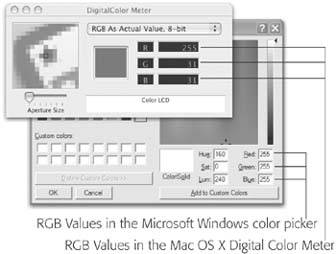 |
10.3.4.2. TextFont
To change the font in a calculation result, use the TextFont function. In its simplest form, this function is…well…simple. You just pass it the text you want to format, and the name of the font to use. FileMaker returns the same text with the font applied:
TextFont ( "Dewey Defeats Truman!" ; "Times New Roman" )
TextFont also has a third optional parameter called fontScript. Most people can simply ignore this option. It tells FileMaker which character set you're interested in, and to select an appropriate font. (The character set determines which languages the font can be used for.) FileMaker accepts the following fontScript values:
- Roman
- Greek
- Cyrillic
- CentralEuropean
- ShiftJIS
- TraditionalChinese
- SimplifiedChinese
- OEM
- Symbol
- Other
Note: Unlike the font name, which is simply a text value, the script value shouldn't be in quotes. It's not a text value. Instead, you must specify one of the above values exactly, with no quotes.
If FileMaker can't find the specific font you've asked for, it selects another font in the specified script, so if you're on an English-based system and need to select a Chinese font, this parameter can help. (If you don't specify a script, FileMaker automatically uses the default script on your computer. That's why you rarely have to worry about ityou automatically get what you probably want.)
10.3.4.3. TextSize
The TextSize function is simple in every case. Just pass some text, and the point size you'd like (just like the sizes in the Format images/U2192.jpg border=0> Size menu in Browse mode). FileMaker returns the resized text.
10.3.4.4. TextStyleAdd and TextStyleRemove
Changing text styles (bold, italic, and so on) is a little more complicated. After all, a piece of text can only have one color, one font, or one size, but it can be bold, italic, and underlined all at the same time. With text styles, you don't just swap one style for another; you need to do things like take italic text and add bold formatting or even take bold-titlecase-strikethrough text and un-strikethrough it, leaving everything else in place.
To solve these problems, FileMaker gives you two functions for dealing with style: TextStyleAdd and TextStyleRemove. You use the first to add a style to a piece of text:
"Do it with " & TextStyleAdd ( "style" ; Italic )
Likewise, the TextStyleRemove function removes the specified style from the text.
TextStyleRemove ( My Text Field ; Italic )
The text style parameter goes in the calculation without quotes, just like the examples above. You can use any and every text style in FileMaker: Plain, Bold, Italic, Underline, Condense, Extend, Strikethrough, SmallCaps, Superscript, Subscript, Uppercase, Lowercase, Titlecase, WordUnderline, and DoubleUnderline. And then there's AllStyles. When you use the AllStyles parameter, it adds (or removes) all existing styles.
With these two functions and all these style options, you can do any kind of fancy formatting footwork imaginable. Here are some guidelines:
- When you add a style to some text using TextStyleAdd, it doesn't change any style that you've already applied. The new style's simply layered over the existing styles.
- Plain style's the notable exception to the above point. Adding Plain style effectively removes any other styling. This style comes in handy when you need to remove a mess of styling and apply something simpler. Say your fields contain the words "Past Due," styled in uppercase, bold, italic, and double underlined and you decide that modest italics would work just fine. Nesting the TextStyleAdd function with the Plain parameter does the trick:
TextStyleAdd ( TextStyleAdd ( "past due" ; Plain ) ; Italic )
Tip: As you may suspect, using TextStyleRemove with the AllStyles parameter does the exact same thing as TextStyleAdd with Plain. They both remove existing styling, but as you can see above, when you add Plain, you can write neater expressions. - When you add more than one style parameter, FileMaker applies them all to the text. You can use nesting, as shown in the previous point, or simply stack them up with + signs:
TextStyleAdd ( "WARNING" ; Bold+Italic )
- If you take a bit of text that was formatted with a text formatting function, and then send it to another calculation as a parameter, the formatting goes along with the text. With the Substitute function, for example, you can format text that hasn't even been typed yet. If you add this function to a text field into which people can type letters to customers, it changes every occurrence of "for a limited time" to bold italics.
	Substitute ( Letter ; "for a limited time" ; TextStyleAdd ( "for a limited time" ;
 Bold+Italic )
Part I: Introduction to FileMaker Pro
Your First Database
- Your First Database
- An Very Quick Database Tour
- Creating a New Database
- Opening and Closing Database Files
- Saving Your Databases
- Adding Records to Your Database
- Navigating Your Database
- Same Database, Multiple Windows
Organizing and Editing Records
- Organizing and Editing Records
- Views
- Advanced Find Mode
- Changing Multiple Records
- Sorting Records
- Editing Whats in Your Fields
- Paragraph Formatting
- Beyond Text: Container Fields
- Checking Spelling
- Printing and Preview Mode
Building a New Database
- Building a New Database
- Tables and Fields
- Defining Fields
- Advanced Field Options
- Bringing It All Together
Part II: Layout Basics
Layout Basics
Creating Layouts
Advanced Layouts and Reports
- Advanced Layouts and Reports
- Setting up Field Controls
- Adding Field Controls to Layouts
- Field Behavior
- Tab Order
- Print-Related Layout Options
- Format the Number/Date/Time/Graphic
- Adding Buttons
- Tab Panels
- Reports and Summary Fields
Part III: Multiple Tables and Relationships
Multiple Tables and Relationships
- Multiple Tables and Relationships
- Relational Databases Explained
- Modeling Your Database
- Creating a Relational Database
- Relational Databases
Advanced Relationship Techniques
- Advanced Relationship Techniques
- Creating Related Records
- Table Occurrences
- Managing Data with Data Tunneling
- Building a Data Tunneling Interface
- Connecting Databases
- Lookups
- Advanced Relationships
Part IV: Calculations
Introduction to Calculations
- Introduction to Calculations
- Understanding Calculations
- The Structure of a Calculation
- Creating a Calculation Field
- Auto-Enter Calculations
- Validate Data Entry with a Calculation
- Replacing Data Using a Calculation
- Comments
Calculations and Data Types
- Calculations and Data Types
- Number Crunching Calculations
- Going Beyond Basic Calculations
- Text Parsing Calculations
- Date and Time Calculations
- Containers in Calculations
Advanced Calculations
- Advanced Calculations
- Stored, Unstored, and Global Fields
- Logical Functions
- The Let Function and Variables
Extending Calculations
Part V: Scripting
Scripting Basics
- Scripting Basics
- Your First Script
- The Importance of the Layout
- Running Scripts
- Branching and Looping in Scripts
Script Steps
- Script Steps
- Go to Layout
- Scripting for Fields
- Working with Records
- Finding Records
- Sorting Records
- Working with Windows
- Working with Files
- Printing
- Other Script Steps
Advanced Scripting
- Advanced Scripting
- Commenting Scripts
- Asking and Telling the User
- Organizing Complex Scripts
- Handling Errors
- Putting a Complex Script Together
Part VI: Security and Integration
Security
Exporting and Importing
- Exporting and Importing
- Exporting a File
- Export Formats
- Importing Data
- Import Data Sources
- Importing and Exporting in a Script
Sharing Your Database
- Sharing Your Database
- FileMaker Network Sharing
- Sharing Over the Internet
- FileMaker Server
- Server Hardware
Developer Utilities
- Developer Utilities
- Script Debugger
- Disable Script Steps
- The Database Design Report
- Tooltips
- Copying Database Structure
- Custom Menus
- Developer Utilities
- File Maintenance
Part VII: Appendixes
Appendix A. Getting Help

EAN: 2147483647
Pages: 176
