Advanced Color Settings
Advanced Color Settings
Checking the Advanced Mode check box at the top of the Color Settings dialog box displays two sets of additional settings shown at the bottom of Figure 15.3, Conversion Options and Advanced Controls.
Engine
In the Conversion Options area, the Engine setting enables you to set or change the color management engine that is used for color conversions (see Figure 15.7). Depending on the options available on your computer, those options range from a selection of two to six or more.
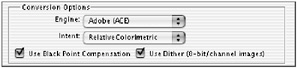
Figure 15.7: The Engine conversion options
Adobe has its own color management engine (in the parlance of the industry this is called a CMM, or color management method): Adobe Color Engine (ACE). Other CMMs you might encounter include Apple ColorSync, Heidelberg, Kodak, Imation, or Agfa.
Which engine should you choose? Each company suggests that its CMM uses a superior method of polynomial voodoo to convert color. Adobe similarly claims that theirs is superior . A good suggestion is to use a CMM that is available in all of the applications you use to manage color. This will ensure that color is being converted similarly between applications. For example, if you use Adobe Photoshop to make some conversions and QuarkXPress (through Apple ColorSync) to make others, then it would be a good idea to set Photoshop to use Apple ColorSync, so that all your conversions are done with the same mathematical engine.
In reality (and with apologies to the various authors of these CMMs), the net effect of a color management engine is essentially the same. Even experts can discern only subtle differences, so it s not worth a lot of worry. You are certainly welcome to try various combinations of engines and rendering intents and decide for yourself.
Conversions through Rendering Intent
The next item under Conversion Options is cryptically named Intent (see Figure 15.8). The ICC has established a set of four rendering intent settings under which color conversions can be made. Each has a purpose, and each can be used to maximize the quality of your images for a particular task. Rendering intents cause the color of an image to be modified while it is being moved into a new color space. These modifications can appear as subtle changes or glow-in-the-dark shifts that make color images look odd. Here you will examine them and learn about their purposes.
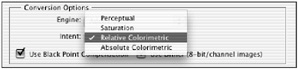
Figure 15.8: The Intent conversion options
Perceptual
Perceptual is a rendering intent designed to make photos of generalized subjects look good when converted to a new color space. The Perceptual rendering intent uses a method of remapping colors that preserves the relationships between colors to maintain a pleasant appearance. Although color accuracy will often suffer, the appearance of the image will generally follow the appearance of the original scene. Most photo applications default to Perceptual rendering, and Photoshop does this in many of its default color settings (U.S. Prepress Defaults sets it to Relative Colorimetric, which is correct). Most people find Perceptual rendering pleasing ”but read on before making a decision about your imaging policies.
Saturation
Saturation is for business graphics and illustrations made with solid colors. Of the four intents, it is the easiest to understand and the easiest to use. Saturation rendering will result in bright, fully saturated colors in solid areas, and fairly strong contrast applied to differences in color. Saturation rendering sacrifices color accuracy for sharp contrast and saturation. It simply lives up to its name .
If you convert RGB images from EPS illustration programs such as Adobe Illustrator, the Saturation rendering intent will result in a better-looking image after conversion than the other intents. Saturation is best used when converting graphs, charts , and other business presentations.
Relative Colorimetric
Relative Colorimetric rendering is a method in which color precision is preferred over saturation, resulting in a more accurate conversion of colors into a new color space. Adobe s experts and many prepress professionals recommend that Relative Colorimetric rendering be used for most color conversions. One of the key components of this rendering intent is its handling of white. Relative Colorimetric rendering uses the white of the color working space rather than the measured white of the paper, which may lighten the specular highlights in an image. Otherwise colors are mapped to their most accurate positions to prevent radical color shifts.
| Note | Relative Colorimetric should always be used with Black Point Compensation. Otherwise, shadow detail will plug up, because the black points in the conversion might not be mapped correctly. |
Absolute Colorimetric
This rendering intent is much like the Relative Colorimetric intent, except that it renders the whites differently. Whites in the source will remain the same in the resulting file. Although this sounds obscure, it produces an image that can be used effectively for proofing files that will print on nonwhite or off-white papers (such as newsprint). Absolute Colorimetric is a rendering intent that is designed for those who have a specific reason for using it; otherwise, avoid it.
Black Point Compensation/Dither
There are two additional settings in the Color Settings dialog box under Conversion Options: Use Black Point Compensation and Use Dither (8-Bit/Channel Images). Black Point Compensation is generally set, because it maintains saturation of solid black in conversions that would normally desaturate blacks.
An example of this can be seen when converting RGB images to CMYK for print. If you leave this box unchecked and make a conversion (Image ’ Mode ’ CMYK), the darkest blacks will often be remapped to the closest color that is within the gamut of the destination profile, which might include an adjustment for dot gain. This adjustment will desaturate the solids in order to keep their value below the total ink coverage number, but will result in some washed-out colors where a solid would be better. Black Point Compensation corrects this problem.
| Note | See the sidebar on Dot Gain later in this chapter |
The Use Dither check box causes 8-bit images to be dithered when converted to 8-bit images of another color mode. Dithering is a method of alternating tonal values in tiny steps to smooth out tonal shifts. Checking this setting will result in smoother gradations in the converted file.
Advanced Controls
The settings Desaturate Monitor Colors By and Blend RGB Colors Using Gamma, though recommended for advanced users only, can improve the accuracy of the preview of images on your display.
Desaturating Monitor Colors
The Desaturate Monitor Colors By option instructs Photoshop to desaturate colors by a specified amount when displayed on-screen. This option can be helpful when attempting to view the full range of colors in images with color gamuts larger than that of your display.
An example of this might be viewing on any display an image whose color working space is Wide Gamut RGB. Because the gamut in Wide Gamut is larger than any production display, this function will simulate the tonality of the image ”even though the monitor can t display the actual color beyond the range of its phosphors. Be careful, though ” using this feature can cause errors between the displayed color and final output color.
Blending RGB Colors
The Blend RGB Colors Using Gamma setting controls the blending of RGB colors on-screen. When the option is selected, RGB colors are blended by using a selected curve. The range of values available here is between 1.0, which is linear (it has no effect), and 2.2, which creates slightly higher-contrast edge transitions. This option will also affect the blending of tones too (different values than in a gamma compensated edit), as in overlapping content in two layers at reduced opacity. This option should probably remain unchecked by most common users.
When the option is not selected, RGB colors are blended in the document s color space, matching the color display behavior of other applications.

EAN: 2147483647
Pages: 355