Adobe GoLive CS2 Tips and Tricks The 250 Best
Authors: Pratt A. Grillo L.
Published year: 2005
Pages: 204-206/301
Buy this book on amazon.com >>

TIP 189: Copying and Pasting Actions

GoLive Actions are powerful, pre-built JavaScript functions that make it easy to create interesting, useful, and interactive effects in your Web pages. With GoLive you can copy and paste Actions from one link to another or from one event to another. For example, if you accidentally create an Action for the wrong event, just cut and paste the Action to the correct event. Also, if you create a sequence of complicated Actions, you can copy and paste all those Actions from one link to another!

Remembering Recently Used Actions

Ever notice that you seem to use a handful of Actions more than others? GoLive helpfully adds the six most recently used Actions to the top of the Action pull-down menu in the Actions palette to make it easy to access those popular Actions.


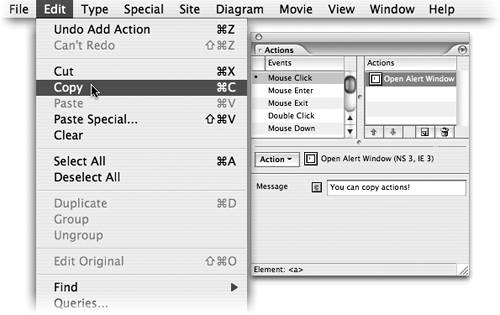
To copy or cut an Action, select it in the Actions list (on the right side of the Actions palette) and then choose Edit > Copy or Edit > Cut. To paste the Action and all of its settings onto a new link, select the link and then in the Actions palette select an event from the list on the left. Now put your cursor into the Actions list and choose Edit > Paste ( Figure 189 ).

Figure 189. Copy and paste Actions just like text.


TIP 190: Resetting the Actions Menu

As mentioned in the sidebar for tip 189, GoLive remembers the last six Actions you've used and lists them at the top of the Action pull-down menu. This helpful feature was added in GoLive CS as a convenient way to access the Actions you use most frequently instead of drilling down into the long submenus of Actions ( Figure 190a ).

Figure 190a. GoLive remembers the last six Actions you've used in the Action pull-down menu.


Missing Menu Options?

In GoLive CS, the Rollovers and Actions palettes were combined in one palette called Rollovers and Actions. The palette menu options for both were also combined. If you are looking for a palette menu option in the Actions palette that you can't find, it could be that it's now located in the Rollovers palette menu instead.


This was a nice idea for GoLive CS, but a few flaws annoyed some users. For example, sometimes the list of recent Actions would get really long and even remember duplicate Actions. Another problem was that you couldn't clear out the list without deleting all the application preferences.

The good news is the GoLive product team has improved this feature in GoLive CS2. To reset the recent Actions list, choose Reset Action Menu from the Actions palette flyout menu for that factory-fresh scent ( Figure 190b ).

Figure 190b. Reset the Action list from the flyout menu.


TIP 191: Creating Forms

Forms are a great way to gather information and feedback (and maybe even orders) from your Web site's visitors . To create a form, start by dragging a form container from the Forms section of the Objects palette into the Layout Editor.

You must place the rest of your Form objects inside the form container for them to work properly. Adding a table inside the form container is generally a helpful way to organize and align all the form fields and their labels. There are more than a dozen different form elements you can use within GoLive. Here are descriptions of the items you'll use most frequently:

  • Text Field : Use these for short text entry such as name , email, and street address.

  • Passwords : This works the same as a text field except that when the user enters text it is rendered as bullets or asterisks . This is an effective way to guard sensitive information such as passwords and credit-card numbers from prying eyes.

  • Text Area : This is like a special text field that can have multiple lines for longer entries. It's perfect for a comment or question field.

  • Check Box : Use check boxes when more then one answer might be appropriate. For example, if your form asked for our favorite flavor of ice cream, we'd want to check vanilla , strawberry, AND chocolate.

  • Radio Button : Use a radio button when asking an either/or question.

  • Popup : These are great when you want to ask your visitor to pick from a predetermined list of options. For example, what state are you from?

  • Label : After you create all your form elements, you should label each one with a Label object.

  • Submit Button : Every form needs a Submit button so the visitor can send a response.

  • Reset Button : A Reset button isn't necessary, but it's helpful if the visitor makes mistakes and wants to start over.

    Contact Your Hosting Provider

    We wish there were an easy solution, a proverbial silver bullet, that we could tell you about to make your forms submit to a database or send to an email account. Unfortunately, there are so many different ways to do it (PHP, ASP, JSP, Lasso, Perl, and AppleScript, to name a few) that it depends in each case on the configuration at your hosting provider. Please contact your hosting company or server administrator, not us, for details.


  • Hidden : The visitor won't actually see hidden form fields (thus the name), but the values of hidden fields are stored in the code of the page and submitted with the rest of the form data. You may or may not need to use these, depending on how your hosting provider supports form submissions.

When you're done creating the form, select the form container again in the Layout Editor and give it a name in the Name/ID field in the Inspector ( Figure 191 ). You also need to set the form Action in the Inspector according to the instructions you receive from your hosting provider or system administrator. Set the Method to Post and you're pretty much done.

Figure 191. Set the form's name, Action, and method in the Inspector palette.


Adobe GoLive CS2 Tips and Tricks The 250 Best
Authors: Pratt A. Grillo L.
Published year: 2005
Pages: 204-206/301
Buy this book on amazon.com >>
