Outlook s Personalized Menus and Toolbars
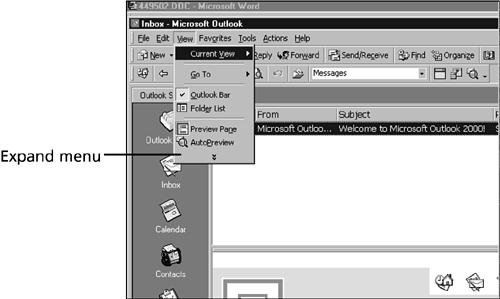
Outlook's Personalized Menus and ToolbarsA few years ago, Microsoft began adding features to Office and other applications to help the software adapt to the way you work. It's called IntelliSense ”software that senses how you work and adapts to your style. Office supports IntelliSense features, personalized menus and toolbars, just as Word does. In a nutshell , Outlook's menus and toolbars keep track of which features you use most often and give them a prominent place. Features used less often (or not at all) gradually slink out of sight. Start Outlook so that you can see some of this functionality in action. With Inbox displayed, click View in Outlook's main menu. Notice the double arrows at the bottom of the View menu, as shown in Figure 14.1. This tells you that additional commands are hidden at the bottom. If you leave the View menu open for about five seconds, it automatically expands. To see the additional choices even sooner, click the double arrows. Figure 14.1. Personalized menus move seldom-used commands out of sight.
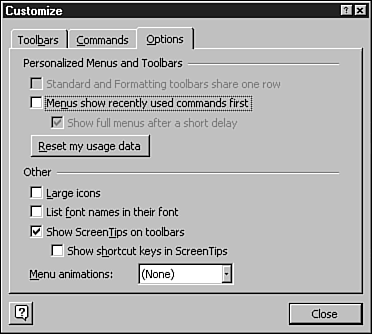
When a toolbar contains more icons than you can display at one time, a double arrow appears at the right as you've seen in Word's menus. Click the double arrow to display the rest of the choices. If you'd rather see the full menus all the time, choose Tools, Customize, and then click the Options tab. Deselect Menus Show Recently Used Commands First to turn personalized menus off (see Figure 14.2). Figure 14.2. Uncheck Menus Show Recently Used Commands First while reading this book! In fact, to ensure that the screen shots in this book are as consistent as possible, this book assumes that you've done the following:
If you turn off personalized menus, most of what you see onscreen will agree with what you see in this book. Similarly, turning on the Advanced toolbar will make your screen agree with ours, as well as giving you quick access to many features described in this book. To display the Advanced toolbar, right-click any menu or toolbar and choose Advanced.  |


EAN: 2147483647
Pages: 474