Making Design Decisions
Before you begin making design decisions about the newsletter, you must first work out the details of its contents. Even though you can change elements later if they aren t working for you, it s best to have the most important issues ironed out beforehand. Here are some basic guidelines to follow when developing a longer publication:
-
The audience. Determine the type of audience you are trying to attract so that you can make decisions about the tone, language level, and graphics you will use.
-
The content. Decide what information you want to include, and which elements are most important.
-
The visual enhancements. If you have several graphics available, determine which ones best enhance your stories.
 |
By default, Publisher displays a multi-page publication in twopage view. When you click the 2 button to move from page 1 to page 2 of the newsletter, Publisher displays pages 2 and 3 ” the next two-page spread. To display one page at a time, click
Two-Page Spread on the View menu to turn off the command. But remember to closely scrutinize your two-page spreads for balance before sending them off to the printer.
| |
Determining Who the Audience Is
Before you spend time, and perhaps money, to get your message out to the world, it makes sense to know as much as possible about your target audience. Here are a few audience issues to consider:
-
Their ages. How old are they? The answer to this question influences the reading level and language of your stories, but it is also a major consideration when you are determining how the newsletter should look.
-
Their needs. Does what you have to offer meet a need, or does it satisfy a desire ? The answer to this question determines whether your design and tone are straightforward and down-to-earth, or exciting and evocative.
-
Their characteristics. Do your readers have common interests, opinions , hopes, or fears? The answer to this question influences the topics you discuss and how you discuss them. If you don t know the answer and you want to appeal to the broadest possible audience, you ll want to keep your discussions general and steer clear of controversial topics.
-
Their levels of interest. Have your readers already indicated an interest in what you have to say? The answer to this question determines how persuasive the newsletter must be, and how quickly you must convince your readers that they should spend time reading it beyond the first headline.
-
Their levels of knowledge. What do your readers already know about this topic in general and about your organization, service, or product in particular? The answer to this question has some bearing on the amount of space you will dedicate to background information and whether you can use jargon that might otherwise be unfamiliar to readers who have limited knowledge about the newsletter s subject matter.
By answering these and any other questions you can think of about your audience, you can focus your efforts so that your publications achieve the maximum results. For example, suppose you want to send the Adventure Works newsletter to all past customers, whose ages vary widely, who have taken at least one jeep tour for fun, who have demonstrated an interest in the desert, and who know about the company and its products. This newsletter would likely be quite different from one aimed at attracting senior citizens who have never taken a jeep tour before, who are concerned about their safety and comfort , who think deserts are sandy expanses devoid of plant and animal life, and who have never heard of Adventure Works.
| |
When making design decisions about your publications, you also need to consider your printing options, including type of paper, color or black ink, print quality, and so forth. If you are using a printing service, discuss these issues with your printer before you start work on a publication.
| |
Determining What s Most Important
Armed with information about your audience, you can move on to decide which of the items slated for inclusion in the newsletter are most important and should appear most prominently. Suppose Adventure Works wants the newsletter to drum up repeat business, but also hopes it will generate some referrals. For the premiere issue, you decide to emphasize the new fossil dig tours by including a story about them on the front page to appeal to existing customers. You will also include information about the company s other tours , in case existing customers pass on the newsletter to potential new customers. Let s start by adding the information for the newsletter s masthead and a heading for the lead story, and then you ll allocate space for the other stories. Follow these steps:
1. Move to page 1, and change the zoom setting to 100% .
2. Scroll to the top of the newsletter, click the Newsletter Date placeholder, select all the text by pressing Ctrl+A (if necessary), and type January 2004 .
3. Select the Adventure Works text in the oval graphic, click the Bold button, click the down arrow to the right of the Font Size box, and then click 14 in the drop-down list.

Now the company name clearly stands out on the front page.
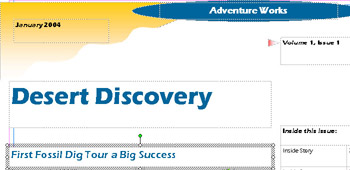
4. Click the Newsletter Title placeholder, select all the text, and type Desert Discovery . Then change the title s font to Eras Bold ITC and its size to 36 .
5. Click the Lead Story Headline placeholder, select all the text, and type First Fossil Dig Tour a Big Success .
Here are the results:
6. Scroll to the bottom of the first page, click the Secondary Story Headline placeholder, select all the text, and type Turtle Mountains Tour Now Available .
Although you don t expect the Turtle Mountains tour to be as popular as the fossil dig tours, leave the text size and spacing of the heading the same as the lead story s for consistency. The story s lower position automatically makes it seem less important.
7. Click the 2 button in the page navigation controls to move to the inside spread, and then scroll up and to the left to display the top of page 2.
Adventure Works sells shirts and hats, and you want to advertise them in a story at the top of this page.
8. Click the topmost Inside Story Headline placeholder, select all the text, and then type Adventure Works Souvenirs to replace the placeholder text.
9. Replace the text of the second Inside Story Headline placeholder with Sandy s Stories , and replace the text of the third headline placeholder with Preserving Our National Parks .
10. Scroll to page 3, and replace page 3 s Inside Story Headline placeholder text with Fossil Dig Tours .
The Fossil Dig Tours story that starts on page 1 will continue here.
11. Click the 4 button in the page navigation controls to move to page 4, scroll down, and replace the Back Page Story Headline placeholder text with Fall Tours Filling Up Fast .
Determining Which Graphics to Use
You ve taken care of all the story headlines. Now you need to decide which stories will have accompanying graphics or graphic elements and review the graphic placeholders Publisher has inserted for you. You will then have a good idea of the newsletter s potential layout before you add the text. Follow these steps:
1. Click the 1 button in the page navigation controls to move to the first page. Then zoom to 75% , and scroll through the page to get an overview of its layout.
You want to keep all the elements on this page except the Special points of interest frame.
2. Right-click the Special points of interest frame, and click Delete Object on the shortcut menu.
3. Move to page 2, and delete the grapes graphic and caption accompanying the Adventure Works Souvenirs story.
You want to allow space for a table that lists the available souvenirs and their prices.
4. Move to page 3, and delete the vegetable graphic and caption accompanying the continuation of the Fossil Dig Tours story.
You now have only one graphic for the Fossil Dig Tours story, which appears with the beginning of the story on page 1. However, several graphic elements appear in the lower area of this page, including the logo, which is already featured on the back page. You don t need the logo here as well.
5. Click the logo to select it, and press the Delete key.
6. Save the publication.

EAN: N/A
Pages: 76