Flylib.com

Books Software


If You Want to Experiment...


If You Want to Experiment

You can use attributes to help automate data entry into drawings. To demonstrate this, try the following exercise:

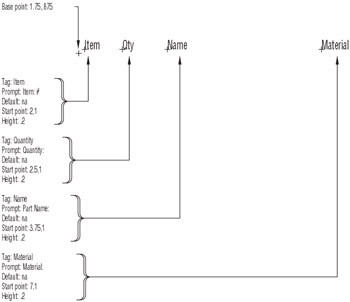
  1. Create a drawing file called Record with the attribute definitions shown in Figure 10.7. Note the size and placement of the attribute definitions as well as the new base point for the drawing.
    click to expand
    Figure 10.7: The Record file with attribute definitions

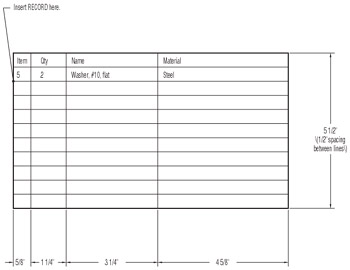
  2. Save and exit the file, and then create a new drawing called Schedule containing the schedule shown in Figure 10.8.
    click to expand
    Figure 10.8: The Schedule drawing with Record inserted

  3. Use the Insert command and insert the Record file into the schedule at the point indicated.

Note that you are prompted for each entry of the record. Enter any value you like for each prompt. When you are finished, the information for one record is entered into the schedule.


Chapter 11: Copying Pre-existing Drawings into AutoCAD

Overview

At times you will want to turn a hand-drafted drawing into an AutoCAD drawing file. You might be modifying a design you created before you started using AutoCAD or might be converting your entire library of drawings for future AutoCAD use. Or perhaps you want to convert a sketch into a formal drawing. This chapter discusses three ways to enter a hand-drafted drawing: tracing, scaling, and scanning. Each of these methods of drawing input has its advantages and disadvantages.


Converting Paper Drawings to AutoCAD Files

Tracing with a digitizing tablet is the easiest way to enter a hand-drafted drawing into AutoCAD, but a traced drawing usually requires some cleaning up and reorganization. If dimensional accuracy is not too important, tracing is the best way to enter existing drawings into AutoCAD. It is especially useful for drawings that contain irregular curves, such as the contour lines of a topo- graphical map.

Tip  

Even if you don't plan to trace drawings into AutoCAD, read the following section on tracing because some of the information presented here will help you with everyday editing tasks .

Scaling a drawing is the most flexible method because you don't need a tablet to do it and, generally , you are faced with less cleanup afterward. Scaling also facilitates the most accurate input of orthogonal lines because you can read dimensions directly from the drawing and enter them into

AutoCAD. The main drawback with scaling is that if the drawing does not contain complete dimensional information, you must constantly look at the hand-drafted drawing and measure distances with a scale. Also, irregular curves are difficult to scale accurately.

 ACAD only      Scanning offers some unique opportunities with AutoCAD 2005, especially if you have a lot of RAM and a fast hard disk. Potentially, you can scan a drawing, save it on your computer as an image file, import the image into AutoCAD, and then trace over it. You still need to perform some cleanup work on the traced drawing, but because you can see your tracing directly on your screen, you have better control, and you won't have quite as much cleaning up to do as you do when tracing from a digitizer .

Programs are available that automatically convert an image file into a vector file of lines and arcs. These programs might offer some help, but they require the most cleaning up of the options presented here. Like tracing, scanning is best used for drawings that are difficult to scale, such as complex topographical maps containing more contours than are practical to trace on a digitizer, or nontechnical line art, such as letterhead and logos.