Flylib.com
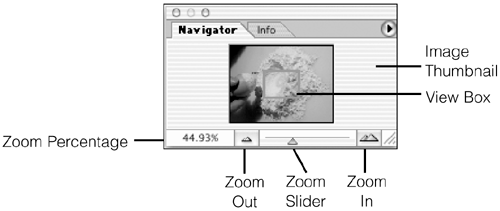
Show or Hide the Navigator Palette
Previous page
Table of content
Next page
Menu:
Window
Showing/Hiding Navigator
Previous page
Table of content
Next page
Photoshop 7 Power Shortcuts
ISBN: 0735713316
EAN: 2147483647
Year: 2003
Pages: 210
Authors:
Michael Ninness
BUY ON AMAZON
Oracle Developer Forms Techniques
Taking Advantage of PL/SQL 2.x in Forms
Intelligence in Forms
Does Subclassing Exhibit Intelligence?
Programmatic Equivalent of Cancel Query
Validation, Navigation, and Simulating Navigation
Visual C# 2005 How to Program (2nd Edition)
Simple Types
Self-Review Exercises
Producer/Consumer Relationship with Thread Synchronization
WebBrowser Control
Exercises
GO! with Microsoft Office 2003 Brief (2nd Edition)
Performance Assessments
Key Terms
Introduction
Objective 3. Open a Word Document That Includes a Linked Object, and Update Links
Objective 1. Send a Word Document to PowerPoint
File System Forensic Analysis
Overview of Toolkits
Sun Solaris Slices
File System Metadata Files
Metadata Category
Hash Trees
MPLS Configuration on Cisco IOS Software
MPLS Control and Data Plane Components
MPLS Operation
Basic MPLS Configuration
Implementing Layer 3 VPNs over L2TPv3 Tunnels
Command Reference
User Interfaces in C#: Windows Forms and Custom Controls
Designing with Classes and Tiers
Control Class Basics
Classic Controls
Custom Controls
Design-Time Support for Custom Controls
flylib.com © 2008-2017.
If you may any questions please contact us: flylib@qtcs.net
Privacy policy
This website uses cookies. Click
here
to find out more.
Accept cookies
 Showing/Hiding Navigator