Names can extend into the third dimension; in other words, they can extend across multiple worksheets in a workbook. You can't simply select the multisheet range and enter a name in the Name box, however. You must use the New Name dialog box to create a multi- sheet
FirstSheet:LastSheet!RangeReference
In Figure 3-8, a multisheet name (DataCube), defined for A1:C3, extends across Sheet1, Sheet2, and Sheet3.
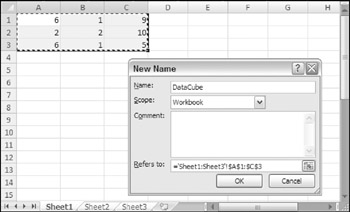
Figure 3-8:
Create a multisheet name.
You can, of course, simply type the multisheet range reference into the Refers To field. If you want to create the name by pointing to the range, though, you'll find it a bit tricky. Even if you begin by selecting a multisheet range, Excel does not use this selected range address in the New Name dialog box.
Follow this step-by-step procedure to create a name called DataCube that refers to the range A1:C3 across three worksheets (Sheet1, Sheet2, and Sheet3):
Activate Sheet1.
Choose Formulas
Defined Names
Define Name to display the New Name dialog box.
Type DataCube in the Name field.
Highlight the range reference in the Refers To field, and press Delete to delete the range reference.
Select the range A1:C3 in Sheet1. The following appears in the Refers To field:
=Sheet1!$A$1:$C$3
Press Shift and then click the Sheet tab for Sheet3. You'll find that Excel inexplicably changes the range reference to a single
='Sheet1:Sheet3'!$A$1
Reselect the range A1:C3 in Sheet1 (which is still the active sheet). The following appears in the Refers To field:
='Sheet1:Sheet3'!$A$1:$C$3
Because the Refers To field now has the correct multisheet range address, click OK to close the Define Name dialog box.
After you define the name, you can use it in your formulas. For example, the following formula returns the sum of the values in the range named DataCube.
=SUM(DataCube)
| Note |
Multisheet names do not appear in the Name box or in the Go To dialog box (which appears when you choose Home
|
If you insert a new worksheet into a workbook that uses multisheet names, the multisheet names will include the new worksheet-as long as the sheet resides between the first and last sheet in the name's definition. In the
If you delete the first or last sheet included in a multisheet name, Excel changes the name's range in the Refers To field automatically. In the preceding example, deleting Sheet1 causes the Refers To range of DataCube to change to
='Sheet2:Sheet3'!$A$1:$C$3
Multisheet names should always be
After you create range or cell names, you can work with them in a variety of ways. This section describes how to perform common operations with range and cell names.
If you create a large number of names, you may need to know the ranges that each
You might want to create a list of all names (and their corresponding addresses) in the workbook. To create a list of names, first move the cell pointer to an empty area of your worksheet. (The two-column name list, created at the active cell position, overwrites any information at that location.) Use the Formulas
Defined Names
Use in Formula
Paste command (or press F3). Excel displays the Paste Name dialog box (see Figure 3-9) that lists all the defined names. To paste a list of names, click the Paste List button.
Figure 3-9:
The Paste Name dialog box.
| Caution |
The list of names does not include worksheet-level names that appear in sheets other than the active sheet. |
The list of names pasted to your worksheet occupies two
After you define a name for a cell or range, you can use it in a formula. For example, the following formula calculates the sum of the values in the range named UnitsSold:
=SUM(UnitsSold)
Recall from the section on scope that when you write a formula that uses a worksheet-level name on the sheet in which it's defined, you don't need to include the worksheet name in the range name. If you use the name in a formula on a different worksheet, however, you must use the entire name (sheet name, exclamation point, and name). For example, if the name UnitsSold represents a worksheet-level name defined on Sheet1, the following formula (on a sheet other than Sheet1) calculates the total of the UnitsSold range:
=SUM(Sheet1!UnitsSold)
As you type a formula, you can select the name from the list at Formula
Defined Names
Use in Formula to
| New |
Typing an equal sign in Excel 2007 activates the Formula AutoComplete feature, as does typing the
|
If you use a nonexistent name in a formula, Excel displays a #NAME? error, indicating that it cannot find the name you are trying to use. Often, this means that you
Excel's range intersection operator is a single space character. The following formula, for example, displays the sum of the
=SUM(B1:C20 A8:D8)
The intersection of these two ranges consists of two cells: B8 and C8.
The intersection operator also works with named ranges. Figure 3-10 shows a worksheet containing named ranges that
=January North
Figure 3-10:
This worksheet contains named ranges that correspond to row and column labels.
Using a space character to separate two range references or names is known as
explicit intersection
because you explicitly tell Excel to determine the intersection of the ranges. Excel, however, can also perform
implicit intersections,
which occur when Excel chooses a value from a
=MyData
Figure 3-11:
Range B3:B8 in this worksheet is named MyData. Cell D5
Notice that cell D5 displays the value from
MyData
that corresponds to the formula's row. Similarly, if you enter the same formula into any other cell in rows 3 through 8, the formula displays the corresponding value from
MyData.
Excel
=MyData 5:5
If you enter the formula in a row not occupied by MyData, the formula returns an error because the implicit intersection returns nothing.
By the way, implicit intersections are not limited to named ranges. In the
=$B$2:$B$8
You can also use the range operator, which is a
=SUM((North January):(West March))
You can use Excel's INDEX function to return a single value from a multicell range. Assume that range A1:A50 is named DataRange. The following formula displays the second value (the value in A2) in DataRange:
=INDEX(DataRange,2)
The second and third arguments for the INDEX function are optional although at least one of them must always be specified. The second argument (used in the preceding formula) is used to specify the row offset within the DataRange range.
If DataRange consists of multiple cells in a single row, use a formula like the following one. This formula omits the second argument for the INDEX function, but uses the third argument that specifies the column offset with the DataRange range:
=INDEX(DataRange,,2)
If the range consists of multiple rows and columns, use both the second and third arguments for the INDEX function. For example, this formula returns the value in the fourth row and fifth column of a range named DataRange:
=INDEX(DataRange,4,5)
When you create a name for a cell or range, Excel does not scan your formulas automatically and replace the cell references with your new name. You can, however, tell Excel to "apply" names to a range of formulas.
Select the range that contains the formulas that you want to convert. Then choose Formulas
Defined Names
Define Name
Apply Names. The Apply Names dialog box appears, as shown in Figure 3-12. In the Apply Names dialog box, select which names you want applied to the formulas. Only those names that you select will be applied to the formulas.
Figure 3-12:
The Apply Names dialog box.
| Tip |
To apply names to all the formulas in the worksheet, select a single cell before you display the Apply Names dialog. |
The Ignore Relative/Absolute check box controls how Excel substitutes the range name for the actual address. A cell or range name is usually defined as an absolute reference. If the Ignore Relative/Absolute check box is enabled, Excel applies the name only if the reference in the formula matches exactly. In most cases, you will want to ignore the type of cell reference when applying names.
If the Use Row and Column Names check box is selected, Excel takes advantage of the intersection operator when applying names. Excel uses the names of row and column ranges that refer to the cells if it cannot find the exact names for the cells. Excel uses the intersection operator to join the names. Clicking the Options button displays some additional options that are available only when you have the Use Row and Column Names check box enabled.
When you insert a cell or range reference into a formula by pointing, Excel automatically substitutes the cell or range name if it has one.
In some cases, this feature can be very useful. In other cases, it can be annoying; you may prefer to use an actual cell or range reference instead of the name. Unfortunately, you cannot
Excel does not provide a direct method for unapplying names. In other words, you cannot replace a name in a formula with the name's actual cell reference automatically. However, you can take advantage of a trick described here. You need to change Excel's Transition Formula Entry option so it emulates 1-2-3. Choose File
Excel Options and then click the Advanced tab in the Excel Options dialog box. Under the Lotus Compatibility Settings section, place a check mark
Next, press F2 to edit a formula that contains one or more cell or range names. Press Enter to end cell editing. Next, go back to the Options dialog box and remove the check mark from the Transition Formula Entry check box. You'll find that the edited cell uses relative range references rather than names.
| Note |
This trick is not documented, and it might not work in all cases, so make sure that you check the results
|
If you delete the rows or columns that contain named cells or ranges, the names will not be deleted (as you might expect). Rather, each name will contain an invalid reference. For example, if cell A1 on Sheet1 is named Interest and you delete row 1 or column A, Interest then refers to =Sheet1!#REF! (that is, an erroneous reference). If you use Interest in a formula, the formula displays #REF.
In order to get rid of this erroneous name, you must delete the name manually using the Delete button in the Name Manager dialog box. Or, you can redefine the name so it refers to a valid cell or range.
| New |
Excel 2007's new Name Manager allows you to filter the names displayed using predefined filters. One of the filters provided, Names with Errors, shows only those names that contain errors, which enables you to quickly locate problem names. |
When you zoom a worksheet to 39 percent or lower, you see a border around the named ranges with the name displayed in blue
Figure 3-13:
Excel displays range names when you zoom a sheet to 39 percent or less.
When you create a chart, each data series has an associated SERIES formula. The SERIES formula contains references to the ranges used in the chart. If you have a defined range name, you can edit a SERIES formula and replace the range reference with the name. After doing so, the chart series will adjust if you change the definition for the name.
| Cross Ref |
See Chapter 17 for additional information about charts. |

Excel 2007 Bible

John Walkenbach's Favorite Excel 2007 Tips and Tricks (Mr. Spreadsheet's Bookshelf)

Learn Excel 2007 Essential Skills with The Smart Method: Courseware tutorial for self-instruction to beginner and intermediate level

Learn Excel 2007 Expert Skills with The Smart Method: Courseware Tutorial teaching Advanced Techniques