Section 9.2. IMAGES
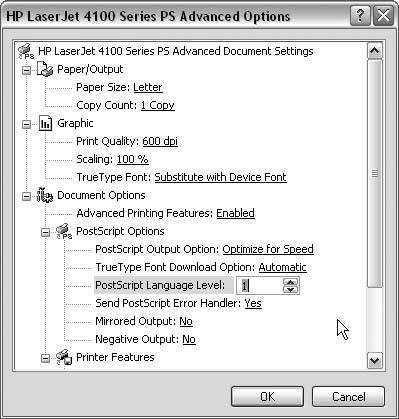
9.1. PRINTING9.1.1. Print Button Grayed Out in PowerPoint 2002 and 2003THE ANNOYANCE: The Print button is grayed out when I go to File THE FIX: Office XP, 2003, and some versions of Office 2000 require you to activate them. Go to Help Figure 9-1. If Print and Save are not available in PowerPointor any other Office applicationyou may need to activate it.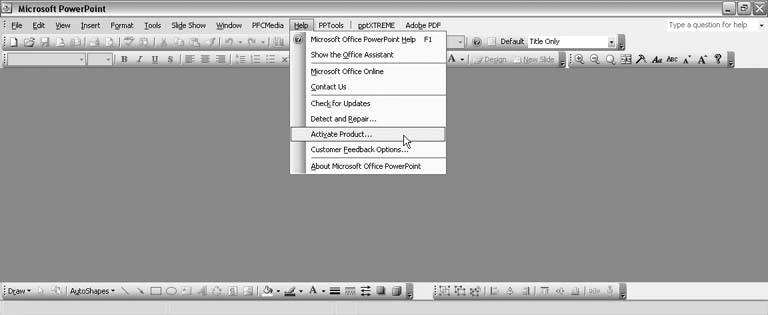 Office grants you 50 uses before going into "reduced functionality" mode. In reduced functionality mode, you can open and view your documents, but you can't print or save them. You must activate Office or PowerPoint to return to full functionality. If your software has already been activated, you'll see a message saying "This product has already been activated." Otherwise, follow the instructions for activating the software over the Web, by phone, etc. Choose whichever is appropriate and follow the wizard. 9.1.2. Print Password-Protected FilesTHE ANNOYANCE: I'm using PowerPoint 2002. My boss gave me a presentation to print, but when I hit the print icon, nothing happens. The file has a modify password on it, but I should still be able to print it. THE FIX: This is a bug. Install Office XP Service Pack 3 (SP3) to fix it. Go to http://office.microsoft.com/en-us/officeupdate/default.aspx and click the "Check for Updates" link to begin the SP3 installation process. Alternatively, open your presentation in PowerPoint 2003 and print it. 9.1.3. Pictures Print TwiceTHE ANNOYANCE: When I print my slides, all the pictures print twice. PowerPoint's gone wild! THE FIX: Often, updating your printer driver will resolve this issue. This is generally a Windows 2000 issue. If you're still stuck, Microsoft addresses it more thoroughly with a hotfix (http://support.microsoft.com/default.aspx?scid=KB;EN-US;843284). You can also change the PostScript language level or disable advanced printing features for PCL drivers. To change the PostScript language level:
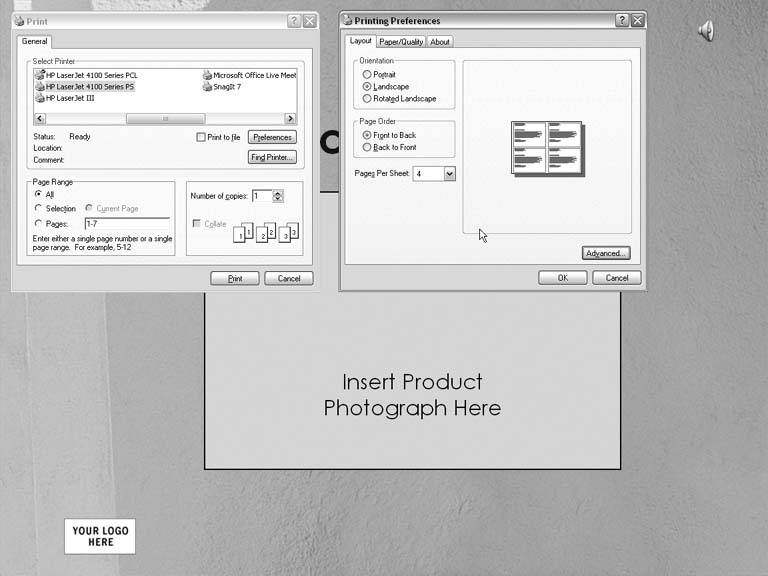
To disable advanced printing features for PCL drivers:
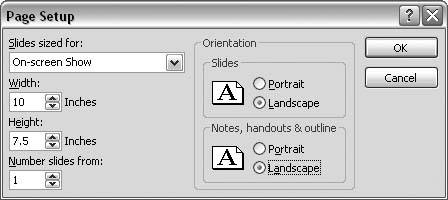
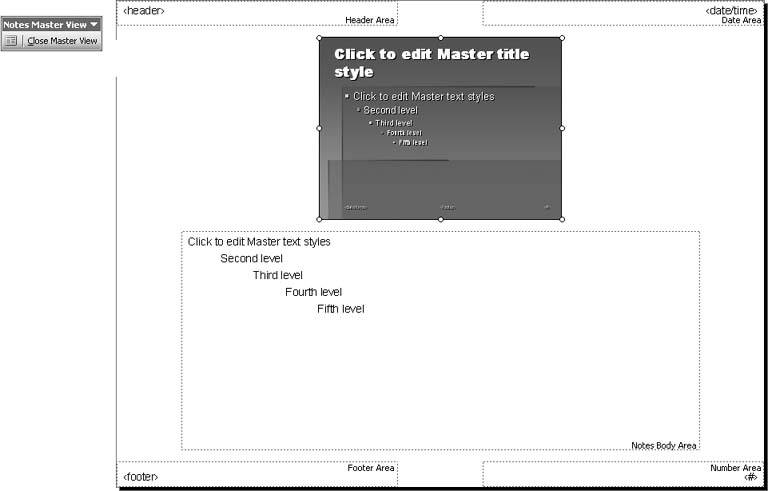
9.1.4. Landscape File Prints PortraitTHE ANNOYANCE: My presentation is set up to print landscape, but it prints portrait. I went to File THE FIX: Updating your printer driver will often resolve this issue. If not, set the default printer settings in Windows instead of using File Click Start 9.1.5. Margin Prints Around SlidesTHE ANNOYANCE: When I print from PowerPoint, a white margin appears around my slides. How do I get rid of it? THE FIX: You'll have to print to a larger sized paper and trim the whitespace. Or print to special perforated paper so you can tear off the edges. Most printers can't print clear to the edge of the paper. This is known as edge-to-edge printing, and, while more and more less expensive printers have this attribute, it's still not an everyday feature. You don't usually notice the margin with other types of documents, because you're usually either printing onto white paper, or you're printing onto letterhead that's already been professionally printed. But with PowerPoint and its backgrounds, you tend to notice the margin more often. 9.1.6. Print Slides in the Center of the PageTHE ANNOYANCE: My slides are all cockeyed on the page. What kind of hoops do I have to jump through to get them to print in the center of the page? THE FIX: Most inkjets have uneven, unprintable areas. A very slick workaround to this limitation is to size the slide thumbnail on your notes page so that it mimics the slide printout correctly, and print notes pages instead of slides. Modify the notes master using the following steps:
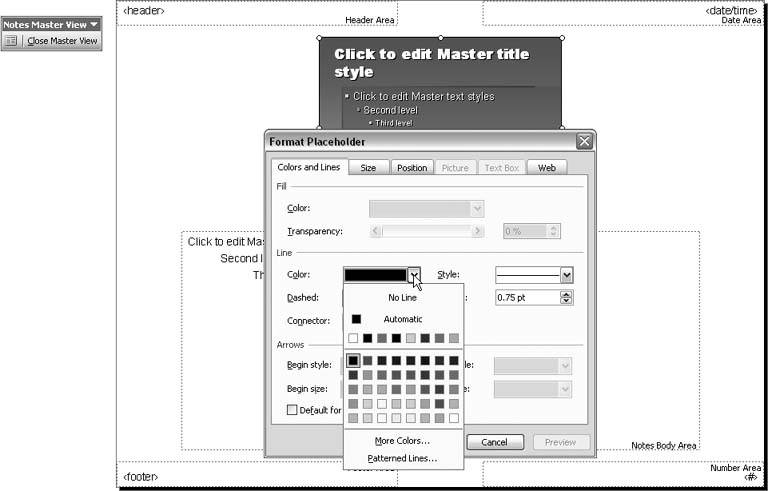
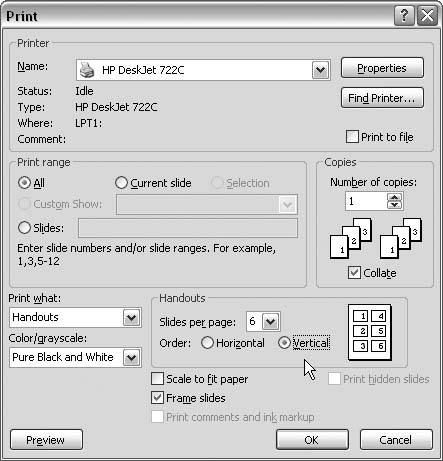
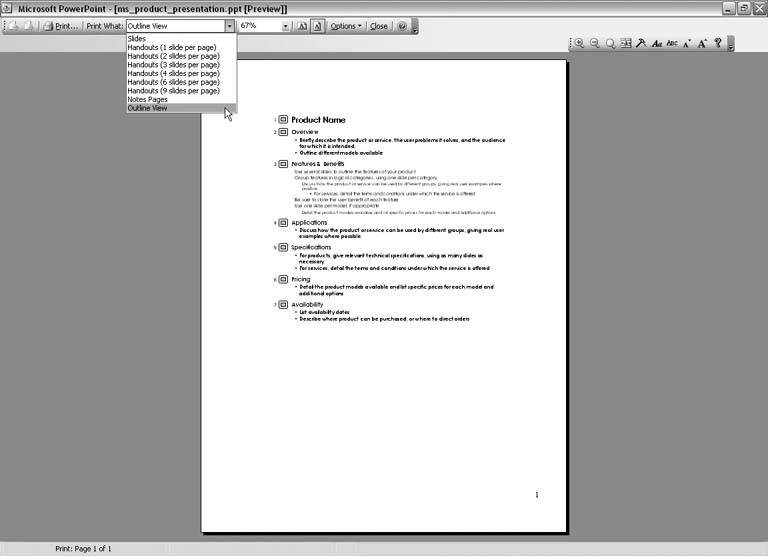
Figure 9-5. The Print dialog is chock full of options for printing your presentation. In the "Print what" box at the bottom of the dialog you can choose to print slides, handouts, notes pages, or outlines.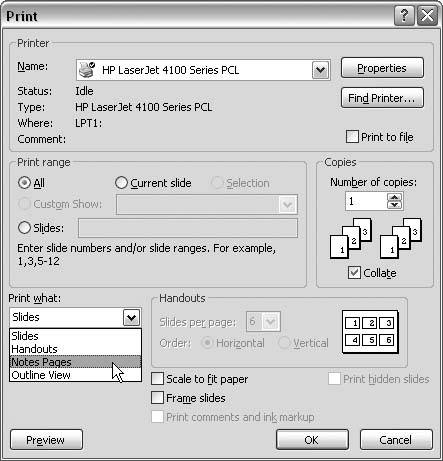 9.1.7. Print Slides on Notes PagesTHE ANNOYANCE: I printed notes pages using File THE FIX: Apply an outline to the slide placeholder on your notes master. Choose View Figure 9-6. Choose Format |
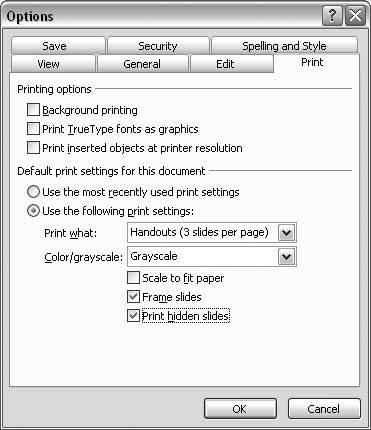
File  Print Print  Print What? Print What? |
Print in PowerPoint, you can choose Slides, Handouts, Notes Pages, and Outline View from the "Print what drop-down menu near the bottom of the dialog box (see Figure 9-5). But what do these terms mean? The following list explains:
|
THE FIX: Try reversing the colors in the foreground and background of the pattern. Double-click to activate the chart, select Format Selected Data Series, click the Fill Effects button, click the Pattern tab, and swap the Foreground and Background colors. This will often allow the black and white patterns to print properly.
If not, set the Foreground pattern fill to black and the Background to white. Of course, make sure you set the appropriate grayscale settings for the chart. Select View Color/Grayscale Grayscale in PowerPoint 2002 and 2003 or View Black and White in PowerPoint 97 and 2000. Next, right-click the chart and choose Grayscale Setting (PowerPoint 2002 and 2003) or Black and White (PowerPoint 97 and 2000), and select Automatic.
If that doesn't work, then you probably need to update your printer driver.
9.1.16. Print Slides Plus Notes
THE ANNOYANCE : I need to print three slides per page, plus speaker notes. Can I replace the blank lines on a PowerPoint handout with my speaker notes?
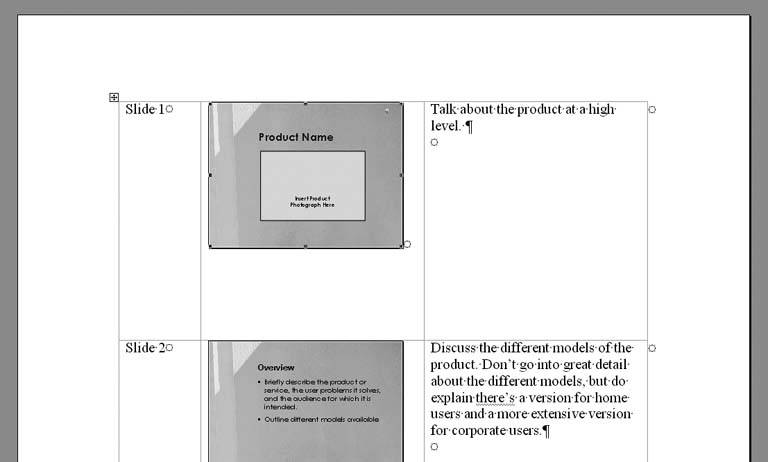
THE FIX: Select File Send to Microsoft Office Word, choose the "Notes next to slides option, and click OK (see Figure 9-15). This creates a table in Word with three columns: slide numbers, slide image thumbnails, and notes (see Figure 9-16). You can delete any of the columns, resize them, add headers and footers to the Word document, etc.
Figure 9-15. Even though the first two sample thumbnails here show two slides per page, the default Word document actually has three slides per page, plus lines or notes.
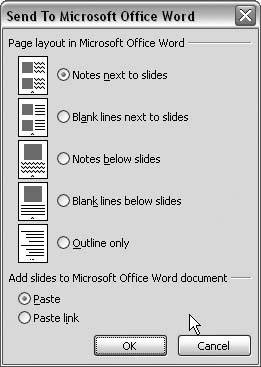
Figure 9-16. The resulting Word document has three columns: slide numbers, slide thumbnails, and either notes or blank lines. You can format this Word document as you would any other Word document.
If you wish to resize the slide thumbnails in the Word document, select one, choose Format Object, click the Size tab, and increase the percentage. (Immediately select the next slide and hit your F4 key or press Ctrl+Y to repeat this action.)
9.1.17. Update Page Numbers
THE ANNOYANCE: I printed all my handouts two days ago. Today, I had to change one slide and reprint that page, but now it has the wrong page number.
THE FIX: Select View Master Handout Master, and type the appropriate page number in the Number Area. Reprint the page.
PowerPoint's printing capability is very rudimentary when it comes to things like page numbering, and it starts over at page one each time. If you need to force a page number, you can type it onto the handout or notes master, you can use File Send To Word, or you can use a third-party handout utility (see the sidebar "Extend PowerPoints Handout Printing Features," later in this chapter).
| Best Practices for Send To Word |
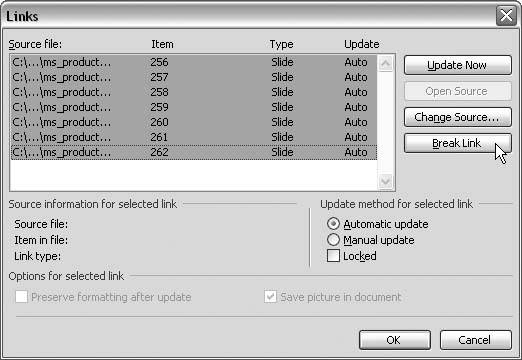
When you select File Send To That's all well and good, but the resulting Word file might be 20 times the size of the original PowerPoint file! For example, the PowerPoint file you see in Figure 9-16 is 295 KB; the Word document it created via File Links, and click the Break Link button (see Figure 9-17). Continuing with the previous example of a 295 KB PowerPoint file, the Word document is about 2.5 MB after the links have been broken. In a nutshell, the OLE link between the presentation and the Word document is not very robust. Additions, deletions, and reordering of slides in either the PowerPoint file or the Word document are all ignored. Changes made in PowerPoint to individual slides already included in the Word document will show up in the Word document if you update links, but changes to notes will not. Changes to the notes in the Word document will not be reflected in the PowerPoint file, either. Figure 9-17. Choosing the Paste Link option when sending to Word forces the slide thumbnails to be linked OLE objects. That means you can select Edit |
9.1.18. Number Slides on Printouts
THE ANNOYANCE: I want to print handouts, but I need to number the slides. I also want the numbers to be on the page next to the slides, not on the slide itself.
THE FIX: Use File Send To Microsoft Office Word and choose the option closest to the layout you want (three slides per page or one slide per page). The resulting file automatically includes the slide numbers. PowerPoint handouts and notes pages printouts dont offer an option to number the slides themselves.
9.1.19. Omit Objects from Slides When Printing
THE ANNOYANCE: I have some text on the slide that shouldn't be printed in the handouts. Do I have to delete the text boxes?
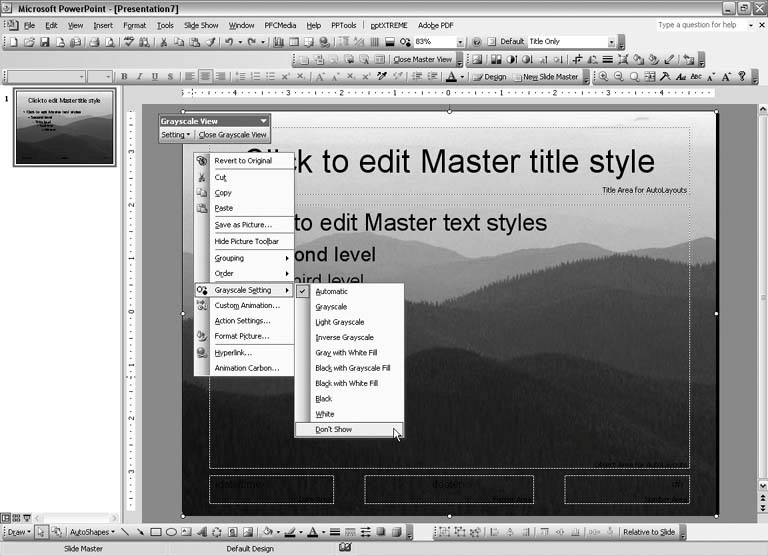
THE FIX: If you're printing in black and white or grayscale, select View Color/Grayscale Pure Black and White or Grayscale in PowerPoint 2002 and 2003 or View Black and White in PowerPoint 97 and 2000. Right-click the text box, select Black and White or Grayscale Setting, and choose Dont Show from the list (see Figure 9-8). This lets you keep the text box perfectly intact on the color slide, but specify that it not printed in black and white or grayscale.
If you're printing in color, you'll have to delete the text box before printing. Perhaps you could create a copy of your presentation before deleting the text boxes. Open the file, choose File Save As, and change the name of the file in the Save As dialog box. Delete the text boxes, print, and close this file. You can save the changes or not, as this is only a copy of your original file.
9.1.20. Print Animated Objects
THE ANNOYANCE: I have a presentation that has several slides with multiple animated objects. It works fine in the slide show, but when I print it, the animation doesn't show up. Is there a way to print a series of animations?
THE FIX: If you're using PowerPoint 97 or 2000, select File Print and check the "Include animations box at the bottom of the dialog box (see Figure 9-18). This option is available only if you choose Slides from the "Print what" drop-down menu; if you've chosen Handouts, Notes Pages, or Outline View, the option to print animations will be grayed out.
Figure 9-18. In PowerPoint 97 and 2000, you can opt to print animations in the Print dialog. This option is not available in PowerPoint 2002 and 2003.
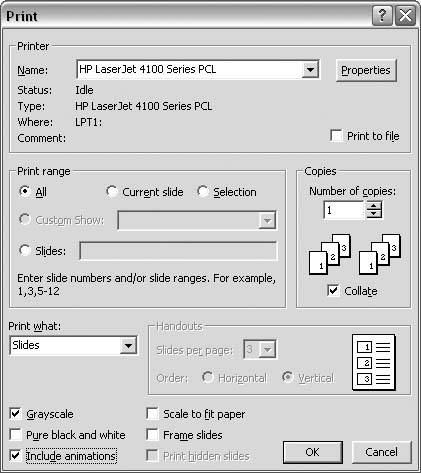
PowerPoint 2002 and 2003 introduced nonlinear animations so the "Include animations" option was removed from the Print dialog.
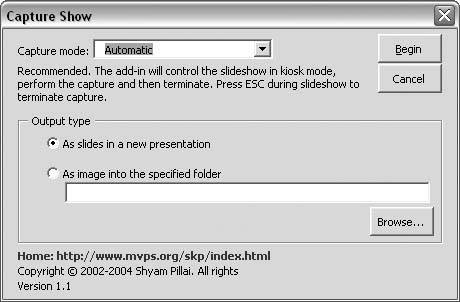
If you need to print a series of animations in those versions of PowerPoint, you can use the free Capture Show add-in from Microsoft PowerPoint MVP Shyam Pillai (http://skp.mvps.org/cshow.htm). Download and install the add-in, select Tools Capture Show, choose the appropriate capture mode and output type from the dialog box, and click the "Begin button (see Figure 9-19). (If your presentation uses trigger animations, you may prefer to choose Semi-automatic as the Capture mode.) Capture Show will play the presentation, create images of each animation step, and place the images in a new PowerPoint file. When this process is complete, you can print the resulting PowerPoint file.
Figure 9-19. In PowerPoint 2002 and 2003, use the Capture Show add-in to automatically grab images of each animation step and place them on slides in a new presentation. You can then print the resulting file.
9.1.21. Line Prints on Filled Text Box
THE ANNOYANCE: I created some text boxes with background-colored fills to hide some text underneath. Everything looks like it should until I print black and white slides or handoutsthose text boxes print with a line around them. The line doesn't show up in Print Preview or Pure Black and White view or Grayscale view, and I've triple-checked to make sure no line is applied to the text box. How can I get rid of this stupid line on the printouts?
THE FIX: You'll have to work around this by creating an AutoShape with a background-colored fill, placing it behind the text box, and removing the fill from the text box itself. Then change the black and white or grayscale setting of the AutoShape to White or another appropriate option.
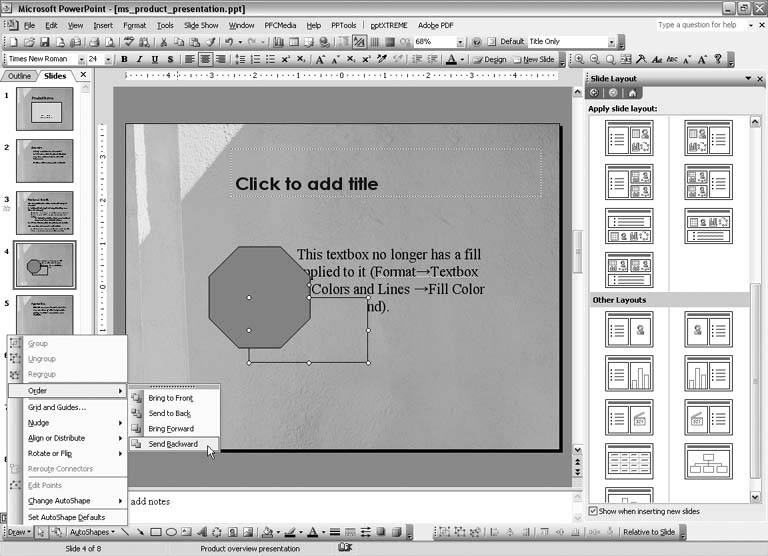
Basically, the fill on the text box is what causes the line to print when you print black and white or grayscale. To prevent the line, you have to remove the fill from the text box. If you filled the text box so it would cover something on the slide, create an AutoShape and apply the fill to it. (See "Turn Off Background Printing" for specifics on how to change the AutoShape's black and white or grayscale print setting.) Finally, select Draw Order Send Backward to place the AutoShape behind the text box (see Figure 9-20).
Figure 9-20. Select Draw Order Send Backward to place a filled AutoShape behind a text box. Alternatively, choose the text box and choose Draw Order Bring to Front.
9.1.22. Send Black and White Slide Thumbnails to Word
THE ANNOYANCE: In PowerPoint 2000, I could select View Black and White and then File Send To Microsoft Word to create better handouts using black and white slide thumbnails. When I try this in PowerPoint 2002 or 2003, however, I always get colored slide thumbnails. Is there a workaround?
THE FIX: The best solution to this problem is to keep a copy of PowerPoint 97 or 2000 around, as Send To Word in black and white is broken in PowerPoint 2002 and 2003.
When you need to send black and white thumbnails to Word in PowerPoint 97 or 2000, make sure all of the following are true:
You're in Normal view (View
Normal), not in Slide Sorter or Notes Page view.Black and White).
Send To
Microsoft Word dialog box.
Otherwise, PowerPoint will send color slide thumbnails to Word.
If you're using PowerPoint 2002 or 2003, it will always send color slide thumbnails to Word. You can, however, apply a new black and white color scheme to a copy of your slides and send it to Word. (Depending how closely you followed the slide color scheme when developing the presentation, this could be a real pain.) Also, if you have a picture background on your slide, you'll have to manually change the image to black and white.
You may want to experiment with two add-ins that increase PowerPoint's handouts capabilities: Handout Wizard and SlideIntoWord. Depending on your file, these may help you overcome some of PowerPoint's printing limitations (see the sidebar "Extend PowerPoint's Handout Printing Features").
9.1.23. Create PDFs from PowerPoint
THE ANNOYANCE: I need to send a PowerPoint file to a copy shop to print, but they don't have PowerPoint. Any suggestions?
THE FIX: Create a PDF from your file. Any copy shop worth its salt will be able to print a PDF.
To create a PDF from PowerPoint, download and install a PDF printer driver. Choose File Print and choose the PDF printer driver from the Printer Name area at the top of the dialog box. Specify what to print elsewhere in the dialog box, just as you would if you were printing to a physical printer. Click the Properties button near the printer name to make adjustments to the PDF output itself.
There are a number of PDF drivers available. Here's a list:
PrimoPDF (http://www.primopdf.com/)
-
This free converter works as a PDF printer driver.
PStill (http://www.pstill.com/)
-
The Personal version of the program will cost you $23; the Commercial version $43. Both work as a PDF printer driver.
PDFcamp (http://www.verypdf.com/pdfcamp/pdfcamp.htm)
-
The company offers a $29 Standard and $38 Pro version of its PDF conversion software.
Win2PDF (http://www.daneprairie.com/)
-
The $35 Standard and $69 Pro version let you create PDF files from any Windows application.
FlashPaper (http://www.macromedia.com/software/flashpaper/)
-
This $79 program can convert files to PDF or Flash. It includes a toolbar with one-click conversion for Microsoft Office applications.
Jaws PDF Creator (http://www.jawspdf.com/pdf_creator/)
-
For $84 you get a toolbar plug-in for Word and PowerPoint with oneclick PDF creation.
Adobe Acrobat (http://www.adobe.com/products/acrobat/main.html)
-
Arguably the most well known of the PDF creators, the Standard and Professional versions cost $299 and $449, respectively. Acrobat also has a plug-in for Microsoft Office applications that creates PDFs with one click.
| Extend PowerPoint's Handout Printing Features |
If you do a lot of printing from PowerPoint, you owe it to yourself to try two commercial add-ins: Handout Wizard and SlideIntoWord. Handout Wizard (http://skp.mvps.org/how/) costs $40 and provides a wizard-like interface, which walks you through various options you can include in your handout. The handout can be further edited and formatted before printing. Several layout options are available, and you can also create your own. SlideIntoWord (http://billdilworth.mvps.org/SlideIntoWord.htm) is a kinder, gentler version of the Send To Word command, and only costs $20. It creates Word documents preformatted to include a heading, page numbering, and the main table with slides, slide numbers, and lines or notes. SlideIntoWord also lets you specify the size of slide images and include an indication of how many manual animation advances are on each slide. |

EAN: 2147483647
Pages: 83