Flylib.com

Books Software


Viewing Thumbnails


Viewing Thumbnails

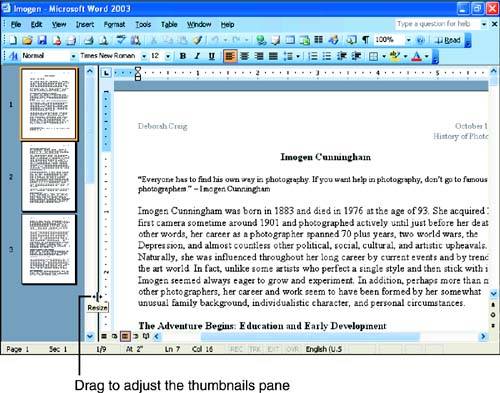
Regardless of what view you are using, you can choose View, Thumbnails to display a vertical pane along the left side of the Word window that contains thumbnails of each page (or screen in the case of Reading Layout view) in the current document (see Figure 4.8).

Figure 4.8. Thumbnails enable you to quickly jump from one spot to another in your document.

graphics/04fig08.jpg

If you want to enlarge the Thumbnails pane to see more thumbnails at one time, drag the right border of the pane to the right. When you want to hide the thumbnails, drag the border all the way to the left edge of the Word window. You can also choose View, Thumbnails again to hide the Thumbnails pane.


Magnifying Your Document

Word normally displays text at approximately the size it is when printed. In some situations, you might want to enlarge or shrink the text onscreen to make it easier to read, edit, and format. You change your document's magnification by adjusting the Zoom setting.

You might want to change your Zoom setting if your document has especially large or small fonts, if you're printing on a paper size other than 8 1/2 by 11, or if your eyesight isn't what it used to be. When you shrink the magnification to anything less than 100 percent, the text appears smaller and you can see more of your document at once. When you enlarge the magnification to anything over 100 percent, the text appears bigger and you can see less of your document in the window. Changing the magnification of your document onscreen does not affect the way it prints; it only affects the way you view the document on your monitor.

To change the Zoom setting, click the down arrow in the Zoom box at the right end of the Standard toolbar to display the Zoom list (see Figure 4.9), and then click the desired setting.

Figure 4.9. Choose the desired magnification setting in the Zoom list.

graphics/04fig09.jpg

In Figure 4.10, the document has been zoomed to 200 percent. Word remembers the setting and uses it the next time you open the document.

Figure 4.10. The Zoom setting was changed to 200 percent.

graphics/04fig10.jpg

If you enlarge the magnification of your document, as shown in Figure 4.10, you may need to use the horizontal scrollbar at the bottom of the Word window to bring the right side of the document into view.

The four options at the bottom of the Zoom list also come in handy. They automatically adjust your document's magnification just the right amount to display the full width of the page (Page Width), the width of the text only (Text Width), the entire page (Whole Page), and two entire pages (Two Pages). In Normal view, the Text Width, Whole Page, and Two Pages options are not available.

graphics/lightbulb_icon.gif

You aren't limited to the magnification percentages shown in the Zoom list. If you want to magnify your document at a setting not in the list, 85 percent, for example, click in the Zoom box and type over the current setting with the percentage you'd like, and press Enter.


Viewing Separate Parts of Your Document at the Same Time

With a longer document, you may find it convenient to view separate parts of it at the same time. For example, if you're typing a report that begins with a table of contents, you may want to keep it in view as you're typing later portions of the report to make sure that you're sticking to your outline. (This feature does not work when you're viewing thumbnails, or from Reading Layout view.)

To practice using this feature, open any document that is too long to fit onscreen. Then point to the split bar , the short horizontal bar directly above the up arrow at the top of the vertical scrollbar (see Figure 4.11).

Figure 4.11. Drag the split bar to divide your screen into two panes.

graphics/04fig11.jpg

When you point to the split bar, your mouse pointer changes to two horizontal lines with a vertical double arrow. Drag about halfway down the Word window. As you drag, a gray horizontal line shows where the window will be split (see Figure 4.11). When the line is in the right place, release the mouse button.

Word divides the window into two panes. Each pane has its own rulers and scrollbars. Click in the lower pane to activate it, and then use its vertical scrollbar to scroll down in the document. As you scroll, the portion of the document displayed in the upper pane doesn't change. If you want to scroll the upper pane, click in it and then use its vertical scrollbar. The status bar at the bottom of the Word window shows you the page number of the active pane (the pane containing the insertion point). In Figure 4.12, the first page of a 9-page document is displayed in the upper pane, and the last page is displayed in the lower pane. The lower pane is active, so the status bar lists the last page of the document.

Figure 4.12. The first and last pages of a nine-page document are visible at the same time.

graphics/04fig12.jpg

When the Word window is split, you can use the Go To feature in the active pane to scroll only that pane to the page you specify. (See the section "Jumping to a Specific Page" in Hour 2, "Entering Text and Moving Around.")

Also, you can drag and drop text from one pane into the other. This makes it easy to use drag-and-drop to move or copy text in a multiple-page document.

If you want to adjust the relative size of the two panes, point to the gray dividing line and drag it up or down. To remove the split, double-click the gray line or drag it all the way up to the top of the Word window.

graphics/lightbulb_icon.gif

Another way to create a split is to choose Window, Split. Word displays a gray horizontal line and moves the mouse pointer over it. Move the mouse to get the line in the right spot, and then click to create the split. When you want to remove the split, choose Window, Remove Split.