| AirPort is Apple's wireless local area network technology. It enables your computer to connect to a network or the Internet via radio waves instead of wires. Apple offers three types of AirPort devices: AirPort Base Station is an external device that can connect to a network via Ethernet cable or can act as a modem for connecting to the Internet via phone lines. AirPort Express is an external device that can connect to a network via Ethernet or can extend the range of an existing AirPort network. It also has the ability to receive data from iTunes on an AirPort-equipped Mac or PC to play music on your stereo. AirPort card is a networking card inside your computer that enables your computer to communicate with a base station or another AirPort-equipped computer.
There are two ways to use AirPort for wireless networking: Use an AirPort-equipped computer to connect to other AirPort-equipped computers. Use an AirPort Extreme base station or AirPort Express to link an AirPort-equipped computer to the Internet or to other computers on a network. This makes it possible for a computer with an AirPort card to communicate with computers without AirPort cards.
Mac OS X includes two programs for setting up an AirPort network (Figure 41): AirPort Setup Assistant offers an easy, step-by-step approach for configuring a base station. In most cases, this is the only tool you'll need to set up a base station. AirPort Admin Utility enables you to set advanced options that cannot be set with the AirPort Setup Assistant.
Figure 41. The Utilities folder includes a number of applications for working with networks. 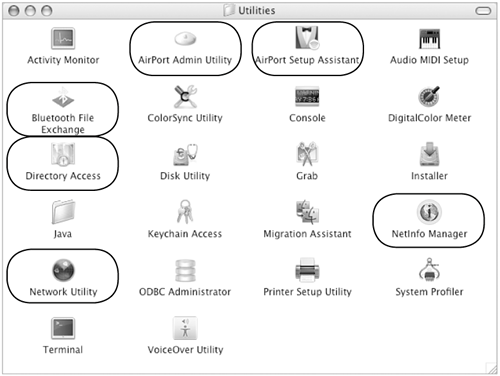
This part of the chapter explains how to configure an AirPort base station and connect to an AirPort network with an AirPort-equipped computer.  Tips Tips
AirPort is especially useful for PowerBook and iBook users who may work at various locations within range of a base station. An AirPort network can include multiple base stations and AirPort-equipped computers. You can learn more about AirPort devices and networking at Apple's AirPort home pages, www.apple.com/airportextreme/ and www.apple.com/airportexpress/. The current versions AirPort Extreme and AirPort Express hardware are fully compatible with the original version of AirPort hardware.
To set up an AirPort base station 1. | Open the AirPort Setup Assistant icon in the Utilities folder (Figure 41) inside the Applications folder.
| 2. | Read the information in the Introduction window that appears (Figure 42) and click Continue.
Figure 42. The first screen of the AirPort Setup Assistant explains what it does. 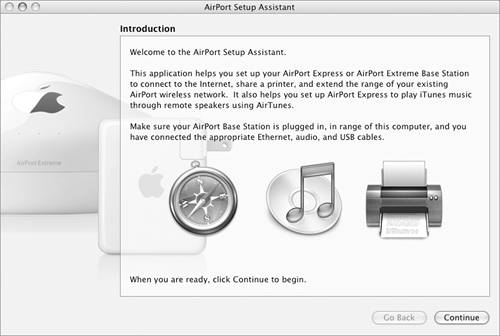
| 3. | In the next screen (Figure 43), choose Set up a new AirPort Base Station and click Continue.
Figure 43. Use this screen to indicate that you want to set up a new base station. 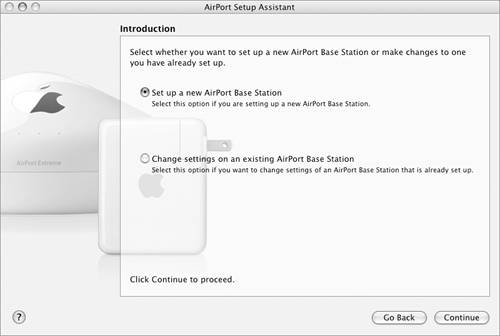
| 4. | The AirPort Setup Assistant uses the computer's AirPort card to scan for base stations. It then displays the Network Setup window with the name of the base station it has found (Figure 44). Click Continue.
Figure 44. AirPort Setup Assistant scans for new base stations within range and displays information about the base station it found. 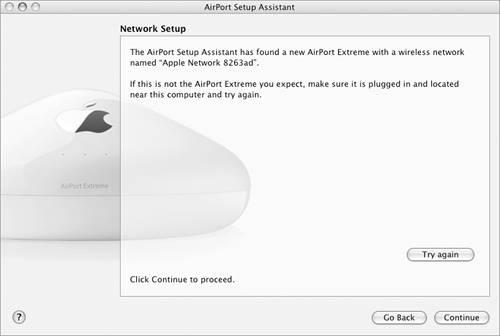
| 5. | In the next screen (Figure 45), select Create a new wireless network and click Continue.
Figure 45. Use this screen to indicate that you want to set up a new network. 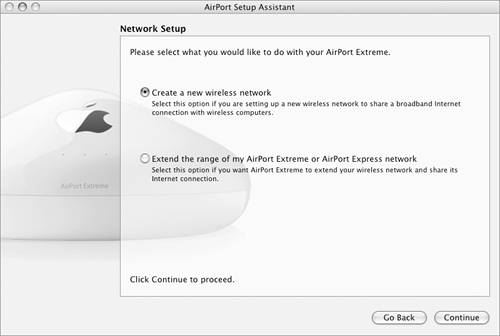
| 6. | In the next screen (Figure 46), enter personalization information and click Continue:
Figure 46. Use this screen to name the network and the base station. 
| 7. | In the next screen (Figure 47), select a security option and click Continue:
128-bit WEP is a more compatible security method. If you choose this option, enter a password of exactly 13 characters in both text boxes to ensure compatibility with non-Macintosh computers on the network. WPA Personal is a more secure security method that only works with WPA-compatible computers. If you choose this option, enter a password of 8 to 63 characters in both text boxes. No security does not secure the network at all. Anyone within range can connect.
Figure 47. Choose a security option and, if necessary, enter a password to secure the network. 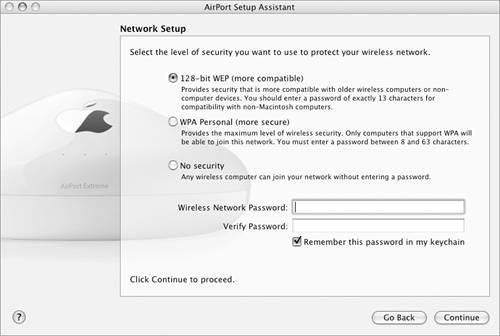
| 8. | The first Internet Setup screen appears next. It displays the configuration information the base station has already sensed (Figure 48). If necessary, enter connection information in the boxes. Then click Continue.
Figure 48. The AirPort base station may be able to sense how it is connected to the Internet. If so, the first Internet Setup screen will be filled out for you. 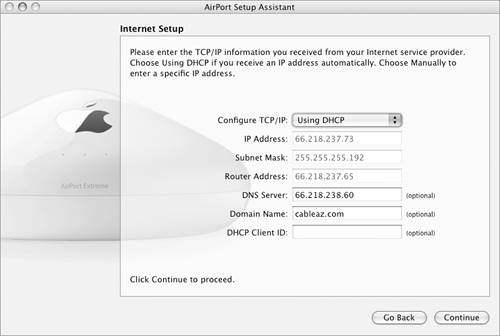
| 9. | In the next screen (Figure 49), enter a password in both boxes to protect the base station settings and click Continue.
Figure 49. Enter a password to protect the base station settings from unauthorized changes. 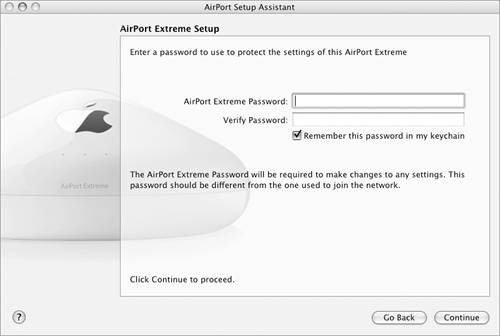
| 10. | In the Summary window that appears (Figure 50), click the Update button.
Figure 50. AirPort Setup Assistant summarizes the setup information. 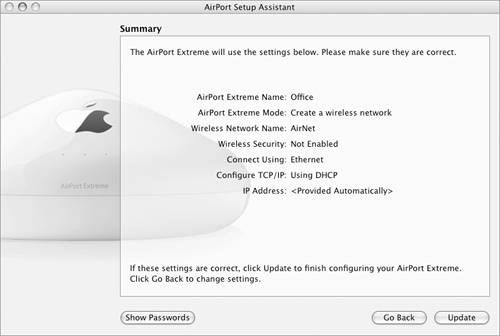
| 11. | Wait while the AirPort Setup Assistant updates and restarts the base station. A progress dialog appears while it restarts (Figure 51).
Figure 51. Wait while the base station restarts. 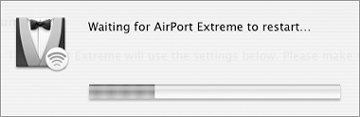
| 12. | In the final screen (Figure 52), click Quit.
Figure 52. The final screen confirms that the base station has been configured. 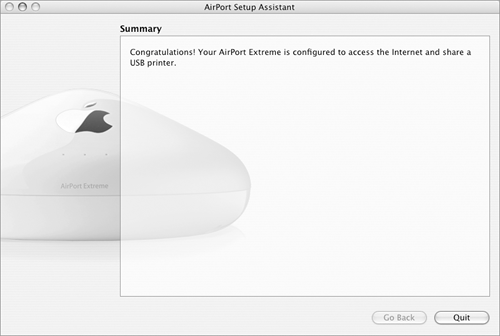
|
Tips You can only use the AirPort Setup Assistant on a computer with an AirPort card installed. If a card is not installed, the Assistant will tell you. If your base station has already been configured, in step 3 (Figure 43), you must select the Change settings on an existing AirPort Base Station option. Most of these steps will not apply and your setup options will be limited. If your Airport Base Station was used with a previous version of Mac OS, a dialog sheet may appear after step 4, telling you that its firmware must be updated (Figure 53). Click Update to update the firmware. Figure 53. This dialog appears if your base station's firmware needs to be updated. 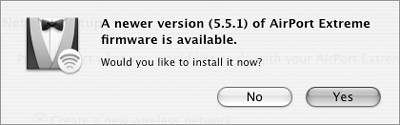
In step 8, if the Internet connection method that appears (Figure 48) is incorrect, click the Go Back button. You can then choose a different type of connection in the screen that appears (Figure 54). When you click Continue, follow the onscreen prompts to enter details about the connection. Figure 54. If the connection information in Figure 48 is wrong, click Go Back to set the correct option in this screen. 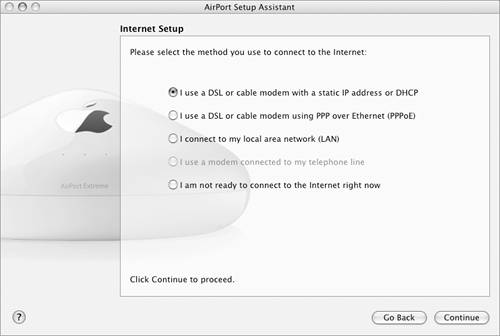
If you are the only user of your AirPort network, it's okay to have the same password for the network as the base station. But if multiple users will be using the network, you should assign a different password to the base station to prevent other users from changing base station settings.
To view & modify AirPort base station settings 1. | Open the AirPort Admin Utility icon in the Utilities folder (Figure 41) inside the Applications folder.
| 2. | The AirPort Admin Utility uses the computer's AirPort card to scan for base stations. It then displays the Select Base Station window (Figure 55). Select the base station you want to work with and click Configure.
Figure 55. Use this dialog to select the base station you want to work with. 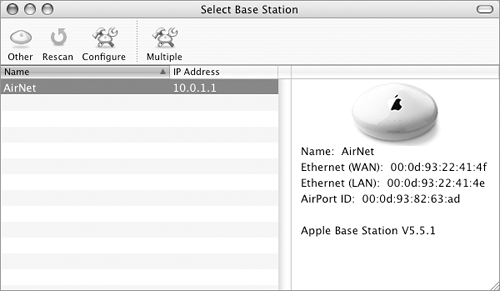
| 3. | In the password dialog that appears (Figure 56), enter the base station's password and click OK.
Figure 56. Enter the base station password in this dialog. 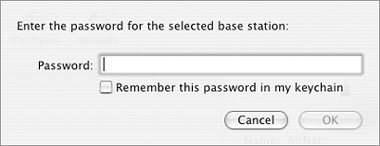
| 4. | The AirPort pane for the base station appears (Figure 57). Click buttons to view and modify setup information:
AirPort (Figure 57) displays general base station and network information and enables you to change the base station password and network security options. Internet (Figure 58) displays information about the Internet connection. Figure 58. The Internet pane of the AirPort Admin Utility displays Internet connection configuration information. 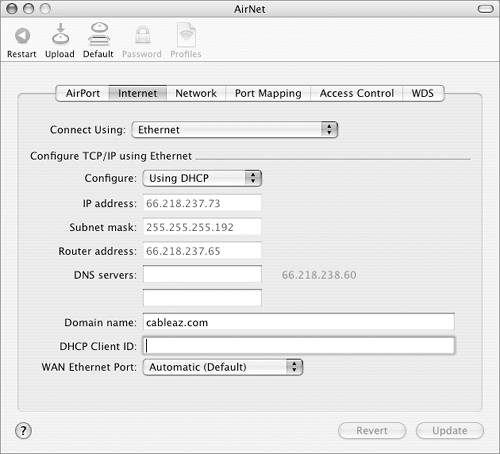
Network (Figure 59) displays options for distributing IP addresses to the computers that access the AirPort network. Figure 59. The Network pane includes options for distributing IP addresses. 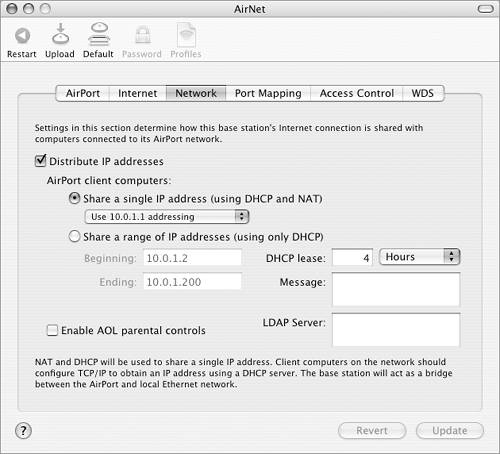
Port Mapping (Figure 60) enables you to map TCP/IP ports to specific IP addresses on the network. Figure 60. The Port Mapping pane let's you tap into an advanced feature to map TCP/IP ports to computers. 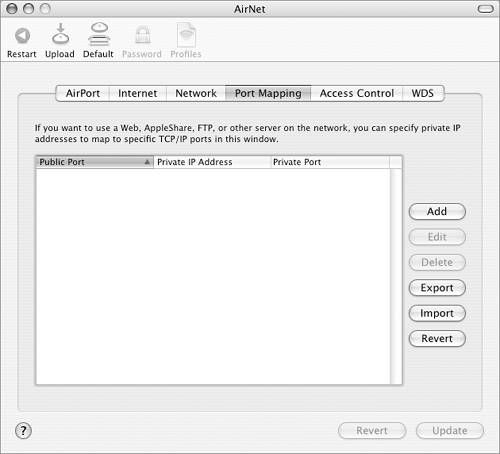
Access Control (Figure 61) enables you to restrict access based on a computer's AirPort ID. Figure 61. The Access Control pane enables you to restrict access by AirPort ID. 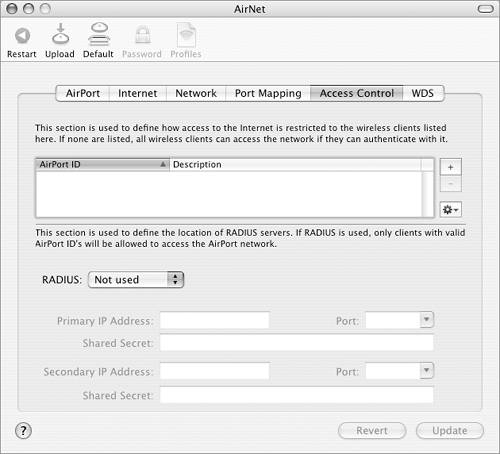
WDS (Figure 62) enables you to use the base station with other base stations to expand the range of the wireless network. Figure 62. The WDS pane enables you to configure the base station to expand the network range. 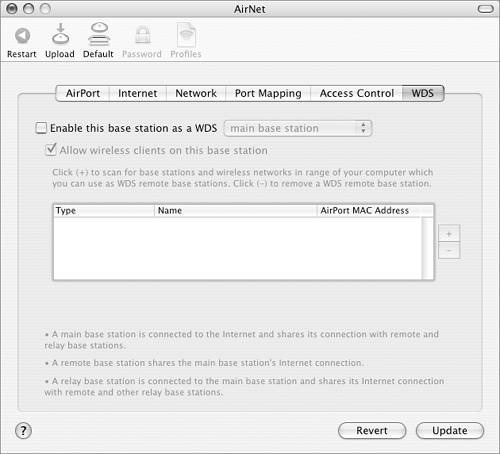
Figure 57. The AirPort pane of the AirPort Admin Utility includes many basic configuration options. 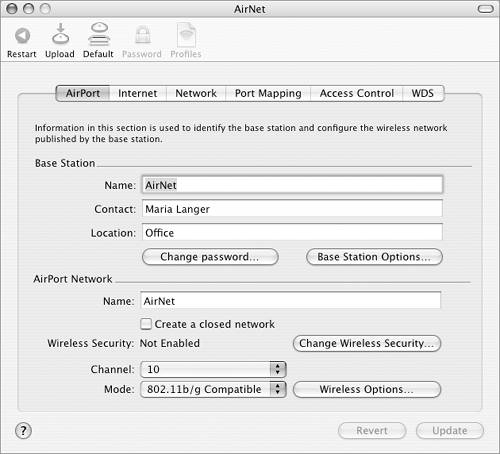
| 5. | If you make changes in step 4, click the Update button to send changes to the base station. A status window like the one in Figure 63 appears while it works.
Figure 63. When you click Update, the configuration information is uploaded to the base station. 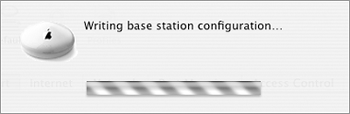
| 6. | When you're finished viewing and modifying settings, choose AirPort Admin Utility > Quit AirPort Admin Utility or press  . .
|
Tips The AirPort Admin Utility can also be used to configure a base station from scratch. But I think you'll find it much easier to use the AirPort Setup Utility as instructed earlier in this section. I know I do! In step 3, if a keychain item exists for your base station, a dialog like the one in Figure 64 may appear instead of the one in Figure 56. Click Allow. I tell you about Keychain Access in Chapter 17. Figure 64. If a keychain item exists for your base station, a dialog like this may appear instead of the password dialog. 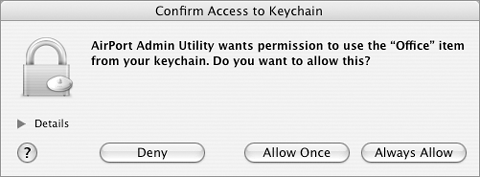
I tell you more about connecting to the Internet in Chapter 13. As shown in Figures 59 through 62, some of the configuration options offered by AirPort Admin Utility are advanced and powerful. Do not make changes to these options unless you know what you're doing! Want more advanced information about setting up an AirPort network? Consult the document I turn to when fine-tuning mine: Designing AirPort Networks. This PDF manual, which was written by Apple, can be downloaded from http://manuals.info.apple.com/en/airport/DesigningAirPortNetworks0190271.pdf. Setting up AirPort Express should run along a similar path to setting up AirPort Extreme, especially if you aren't using it to play music on a stereo.
To use the AirPort status menu Choose commands on the AirPort status menu (Figure 65) to perform the following tasks: Turn AirPort Off disables AirPort on your computer. Network Name connects you to that network. If multiple networks are within range, all of them will appear on the menu. Other displays the Closed Network dialog (Figure 66), which you can use to join a network that doesn't appear on the AirPort Status menu. Enter the name of the network and its password (if necessary) and click OK. Figure 66. Use the Closed Network dialog to connect to an AirPort network that does not appear on the AirPort Status menu. 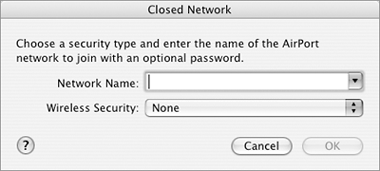
Create Network displays the Computer- to-Computer dialog (Figure 67), which you can use to create a network between your computer and another AirPort-equipped computer. When you click OK in this dialog, the new network appears on the menu (Figure 68) on your computer, as well as on other computers in range. Choose the new network on both computers to connect. When you're finished using the network, choose Disconnect from current network. Figure 67. Use this dialog to create a computer-to-computer network. 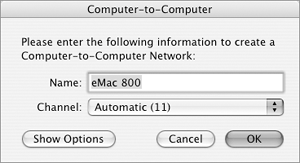
Figure 68. The name of the network appears on the AirPort status menu. 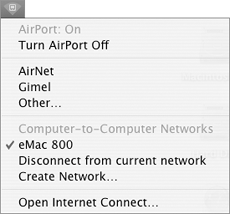
Open Internet Connect opens the Internet Connect application, which I discuss in Chapter 13.
Figure 65. The AirPort status menu shows signal strength (in the menu bar icon) and offers options for working with AirPort networks. 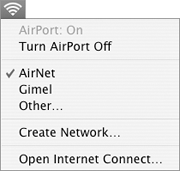
Tips The number of curves in the AirPort status menu's icon indicates the signal strength. The more curves, the stronger the signal. If the base station has a dial-up connection to the Internet, a Connect command will also appear on this menu. Use this command to connect to the Internet.
|
