Flylib.com

Books Software


- page 44

[ LiB ]

Take 6

NOTE

Track 3: Distortion Guitar

Sequence Parameters box: Qua 1/8 note

Instrument Parameter box: Cha 2, Prog 30

Transport Bar: (L) 5.1.1. (R) 9.1.1

Follow these steps:

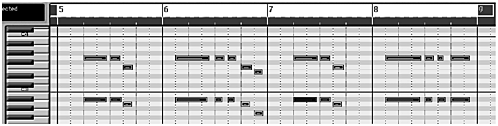
  1. Record the four bars between the Locators (Figures P2.21 and P2.22).

    Figure Figure P2.21 (top). The guitar part, bars 59

    graphic/02fig39.gif


    Figure Figure P2.22 (bottom). The guitar part, bars 59, Matrix view
    graphic/02fig40.gif


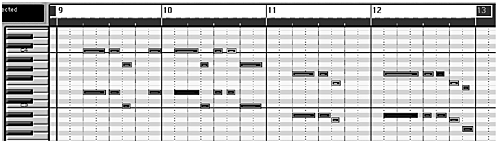
  2. Record the next four bars, 913 (Figures P2.23 and P2.24).

    Figure Figure P2.23. The guitar part, 913

    graphic/02fig41.gif


    Figure Figure P2.24. The guitar part, 913, Matrix view
    graphic/02fig42.gif


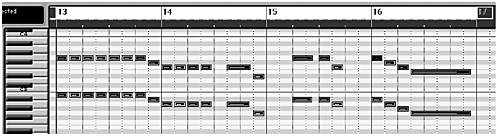
  3. Record another four bars, 1317 (Figures P2.25 and P2.26).

    Figure Figure P2.25. The guitar part, bars 1317

    graphic/02fig43.gif


    Figure Figure P2.26. The guitar part, bars 1317, Matrix view
    graphic/02fig44.gif


  4. Listen back and tweak the quantize parameters for all three sequences until you are happy with the result.

  5. Save Song compare with project 2/2.6.

NOTE

Note the transposition of -12 in the Instrument Parameter box for Take 7. The reason for this? Bass guitar is notated one octave higher than it actually sounds.

[ LiB ]
[ LiB ]

Take 7

NOTE

Track 4: Picked bass

Sequence Parameters box: Qua 1/8 note

Instrument Parameter box: Cha 3, Prog 34, Transpose 12

Transport Bar: (L) 5.1.1 (R) 9.1.1

Follow these steps:

  1. Record the four bars between the Locators (Figures P2.27 and P2.28).

    Figure Figure P2.27. The bass guitar part, bars 59

    graphic/02fig45.gif


    Figure Figure P2.28. The bass guitar part, bars 59, Matrix view

    graphic/02fig46.gif


  2. Record the next four bars, 913 (Figures P2.29 and P2.30).

    Figure Figure P2.29 (above). The bass guitar part, bars 913

    graphic/02fig47.gif


    Figure Figure P2.30 (below). The bass guitar part, bars 913, Matrix view

    graphic/02fig48.gif


  3. Record another 4 bars, 13-17 (Figures P2.31 and P2.32).

    Figure Figure P2.31. The bass guitar part, bars 1317

    graphic/02fig49.gif


    Figure Figure P2.32. The bass guitar part, bars 1317, Matrix view

    graphic/02fig50.gif


  4. Listen back and tweak the quantize parameters for all three sequences until you are happy with the result.

  5. Save Song compare with project2/2.7. Right, now the drums.

[ LiB ]
[ LiB ]

Take 8

NOTE

Track 5: Standard drums Kick/ Snare

Sequence Parameters box: Qua 1/8 note

Instrument Parameter box: Cha 10, Prg 0

Transport Bar: (L) 5.1.1 (R) 9.1.1

Follow these steps:

  1. Play and record the kick and snare drums together (C1 & E1) between the Locators (Figures P2.33 and P2.34).

    Figure Figure P2.33. The kick and snare drums, bars 59

    graphic/02fig51.gif


    Figure Figure P2.34. The kick and snare drums, bars 59, Matrix view

    graphic/02fig52.gif


  2. Listen back and tweak the quantize parameters until a nice rock feel is achieved. If you find it difficult to play kick and snare together, record them separately.

  3. Save Song compare with project2/2.8a.

Another way to create this simple drum pattern is to use the Hyper Edit menu. When Hyper Edit is configured as a drum editor, the beats can be entered manually, with the mouse. Do it this way:

  1. Select Track 5 Kick/Snare, and with the Pencil tool create an empty sequence between the Locators.

  2. Open the Hyper Edit window [ Windows > Open Hyper Edit] (Figure P2.35).

    Figure Figure P2.35. Open Hyper Edit

    graphic/02fig53.gif


  3. 'It doesn't look much like a drum editor to me,' I can hear you mutter. Nope, we're not quite there yet. From within the Hyper Edit window, use the Hyper menu to create a GM drum editor [Hyper > Create GM Drum Set] (Figure P2.36).

    Figure Figure P2.36. Create a GM Drum Set

    graphic/02fig54.gif


  4. The Hyper Edit window will change to a drum editor (Figure P2.37). In the Parameter box, choose a Grid value of 1/8 note from the drop-down menu (Figure P2.38) and use the Pencil tool to enter the beats on the grid corresponding to the Kick 1 and SD2 event definitions (Figure P2.39). Vary the velocities by altering the shading in the columns .

    Figure Figure P2.37. The Hyper Edit GM Drum Set

    graphic/02fig55.gif


    Figure Figure P2.38. A Grid value of 1/8 note

    graphic/02fig56.gif


    Figure Figure P2.39 (below). Enter beats

    graphic/02fig57.gif


    NOTE

    Remember, if you decide to enter the drum beats manually in the Hyper Edit window, all the events will be hard quantized. Tweak the Quantize parameters in the Extended Sequence Parameters box afterwards to loosen things up a bit.

  5. The next four bars, 9 13, are the same. You can either record or enter them again or do it the easy way and duplicate the previous sequence.

  6. Play and record, or enter manually, the last four bars, 13 17 (Figures P2.40, P2.41 and P2.42).

    Figure Figure P2.40 (above). The kick and snare drums, bars 1317

    graphic/02fig58.gif


    Figure Figure P2.41 (below). The kick and snare drums, bars 1317, Matrix view

    graphic/02fig59.gif


    Figure Figure P2.42. The kick and snare drums, bars 1317, Hyper view

    graphic/02fig60.gif


  7. Tweak the quantize parameters.

  8. Save Song compare with project2/2.8b.

Regardless of the method you used to create the drum sequences in Take 8, why not take a look at the results in all three Edit windows.

  • The Hyper Edit window will provide a graphical display and corresponding drum names remember to create a GM Drum Set.

  • The Matrix Edit view will provide a graphical display that corresponds to the notes actually played on the keyboard.

  • The Score Edit view will present the sequences as standard drum notation on a special drum staff. If you played it correctly, it should look the same as our score. Choose #Drums in the Display Parameters box (Figure P2.43).

    Figure Figure P2.43. The Display Parameters box: Style #Drums

    graphic/02fig61.gif


[ LiB ]
