Flylib.com

Books Software


27. Use the Lock Screen Tool

 < Day Day Up > 

27. Use the Lock Screen Tool

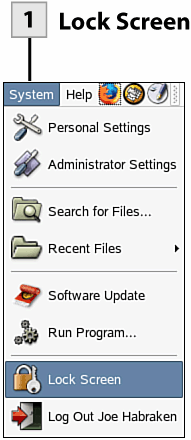
The screen can be locked by setting a timing in the Screensaver Preferences dialog box when you configure your screensaver. In cases where you want to lock the screen when you are ready to step away from your computer, you can use the Lock Screen command on the System menu. After you have locked the screen, the screensaver starts after a short period provided to unlock the screen using your user password.
Before You Begin

22 About GNOME Personal Settings

26 Select a Screensaver


Lock Screen

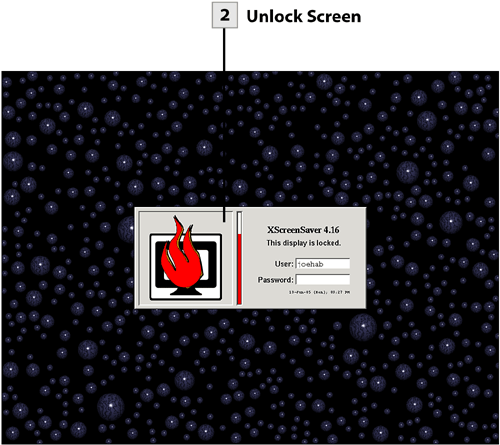
Select the System menu and then select Lock Screen . The XScreenSaver lock dialog appears. You can now go about your business and step away from your computer.

27. Use the Lock Screen Tool


Unlock Screen

When you return to your computer, your screensaver will be running; move the mouse or tap a key on the keyboard. The lock dialog reopens. Your username will already be entered. Enter your password and press Enter to unlock your computer.

 < Day Day Up > 
 < Day Day Up > 

28. About Desktop Themes

Before You Begin

18 About Modifying GNOME

24 Change the Desktop's Background


In terms of refining and personalizing the look and feel of the GNOME environment, your best bet is to use desktop themes. Although the desktop background sets the main image that you see on the NLD desktop, theme elements can be used to provide a custom look for how the windows that you open actually look on the desktop.

So, a theme gives your windows a makeover. Each theme actually consists of three subthemes: Controls, Window Border, and Icons. Each of these subthemes stored in a particular theme can be viewed for the themes provided with NLD desktop using the Theme Details dialog box.

Themes actually consist of three subthemes: one for controls; one for the window borders; and one for the desktop icons.

You can actually mix and match the subthemes provided and create your own themes. Matching your desktop background with the colors and overall style provided by a theme allows you to actually create a custom and unified desktop environment for your NLD desktop.

You can download additional themes and subthemes and add them to your theme settings. This increases the material that you have to work with as you design your own NLD desktop themes.

Tip

You can download subthemes from the Web using Firefox. A good place to start is http://www.gnome.org. On the GNOME home page, select the Art and Themes link to access the page that provides themes for downloading. When you are ready to download a theme (these are typically subthemes for controls or window frames ), right-click on the download link and use the Target Save As option to save the theme to a folder on your desktop. This makes it easy to add these theme elements to existing themes or new themes that you create.


Choose a theme and desktop background that are complementary and provide a unified look for your NLD desktop.

 < Day Day Up > 
 < Day Day Up > 

29. Change the Current Desktop Theme

Theme selection is made in the Theme Preferences dialog box. This dialog box is opened via the Theme icon in the Settings dialog box.

Before You Begin

22 About GNOME Personal Settings

28 About Desktop Themes


Open Theme Preferences Dialog

From the Settings dialog box, double-click the Theme icon. This opens the Theme Preferences dialog box.

29. Change the Current Desktop Theme


Select a New Theme

In the Theme Preferences dialog box select a new theme from the theme list. The changes that the theme makes to the window controls and borders are applied to your currently open windows (including the Theme Preferences dialog box). You can then close the Theme Preferences dialog box; select Close .

 < Day Day Up >