Flylib.com

Books Software


25. Change Fonts

 < Day Day Up > 

25. Change Fonts

You also have control over the fonts used for your applications, the desktop, window titles, and your terminal sessions. These options are available in the Font Preferences dialog box.
Before You Begin

22 About GNOME Personal Settings


25. Change Fonts


Open Font Preferences Dialog

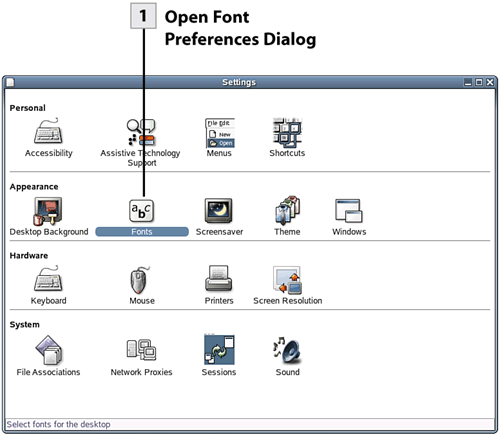
In the Settings dialog box (in the Appearance pane), double-click the Fonts icon. This opens the Font Preferences dialog box. Font changes can be made for applications, the desktop, window titles, or the terminal by clicking on the appropriate choice.

Open Pick a Font Dialog

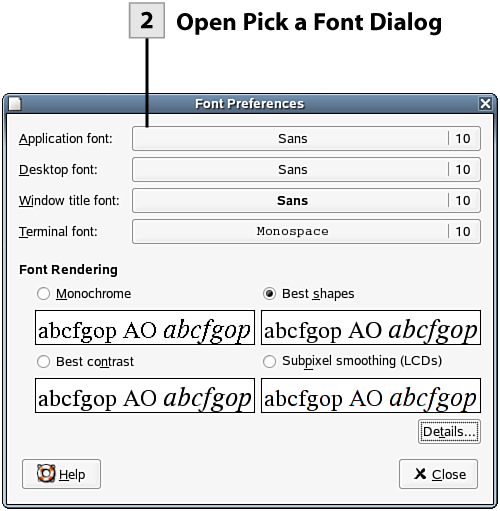
Select one of the font change boxes (such as Application font). This opens the Pick a Font dialog box.

Tip

You can add TrueType fonts to your system as needed. Use Firefox to locate websites that provide font downloads. Download the fonts to a folder that you create on your desktop (right-click on the font download link and select Save Target to specify the appropriate folder). Open the folder on the desktop that you use to store the downloaded fonts. Open your Home folder on the desktop. In the Home window, select File and then select Open Location . In the dialog that opens, type fonts:/// and then click Open . This opens the Font folder for the system. Drag fonts from the folder that you created to hold downloaded fonts to the Font system folder. You now have access to the added fonts.


Select Font Family, Style, and Size

In the Pick a Font dialog box, select a new font family from the Family list. If you want to change the font style, select a new style in the Style list box. Finally, to change the font size, make a selection in the Size list. Click OK to return to the Font Preferences dialog box.

Select Font Rendering

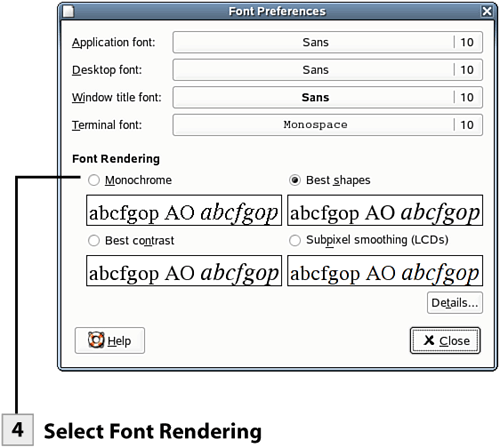
By default fonts are rendered using the Best Shapes option. This option smoothes the edges of the fonts and is typically the best setting for standard monitors. You can also select Monochrome (fonts are shown in black and white, but edges are not smoothed), Best Contrast (sharpens the contrast and smoothes font edges; setting is designed to make screen easier to read), and Subpixel Smoothing (LCDs). The Subpixel Smoothing option is designed to get the best performance out of LCD (laptops) and flat-screen monitors . After making your font rendering selection, click Close to exit the dialog box.

Note

Changing the fonts and other options for your applications only affects your GNOME applications, which is fine because GNOME is the default GUI for NLD. However, if you switch to the KDE desktop, you will find that your font changes are not applied to your applications and applets.


Tip

You can specify additional settings related to how fonts are rendered on your monitor. Select the Details button to fine-tune settings for smoothing and hinting.


 < Day Day Up > 
 < Day Day Up > 

26. Select a Screensaver

Screensavers were originally developed to protect computer screens (we're talking about those old amber and monochrome monitors) from having a static image burned onto the screen during long periods of screen inactivity. The monitors that we now use do not have the same burn-in problems, and most are energy-compliant devices that shut down after a period of inactivity. So screensavers are really mostly for fun and also provide you with the ability to lock your screen when you are away from your computer.

BEFORE YOU BEGIN

SEE ALSO

22 About GNOME Personal Settings

27 Use the Lock Screen Tool


Open Screensaver Preferences Dialog

In the Settings dialog box (in the Appearance pane), double-click the Screensaver icon. This opens the Screensaver Preferences dialog box.

Select Screen Saver Mode

Select the Mode list to select one of the following: Only One Screen Saver, Random Screen Saver (allows you to select a list of screensavers for random selection), Blank Screen Only (screen blanks, but a screensaver is not used) or Disable Screen Saver (the screensaver feature is not used).

Select Screensaver

If you select the Only One Screen Saver mode, select a screensaver from the list of screensavers provided. If you select Random Screen Saver, check boxes are placed next to the screensavers in the list. Enable or clear check boxes as needed to select the screensavers that will be used.

26. Select a Screensaver


Tip

To see a full-screen preview of a screensaver, select the screensaver in the list and then select Preview . Also, be advised that some of the screensavers available require a lot of computer resources to run. If you have a newer system with a lot of power, feel free to run any screensaver. On older systems, you may want to stick with some of the simpler screensaver choices.


Set Timings

You can also set timings for how long the screensaver should run before the screen is blanked and how often the screensavers should be cycled if you chose to use the Random Screen Saver mode. Set the Blank After and Cycle After time settings as needed. If you also want to lock the screen and require your password to reenter the system, select the Lock Screen After check box and set a timing (for the Lock Screen tool). After completing the settings in the Screensaver Preferences dialog box, close the dialog box.

Tip

If you want to set Display Power Management for a compliant monitor (such as the timing for the monitor to use when it goes into standby), select the Advanced tab of the Screensaver Preferences dialog box. The Advanced tab also provides settings for image manipulation where you can set up a screensaver to use image files that you have stored in a folder.


 < Day Day Up >