Flylib.com

Books Software


7. Navigate the GNOME Desktop

 < Day Day Up > 

7. Navigate the GNOME Desktop

Working on the GNOME desktop is really a study in manipulating your utility and application windows , which can be opened using either the menu system or icons (either existing or desktop icons that you have created or quickstart icons that exist by default or that you have added). The default desktop icons (such as Computer and Home) are designed to allow you to locate and manage the files that you create using your various applications.
7. Navigate the GNOME Desktop


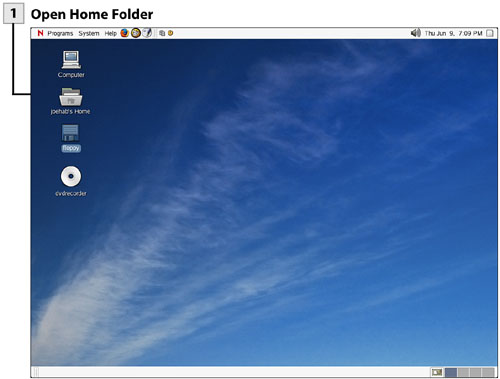
Open Home Folder

Double-click on the Home ( username Home) icon on the desktop. Your Home folder opens.

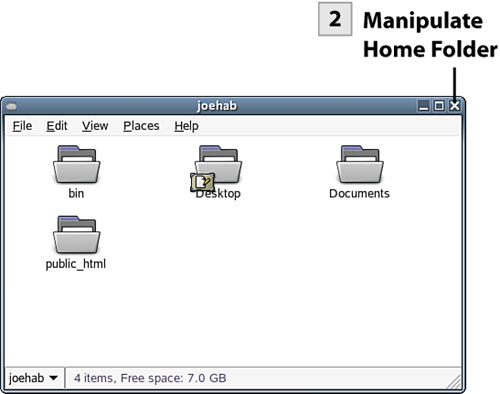
Manipulate Home Folder

Click the Maximize button to maximize the Home folder. You can open any of the folders present in the Home folder with a double-click.

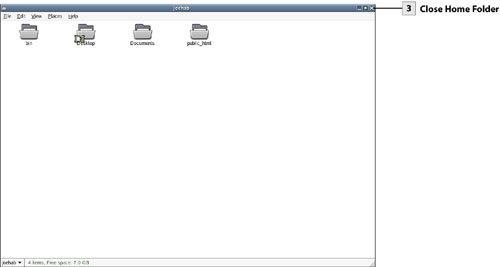
Close Home Folder

To close the Home folder, click the Close button.

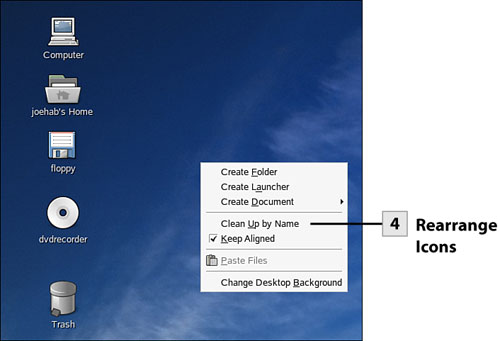
Rearrange Icons

You can drag icons on the desktop as needed. To rearrange any icons that you have dragged on the desktop, right-click on the desktop and select Clean Up by Name . This aligns the icons by name.

Tip

To view the desktop without closing a maximized application window, click on the Minimize button in that window. The application can be restored to the desktop by clicking its icon on the bottom panel of the desktop.


 < Day Day Up > 
 < Day Day Up > 

8. Use the Menu System

You can access the application and other tools provided by NLD using the menus that reside in the top panel of the desktop. The Programs menu divides the installed applications into categories such as Accessories, Graphics, and Office. Selecting a particular category provides a list of applications in that category. For example, the Accessories submenu provides access to tools such as the Calculator, Dictionary, and File Manager. The Office submenu provides access to the OpenOffice.org suite, which includes Write, Calc, and Impress.

The System menu provides access to personal and administrative settings. It also allows you to quickly search for a file and provides you with the ability to log off the system.

8. Use the Menu System


Open Program

Select the Programs menu and then select one of the program categories such as Internet . Then click an application icon such as Firefox Web Browser . The application (in this case Firefox) opens on the desktop. You can Minimize or Close the application as needed.

Open Settings

Select the System menu and then select an item on the menu such as Personal Settings . This opens the Settings window. You can minimize or maximize the Settings window as needed.

View Desktop

To minimize the application currently running on the desktop, click the View Desktop icon on the desktop's bottom panel. You can then restore any of the open applications to the desktop by clicking its icon on the bottom panel.

Tip

To quickly start applications such as Firefox, Evolution, and OpenOffice.org Write, click the appropriate quickstart icon on the top panel.


Tip

If you are running a multimedia application such as the CD Player or Music Player, you can quickly adjust the sound by selecting the Volume Control icon on the top panel.


 < Day Day Up > 
 < Day Day Up > 

9. Manage Virtual Desktops

Before You Begin

7 Navigate the GNOME Desktop

8 Use the Menu System


Multitasking environments such as NLD make it easy for you to run multiple applications on the desktop. However, the desktop can become quickly overrun with application windows . Even with some applications minimized, the bottom panel can contain any number of icons, making the process of switching between applications an annoyance. Virtual desktops allow you to place applications on different desktops. You can then switch between these desktops and use the running applications, without sorting through a pile of windows on one desktop only.

Tip

On the far left of the top panel is the Window Switcher icon. When you are working on a particular virtual desktop, you can quickly get a list of open application windows (and switch to particular application) by selecting the Window Switcher.


You switch between the virtual desktops using the Workspace Switcher on the right side of the bottom panel. The Workspace Switcher actually provides a thumbnail of each of the virtual desktops currently in use.

9. Manage Virtual Desktops


Switch Virtual Desktop

To switch from your current desktop (and the applications currently open on the desktop), click one of the blank virtual desktops in the Workspace Switcher. Although your applications still show as open on the bottom panel (as icons), you are provided a "fresh" desktop.

Open Applications on Virtual Desktop

You can now open applications as needed on the virtual desktop. For example, select Programs , Office , Word Processor to open the OpenOffice.org Write application.

Switch Back to Original Virtual Desktop

To switch back to the original virtual desktop, select the Workspace Switcher box for that desktop. To return a virtual desktop to its original state (meaning devoid of application windows), close the applications on that virtual desktop.

 < Day Day Up >