Section 1.11. I Need to Manage Sound Events
1.11. I Need to Manage Sound EventsIn this annoyance, I describe the elementary utilities available to our major distributions for configuring sound cards. I then describe the utilities that can help you manage sound events. As this chapter is focused on the desktop, I focus on sound events associated with the GNOME and KDE desktop environments. I also focus on the Advanced Linux Sound Architecture (ALSA), which was incorporated into the current Linux kernel (2.6). If you need detailed information on support for your sound card, refer to ALSA's web site at http://www.alsa-project.org. When your distribution detects a sound card, it may include commands for the appropriate modules in a file such as /etc/modprobe.conf, /etc/modules.conf, or /etc/modprobe.d/sound. I've broken this annoyance into distribution-specific sections, followed by the tools associated with the GNOME and KDE desktop environments. You can control the sound environment for all users with the distribution-specific tools. Your users can control their individual sound settings with the GNOME and KDE-based tools. All three distributions include the alsaconf utility. As you can run it from the console, it's not associated with any particular desktop environment. For more information, see the description of the utility later in this annoyance. 1.11.1. Red Hat/FedoraImmediately after the installation process, Red Hat/Fedora distributions normally test the sound card as part of the firstboot process. This process calls the system-config-soundcard utility. If it finds an ALSA-compliant sound card, it installs the card for you and allows you to check the result with a standard set of musical notes. For more details on how you can configure ALSA-compliant sound cards, refer to the commands associated with the alsa-utils RPM. This package includes a number of utilities that can even help you configure and coordinate multiple sound cards. 1.11.2. SUSEAs with most systems, SUSE encourages hardware configuration of sound cards with YaST. Sound configuration options are available when you start YaST, under the Hardware section. If SUSE detects a sound card, it's listed in the YaST Sound Configuration menu. Alternatively, if the card wasn't properly detected, you may be able to configure it from the available database. In the YaST Sound Configuration menu, select the Add Sound Card option. You'll be able to select from a wide variety of sound-card vendors and associated hardware models. YaST configures your sound card and adds the result to the /etc/modprobe.d/sound configuration file. Other important SUSE sound configuration files include /etc/modprobe.conf* and /etc/sysconfig/sound. 1.11.3. Debian and alsaconfDebian includes the generic ALSA configuration tool, /usr/sbin/alsaconf. While available for the distributions covered in this book, it's the primary tool for Debianpart of the alsa-utils package. Install it, and it can help you configure just about any ALSA-compatible sound card. While you're at the installation process, make sure to download and install the alsa-source, alsa-base, and the libasound2 packages. As the database of ALSA drivers, the alsa-source package is especially important if you have a slightly obscure sound card.
When you start the ALSA configuration tool, take the following steps:
Any special sound-card settings are saved to the /etc/modprobe.d/alsa-base file. If you want to make sure any changes to sound settings are saved and reapplied the next time you boot Debian Linux, take the following steps:
Now, you can adjust the default sound settings for your system. To do so, run the alsamixer command, which opens a console-based volume tool, as shown in Figure 1-9. Figure 1-9. AlsaMixer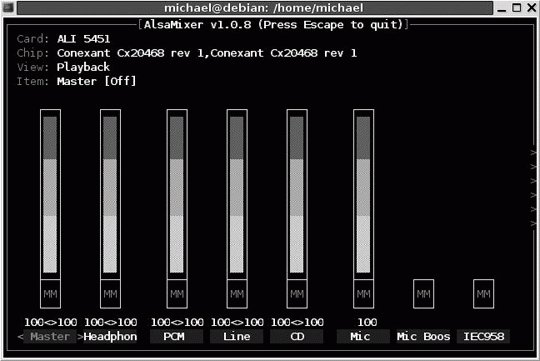 You can navigate among the options with the left and right arrow keys, and change volume levels with the up and down arrow keys. As shown in the figure, you can exit the utility with the Esc key. Once you make changes, you'll need to run the following command to store the current sound level in /var/lib/alsa/asound.state: alsactl store 1.11.4. GNOME Sound PreferencesGNOME sound events are managed through the Sound Preferences tool, which you can start with the gnome-sound-properties command. It's part of the capplets package in Debian, the control-center RPM on Red Hat/Fedora, and the control-center2 RPM on SUSE. When you start this utility, you'll immediately see its value. As shown on the first tab, it determines whether the sound server is started when you log in to the GNOME Desktop Environment. It also allows you to activate Sounds For Events, as defined under the Sound Events tab. Many of these events require the gnome-audio RPM or DEB package. The System Bell tab allows you to activate a sound for events such as errors. One standard is to activate the Sound An Audible Bell option. For hearing-impaired users, you can also activate visual feedback, which leads to a flash on the screen for sound events. Sound-event settings are saved in gconf (GNOME Configuration) settings, described in the "Disabling Changes on GNOME" annoyance earlier in this chapter. 1.11.5. KDE Sound ManagementThere are three tools associated with sound management on the KDE desktop, at least if you're looking for tools functionally equivalent to the GNOME Sound Preferences tool. They include the following:
These tools are straightforward; they directly configure the sound settings on a per-user basis. Changes are written to several files in each user's ~/.kde/share/config directory. |


EAN: 2147483647
Pages: 144