Activities
Everything in a workflow is an activity - that actually goes for the workflow itself, which is a specific type of activity that typically allows other activities to be defined within it - this is known as a composite activity, and you will see other composite activities later in the chapter. An activity is just a class that ultimately derives from the Activity class.
The Activity class defines a number of overridable methods, and arguably the most important of these is the Execute method shown in the snippet below:
protected override ActivityExecutionStatus Execute ( ActivityExecutionContext executionContext ) { return ActivityExecutionStatus.Closed; } When the runtime schedules an activity for execution, the Execute method is ultimately called, and that is where you have the opportunity to write custom code to provide the behavior of the activity. In the simple example in the previous section, when the workflow runtime calls Execute on the CodeActivity, the implementation of this method on the code activity will execute the method defined in the code-behind class, and that displays the message on the console.
The Execute method is passed a context parameter of type ActivityExecutionContext, and you’ll see more about this as the chapter progresses. The method has a return value of type ActivityExecutionStatus, and this is used by the runtime to determine whether the activity has completed successfully, is still processing, or is in one of several other potential states that can describe to the workflow runtime what state the activity is in. Returning ActivityExecutionStatus.Closed from this method indicates that the activity has completed its work and can be disposed of.
There are 28 standard activities provided with WF, and the following sections provide examples of some of these together with scenarios where you might use these activities. The naming convention for activities is to append Activity to the name; so for example, the code activity shown in Figure 41-2 is defined by the CodeActivity class.
All of the standard activities are defined within the System.Workflow.Activities namespace, which in turn forms part of the System.Workflow.Activities.dll assembly. There are two other assemblies that go to make up WF - these are System.Workflow.ComponentModel.dll and System.Workflow .Runtime.dll.
IfElseActivity
As its name implies, this activity acts like an If-Else statement in C#.
When you drop an IfElseActivity onto the design surface, you’ll see an activity as displayed in Figure 41-3. The IfElseActivity is a composite activity in that it constructs two branches (which themselves are types of activity, in this case IfElseBranchActivity). Each branch is also a composite activity that derives from SequenceActivity - this class executes each activity in turn from top to bottom. The Designer adds the Drop Activities Here text to indicate where child activities can be added.
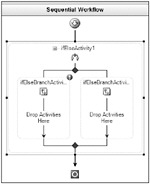
Figure 41-3
The first branch as shown in Figure 41-3 includes a glyph indicating that the Condition property needs to be defined. A condition derives from ActivityCondition and is used to determine whether that branch should be executed.
When the IfElseActivity is executed, it evaluates the condition of the first branch and if the condition evaluates to true then the branch is executed. If the condition evaluates to false the IfElseActivity then tries the next branch, and so on until the last branch in the activity. It is worth noting that the IfElseActivity can have any number of branches, each with its own condition. The last branch needs no condition as it is in effect the else part of the If-Else statement. To add a new branch, you can display the context menu for the activity and select Add Branch from that menu - this is also available from the Workflow menu within Visual Studio. As you add branches, each will have a mandatory condition except for the last one.
There are two standard condition types defined in WF - the CodeCondition and the RuleCoditionReference. The CodeCondition class executes a method on your code-behind class, which can return true or false as appropriate. To create a CodeCondition, display the property grid for the IfElseActivity and set the condition to Code Condition, then type in a name for the code to be executed, as shown in Figure 41-4 below.
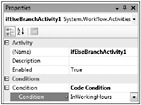
Figure 41-4
When you have typed the method name into the property grid, the Designer will construct a method on your code-behind class, as shown in the snippet below.
private void InWorkingHours(object sender, ConditionalEventArgs e) { int hour = DateTime.Now.Hour; e.Result = ((hour >= 9) && (hour <= 17)); } The code above sets the Result property of the passed ConditionalEventArgs to true if the current hour is between 9 am and 5 pm. Conditions can be defined in code as shown here, but another option is to define a condition based on a Rule that is evaluated in a similar manner. The Workflow Designer contains a rule editor, which can be used to declare conditions and statements (much like the If-Else statement shown above). These rules are evaluated at runtime based on the current state of the workflow.
ParallelActivity
This activity permits you to define a set of activities that execute in parallel - or rather in a pseudo-parallel manner. When the workflow runtime schedules an activity, it does so on a single thread. This thread executes the first activity, then the second and so on until all activities have completed (or until an activity is waiting on some form of input). When the ParallelActivity executes, it iterates through each branch and schedules execution of each branch in turn. The workflow runtime maintains a queue of scheduled activities for each workflow instance, and typically executes these in a FIFO (first in, first out) manner.
Assuming that you have a ParallelActivity, as shown in Figure 41-5, this will schedule execution of sequenceActivity1 and then sequenceActivity2. The SequenceActivity type works by scheduling execution of its first activity with the runtime, and when this activity completes, it then schedules the second activity. This schedule/wait for completion method is used to traverse through all child activities of the sequence, until all child activities have executed, at which time the sequence activity can complete.
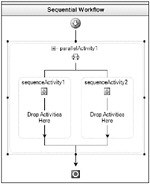
Figure 41-5
Given that the SequenceActivity schedules execution of one activity at a time, it means that the queue maintained by the WorkflowRuntime is continually updated with schedulable activities.
Assuming that we have a parallel activity P1 that contains two sequences, S1 and S2, each with two code activities, C1 and C2, this would produce entries in the scheduler queue, as shown in the example.
| Workflow Queue | Initially There Are No Activities in the Queue |
|---|---|
| P1 | Parallel is executed when the workflow runs. |
| S1, S2 | Added to the queue when P1 executes. |
| S2, S1.C1 | S1 executes and adds S1.C1 to the queue. |
| S1.C1, S2.C1 | S2 executes and adds S2.C1 to the queue. |
| S2.C1, S1.C2 | S1.C1 completes, so S1.C2 is queued. |
| S1.C2, S2.C2 | S2.C1 completes, so S2.C2 is queued. |
| S2.C2 | The last entry in the queue. |
 Open table as spreadsheet
 Here, the queue processes the first entry (the parallel activity P1), and this adds the sequence activities S1 and S2 to the workflow queue. As the sequence activity S1 executes, it pushes its first child activity (S1.C1) to the end of the queue, and when this activity is scheduled and completes, it then adds the second child activity to the queue.
As can be seen from the above example, execution of the ParallelActivity is not truly parallel - it effectively interleaves execution between the two sequential branches. From this, you could infer that it’s best that an activity execute in a minimal amount of time, because, given that there is only one thread servicing the scheduler queue for each workflow, a long-running activity could hamper the execution of other activities in the queue. That said, it is often the case that an activity needs to execute for an arbitrary amount of time, so there must be some way to mark an activity as “long-running” so that other activities get a chance to execute. You can do this by returning ActivityExecutionStatus.Executing from the Execute method, which lets the runtime know that you’ll call it back later when the activity has finished. An example of this type of activity is the DelayActivity.
CallExternalMethodActivity
A workflow will typically need to call methods outside of the workflow, and this activity allows you to define an interface and a method to call on that interface. The WorkflowRuntime maintains a list of services (keyed on a System.Type value) that can be accessed using the ActivityExecutionContext parameter passed to the Execute method.
You can define your own services to add to this collection and then access these services from within your own activities. You could for example construct a data access layer exposed as a service interface, and then provide different implementations of this service for SQL Server and Oracle. As the activities simply call interface methods, the swap from SQL Server to Oracle would be opaque to the activities as they simply call interface methods.
When you add a CallExternalMethodActivity to your workflow, you then define the two mandatory properties of InterfaceType and MethodName. The interface type defines which runtime service will be used when the activity executes, and the method name defines which method of that interface will be called.
When this activity executes, it looks up the service with the defined interface by querying the execution context for that service type, and it then calls the appropriate method on that interface. You can also pass parameters to the method from within the workflow - again, this is discussed later in the section titled “Binding Parameters to Activities.”
DelayActivity
Business processes often need to wait for a period of time before completing - consider using a workflow for expense approval. Your workflow might send an e-mail to your immediate manager asking him or her to approve your expense claim. The workflow then enters a waiting state, where it either waits for approval (or, horror of horrors, rejection), but it would also be nice to define a timeout so that if no response is returned within say 1 day, the expense claim is then be routed to the next manager up the chain of command.
The DelayActivity can form part of this scenario (the other part is the ListenActivity defined below), and its job is to wait for a predefined time before continuing execution of the workflow. There are two ways to define the duration of the delay - you can either set the TimeoutDuration property of the delay to a string such as “1.00:00:00” (1 day, no hours, minutes, or seconds) or you can provide a method that is called when the activity is executed that sets the duration to a value from code. To do this, you need to define a value for the InitializeTimeoutDuration property of the delay activity, and this creates a method in the code behind, as shown in the snippet below:
private void DefineTimeout(object sender, EventArgs e) { DelayActivity delay = sender as DelayActivity; if (null != delay) { delay.TimeoutDuration = new TimeSpan(1, 0, 0, 0); } } Here, the DefineTimeout method casts the sender to a DelayActivity and then sets the TimoutDuration property in code to a TimeSpan. Even though the value is hard-coded here, it is more likely that you would construct this from some other data - maybe a parameter passed into the workflow or a value read from the configuration file. Workflow parameters are discussed in the section on “Workflows” later in the chapter.
ListenActivity
A common programming construct is to wait for one of a set of possible events - one example of this is the WaitAny method of the System.Threading.WaitHandle class. The ListenActivity is the way to do this in a workflow, as it can define any number of branches, each with an event based activity as that branches first activity.
An event activity is one that implements the IEventActivity interface defined in the System .Workflow.Activities namespace. There are currently three such activities defined as standard in WF - DelayActivity, HandleExternalEventActivity, and the WebServiceInputActivity. Figure 41-6 below shows a workflow that is awaiting either external input or for a delay - this is an example of the expense approval workflow discussed earlier.
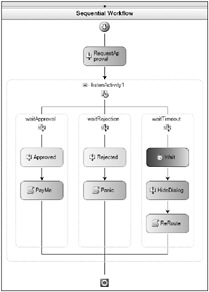
Figure 41-6
In the example, the CallExternalMethodActivity is used as the first activity in the workflow, and this calls a method defined on a service interface that would prompt the manager for approval or rejection - as this is an external service this prompt could be an e-mail, an IM message, or any other manner of notifying your manager that an expense claim needs to be processed. The workflow then executes the ListenActivity, which awaits input from this external service (either an approval or a rejection), and also waits on a delay.
When the listen executes, it effectively queues a wait on the first activity in each branch, and when one event is triggered this cancels all other waiting events and then processes the rest of the branch where the event was raised. So, in the instance where the expense report is approved, the Approved event is raised and the PayMe activity is then scheduled. If, however, your manager rejects the claim, then the Rejected event is raised and in the example you then Panic.
Last, if neither the Approved or Rejected event is raised, then the DelayActivity ultimately completes after its delay expires, and the expense report could then be routed to another manager - potentially looking up that person in Active Directory. In the example, a dialog is displayed to the user when the RequestApproval activity is executed, so in the case when the delay executes you also need to close the dialog, which is the purpose of the activity named HideDialog in Figure 41-6.
The code for this example is available in the 02 Listen directory. There are some concepts used in that example that have not been covered yet - such as how a workflow instance is identified and how events are raised back into the workflow runtime and ultimately delivered to the right workflow instance. These concepts will be covered in the section titled “Workflows.”
Activity Execution Model
Thus far, this chapter has only discussed the execution of an activity by the runtime calling the Execute method. In actual fact, an activity may go through a number of states while it executes - these are presented in Figure 41-7.
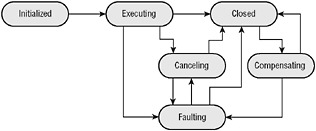
Figure 41-7
An activity is first initialized by the WorkflowRuntime when the runtime calls the activities Initialize method. This method is passed an IServiceProvider instance, which maps to the services available within the runtime. These services are discussed in the “Workflow Services” section later in the chapter. Most activities do nothing in this method, but the method is there for you to do any setup necessary.
The runtime then calls the Execute method, and the activity can return any one of the values from the ActivityExecutionStatus enum. Typically, you will return Closed from your Execute method, which indicates that your activity has finished processing; however, if you return one of the other status values, the runtime will use this to determine what state your activity is in.
You can return Executing from this method to indicate to the runtime that you have extra work to do - a typical example of this is when you have a composite activity that needs to execute its children. In this case, your activity can schedule each child for execution and then wait for all children to complete before notifying the runtime that your activity has completed.
