Flylib.com

Books Software


Customizing the Toolbar


Customizing the Toolbar

You can customize the Toolbar to include the functions and features you use frequently, and you can arrange them in the order that makes the most sense to you.

Toolbars appear in many different GroupWise screens. You have a Toolbar for each message view and for the main GroupWise screen, and you can set different options for each.

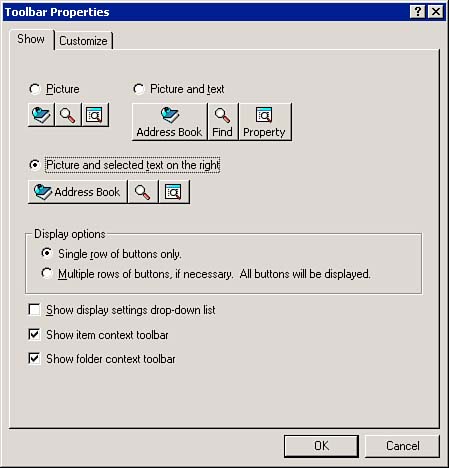
To customize any Toolbar, right-click the Toolbar and select Customize Toolbar. The Toolbar Properties dialog box appears, as shown in Figure 11.18.

Figure 11.18. You can decide to view the buttons on the Toolbar as pictures only or as pictures with text on various rows.

graphics/11fig18.jpg

The Show tab enables you to select what should be displayed on the Toolbaronly the picture or both the picture and text. You can also specify one or multiple rows. In addition, you can select whether to display the Display Mode drop-down list in the Toolbar.

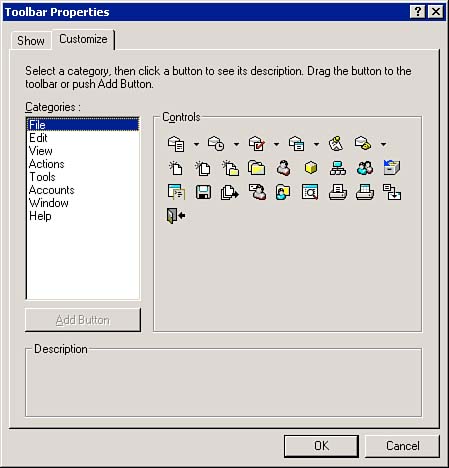
The Customize tab, shown in Figure 11.19, enables you to specify which GroupWise features appear on the Toolbar.

Figure 11.19. The Customize tab lets you place the buttons you use most often on the Toolbar for quick, one-click access.

graphics/11fig19.jpg

Follow these steps to add a menu option to the Toolbar:

  1. Click the category the feature belongs to (for example, the Tools category contains options for the Address Book and Hit the Road tools).

  2. Double-click the button you want on the Toolbar. The button will appear on the Toolbar.

  3. Click and drag the button to your desired location on the Toolbar.

When the Toolbar Properties dialog box is displayed, you can arrange the existing Toolbar buttons by clicking and dragging them to the desired locations. To remove a button from the Toolbar, click the button and drag it off the Toolbar.


Customizing Your Folders

In Chapter 5, "Message Management," you saw how to use folders to help organize your messages. By adjusting the properties of the folders in your Mailbox, you can arrange to see folder contents when a folder is opened, see who has access to the messages in the folder (if anyone ), and specify what columns are displayed. Each folder can be customized individually. For example, the Mailbox can be set up to display only the Subject and From fields, and the Sent Items folder can be set up to display Subject, Opened Status, and Date fields.

Property Sets

Even though you can set up a parent/child folder structure, folder properties are set for each folder individually. These folder properties are grouped into the following sets:

  • General ” Holds general information about the folder, such as the owner and a description

  • Display ” Configures folder settings to determine how messages are displayed in the folder and what columns are used

  • Sharing ” Determines access to the messages in the folder

NOTE

The people who share a particular parent folder will not necessarily share the subfolders under the folder. Shared access to folders is set for the individual folder.


The properties available for folders differ , depending on the type of folder you are configuring. All folders contain the General and Display tabs. The Trash folder contains a Cleanup property tab.

TIP

When you right-click the Cabinet, you can select Sort Subfolders to quickly alphabetize the first-level subfolders. To sort a set of nested folders, you need to select Sort Subfolders from the parent folder.


User -created folders contain a unique tab called Sharing . The Sharing tab enables you to share the folders with other GroupWise users.

To display or change the properties of a folder, simply right-click the folder and choose Properties.

General

The general folder properties are shown in Figure 11.20 and described in the following list:

  • Type ” Describes the type of folder: Personal, Calendar, Mailbox, and so on

  • Owner ” Specifies the creator of the folder

  • Contains ” Provides a summary of the folder's contents

  • Description ” Gives a general description of the folder

Figure 11.20. The General tab contains the name , owner, and other information about the folder.

graphics/11fig20.jpg

Once you configure the general options for a folder, you can customize the display settings.

Display

Figure 11.21 depicts the Display tab of a personal folder. This setting configures the default display options. The Display drop-down list on the Toolbar enables you to configure momentary display options, not default display properties. Every time the folder is accessed, the settings you make in the Display tab of the folder properties will be active.

Figure 11.21. The Display tab allows you to customize the viewing and sorting options for the folder.

graphics/11fig21.jpg

NOTE

If you would like to save a custom set of folder settings, click the Save As button, enter a name for the folder setting, and click OK. Your new custom set will appear under the Setting name drop-down list.


Here's a list of the settings you'll find in the Display tab:

  • Setting Name ” A drop-down list of preconfigured folder settings.

  • Description ” A description of this group of folder settings.

  • View By ” Sets the display to the Message Details, Message Thread, or Calendar format for the items in this folder.

  • Sort By ” Determines a piece of information about the messages by which all messages in this folder will be sorted (for example, Date, From, and so on).

  • Sort Order ” Specifies an ascending or descending display of the items in this folder.

  • Item Source ” Tells GroupWise what the originating source is of the messages in this folder: Received, Sent, Posted, or Draft.

  • Item Type ” Specifies the types of messages contained in the folder: Mail, Appointments, Reminder notes, Tasks, Documents, and Phone Messages.

  • Columns ” Determines which pieces of information will appear in the columns in the Items Area. (Choose Edit Columns to add or delete columns.)

TIP

Make sure the piece of information by which you are sorting the messages is also a column.


Once you have set up the display options, you can establish shared folders.

Sharing

Sharing options for folders determine who has access to the messages inside of them. Chapter 5 discusses how to use shared folders in detail.

These settings allowed you to customize your folders. The next section describes another customization feature: Show Appointment As.