Role-Based Authorization Exercise
|
The employee management tool used by our fictional company is in sore need of a role-based security system. The employee RKing is a human resources administrator who should be allowed privileges only to change employee roles and manage his own information. However, in the current state of the employee management system (EMS), he can perform tasks he shouldn’t be allowed to perform. For example, he can freely add and delete employees from the system, which is a task reserved for a separate human resources role—the human resources officer—in our fictitious company. How do you stop RKing from being able to add and delete employees from the system? Let’s take a look at the employee management system, which stores the list of employees, roles, and employee-role assignments in the database EmployeeDatabase.mdb. The database has the structure shown in Figure 2-1.

Figure 2-1: Employees and roles
As you can see in Figure 2-1, EmployeeDatabase.mdb contains three tables: the Employee table, Role table, and EmployeeRole table. You were introduced to the Employee table in Chapter 1. The Role table contains a list of roles: Employee, Manager, HR Administrator, HR Officer, and Auditor. The EmployeeRole table contains a list of employees and the roles they are assigned to. For example, RKing is in the role of both Employee and HR Administrator. Currently, these database entries don’t actually allow or prevent users from performing tasks.
Disable functionality based on roles
In this exercise, you’ll load the roles from the database and assign them to the logged-on user. Because user roles correspond directly to the tasks or permissions listed on the main menu of the application, only those tasks that the person is allowed to perform will be shown.
-
Run Visual Basic .NET, and open the practice-file solution CH02_RoleBased\EMS\Start\EMS.sln. (You can download the sample files from this book’s Web site.)
-
Add a new module named RoleBasedSecurity.vb and the following Imports statements to the top of the file:
Imports System.Security.Principal
Imports System.Threading
Imports System.Data.OleDb
Imports System.Collections.Specialized -
Insert the following code after the Module RoleBasedSecurity statement and before the End Module statement:
Friend Function LoadRoles(ByVal UserName As String) As String()

 Dim cn As New OleDbConnection(G_CONNECTIONSTRING)
 Dim strSQL As String = _
  "Select Role from EmployeeRole where Username =‘" & _
 UserName & "‘"
 Dim cmd As New OleDbCommand(strSQL, cn)
 Dim dr As OleDbDataReader
 Dim collRole As New StringCollection()
 Dim strRole() As String

 cn.Open()
 dr = cmd.ExecuteReader
 collRole.Clear()
 While dr.Read
 collRole.Add(CStr(dr("Role")))
 End While

 ReDim strRole(collRole.Count - 1)
 collRole.CopyTo(strRole, 0)
 Return strRole
End Function
This code loads the application-defined roles from the EMS database and returns an array of strings containing the role names— for example, Employee and Manager for an employee who is also a manager.
-
Add the following function to the module RoleBasedSecurity after the LoadRoles function inserted in the previous step and before the End Module statement:
Friend Sub SetPrincipalPolicy(ByVal UserName As String)
 Dim strUserRoles() As String = LoadRoles(UserName)
 Dim UserIdentity As New GenericIdentity(UserName)
 Dim UserPrincipal As GenericPrincipal
 UserPrincipal = New GenericPrincipal(UserIdentity, strUserRoles)
 AppDomain.CurrentDomain.SetPrincipalPolicy( _
 PrincipalPolicy.UnauthenticatedPrincipal)
 Thread.CurrentPrincipal = UserPrincipal
End Sub
This code loads the roles and assigns them to the GenericPrincipal object of the current running thread.
-
In clsEmployee.vb, add the following call to SetPrincipalPolicy near the end of the Create function before the Catch ex As Exception statement:
SetPrincipalPolicy(employee.m_Username)
-
Open the form frmDashboard, and double-click the form background to create a Form_Load event. Add the following code to the event:
Private Sub frmDashboard_Load(ByVal sender As System.Object, _
 ByVal e As System.EventArgs) Handles MyBase.Load
 With System.Threading.Thread.CurrentPrincipal
 Me.btnAddNew.Visible = .IsInRole("HR Officer")
 Me.lblAddNew.Visible = .IsInRole("HR Officer")
 Me.btnRemove.Visible = .IsInRole("HR Officer")
 Me.lblRemove.Visible = .IsInRole("HR Officer")
 Me.btnManage.Visible = .IsInRole("HR Administrator")
 Me.lblManage.Visible = .IsInRole("HR Administrator")
 Me.btnMyInfo.Visible = .IsInRole("Employee")
 Me.lblMyInfo.Visible = .IsInRole("Employee")
 End With
End Sub -
Press F5 to run the application, and log on to the employee management system using the username RKing and password RKing.
After you have logged on, the dashboard will look like Figure 2-2. The Add New Employee and Remove Employee buttons are made invisible because RKing doesn’t have permission to use them. This underscores an important principle of user-interface design: If the user can never use a particular feature, hide it from view or disable it.
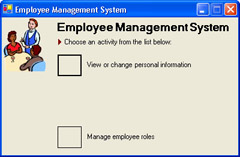
Figure 2-2: Buttons are hidden based on roles
The previous exercise demonstrates how to assign the user name to a GenericIdentity object, assign the GenericIdentity object to a GenericPrincipal object along with a list of associated roles defined in the database, and assign the GenericPrincipal object to the current thread your code is running on. The code presented in the exercise restricts the user to specific tasks by querying the user assigned to the current thread and determining whether the user is in a role that is allowed to perform the requested action.
|
