Basic Database Concepts
| In your earlier work with Excel, you created worksheets to store and summarize information or data. Often you organize this information so that you can easily find the entries for a series of values, or calculate the totals for a group of numbers . In Excel, a database is simply a more organized set of data. By organizing the data into a database, you can use the built-in database commands to find, edit, and delete selected data without manually scrolling through the information. Database ” Suppose you want to save the names and addresses of all the people on your holiday card list. You can create a database for storing the following information for each person: first name, last name , address, and so on. Each piece of information is entered into a separate field (cell) in the list. All the fields for one person in the list make a record. In Excel, a cell is a field, and a row of field entries makes a record. The column headings in the list are called field names in the database. Figure 21.1 shows the organization of an Excel database. Figure 21.1. Sample database. Before you work with a database, you should know these database terms:
After you learn the database terms, here are two more things to think about when creating a database:
 |
 A tool you use to store, organize, and retrieve information. Excel treats the database as a simple list of data. You enter the database information just as you would enter data into a worksheet. When you select a command from the Data menu, Excel recognizes the list as a database.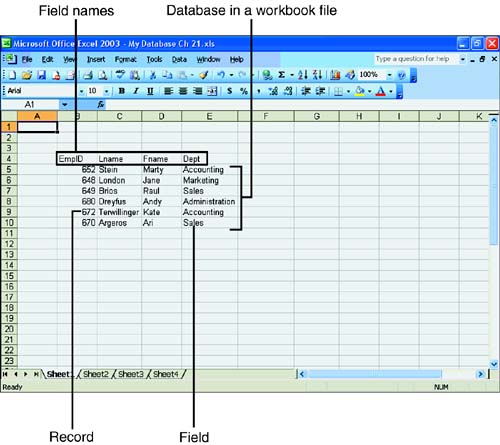

EAN: 2147483647
Pages: 279
- ERP Systems Impact on Organizations
- Context Management of ERP Processes in Virtual Communities
- Distributed Data Warehouse for Geo-spatial Services
- Intrinsic and Contextual Data Quality: The Effect of Media and Personal Involvement
- Development of Interactive Web Sites to Enhance Police/Community Relations