To understand what Web Parts can do, you have to see them in action. In a new Web site that I named WebParts, I added a few Web Parts and a drop-down list. The Web site runs in Browse mode by default, as shown in Figure 4-1.
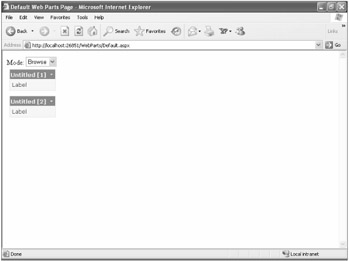
Figure 4-1:
Default.aspx in the WebParts Web site, shown in Browse mode
In addition to the label and the drop-down list, this page has two other controls, identified as Untitled [1] and Untitled [2]. These are Web Parts. If you click the down arrows in one of the title bars, a menu appears that allows you to minimize or close the Web Part. Note that if you close the Web Part, the page remembers this action, and the Web Part will still be closed when you return to the page.
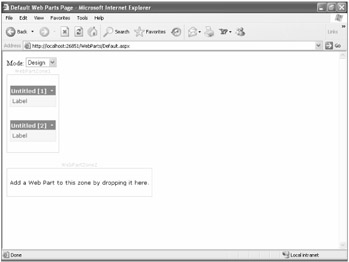
When you change the mode from Browse to Design, the page
Figure 4-2:
Default.aspx in the WebParts Web site, shown in Design mode
In addition to the controls that were visible in Browse mode, a couple of other elements appear in Design mode. Two parts of the page are
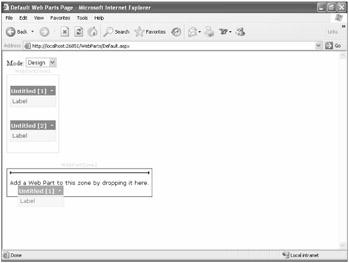
Figure 4-3:
Default.aspx while dragging a Web Part in Design mode
This is very cool! You, as the developer, can create little bits of functionality, which your users can customize and combine in ways that are
| Note |
The full drag-and-drop experience works only with Microsoft Internet Explorer. |
When you first start to work with Web Parts, the number of controls available is somewhat daunting. Figure 4-4 shows the Web Parts available in the Microsoft Visual Studio Toolbox.
Figure 4-4:
Web Parts in the Visual Studio Toolbox
To fully understand how Web Parts work, you must first understand the individual elements of Web Parts. Table 4-1 describes most of the Web Parts
|
Component |
Description |
Use |
|---|---|---|
|
WebPartManager |
The central class in the Web Part control set. This is a non-visual control that will never appear to the
|
Always required for Web Parts to work. |
|
ProxyWebPartManager |
The class used when the WebPartManager component is on the Master page in use by the page in question. |
Used when you have the WebPartManager component on a Master page. |
|
WebPartZone |
The central class in the Web Parts control set for hosting Web Parts. |
Always used. A place for the user to drag and drop controls onto the form. |
|
CatalogZone |
The central class in the Web Parts control set for hosting
CatalogPart
controls in the control set for hosting Web Parts. The
|
Used to give users the ability to view a catalog of available Web Parts in Visual Studio Design view. |
|
DeclarativeCatalogPart |
A
CatalogZone
component that allows developers to add a set of server controls
|
Commonly used to make controls available by simply adding markup for controls inside the DeclarativeCatalogPart zone. |
|
PageCatalogPart |
A CatalogZone component that allows users to re-activate controls previously closed. |
Used only if the page allows controls to be closed. |
|
ImportCatalogPart |
A component that allows users to import a description file that describes the settings on a Web Part control or server control that they want to add to a Web page. |
Used when the user has exported the description from a control that supports the Export verb from the Web Part Verb menu. |
|
EditorZone |
A component that allows users to modify Web pages according to their preferences. The following three controls in this table must be contained in the EditorZone component. |
Used to contain components to allow users to edit the appearance, behavior, and layout of Web Part properties. |
|
AppearanceEditorPart |
A component that allows users to edit several user interface properties of an associated Web Part. |
Used to allow a user to edit the appearance of a Web Part. |
|
BehaviorEditorPart |
A component that allows users to edit several properties to affect the behavior of the associated Web Part. |
Used to change the visibility of verbs such as close , minimize , and restore . |
|
LayoutEditorPart |
A component that allows users to edit several properties to affect the layout of the associated Web Part. |
Used to change the location of a Web Part. |
| Note |
If you are going to allow users to close Web Parts, it is critical to have a PageCatalogPart component on the page to allow users to retrieve the Web Parts they have closed. |
When designing with Web Parts, you will first drag and drop a variety of Web Part-
Now that you have a basic introduction to these controls, it makes sense to look at the markup and code of a simple example, as shown in Listing 4-1, later in this section. Of course, in the world of Web Parts, even a simple example can be a little involved.
Listing 4-1: Markup for Simple Web Part Example
|
|
<%@ Page Language="C#" AutoEventWireup="true" CodeFile="Default.aspx.cs" Inherits="_Default" %> <!DOCTYPE html PUBLIC "-//W3C//DTD XHTML 1.1//EN" "http://www.w3.org/TR/xhtml11/DTD/xhtml11.dtd"> <html xmlns="http://www.w3.org/1999/xhtml" > <headrunat ="server"> <title>Default Web Parts Page</title> </head> <body> <form id="form1" runat="server"> <div> <asp:WebPartManager ID="WebPartManager1" runat="server"> </asp:WebPartManager> Mode: <asp:DropDownList ID="DropDownList1" runat="server" AutoPostBack="True" OnSelectedIndexChanged= "DropDownList1_SelectedIndexChanged"> <asp:ListItem Selected="True">Browse</asp:ListItem> <asp:ListItem>Design</asp:ListItem> <asp:ListItem>Catalog</asp:ListItem> </asp:DropDownList> </div> <asp:WebPartZone ID="WebPartZone1" runat="server" BorderColor="#CCCCCC" Font-Names="Verdana" Padding="6"> <PartChromeStyle BackColor="#F7F6F3" BorderColor="#E2DED6" Font-Names="Verdana" ForeColor="White" /> <MenuLabelHoverStyle ForeColor="#E2DED6" /> <EmptyZoneTextStyle Font-Size ="0.8em" /> <MenuLabelStyle ForeColor="White" /> <MenuVerbHoverStyle BackColor="#F7F6F3" BorderColor="#CCCCCC" BorderStyle="Solid" BorderWidth="1px" ForeColor="#333333" /> <HeaderStyle Font-Size="0.7em" ForeColor="#CCCCCC" HorizontalAlign="Center" /> <ZoneTemplate> <asp:Label ID="Label1" runat="server" Text="Label"></asp:Label> <asp:Label ID="Label2" runat="server" Text="Label"></asp:Label> </ZoneTemplate> <MenuVerbStyle BorderColor="#5D7B9D" BorderStyle="Solid" BorderWidth="1px" ForeColor="White" /> <PartStyle Font-Size="0.8em" ForeColor="#333333" /> <TitleBarVerbStyle Font-Size="0.6em" Font-Underline="False" ForeColor="White" /> <MenuPopupStyle BackColor="#5D7B9D" BorderColor="#CCCCCC" BorderWidth="1px" Font-Names="Verdana" Font-Size="0.6em" /> <PartTitleStyle BackColor="#5D7B9D" Font-Bold="True" Font-Size="0.8em" ForeColor="White" /> </asp:WebPartZone> <asp:WebPartZone ID="WebPartZone2" runat="server" BorderColor="#CCCCCC" Font-Names="Verdana" Padding="6"> <PartChromeStyle BackColor="#E3EAEB" BorderColor="#C5BBAF" Font-Names="Verdana" ForeColor="#333333" /> <MenuLabelHoverStyle ForeColor="Yellow" /> <EmptyZoneTextStyle Font-Size="0.8em" /> <MenuLabelStyle ForeColor="#333333" /> <MenuVerbHoverStyle BackColor="#E3EAEB" BorderColor="#CCCCCC" BorderStyle="Solid" BorderWidth="1px" ForeColor="#333333" /> <HeaderStyle Font-Size="0.7em" ForeColor="#CCCCCC" HorizontalAlign="Center" /> <MenuVerbStyle BorderColor="#1C5E55" BorderStyle="Solid" BorderWidth="1px" ForeColor="White" /> <PartStyle Font-Size="0.8em" ForeColor="#333333" /> <TitleBarVerbStyle Font-Size="0.6em" Font-Underline="False" ForeColor="White" /> <MenuPopupStyle BackColor="#1C5E55" BorderColor="#CCCCCC" BorderWidth="1px" Font-Names="Verdana" Font-Size="0.6em" /> <PartTitleStyle BackColor="#1C5E55" Font-Bold="True" Font-Size="0.8em" ForeColor="White" /> </asp:WebPartZone> <asp:CatalogZone ID="CatalogZone1" runat="server"> <ZoneTemplate> <asp:PageCatalogPart ID="PageCatalogPart1" runat="server" /> </ZoneTemplate> </asp:CatalogZone> </form> </body> </html>
|
|
|
|
ASP.NET uses a database to store information about the personalization of the page so that the changes made to the location and visibility of Web Parts on the page can be
<remove name="LocalSqlServer"/> <addname ="LocalSqlServer" connectionString="data source=.; Integrated Security=SSPI;Initial Catalog=aspnetdb" providerName="System.Data.SqlClient"/>
The Microsoft .NET Framework contains a program named
aspnet_regsql.exe
that can be run to create the database that ASP.NET requires, if it cannot be created automatically.
aspnet_regsql.exe
The next page allows you to select the server and database to use, as well as user credentials, as shown here.
When you finish the wizard, the database creates the following tables, and you will be able to use Web Part personalization.
|
|
I created a Web site in Visual Studio named WebParts. On the Web Form created by Visual Studio, named Default.aspx, I dragged several controls onto the form. First I dragged a WebPartManager control onto the form, which must be the first Web Part-related control on the form. Then I dragged a DropDownList control onto the page; by using the control's smart tag, I opened the DropDownList Tasks menu that allowed me to edit the items in the drop-down list. I added three items, and I changed the Text property of the three items to Browse, Design, and Catalog.
Next, I dragged two WebPartZone controls onto the form. More than one WebPartZone control makes a Web Form much more useful. Then I added a CatalogZone component to the Web Form. To give me something to work with, I dragged two label controls onto the first WebPartZone control. Note that any control can be dragged onto a WebPartZone control, and the control will become a Web Part. Finally, I added a PageCatalogPart control to the CatalogZone component. The PageCatalogPart control must be added to a CatalogZone component.
The default look for WebPartZone controls is rather bleak, as shown in Figure 4-5.
Figure 4-5:
The default appearance of a Web Form with Web Parts
To make the
WebPartZone
components a little more attractive, I used the smart tags for the controls to
This looks like quite a bit of markup; however, all of the markup related to styles inside the WebPartZone tags was added automatically when I applied the scheme in the Auto Format dialog box.
At the top of the page is the
WebPartManager
control. This is a non-visual control, meaning that it is present at design time but will not appear to the end user. Several events and
|
Event or Method |
Description |
|---|---|
|
DisplayModeChanged |
Event
|
|
DisplayModeChanging |
Event fired before the display mode is changed, offering the ability to cancel the change. |
|
WebPartAdded |
Event fired when a Web Part has been added. |
|
WebPartAdding |
Event fired before a Web Part is added, offering the ability to cancel the addition. |
|
WebPartClosed |
Event fired when a Web Part has been closed. |
|
WebPartClosing |
Event fired before a Web Part is closed, offering the ability to cancel the closing. |
|
WebPartMoved |
Event fired when a Web Part has been moved. |
|
WebPartMoving |
Event fired before a Web Part is moved, offering the ability to cancel the move. |
|
AddWebPart |
Method to add a Web Part to a page programmatically. |
|
CanConnectWebParts |
Method to test whether Web Parts can connect. |
|
CreateWebPart |
Method to create a Web Part from a standard control. |
|
ImportWebPart |
Method to import a Web Part from an XML stream. |
Next in the markup is a drop-down list that includes the Browse, Design, and Catalog options. Most importantly, the AutoPostback attribute is set to true , meaning that the control will post back when the selection is changed. The event handler for the selected index change is shown in the following code.
protected void DropDownList1_SelectedIndexChanged(object sender, EventArgs e) { if (DropDownList1.SelectedValue.ToLower() == "browse") { WebPartManager1.DisplayMode = WebPartManager.BrowseDisplayMode; } else if (DropDownList1.SelectedValue.ToLower()=="design") { WebPartManager1.DisplayMode = WebPartManager.DesignDisplayMode; } else // DropDownList1.SelectedValue.ToLower() == "catalog" { WebPartManager1.DisplayMode = WebPartManager.CatalogDisplayMode; } }
This code sets the DisplayMode property of the WebPartManager1 object based on the selection made in the drop-down list. For many developers of simple applications, this might be the only interaction with the WebPartManager non-visual control. I will cover the DisplayMode property settings in the next section.
After the drop-down list are two
WebPartZone
tags. The markup for the
WebPartZone
controls includes several styles (added using the Auto Format dialog box in Visual Studio, described previously). For instance, the following markup describes the style that should be used for the
WebPartZone1
control, specifying the font size, foreground
<HeaderStyle Font-Size="0.7em" ForeColor="#CCCCCC" HorizontalAlign="Center" />
See the MSDN documentation for a complete listing of all the possible style elements and all the areas of the WebPartZone control that allow the application of styles.
Inside the first
WebPartZone
tag is a
ZoneTemplate
tag that contains the default content for the zone—in this example, two labels that I dragged onto the Web Part zone. Note that in addition to using objects
Finally, a CatalogZone tag contains a ZoneTemplate tag, which contains a PageCatalogPart tag that I dragged onto the CatalogZone control in Visual Studio. The PageCatalogPart tag allows the user to reopen previously closed Web Parts. Other than providing the CatalogZone control and the PageCatalogPart control, you don't have to do anything else to allow your users to access previously closed controls in the CatalogZone control.