Building a Multimodal Application
| < Day Day Up > |
Design ConsiderationsEncouraging users to speak commands means offering them incentives to do so. You cannot simply speech-enable a traditional point-and-click application. It is not enough to place microphone icons next to each input control and hope for the best. As opposed to a voice-only application, the user can choose to never utilize spoken commands. The application has to be designed in a manner that simplifies the process of using it if one utilizes speech. The easiest way to accomplish this is to allow users to specify multiple pieces of information with one spoken phrase. For the SCC application a user might say, "List all courses where Mr. Jones is the teacher and the classes are on Tuesday and Thursday." The alternative would be to find Mr. Jones's name in a drop-down box, type Tuesday, Thursday into a text box, and click the search button. Once the user becomes comfortable with the system, the first alternative will be much quicker. And, in the case of mobile applications, speech is an ideal input mechanism because it frees the hands from using the stylus.
Loading the Sample ApplicationTable 4.1 contains a listing of the single project that comprises the sample application. To execute the sample code provided on the book's Web site, you will need to execute the following steps:
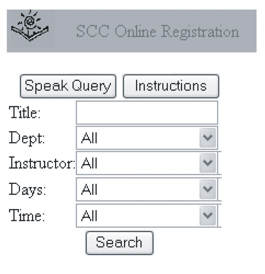
Examining the Sample Web PagesLogin.aspx simply retrieves the login and password and then validates the student against the database. This page does not offer speech as an input option. The reason is that the login is private information and someone might overhear the login and password being spoken. Once it is confirmed that the student is in the database and has an active status, they are redirected to the MainMenu.aspx page. Tip Readers executing the sample application can use the following login and password values to login: Login JONESA Password 030478 The main menu, which offers only two choices, Query Course Catalog and View My Schedule, is also not an appropriate place for speech processing. It is just as fast for the user to click a button as to speak a command phrase. Main Query PageThe query page (Review.aspx), however, is a good place to offer speech capabilities. Available when the user clicks Query Course Catalog, this page offers five options to narrow the search: course title, department, instructor, days, and start time. Figure 4.2 is a screenshot of the Review.aspx page as it appears on the client device. From this page, the student can click the Speak Query button and begin speaking a query. The sample application allows a combination of two of the search criteria. Figure 4.2. Screenshot of the Query Course Catalog page, Review.aspx. To speak a query, the user must click the Speak Query button. The student can also listen to detailed instructions by clicking the Instructions button. Note It would have been possible to allow for more combinations, but this would have expanded the size and complexity of the grammar file. For demonstration purposes, we held to a limit of two combinations. When designing a grammar file, developers should consider the size of the grammar file. A large grammar file is cumbersome to debug. Moreover, even when preloaded, it may slow the processing of the Web application. This is a tradeoff to consider when designing applications of this type. For tips on how to write effective grammars, refer to the Technical FAQ's section of the Microsoft Speech Web site at http://www.microsoft.com/speech/techinfo/faq/speechsdk.asp. Creating a Query ScriptBuilding grammars with the Grammar editor was introduced in Chapter 2. This chapter utilizes a complex grammar for querying the course catalog. It can be helpful to make a list of possible queries before beginning the grammar-building process. Listing 4.1 lists potential queries for the Review.aspx page. Brainstorming a list of queries helps to identify the complexity of the grammar. Creating such a list also provides a testing script that can be used later to confirm the grammar rules. Note The queries in Listing 4.1 are meant to identify the different forms that queries can take and not every conceivable query that could be produced. Listing 4.1. Potential search queriesI want all courses for Financial Accounting 1 List classes where Doctor Jones is the teacher List all classes for Jan Jessup that start before nine a.m. Give me classes starting after two o'clock List all classes in the English department Show classes on Tuesday and Thursday that start after noon List Business classes scheduled for Monday, Wednesday and Friday List all classes in the Math department that start after six p.m. Controls Used on the Query PageThe Query Page, Review.aspx, contains Listen and Prompt controls. These controls are hidden from the user, but are activated when the user clicks one of two command buttons. When a user clicks the Speak Query button, a client-side Jscript function is used to invoke the Start method for the Listen control. function SpeakQuery() { Listen1.Start(); } As opposed to the voice-only application in Chapter 3, the multimodal application relies on visible controls and not prompts to initiate dialogs. An exception is the instructional prompt, available when the user clicks the Instructions button. Instructional prompts are useful for providing detailed information to the user and minimizing the amount of screen space necessary for such instructions. When the user clicks Instructions on Review.aspx, the Prompt control is initialized and the following text is read to the user:
Understanding the GrammarThe Listen control uses a grammar file to identity valid user responses. For the query page, the Listen control references the SpeakQuery.grxml grammar file. The root rule for this grammar is named TopLevel. It is referenced in the src property for the grammar control as follows: <speech:Grammar src="/books/4/387/1/html/2/Grammars/SpeakQuery.grxml#TopLevel" > To keep the grammar file organized and readable, it is broken down into component grammar files. The additional grammars are then referenced through RuleRef elements. Since there are five query choices, each is represented by a separate grammar file. Most of the grammar files are built dynamically because they involve matching values in a changing database. Introduced in Chapter 3, dynamic grammars involve the creation of XML-based grammar files at the time of application execution. This is useful when the grammar contains content that is likely to change. As opposed to grammar files designed by the developer using the Grammar Editor, dynamic grammars are rewritten as often as necessary. The following code is used to build grammar files containing department names: '** Example of programmatically defining the grammar Dim sb As New StringBuilder 'Define the high level tags used in the grammar file sb.Append(_ "<grammar xml:lang=""en-US"" tag-format=""semantics-ms/1.0"" " _ & "version=""1.0"" root=""" + Name + "Rule"" mode=""voice"" " _ & "xmlns=""http://www.w3.org/2001/06/grammar"">") sb.Append("<rule " + Name + "Rule"" scope=""public"">") 'Define one-of elements which indicates a list sb.Append("<one-of>") Dim dr As SqlDataReader = SqlHelper.ExecuteReader( _ AppSettings("Chapter4.Connection"), _ CommandType.StoredProcedure, sp) 'Loop through the Datareader Dim _DynamicGrammar As New DynamicGrammar Do While dr.Read() sb.Append(_DynamicGrammar.ConvertGrammarItem(Name, _ dr.GetString(0), dr.GetValue(1))) Loop _DynamicGrammar = Nothing 'Closing tags sb.Append("</one-of>") sb.Append("</rule>") sb.Append("</grammar>") 'Write out the new file Dim xDoc As XmlDocument = New XmlDocument xDoc.LoadXml(sb.ToString) xDoc.Save(fileloc) 'release resources If Not dr.IsClosed Then dr.Close() End If dr = Nothing sb = Nothing The dynamic grammar code is used to create an XML-based file that if viewed with a text-editor would appear as follows: <grammar xml:lang="en-US" tag-format="semantics-ms/1.0" version="1.0" root="DepartmentRule" mode="voice" xmlns="http://www.w3.org/2001/06/grammar"> <rule scope="public"> <one-of> <item> <item>Business</item> <tag>$.Department = "5"</tag> </item> <item> <item>English</item> <tag>$.Department = "4"</tag> </item> <item> <item>Liberal Arts</item> <tag>$.Department = "2"</tag> </item> <item> <item>Math</item> <tag>$.Department = "1"</tag> </item> <item> <item>Science</item> <tag>$.Department = "3"</tag> </item> </one-of> </rule> </grammar> To improve scalability, the grammar files will be built once the application session is initialized, as opposed to every time the query page is loaded. In the page_load function for Review.aspx, a public variable named blnQueryGrammarsLoaded is checked. If it contains a value of false, the dynamic grammars for title, department, and instructors are built and the session variable is assigned a value of true. Preambles and PostamblesSince the user's query will probably be phrased as a question, the grammar needs to account for unnecessary language. In the phrase "List classes where Doctor Jones is the teacher," the application is only interested in "Doctor Jones" and not the other words in the phrase. Optional words in a spoken phrase are known as preambles and postambles. A special grammar file is created for each of these. In the case of preambles, the PreambleRule contains three optional lists that contain possible words or subphrases. In Visual Studio.NET, the PreambleRule can be viewed by double-clicking the QueryPreamble.grxml file in the Grammars subdirectory of Solution Explorer. From the Grammar Explorer window, double-click PreambleRule. Figure 4.3 shows the contents of the PreambleRule. Note that a circular icon and the numbers 0..1 appear at the top of the list. This indicates that the entire list is optional. All three lists are optional for this rule. To specify an optional element, the Max Repeat property is set to 1 and the Min Repeat property is set to 0. Figure 4.3. Screenshot of the PreambleRule as seen in the Grammar Editor inside Visual Studio. Preambles represent optional words spoken at the beginning or middle of a student's query.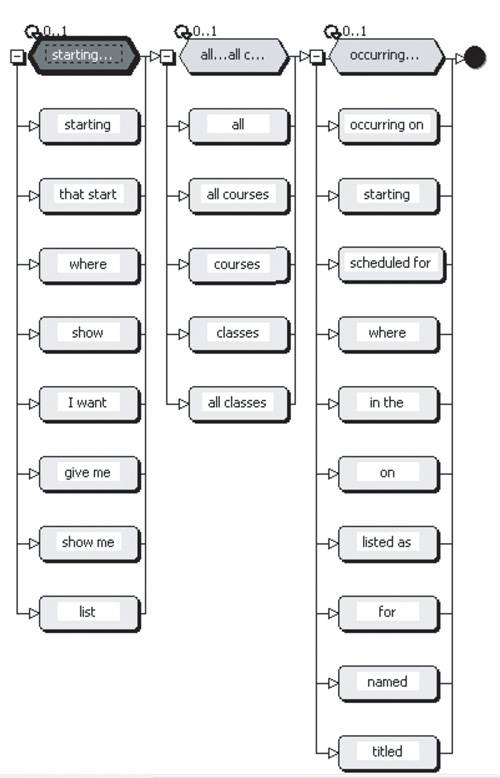 The preamble rule should be used with other rules in which the phrases are not optional. In this manner, spoken phrases that include any of the members in the PreambleRule will still be recognized. The recognition engine will consider the phrase valid and will not include the optional words as part of the SML passed back to the application. For example, if the user spoke the query "Give me all classes for Doctor Davis," the following SML would be returned: <SML confidence="1.000" text="Give me all classes for Doctor Davis" utteranceConfidence="1.000"> <Instructor confidence="1.000"> <InstructorTitle>Doctor</InstructorTitle> <InstructorLastName>Davis</InstructorLastName> </Instructor> </SML> In this case, the query was typed into the Recognition string textbox inside the Grammar editor. Therefore, the speech recognition engine ranked the confidence score as 1.000, or 100 percent. The confidence score is a value ranging from zero to one. It indicates how confident the speech recognizer is that the result was interpreted accurately. Since the result was typed in and not spoken, we can expect the confidence to be at the highest level, or 1.000. If you used a microphone to speak the query while debugging the application using the Speech Debugging Console, the result may be lower. The exact value will depend on the quality of the microphone, the speaker's clarity, and the level of background noise. The SML also contains values for two semantic items, InstructorTitle and InstructorLastName. Alternatively, if the user spoke the query "Courses for Doctor Davis," the same two semantic items would be returned. In the case of the second query, items from only two of the lists used in the preamble rule were considered. This is because all three of the lists that appear in the preamble rule are optional (as indicated by the circular icon and the numbers 0..1). In the first query, "List all classes for Doctor Davis": "List," "all classes," and "for" are items in each of the three lists. In the second query, "Courses for Doctor Davis," we only look at items from the second and third lists. Both queries are valid because the preamble rule does not require any of the items to be present. The PostambleRule, part of the QueryPostamble.grxml file, works in much the same way as the PreambleRule. In this case, optional words are spoken after the key words. Since these words are optional, a phrase such as "Doctor Davis please" is considered just as valid as "List all classes for Doctor Davis." Base RulesThe TitleRule, DepartmentRule, InstructorRule, DayRule, and StartTimeRule are base rules included in SpeakQuery.grxml. For each of the page elements, such as title and department, there is a corresponding base rule. If you look at the TitleQuery rule in grammar editor (see Figure 4.4), you will see that the PreambleRule and PostambleRule are both referenced. The TitleRule, which lies in the middle, is dynamically built and contains an entry for each current course title in the database. Figure 4.4. Screenshot of the grammar editor as it displays the TitleQuery rule which is referenced in SpeakQuery.grxml.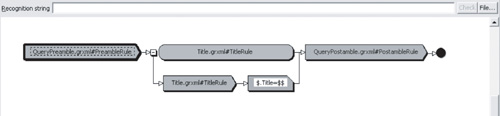 Once the base rules were built, the TopLevel rule was formed with different combinations of the base rules (see Figure 4.5). In the "Design Considerations" section it was established that the application would allow the student to combine no more than two search criteria. Since the student could combine each pair of criteria in two different ways, several different combinations would have to be accounted for. For example, the student could choose to ask for title and then days or days and then title. Alternatively, the student could request a single criterion, such as instructor. Figure 4.5. Screenshot of the grammar editor as it displays the TopLevel rule. Phrases can be tested directly from here through the recognition string.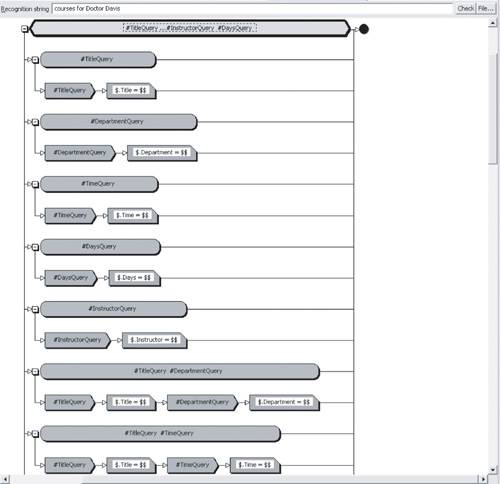 All together there are twenty-five possible combinations. Each combination is represented in the TopLevel rule, as seen in Figure 4.5. The list element at the top of the editor contains all twenty-five subrules. The first five represent searches that include only one criterion. The next twenty are combinations of two search criteria. From here, all possible phrases can be tested inside the grammar editor. Phrases from the potential search query list created in the section titled "Creating a Query Script" can be entered into the recognition string textbox. If the phrase is valid, the SML will appear in the output window. If an error is encountered or the phrase is not recognized, an error message will appear in the output window. Retrieving Query ResultsUsing Speech Debugging ConsoleReaders executing the sample application will notice that the Speech Debugging Console application is initiated when Review.aspx is first loaded. A query can be spoken only after the user clicks the Speak Query button. At that point a client-side Jscript function is used to invoke the Start method for the Listen control. Readers should then notice that the background of the Input textbox in the Speech Debugging Console will change to white, which indicates that the textbox is available (see Figure 4.6). At this point, a query can be typed into the Input textbox and submitted by clicking the Use Text button. Alternatively, readers with a microphone can choose to click the Use Audio button and speak their query. Figure 4.6. Screenshot of the Speech Debugging Console application. In this screenshot the user has typed the query "List all business classes." To submit this query, the user will need to click Use Text.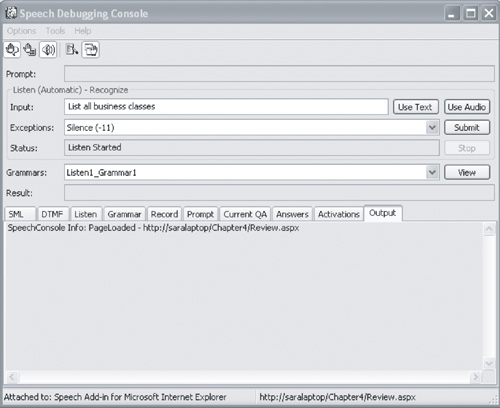 Setting Values for Semantic ItemsWhen a query is spoken (which means that the user has clicked Speak Query), the search criteria will come from semantic items instead of Web controls. The Bindings collection stores the semantic items for Review.aspx, as seen below. The collection contains separate items for each criterion. You can edit or view the Bindings collection for the Listen control by right-clicking the control from Design view and selecting the ellipsis for the Bindings property. Alternatively, you can view the collection through the HTML tab for the Designer view. The HTML code containing the Listen control is as follows: <speech:listen style="Z-INDEX: 101; LEFT: 16px; POSITION: absolute; TOP: 256px" runat="server" AutoPostBack="true"> <Grammars> <speech:Grammar src="/books/4/387/1/html/2/Grammars/SpeakQuery.grxml#TopLevel" > </speech:Grammar> </Grammars> <Bindings> <speech:Bind TargetAttribute="value" Value="SML/Title/Title/Title" TargetElement="txtTitle"></speech:Bind> <speech:Bind TargetAttribute="value" Value="SML/Department/Department/Department" TargetElement="cboDept"></speech:Bind> <speech:Bind TargetAttribute="value" Value="SML/Instructor/Instructor/InstructorTitle" TargetElement="txtInstTitle"></speech:Bind> <speech:Bind TargetAttribute="value" Value="SML/Instructor/Instructor/InstructorFirstName" TargetElement="txtInstFName"></speech:Bind> <speech:Bind TargetAttribute="value" Value="SML/Instructor/Instructor/InstructorLastName" TargetElement="txtInstLName"></speech:Bind> <speech:Bind TargetAttribute="value" Value="SML/Days/Days/Day1" TargetElement="txtDay1"></speech:Bind> <speech:Bind TargetAttribute="value" Value="SML/Days/Days/Day2" TargetElement="txtDay2"></speech:Bind> <speech:Bind TargetAttribute="value" Value="SML/Days/Days/Day3" TargetElement="txtDay3"></speech:Bind> <speech:Bind TargetAttribute="value" Value="SML/Time/Time/Operator" TargetElement="txtOperator"></speech:Bind> <speech:Bind TargetAttribute="value" Value="SML/Time/Time/Time/Hour" TargetElement="txtHour"></speech:Bind> <speech:Bind TargetAttribute="value" Value="SML/Time/Time/Time/Minute" TargetElement="txtMinute"></speech:Bind> </Bindings> </speech:listen> Note that the criteria for Instructor, indicated by the bolded items, are broken into three semantic items: InstructorTitle, InstructorFirstName, and InstructorLastName. This results in more data values being collected. Executing the SearchThe Search routine, seen as follows, will execute a different version of the overloaded method QueryCourses depending on whether the query was spoken or typed in. If the query was spoken, the method will be passed additional parameters. Additional parameters are necessary to account for all the semantic item values. Dim ds As DataSet Dim _Review As CReview Try pnlSearch.Visible = False pnlResults.Visible = True _Review = New CReview If bSpoken = False Then 'The user just typed in their query ds = _Review.QueryCourses(txtTitle.Text, _ cboDept.SelectedValue.ToString, _ cboInstructor.SelectedValue.ToString, _ cboDays.SelectedValue.ToString, _ cboStartTime.SelectedValue.ToString) Else 'The user spoke their query Dim strDays As String strDays = txtDay1.Text + txtDay2.Text + txtDay3.Text ds = _Review.QueryCourses(txtTitle.Text, _ cboDept.SelectedValue.ToString, _ txtInstTitle.Text, txtInstFName.Text, _ txtInstLName.Text, strDays, txtOperator.Text, _ txtHour.Text, txtMinute.Text) If ds.Tables(1).Rows.Count > 0 Then DataTableNavigator1.DataSource = ds.Tables(1) DataTableNavigator1.DataBind() End If End If grdResults.DataSource = ds.Tables(0) grdResults.DataKeyField = "courseid" grdResults.DataBind() If ds.Tables(0).Rows.Count = 0 Then lblError2.Text = "No records were found matching " lblError2.Text = lblError2.Text + "the search criteria." End If Catch ex As Exception ExceptionManager.Publish(ex) pnlSearch.Visible = True pnlResults.Visible = False lblError1.Text = "Were sorry, but we were unable to " lblError1.Text = lblError1.Text + "complete the search. " lblError1.Text = lblError1.Text + "Please contact the " lblError1.Text = lblError1.Text + "Registration Office." Finally ds = Nothing _Review = Nothing End Try The overloaded version of the QueryCourses method (used to handle a spoken query) will first build a string based on values passed in as parameters. The resulting string will then be passed to the QueryCourses stored procedure and will represent the WHERE clause used to query the database. The code to build the WHERE string is seen as follows: Dim sWhere As String = "" ' Create a where clause that will be passed to the ' QueryCourses stored procedure If Title <> "" Then sWhere = " and c.title LIKE ''%" + Title + "%''" End If If DeptID <> "" Then sWhere = sWhere + " and d.deptid = " + DeptID End If If InstTitle <> "" Then sWhere = sWhere + " and i.title = ''" + InstTitle + "''" End If If InstFName <> "" Then sWhere = sWhere + " and i.firstname = ''" + InstFName + "''" End If If InstLName <> "" Then sWhere = sWhere + " and i.lastname = ''" + InstLName + "''" End If If Days <> "" Then sWhere = sWhere + " and dy.daysabbr = ''" + Days + "''" End If If Operator <> "" Then If Operator = "gt" Then sWhere = sWhere + " and c.starttime >= ''" + _ Hour + ":" + Minute + "''" ElseIf Operator = "lt" Then sWhere = sWhere + " and c.starttime <= ''" + _ Hour + ":" + Minute + "''" End If End If Formatting the ResultsThe results of the data query will then be used to populate both the DataTableNavigator speech control and a standard DataGrid Web control. This is done because the results of the search will be spoken to the user as well as displayed on the Web page. Each control will require different data fields, so in the following code we create two different data tables: 'Define the first table Dim dTable1 As New DataTable Dim colSubject As DataColumn = New DataColumn("subject", _ System.Type.GetType("System.String")) dTable1.Columns.Add(colSubject) Dim colTitle As DataColumn = New DataColumn("title", _ System.Type.GetType("System.String")) dTable1.Columns.Add(colTitle) Dim colCourseID1 As DataColumn = New DataColumn("courseid", _ System.Type.GetType("System.Int32")) dTable1.Columns.Add(colCourseID1) 'Define the second table Dim dTable2 As New DataTable Dim colCourseID2 As DataColumn = New DataColumn("courseid", _ System.Type.GetType("System.Int32")) dTable2.Columns.Add(colCourseID2) Dim colCourseDesc As DataColumn = New DataColumn("coursedesc", _ System.Type.GetType("System.String")) dTable2.Columns.Add(colCourseDesc) 'Populate the tables Dim rowTable1 As DataRow Dim rowTable2 As DataRow For Each row As DataRow In ds.Tables(0).Rows rowTable1 = dTable1.NewRow rowTable1("subject") = Convert.ToString(row("subject")) rowTable1("title") = Convert.ToString(row("title")) rowTable1("courseid") = Convert.ToString(row("courseid")) dTable1.Rows.Add(rowTable1) rowTable2 = dTable2.NewRow rowTable2("courseid") = row("courseid") Dim strDesc As String strDesc = "Course Number " + Convert.ToString(row("courseid")) strDesc = strDesc + " " + Convert.ToString(row("title")) + " in the " strDesc = strDesc + Convert.ToString(row("department")) + " taught by " strDesc = strDesc + Convert.ToString(row("insttitle")) + " " strDesc = strDesc + Convert.ToString(row("firstname")) + " " strDesc = strDesc + Convert.ToString(row("lastname")) + " on " strDesc = strDesc + Convert.ToString(row("days")) + " for " strDesc = strDesc + Convert.ToString(row("credits")) + " credits" rowTable2("coursedesc") = strDesc dTable2.Rows.Add(rowTable2) Next Dim ds2 As New DataSet ds2.Tables.Add(dTable1) ds2.Tables.Add(dTable2) The data in the first data table will be used to populate the standard data grid control. The second data table will be used to populate the DataTableNavigator speech control. The second data table will contain a field named coursedesc. This field will contain a string value that represents an entire phrase spoken to the user. For instance, one course would result in the following output phrase, "Course Number 1, Financial Accounting 1 in the Business department, taught by Doctor Jan Davis on Tuesday and Thursday for 3 credits." As opposed to the DataTableNavigator control used in the last chapter, this one does not depend on user commands for navigation. Instead, the entire detail string is spoken to the user in a continuous list. This is accomplished by setting the ShortInitialTimeout property to a value greater than zero. When the speech control reaches the last record, the phrase "Select a course from the list to review the course information" is spoken. The course titles will still be displayed on the Review.aspx page, but since the detail of each course is recited, students have the option to only drill down on the exact course they are interested in. Students who select a course from the list will be directed to the CourseDetail.aspx page which provides information for that course. From here, if the class is available, they can select the Add to my schedule button. If the current class size exceeds the student limit, the Add to waiting list button is available instead. |
| < Day Day Up > |

EAN: N/A
Pages: 123