print proof
| < Day Day Up > |
print & proofWhether or not a printed newsletter is your delivery method, you should print the newsletter to a desktop printer before you distribute it in any form. Printing the newsletter allows you to review the layout, comparing pages to ensure that repeating elements like master objects and page numbers are present and consistent. You should also proofread the newsletter in a print out. Relying on the Check Spelling feature and only reviewing your content on screen is not enough. You will almost always discover text errors when you review a print out. Let's quickly prepare a newsletter file to publish. Choose File > New ( 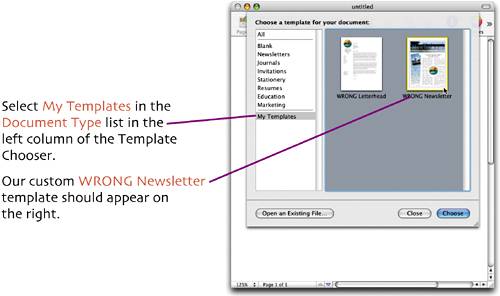 Select the template and click Choose. A new document is created. If you were actually publishing an edition of the newsletter, now would be the time to replace all of the placeholder content with that edition's content. For our purposes we'll leave the placeholder content. Save the document to your working folder with a name of your choice. You should give some thought to establishing a naming scheme that you can use each month. You'll want the name to clearly identify the contents as well as the date, volume, and/or issue whichever identifiers will be important to you and your audience. For our file, I've chosen the newsletter name and the date (month and year). My file name is RightNow_Aug_05.pages.
Choose File > Print. Select your printer in the Printer drop-down menu. Press Print. Review the printouts, looking for mistakes, inconsistencies, and spelling or grammar errors. |
 -
- ) to open the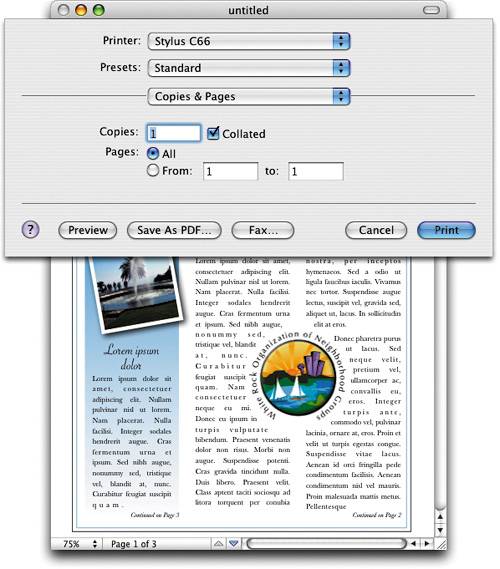
| < Day Day Up > |

EAN: N/A
Pages: 97
- Structures, Processes and Relational Mechanisms for IT Governance
- A View on Knowledge Management: Utilizing a Balanced Scorecard Methodology for Analyzing Knowledge Metrics
- Governing Information Technology Through COBIT
- Governance in IT Outsourcing Partnerships
- Governance Structures for IT in the Health Care Industry