Flylib.com

Books Software


Use Case Relationships

I l @ ve RuBoard

Use Case Relationships

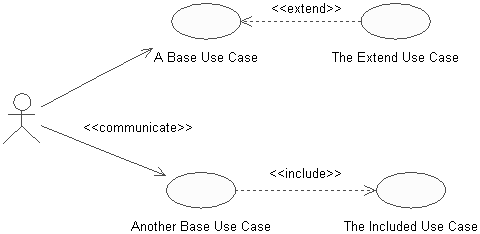
An association relationship may exist between an actor and a use case. This type of association is often referred to as a communicate association since it represents communication between an actor and a use case. An association may be navigable in both directions (actor to use case and use case to actor) or it may be navigable in only one direction (actor to use case or use case to actor). The navigation direction of an association represents who is initiating the communication (i.e., the actor is initiating the communication with the use case, the use case is initiating the communication with the actor). An association is represented as a line connecting the related elements. Navigation in only one direction is depicted by adding an arrowhead to the association line that denotes the direction.

There are two types of relationships that may exist between use cases: include and extend . Multiple use cases may share pieces of the same functionality. This functionality is placed in a separate use case rather than documenting it in every use case that needs it. Include relationships are created between the new use case and any other use case that "uses" its functionality. For example, each use case in the ESU Course Registration System starts with the verification of the user. This functionality can be captured in a User Verification use case, which is then used by other use cases as needed. An include relationship is drawn as a dependency relationship that points from the base use case to the used use case.

An extend relationship is used to show

  • Optional behavior

  • Behavior that is run only under certain conditions such as triggering an alarm

  • Several different flows that may be run based on actor selection

For example, a use case that monitors the flow of packages on a conveyer belt can be extended by a Trigger Alarm use case if the packages jam. At this time, no extensions have been identified for the ESU Course Registration System. An extend relationship is drawn as a dependency relationship that points from the extension to the base use case.

The UML has a concept called a stereotype , which provides the capability of extending the basic modeling elements to create new elements. Thus, the concept of a stereotype allows the UML to have a minimal set of symbols that may be extended where needed to provide the communication artifacts that have meaning for the system under development. Stereotype names are included within guillemets (<< >>) and placed along the relationship line. Stereotypes are used to create the needed use case relationships. The stereotype <<communicate>> may be added to an association to show that the association is a communicate association. This is optional since an association is the only type of relationship allowed between an actor and a use case. Include and extend relationships must use stereotypes since they are both represented by a dependency relationship.

Use case relationships are shown in Figure 3-9.

Figure 3-9. Use Case Relationships

graphics/03fig09.gif

I l @ ve RuBoard
I l @ ve RuBoard

Use Case Diagrams

A use case diagram is a graphical view of some or all of the actors, use cases, and their interactions identified for a system. Each system typically has a Main Use Case diagram, which is a picture of the system boundary (actors) and the major functionality provided by the system (use cases). Other use case diagrams may be created as needed. Some examples follow:

  • A diagram showing all the use cases for a selected actor

  • A diagram showing all the use cases being implemented in an iteration

  • A diagram showing a use case and all its relationships

CREATING THE MAIN USE CASE DIAGRAM IN RATIONAL ROSE

graphics/quatranirose_icon.gif
  1. Double-click on the Main diagram in the Use Case View in the browser to open the diagram.

  2. Click to select an actor in the browser and drag the actor onto the diagram.

  3. Repeat step 2 for each additional actor needed in the diagram.

  4. Click to select a use case in the browser and drag the use case onto the diagram.

  5. Repeat step 4 for each additional use case needed in the diagram.

Note

Actors and use cases may also be created directly on a use case diagram by using the toolbar.


CREATING COMMUNICATE ASSOCIATIONS IN RATIONAL ROSE

graphics/quatranirose_icon.gif
  1. Click to select the Association icon or the Unidirectional Association icon from the diagram toolbar. Note: If the Association icon is not present on the toolbar, it may be added by right-clicking on the toolbar, selecting the Customize menu choice from the shortcut menu, and adding the icon to the toolbar.

  2. Click on an actor initiating a communication and drag the association line to the desired use case.

To add the communicate stereotype (optional):

  1. Double-click on the association line to make the Specification visible.

  2. Click the arrow in the Stereotype field to make the drop-down menu visible, and select communicate.

  3. Click the OK button to close the Specification.

  4. Repeat the preceding steps for each additional communicate relationship.

CREATING INCLUDE RELATIONSHIPS IN RATIONAL ROSE

graphics/quatranirose_icon.gif
  1. Click to select the Dependency icon from the toolbar.

  2. Click on the base use case and drag the Dependency icon to the used use case.

  3. Double-click on the dependency arrow to make the Specification visible.

  4. Click the arrow in the Stereotype field to make the drop-down menu visible, and select include.

  5. Click the OK button to close the Specification.

CREATING EXTEND RELATIONSHIPS IN RATIONAL ROSE

graphics/quatranirose_icon.gif
  1. Click to select the Dependency icon from the toolbar.

  2. Click on the use case containing the extended functionality and drag the Dependency icon to the base use case.

  3. Double-click on the dependency arrow to make the Specification visible.

  4. Click the arrow in the Stereotype field to make the drop-down menu visible and select extend.

  5. Click the OK button to close the Specification.

The Main use case diagram for the ESU Course Registration System is shown in Figure 3-10.

CREATING ADDITIONAL USE CASE DIAGRAMS IN RATIONAL ROSE

graphics/quatranirose_icon.gif
  1. Right-click on the Use Case View in the browser to make the shortcut menu visible.

  2. Select the New:Use Case Diagram menu option.

  3. While the use case diagram is selected, enter the name of the actor.

  4. Open the diagram and add actors, use cases, and interactions to the diagram as needed.

Figure 3-10. Main Use Case Diagram

graphics/03fig10.gif

An additional use case diagram is shown in Figure 3-11.

Figure 3-11. An Additional Use Case Diagram

graphics/03fig11.gif

I l @ ve RuBoard