Section 4.6. Shortcut Icons
4.6. Shortcut IconsA shortcut is a link to a file, folder, disk, or program (see Figure 4-9). You might think of it as a duplicate of the thing's iconbut not a duplicate of the thing itself. (A shortcut takes up almost no disk space.) When you double-click the shortcut icon, the original folder, disk, program, or document opens. You can also set up a keystroke for a shortcut icon, so that you can open any program or document just by pressing a certain key combination. Figure 4-9. You can distinguish a desktop shortcut (left) from its original by the tiny arrow "badge" that identifies it as a shortcut. Its name probably also contains the word "shortcut," unless you've renamed it or an application has created its own shortcut on the desktop. The Properties dialog box for a shortcut (right) indicates which actual file or folder it "points" to.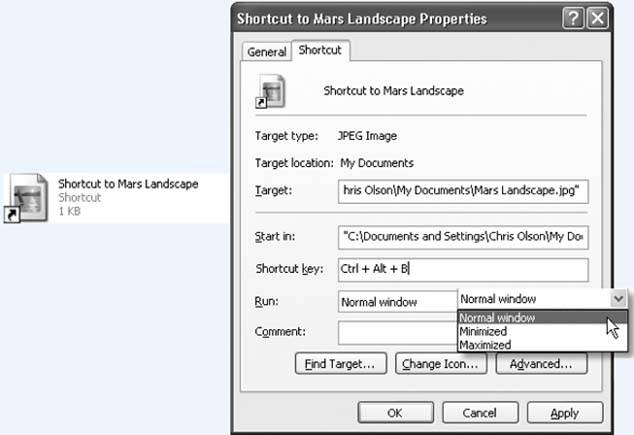 Shortcuts provide quick access to the items you use most often. And because you can make as many shortcuts of a file as you want, and put them anywhere on your PC, you can effectively keep an important program or document in more than one folder. Just create a shortcut of each to leave on the desktop in plain sight, or drag their icons onto the Start button or the Quick Launch toolbar. In fact, everything listed in the Start Tip: Don't confuse the term shortcut , which refers to one of these duplicate-icon pointers, with shortcut menu , the context-sensitive menu that appears when you right-click almost anything in Windows. The shortcut menu has nothing to do with shortcut icons . Maybe that's why it's sometimes called the context menu . 4.6.1. Creating and Deleting ShortcutsTo create a shortcut, right-drag an icon from its current location (Windows Explorer, a folder window, or even the Search window described on Section 2.7.2) to the desktop. When you release the mouse button, choose Create Shortcut(s) Here from the menu that appears. If you're not in the mood for using a shortcut menu, just left-drag an icon while pressing Alt. A shortcut appears instantly. (And if your keyboard lacks an Alt key, drag while pressing Ctrl+Shift instead.) You can delete a shortcut in the same fashion as any other icon, as described in the Recycle Bin discussion earlier in this chapter. (Of course, deleting a shortcut doesn't delete the file it points to.) |
 Programs menu is a shortcuteven the My Documents folder on the desktop is a shortcut (to the actual My Documents folder).
EAN: 2147483647
Pages: 162