Step 2.2: Run Eclipse
Step 2.2: Run Eclipse

q 2.2(a) Locate the IDE.
Unlike many Windows programs, Eclipse does not automatically add an option to the Start button. Instead, to start the IDE, you first need to navigate to the correct folder using Windows Explorer, as shown in Figure 2.12.
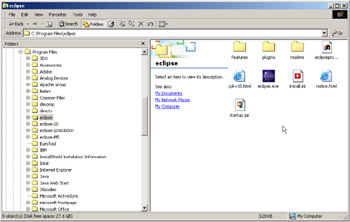
Figure 2.12: The Eclipse folder, indicating the launch icon for the IDE.
At this point, you may want to make a shortcut icon that you can place either on your desktop or in your start menu. Personally, I use the Microsoft Office quick launcher. I just drop the icon on the bar and it's there for me whenever I need it.
q 2.2(b) Right-click the IDE icon and select Create Shortcut.
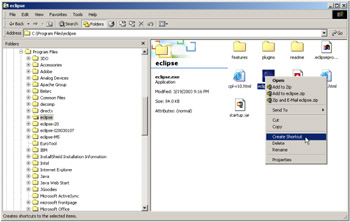
Figure 2.13: Use the pop-up menu to create a shortcut for the IDE icon.
A new icon will appear, which will look exactly like the IDE icon, but with an arrow on the bottom left indicating that this is a shortcut. You can now move this shortcut icon wherever you want to allow easy access to the program.
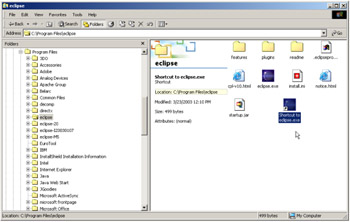
Figure 2.14: The Eclipse folder, indicating the launch icon for the IDE.
q 2.2(c) Start the IDE.
| Note | 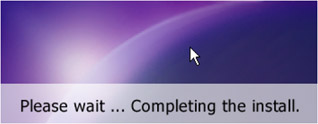 Figure 2.15: This window is shown only the first time you launch Eclipse. 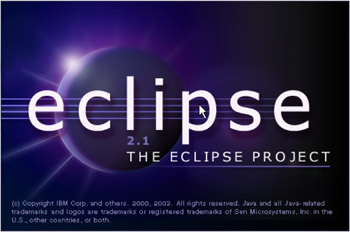 Figure 2.16: The startup screen for the Eclipse IDE. |

q 2.2(d) Wait for the IDE workbench to appear.
On the machine used for this book, a 1.6GHz Pentium 4, the splash screen stayed up for about 12 seconds. Then the screen shown in Figure 2.17 appeared.
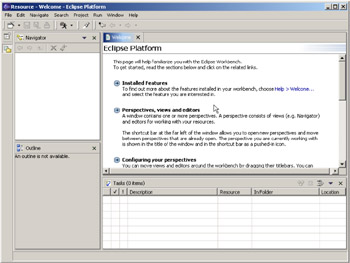
Figure 2.17: Success! The Eclipse IDE in its default configuration!

EAN: 2147483647
Pages: 90