Hollywood Special Effects with Adobe Premiere Elements 3
Authors: Plumer C.
Published year: 2006
Pages: 79-82/274
Buy this book on amazon.com >>

Finding the Next Selection to Reverse

For this task, we will again "cut out" another sub-clip from our main clip, running.avi , to create the source for one more reverse action clip. We'll create with this clip even more of the "back and forth" that we gave the first set of clips, by creating additional copies of the clip.

Find the Another Section of the Clip to Reverse

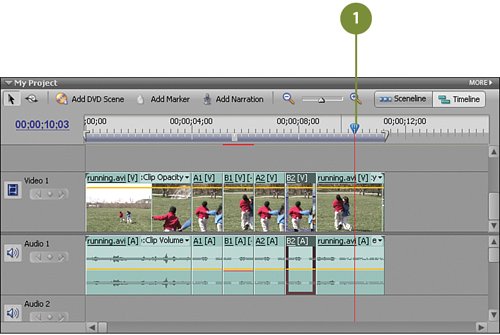
Move your CTI to just after the 10 second mark (00;00;10;03). We'll use this as the start of our last reverse clip.

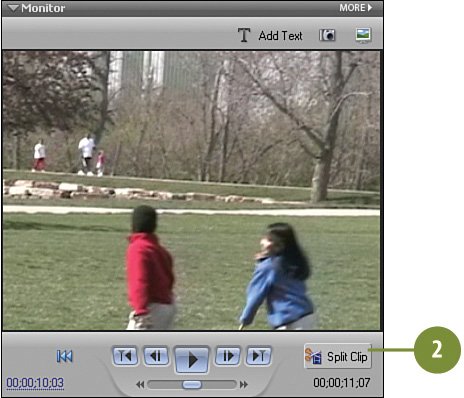
Click the Split Clip button on the Monitor panel to split the running.avi clip again at this point.

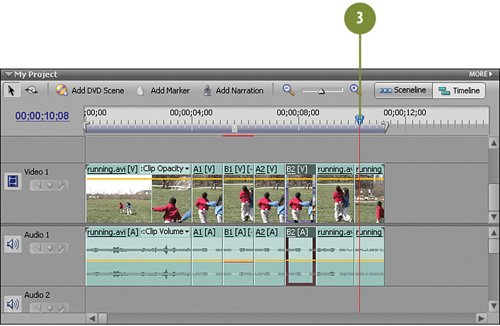
Press the Right Arrow key on your keyboard to move the CTI over a bit further to 00;00;10;08 .

Click the Split Clip button again to create a new sub-clip.


Tripling the Clips

This step may look a bit complicated, but it's only because you're laying down multiple copies of a clip on the Timeline all at once. Remember, there's strength in numbers . You'll copy the clip once and then "paste-insert" five copies of the original clip in a row right across the track. After that, we'll rename these tracks to make it easy to apply the Reverse effect to the correct clips.

Triple Threat

Using your mouse, select the clip you just created (the clip that starts at 00;00;10;03 ) and press CTRL-C on your keyboard.

Press CTRL-SHIFT-V on your keyboard five times to insert five copies of the clip onto the Timeline.

Important

Remember to press the CTRL-SHIFT-V key combination ( not CTRL-V) so that you insert each copy without overwriting the clips that are already there.

Note

When you are done, you should have six copies of the clip in a row on the Timeline, starting at 00;00;10;03 and ending at 00;00;11;03 , as shown in the illustration.

Rename the Clips

Right-click on the first clip is this group , select Rename from the contextual menu, rename the clip C1 , and click OK .

Right-click on the second clip, select Rename from the contextual menu, and rename this clip D1 .

Using this same technique, rename the third and fourth clips C2 and D2 , respectively.

Finally, rename the fifth and the sixth clips C3 and D3 , respectively.


Reversing Every Other Clip

By combining two clips back-to-back (or in this case, back-to-back-to-back), with every other clip reversed , you can create a kind of "funniest home videos " type of look. This is a nice touch to show someone tripping and getting immediately back up again, for example. Or, as in our earlier example, jumping into a pool and jumping right back out again.

Reverse the D1, D2, and D3 Clips

Right-click on the D1 clip and from the contextual menu, select Time Stretch .

On the Time Stretch dialog box, do this:

  • Click the Reverse Speed check box.

  • Click the Maintain Audio Pitch check box.

  • Click OK .

Right-click on the D2 clip and from the contextual menu, select Time Stretch and again click the Reverse Speed check box, the Maintain Audio Pitch check box, and click OK .

Finally, right-click on the D3 clip and repeat the same process as described above.


Adding Cartoon Sound Effects to the Action

What's a good "reverse action" clip without a cartoon-ish sound effect or two thrown in for good measure? On the DVD that accompanies this book, we've provided you with just the right clips, cartoon_bonk.wav and cartoon_stagger.wav .

Add Sound Effects

Click the Get Media from button on the Media panel to access the Get Media from view, if it's not already active.

Select DVD, Digital Camera, Mobile Phone, Hard Drive Camcorder, Card Reader .

When the Media Downloader displays, click the Advanced Dialog button to switch to Advanced mode.

Select the following clips for this project:

  • cartoon_bonk.wav

  • cartoon_stagger.wav

Click the Get Media button.

Drag and drop the cartoon_bonk.wav clip from the Media panel onto the Audio 2 track in the Timeline directly under the B1 clip, being careful to line it up with the start of the B1 clip.

Drag and drop the cartoon_bonk.wav clip a second time onto the Audio 2 track directly under the B2 clip, being careful to line it up with the start of the B2 clip.

Drag and drop the cartoon_stagger.wav clip onto the Audio 2 track directly under the video clip, C1 , being careful to line it up with the start of the C1 clip.

Tip

To easily drop the sound effects clips on the right spot, "scrub" first with your CTI along the runners.avi clip to the point where you want to drop the sound effect. This will give you an easy guide for lining up the sound clip with the video clip.


Hollywood Special Effects with Adobe Premiere Elements 3
Authors: Plumer C.
Published year: 2006
Pages: 79-82/274
Buy this book on amazon.com >>

Similar books on Amazon