4 Type Text into a Document
If you've ever used any word processor before, even a simple one such as WordPad found in Windows, you'll have no trouble editing text in Writer. Writer's editing area remains
fairly
clear of clutter so you can concentrate on your work.
Before You Begin
2 Create a New Document
3
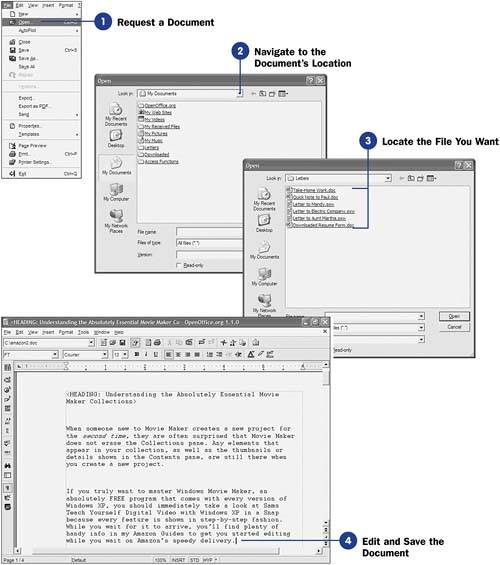
Open
an Existing Document
Writer has tools to help you make the most of your editing sessions. For example, you may want to see more of your document at one time, perhaps to help keep your current paragraph in context with the one before and after it. The
Full Screen
view
removes
all
menus
and toolbars from your editing area to give the maximum amount of space to your editing. Writer's various
toolbars
are there to provide one-click access to the editing tools you need. For example, Writer's
Main toolbar
is one of the handiest of all the available toolbars because it puts the common editing
tasks
just to the left of your editing area, where you can quickly access them. To select an item from the Main toolbar, you'll need to long-click your mouse on one of the
buttons
.
See Also
5 Edit Text
9 Print a Document
KEY
TERM
|
Main toolbar
” A vertical toolbar that appears on the screen's left edge, giving you one-click access to spelling, grammar, chart, list, and other tools you'll commonly use.
|
This task walks you through a short editing session, just to give you a feel for the kinds of movements and tools available to you. Many of the editing skills you acquire in one OpenOffice.org program, such as Writer, will apply to the other OpenOffice.org programs as well. For example, both Calc and Writer offer the capability to display or hide the Main toolbar. The Main toolbar changes slightly depending on which program you use, but most of its functions are similar across the OpenOffice.org programs.
-
Position the Insertion Point
Press the arrow keys to see the text cursor move around your screen. The text cursor is called the
insertion point
and moves as you press any arrow key. You can also click your mouse within the document to place the insertion point where you
next
want to type.
KEY TERM
|
Insertion point
” A vertical text cursor that shows where the next character you type will appear.
|
Text that you type appears at the insertion point. If you make a mistake, press
Backspace
and Writer moves the insertion point
backwards
, erasing as you press
Backspace
. When you get to the right edge of a paragraph, Writer automatically wraps your paragraph onto the next line. Do not press
Enter
unless you want to end a paragraph and begin a new one. Writer may or may not insert a blank line between paragraphs, depending on how you set up your page (see
14 Set Up Page Formatting
).
If you press
Shift+Enter
instead of
Enter
, Writer ends the current line and begins at the start of the line below without actually creating a new paragraph. You can easily see where paragraphs begin and end by displaying nonprinting
characters
(see
5 Edit Text
). If you press
Ctrl+spacebar
instead of the normal
spacebar
, Writer
inserts
a
nonbreaking space
and will not end a line on that space but, if necessary, will move both the word before and after the nonbreaking space to the next line in a word wrap. If you press
Ctrl+Enter
, Writer begins a new page in the document, even if you had not yet filled up the previous page.
KEY TERMS
|
Nonbreaking space
” A space that appears between words when you print the document but does not break at the end of a line. When you want to keep two words together without the end of a line
causing
them to separate (such as a person's title and
name
, as in Dr. Smith), use a nonbreaking space so that Writer will wrap them both to the next line if the end of the line would have
otherwise
separated them.
Insert mode
” The state of Writer where new text you type is inserted before existing text. It is indicated by the
INSRT
message on the status bar.
Overtype mode
” The state of Writer where new text
replaces
existing text as you type. It is indicated by the
OVER
message on the status bar.
|
For more information about paragraph breaks and using tabs, see
11 About Paragraph Breaks and Tabs
.
-
Type to Add Text Before Other Text
When you place the insertion point before existing text on a line, Writer normally inserts the text you type in front of the existing text and moves the existing text over to the right. This is called
insert mode
and is normal behavior for most editors and word processors. If your typing replaces text on the screen, you're in
overtype mode
instead of insert mode.
Press the
Insert
key to switch between overtype and insert modes. If you have a lot of text to replace, you'll find that it's easier to do so in overtype mode because you'll have less text to delete.
-
Press the Delete Key to Delete Text
Select text and press the
Delete
key to delete characters where the insertion point appears. Every time you press
Delete
, Writer removes one character (including a space, number, or even a blank line if that's where the insertion point is positioned).
TIP
|
Often you'll start typing a word, such as
following
, but before you type the fifth letter, Writer finishes the word for you with its word completion feature. Also, if you type a word incorrectly, such as
windoes
, Writer very well might correct it using its automatic spelling checker. You can
turn
off this AutoComplete feature from the
Tools, Options
dialog box.
|
-
Gain More Editing Space
Select
Full Screen
from the
View
menu to temporarily hide your toolbars, menu, and the status bar. You will be able to see more of your document at one time. Notice that even when all the other toolbars are hidden in
Full Screen
mode, the floating
Full Screen
toolbar appears in the editing area.
Click the floating
Full Screen
toolbar's
Full-Screen On/Off
button to return to the normal editing workspace with full menus, toolbars, and the status bar.
-
See More of Your Document on the Screen
Select the
Zoom
option from the
View
menu to adjust how much of your document appears on the screen at any one time. In the
Zoom
dialog box that opens, select from the given list of percentages or click
Variable
and enter another percentage. The default zoom percentage is
100%
, which means that what you see on the screen is the same
size
as what appears when you print your document. If you change to a higher percentage, such as
200%
, you'll zoom more into your document, making the characters look larger on the screen. If you change to a lower percentage, such as
75%
, you'll zoom away from your document, seeing more of the page, although you won't see as much up-close detail.
Click
OK
to close the dialog box and see the result of your screen adjustment.
TIP
|
If you're not sure that you want the current version of the file to overwrite the existing version when you save, choose
File, Save As
instead. Writer asks you for a new filename for the current version of the document, saves it under that name, and doesn't touch the original version.
|
-
Save the Document
After you have edited the text in the document ”and periodically while you are editing ”you should save your changes to the hard disk. To save the document, choose
File, Save
or click the Save icon on the
Function
toolbar (the second icon from the left). Writer saves the current version of the file, overwriting the previous version of the file.
|