The RDC Object Model
As discussed at the beginning of the chapter, the RDC actually consists of four different main components that may exist in your Visual Basic application: The ActiveX designer, the Run-Time Library, the Report Viewer, and the Embeddable Report Designer (not all objects will necessarily exist in every project). When you actually process a report in VB, you design the report within the ActiveX designer window or allow the user to create it with the Embeddable Report Designer and eventually pass a Report object to the Report Viewer. The Run-Time Library, in essence, appears in the middle to control report customization.
Using the ActiveX Designer Report Object
The first step is to assign the design-window report definition to a Visual Basic object variable, as demonstrated in the following sample code:
Public Report As New dsrXtreme
In this code, from the modXtreme module in the sample application, dsrXtreme is the name given to the ActiveX designer object in the Property Pages dialog box. Report is the name of the object that will point to the report. Because this object is declared to be Public in a module, it will remain in scope and be accessible throughout the entire application. Then when the report is going to be viewed in the Report Viewer, the Report object is passed to the Report Viewer s ReportSource property. The following code is from the sample application s frmViewer Form_Load event:
CRViewer1.ReportSource = Report
In this code, CRViewer1 is the default name of the Report Viewer (and it hasn t been changed to another name). The Report object is given to the ReportSource property so that the Report Viewer knows which report to show.
What the RDC Library does between defining the Report object and assigning it to the Report Viewer is the meat of RDC integration programming. After you assign the designer to the Report object variable, an entire object model becomes available to you for modifying and customizing the report. By using the RDC s object model, consisting of objects, collections, properties, methods , and events, you have extensive control over your report behavior at run time.
When you add the RDC to your report, the CRAXDRT (Crystal Reports ActiveX Designer Run Time) Library is added to your project automatically. This COM interface provides a complete set of properties and methods that you can set at run time. To see the objects, collections, properties, and methods that are exposed by this Library, use Visual Basic s Object Browser. The Object Browser can be viewed in Visual Basic anytime your program isn t running. Press F2, or choose View Object Browser from the pull-down menus . Then, choose CRAXDRT in the first drop-down list to see the object library exposed by the RDC.
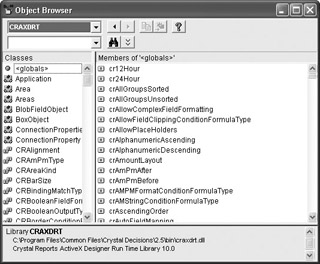
Although an extensive explanation of COM and its general approach to an object model and object hierarchy is better left to Microsoft documentation, navigating the RDC object model will soon become second nature to you. The highest level in the object hierarchy is the Application object ”everything eventually falls below it. In general, throughout the RDC, the Application object is assumed by default, so you don t need to explicitly refer to it (unless you use the RDC without the RDC ActiveX designer report design window). The highest level of object you ll need to be concerned about is the Report object.
| Tip | If you are using the Embeddable Report Designer to give your end user interactive report design capability, you ll want to use the combined design-time/run-time library, CRAXDDRT. Look up this library in the Object Browser to explore its objects, collections, properties, and methods. The Embeddable Report Designer is discussed in more detail later in this chapter. |
Using an External .RPT File
One of the main benefits of the RDC is the ability to design a report entirely from within the Visual Basic IDE. When you save this internal report design, the designer specifications are saved in a .DSR file along with the rest of your Visual Basic project. When you compile the project, all of the report design specifications are saved in the compiled modules ”there are no external report files to be accidentally deleted or modified (either accidentally or otherwise ).
However, sometimes you may want to use the flexibility of the RDC and Report Viewer with an external .RPT file, similar to older Crystal Reports integration methods. This is entirely possible, and quite straightforward. Examine the following code module from a VB form.
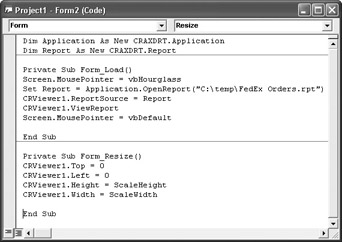
Notice the code is very similar to the standard code the RDC automatically adds to your project. Notice a couple of differences, however. Rather than declaring and creating one Report object, consisting of an instance of the ActiveX designer, this code declares and assigns two objects: the Application object and the Report object.
The Application Object
When you use the built-in RDC ActiveX designer, you needn t worry about the Application object. However, if you choose to use an external report instead of the built-in designer, you ll need to declare and assign a single new instance of the Application object, the highest-level object in the RDC s object hierarchy. Don t forget to fully qualify the Application object by preceding the object type with CRAXDRT (or CRAXDDRT if you re using the combined design-time/run-time library).
The Report Object
The Report object is crucial. You ll use it to perform almost all run-time customization to your reports. You need to declare and assign a Report object for each report you want to have open at the same time within your application. For example, if you want to have three separate reports all appearing in their own preview windows simultaneously , you need to declare and assign three different Report object variables . However, if you ll have only one report in use at a time, you can merely declare and assign a single Report object variable, setting it to Nothing and reassigning it as necessary inside your code. Don t forget to fully qualify a new instance of the Report object when declaring it with the Dim statement by preceding the object type with CRAXDRT or CRAXDDRT, depending on which library you re using.
Assign the Report object by using the Application object s OpenReport method. Supply the external report s filename, including the full path name, as the argument.
| Caution | If you decide to use the RDC with an external .RPT file and don t use the Add Crystal Reports 10 option from the Project menu, you need to ensure that the RDC Run-Time Library (or combined Design/Run-Time Library) and, optionally , the Report Viewer are added to the project. In order for the proper library to be available, choose Project References and ensure that the proper library is chosen (either Crystal Reports ActiveX Designer Run-Time Library 10 or Crystal Reports ActiveX Designer Design and Run-Time Library 10). To use the Report Viewer, choose Project Components and ensure that the Crystal Active X Report Viewer Library 10.0 option is selected (setting this option in Project References won t be sufficient for the Report Viewer). |

EAN: N/A
Pages: 223