| The rest of today will be spent on the basics of accessing databases from ASP.NET pages. Tomorrow you'll put this knowledge to use and access the actual data from your pages. In general, there are five steps to accessing data through an ASP.NET Web page: Set up a database connection. Open the database connection. Fill a DataSet with the desired data. Set up a DataView to display data. Bind a server control to the DataView via data binding. Imagine accessing data as going to a buffet line. Setting up and opening a database connection are equivalent to finding and walking up to the buffet. As you're selecting the food you want, you fill up your plate by placing mashed potatoes on one side, meatloaf on the other, and so on. The DataSet is your plate it holds any type of food… or data. Earlier you looked at the SQL SELECT statement, which returned a set of rows from a database table. In ASP.NET, a DataSet can be used to hold these results. When you group your food/data this way, you're using food views. DataViews provide a view of the data that you can show users. Data binding is a bit more complex, but imagine it as creating a magical link from the food on your plate to the food at the buffet. If you add some more macaroni to your plate, the buffet also gets some more macaroni. Let's Access Data! Listing 8.1 shows a simple ASP.NET page that accesses the database you've created. Specifically, all of the columns and rows of the tblUser table are accessed and displayed. Let's take a look at the code! Listing 8.1 Accessing Data with ASP.NET 1: <%@ Import Namespace="System.Data" %> 2: <%@ Import Namespace="System.Data.OleDb" %> 3: 4: <script language="VB" runat="server"> 5: sub Page_Load(Sender as Object, e as EventArgs) 6: 'set up connection 7: dim objConn as new OleDbConnection _ 8: ("Provider=Microsoft.Jet.OLEDB.4.0;" & _ 9: "Data Source=c:\ASPNET\data\banking.mdb") 10: 11: 'open connection 12: dim objCmd as new OleDbDataAdapter _ 13: ("select * from tblUsers", objConn) 14: 15: 'fill dataset 16: dim ds as DataSet = new DataSet() 17: objCmd.Fill(ds, "tblUsers") 18: 19: 'select data view and bind to server control 20: MyDataList.DataSource = ds.Tables("tblUsers"). _ 21: DefaultView 22: MyDataList.DataBind() 23: end sub 24: </script> 25: 26: <html><body> 27: <ASP:DataList RepeatColumns="2" 28: RepeatDirection="Vertical" runat="server"> 29: <ItemTemplate> 30: <div style="padding:15,15,15,15;font-size:10pt; 31: font-family:Verdana"> 32: <div style="font:12pt verdana;color:darkred"> 33: <i><b><%# DataBinder.Eval(Container. _ 34: DataItem, "FirstName")%> 35: <%# DataBinder.Eval(Container. _ 36: DataItem, "LastName")%> 37: </i></b> 38: </div> 39: <br> 40: <b>Address: </b><%# DataBinder.Eval(Container. _ 41: DataItem, "Address") %><br> 42: <b>City: </b><%# DataBinder.Eval(Container. _ 43: DataItem, "City")%><br> 44: <b>State: </b><%# DataBinder.Eval _ 45: (Container.DataItem, "State") %><br> 46: <b>ZIP: </b><%# DataBinder.Eval _ 47: (Container.DataItem, "Zip") %><br> 48: <b>Phone: </b><%# DataBinder.Eval _ 49: (Container.DataItem, "Phone") %><br> 50: </div> 51: </ItemTemplate> 52: </ASP:DataList> 53: </body></html>  | Before you can do any data access, you need to import the data namespaces, as shown on lines 1 and 2. (If you were using Microsoft's SQL Server for your database, you'd be using System.Data.SqlClient we'll cover this more tomorrow.) |
Lines 7 9 contains the code that sets up the connection to the database. Data Source is set to the Access data file you created earlier today. On lines 12 and 13, you open the connection to the database and execute a familiar SQL statement that returns all of the data from the table. These lines correspond to the first and second steps in your data access procedure. Lines 16 and 17 create and fill a DataSet object with the returned data. This represents step three. Lines 20 22 represent steps four and five. You bind the data to a DataList Web control, which automatically displays the data. The only thing left to do is to create the DataList control. The DataList server control uses templates to format the data as you want it, and it automatically loops through your database records. It also learns the size and shape of the browser and creates columns so all of the data fits in one window. This saves you a lot of hassle. You can see that most of the syntax in the templates is simply HTML formatting tags. However, there are those odd <%# and %> tags, which look kind of like code render blocks. These are data binding expressions. Data binding allows you to explicitly link a data source to a server control. Whatever happens to the data source also happens to the control, which allows for easy data manipulation. (Don't worry if this is a bit fuzzy now; we'll spend a lot of time on it tomorrow.) Figure 8.14 shows the output of the DataList control. Figure 8.14. The contents of the tblUsers table.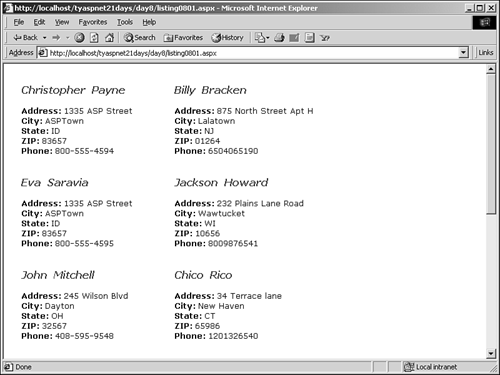
That's Not ASP! If you're familiar with traditional ASP, you'll see quite a difference from what you're used to. (Even if you're not familiar with classic ASP, you should still read this section!) Setting up and opening a connection to the database will look familiar the syntax has changed a bit, but the format is the same. The first major difference, aside from having to import namespaces, is that you're filling a DataSet instead of returning a recordset. Listing 8.2 shows the typical process of grabbing data from a database using traditional ASP and VBScript. Listing 8.2 Accessing Data with Traditional ASP 1: <% 2: Dim objConn 3: Set objConn = Server.CreateObject("ADODB.Connection") 4: objConn.ConnectionString = "Provider=" & _ 5: "Microsoft.Jet.OLEDB.4.0;Data Source=" & _ 6: "C:\ASPNET\data\banking.mdb" 7: objConn.Open 8: 9: Dim strSQL 10: strSQL = "SELECT * FROM tblUsers" 11: 12: Dim objRS 13: Set objRS = Server.CreateObject("ADODB.Recordset") 14: objRS.Open strSQL, objConn 15: %> | Lines 2 7 are the equivalent of lines 7 9 in Listing 8.1. You create an ADO connection, specify the connection string, and open the connection to your database. In lines 9 14 of Listing 8.2, you set up your SQL statement and fill a new recordset object with data returned from that statement. This recordset object contains many different properties and collections that can be used to display the data, as shown in Listing 8.3. |
Listing 8.3 Displaying Data with Traditional ASP 1: <% 2: Do While Not objRS.EOF 3: Response.write "<B>" & objRS("FirstName") & " " & _ 4: objRS("LastName") & "</B><BR>" & _ 5: objRS("Address") & "<BR>" & objRS("City") & _ 6: "<BR>" & objRS("State") &"<BR>"& objRS("Zip") & _ 7: objRS("Phone") & "<P><HR><P>" 8: objRS.Movenext 9: Loop 10: 11: objRS.Close 12: Set objRS = Nothing 13: 14: objConn.Close 15: Set objConn = Nothing 16: %> In this listing, you loop through the records returned in the recordset and use Response.Write to print out the fields. You use objRS.Movenext to move to the next record; otherwise, you'd end up with an infinite loop. Finally, you close and destroy your recordset and connection objects. Back in Listing 8.1, much of this was unnecessary. On line 17 of that listing, you filled up your DataSet, which held a generic set of data. You then bound the DataSet to a control on line 22, and that was it. The data binding expression automatically looped through the records and displayed the fields. The Common Language Runtime automatically cleaned up and destroyed our objects when you were done with them. The ASP.NET method is more powerful, yet much easier to implement, and it runs faster and more efficiently as well. With ASP.NET, you no longer have to worry about looping through data, and you can spend much more time figuring out exactly how the data should be displayed. The DataSet also provides many more capabilities than the recordset, including full XML support and the capability to resync with a data source. Luckily, many of the concepts behind data access are still the same, which means that your existing skills are still useful. As you explore these mechanisms today and tomorrow, you'll see how much more powerful the new framework is. | 
