The
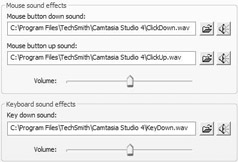
Out of the box, the Camtasia Recorder includes audio files that simulate a mouse-down sound, a mouse-up sound, and a
Once you have the desired sound files on your system, you can use this tab to link to them. This can be done either by typing in the file
When previewing your first recordings, you probably saw your mouse cursor whizzing around the video screen, just as if you had been watching it live. This is the default setting for capturing your mouse cursor, though it may surprise you to know that this is only one of five settings on your Cursor toolbar, which looks like this:
Unlike most of the tools on the other
Hide cursor. The mouse cursor does not appear at all in your video recording.
Show cursor. The cursor appears normally. Unless you’ve enabled a custom cursor (more on that in a minute), the appearance of your mouse cursor will be exactly what it was at record time, including any application-specific changes (changing into a hand pointer cursor when mousing over a web link) or changes in system state (an hourglass cursor during a wait, etc.).
Highlight clicks.
Every time the mouse is clicked, a colored pool of rings (or a solid circle, depending on the settings) emanates from the mouse cursor. It is a visual indication that the mouse was just clicked. You may assign separate colors to left and right mouse clicks. It’s a really useful tool for demonstrating a complicated procedure with lots of clicks involved,
Highlight cursor.
If the application you’re recording necessitates a lot of mouse movement, consider turning on Highlight cursor. This draws more attention to your mouse cursor by placing a
Highlight cursor and clicks. The previous two tools combined. It can be useful in certain situations, but for general purposes, I find it overkill.
As
The Cursor tab of the Effects Options dialog, where you choose a custom cursor, change the shape and color of the cursor highlight, or alter the
size and appearance of your visual mouse clicks.
The first section, called
Cursor
, is where we can specify a custom cursor for use with the recording. Custom cursors lend a certain amount of
You have three options in the Cursor Setup dialog:
Use actual cursor.
The default. Your cursor appears normally and automatically adapts to both applications and state changes (such as changing to a pointed finger when
Use custom cursor. Here you may choose one of Camtasia Recorder’s custom cursors from the drop-down list.
Use cursor from file.
This option will let you specify a cursor file on your system to use as a custom cursor, either by typing in a file
You can also create custom cursors with any cursor or icon creation utility. IconWorkshop from Axialis (www.
| Caution |
Keep in mind that custom cursors lose their ability to change based on certain situations. The cursor will always
|
Let’s move on to the Highlight cursor section of the Cursor tab. You have a preview that shows what your highlight will look like at its current settings. There are four basic properties that we can change about this highlight: shape, size, color, and opacity. Let’s look at these in order.
While the default highlight is a circle, a simple pool of color like a spotlight, this is only one of 19 options available in the Shape drop- down menu. The shape’s size can be adjusted by moving the Size slider back and forth, and you can choose a different color from a wide palette of choices by clicking the Color… button. For the opacity of the highlight, we have three choices:
Translucent , where everything under the highlight appears unobscured.
Semi-translucent , where a dither effect is applied to the highlight, making it partially translucent and partially solid, in a checkerboard pattern.
Opaque , where the highlight color is solid, and nothing in the video window can be seen underneath it.
Simply play with the settings until the preview reflects your wishes, click OK , and then record normally. The highlight won’t show up until you play back your recording.
Moving to the
Highlight mouse clicks
section, we also have a preview (although this time the preview doesn’t really do the effect
[*] Well, it does and it doesn’t - you can’t browse to an .ani file, but you can type in a file path to an .ani file. The cursor will then appear in your recording, but it won’t be animated.