Flylib.com

Books Software


Creating Other Content Documents


Creating Other Content Documents

You now need to create additional documents that will also appear in the content frame.

1.

Create a new HTML document from the Basic Page category of the New Document dialog box. Save the file as AboutGreen.html in the Lesson_10_Frames/Community folder and title it Yoga Sangha: Community: About Green . Attach the sangha.css style sheet located in the Lesson_10_Frames folder .

The document title bar changes to reflect the title and filename for the document.

2.

Open Lesson_10_Frames/ys_nav.html, copy the toolbar, and paste it into the AboutGreen.html page .

The main navigation toolbar is contained within each content page.

3.

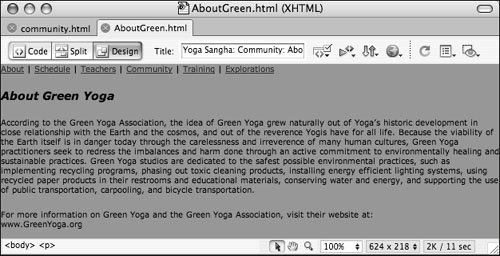
Press Return (Macintosh) or Enter (Windows) to add a new paragraph below the toolbar. Open Lesson_10_Frames/Text/green_page2.txt, copy the text, and paste it into the page. Change the text About Green Yoga to a paragraph and apply the tagline -style style in the Property inspector .

This is the content page that will correspond with an About Green link; you will create a link to this page from the rightNav frame later in this lesson.

4.

Repeat steps 1 to 3 to create BeginningGreen.html in the Lesson_10_Frames/Community folder. Title it Yoga Sangha: Community: Beginning Green Yoga including the text in the green_page3.txt file .

This is the content page that will correspond with a Begin link you will create in the rightNav frame later in this lesson.

You can close AboutGreen.html and BeginningGreen.html. Leave the community.html file open to use in the next exercise.


Opening an Existing Page in a Frame

The content for the moreContent frame has already been created for you. You will want to assign this page to the frame. Also, you already started several content pages, so now you need to make sure that they fit in the content frame. You can open those files directly in the frame to check or edit them.

1.

In the community.html Document window, click inside the moreContent frame .

This is the frame in which you want the sidebar page to appear.

2.

Choose File > Open in Frame. Choose sidebar.html from the dialog box. Save the frameset .

The page is loaded into the content frame and is available for editing. Notice that the secondary navigation items do not yet have links associated with them.

3.

Within the content frame, open AboutGreen.html. Verify that the page fits correctly into the frame .

Tip

Take care when saving your frames and exercise caution when using the Save All Frames command in the File menu. This command saves all open pages contained in your frames and the frameset. The files that initially appear within each frame are defined in the frameset. If you choose File > Save All Frames while you are editing other pages within the frames (by using File > Open In Frame), you redefine the frameset .

4.

Open BeginningGreen.html in the content frame .

Your page should now look like the following example. Verify that it fits in the frame.


Checking Frame Content

As you create and edit pages within frames, it can be easy to accidentally place the wrong content in a frame. You can use the Property inspector to ensure that the correct pages are loaded into each of the frames for the initial view of your Web page.

1.

Select the title Nav frame by clicking the top frame in the Frames panel. In the Src text field in the Property inspector, make sure that top.html is selected. If it isn't, click the folder icon to find and select it .

The Property inspector shows Frame properties for the title frame.

2.

Select the moreContent frame by clicking the right frame in the Frames panel. In the Src text field in the Property inspector, make sure that sidebar.html is selected. If it isn't, click the folder icon to find and select it .

The Property inspector shows Frame properties for the moreContent frame.

3.

Select the content frame by clicking the lower-left frame in the Frames panel. Next to the Src text field in the Property inspector, click the folder icon to find and select community_intro.html. Save the frameset .

The BeginningGreen.html was selected because it was the last document that you worked with in this frame. If you open a page within a frame to edit it, saving the frameset causes that file to become the default page for that frame when the frameset document loads. The community_intro.html file is the document you want to appear at first in the content frame of the final frameset.

The Property inspector shows frame properties for the content frame.

You can open Web pages from a variety of sources in a frame by typing the URL of the desired page in the Src text field in the Property inspector. The page you call up does not have to reside on the same server as the frameset. The capability to open pages from other servers can be a drawback where the ethical use of content is concerned . Some frames-based pages are used to open content developed by others, without their permission. Be sure to respect the copyright of content that is not your own and avoid giving visitors the impression that materials are from your Website if they aren't.

Note

If you are concerned about your pages being called up in someone else's frame, you can use JavaScript to cause the browser to open your page in its own window if it is called from a frame. You might be able to determine whether this is a problem by reviewing your site logs; check with your system administrator or Web host for more information .