Now You Know Tungsten E
Authors: Overton R. Hayward D
Published year: 2004
Pages: 24-25/118
Buy this book on amazon.com >>

How to delete stuff

If you're a pack rat at home, you're probably going to use your handheld in much the same way. In that case, you might want to do a "spring cleaning" once in a while to save memory and reduce screen clutter. Be careful when deleting depending on the application, it's often permanent.
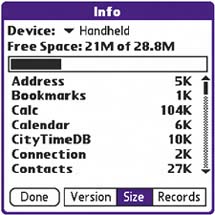
From the Home screen, tap Menu > Info to see how much space is left on your handheld.

Delete songs and photos

From the Home screen, you can't delete songs, photos, or videos stored on an expansion card. To delete such files, open RealOne Player or Photos. From the Music or Photos menu, select Delete .


To delete apps from an expansion card

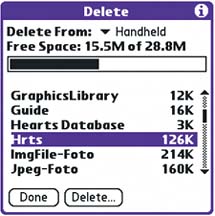
On the Home screen, from the App menu, select Delete . From the Delete From pick list, select Card .


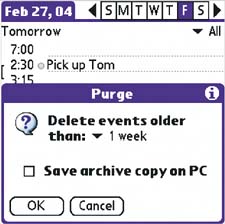
Purge outdated events

Purging deletes events older than an age you specify. Unless you want to permanently lose the info, check the Save archive copy on PC box and a copy will be saved the next time you sync.


If you archive purged info, you'll have the info whenever you need it.


The basics of deleting

Deleting apps

Go to Home > App > Delete . Select the program you want to delete. When you delete an application, any files and data associated with it are also deleted.
Deleting entries

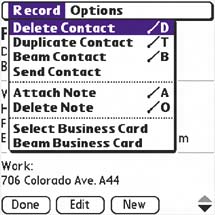
From inside most applications, you can delete individual entries or events. Open the item you want to delete, tap the Menu icon, and select Record > Delete .


Freeing up memory

Eventually, you might fill up your handheld's internal memory. To gain some of it back, consider purging your Calendar and Tasks, and delete any old, unneeded notes, memos, email, and names . If there are any applications you don't use, toss those too. To see how much memory your handheld has left, select Home > App > Info .


Delete something by mistake?

If you've accidentally deleted something, look it up on your PC, modify it, and then sync. Under default conduit settings, the most recent change automatically transfers. To learn more about conduits , see page 72.


A clean slate

If you're selling your handheld or giving it away, erase all your info by performing a hard reset. See page 21.


Built-in apps

You can't delete built-in apps like Calendar and Contacts. You can only delete apps that show up in the list at Home > App > Delete .


Retrieve archives

Archived info for each app is stored in separate files on your PC. Open the application in Palm Desktop software, and select File > Open Archive . Select the archive and click Open . As with your regular info, you can copy it, export it, and send it to Word or Excel. Select File > Open Current to return to your current info.


Commands

Delete

Info

Purge


Go to

  • To learn how to use Palm Desktop and sync your handheld so you have a backup in case you accidentally delete something, see page 76.


How to find stuff

You could fit your neighborhood's phone book on your handheld, but that doesn't matter if you can't find the neighbor you want. Fortunately, your handheld has an excellent way to track down info no matter where it is.

Icon to look for

Find


To find…

… a contact

In the Contacts list view, press right on the navigator to use Look Up(see "Use the Look Up tool," next page).

… what happened during your last sync

Tap the HotSync icon on the Home screen and then tap the Log button. On a PC, select View Log from the HotSync Manager menu.

… an app you just transferred

On the Home screen, look in either the All or the Unfiled category.


Search by area code

If you've forgotten someone's name but remember where the person lives, use Find and search by area code to track the person down.


Find in Palm Desktop software

Palm Desktop's Find function can be a fast and powerful tool. In Windows, Find is on the Edit menu. On Macs, it's on the Locate menu.


Using Find

Tap the Find icon to the right of the input area and write the text you're seeking.

Tap OK . The Find utility searches many apps and indicates where matches occur.

Select any of the matches to go straight to instances of the word in that application.


Use the Look Up tool: Quickly find a phone number with one hand

Press the Contacts button on the front of your handheld to go to your address book. Press right on the navigator. The Look Up boxes appear at the bottom of the screen.

.

Press up or down on the navigator to scroll through the alphabet. Press right to add a letter to your search term and narrow your search.

When you find the contact you want, press the center navigator button to highlight the contact. Press it again to view the contact's details.


How Find works

The Find utility searches for words that begin with your search terms, not ones that contain those search terms. So "ire" will find "Ireland" but not "Fire department."


Advanced Find features

To find search terms embedded in words, try the FindHack shareware utility, available online. (Make sure you get an up-to-date version.)


Real Life: Using Find

Reggie makes so many sales calls that he often forgets key details like the last time he met with a particular client. When he gets a phone call from such a client, he quickly selects the name in Contacts, taps Find , and scans the matches from his Calendar. Within a few seconds, he's fully up to speed. And he never has to ask, "Remind me when did we meet?"


Tips for finding stuff

  • Capitalization is ignored in searches.

  • When you use the Find command within an application, it searches that application first.

  • The more information you have in your handheld, the longer the search.

  • Private entries, whether masked or hidden, will not appear in search results.

  • You can't search for items stored on an expansion card.


Now You Know Tungsten E
Authors: Overton R. Hayward D
Published year: 2004
Pages: 24-25/118
Buy this book on amazon.com >>