Easy Microsoft Office Outlook 2003
Authors: Oap]Hara S.
Published year: 2003
Pages: 49-51/185
Buy this book on amazon.com >>

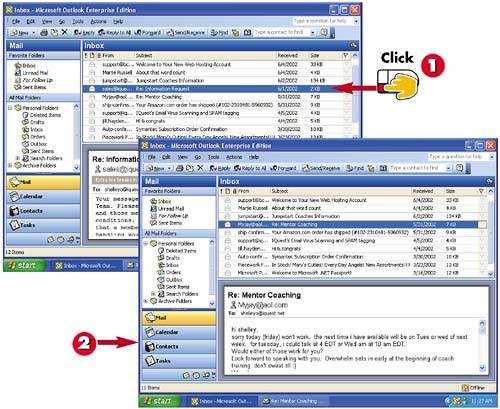
Deleting a Message

graphics/03inf11.jpg

graphics/one_icon.jpg

In the Inbox (or any other folder), click the message you want to delete. (Alternatively, open the message.)

graphics/tow_icon.jpg

The message is removed from the Inbox and placed in the Deleted Items folder.

INTRODUCTION

To keep your mail folders, especially your Inbox, organized, you should delete any messages you do not need. When you delete a message, it is moved from the Inbox to the Deleted Items folder. You can undelete a message if needed (see the next task).

TIP

Permanently Deleting Messages

To permanently delete a message, open the Deleted Items folder and click the message to select it. Click the Delete button in the Outlook window's main toolbar; when prompted to confirm the permanent deletion, click Yes .


Undeleting a Message

graphics/03inf12.jpg

graphics/one_icon.jpg

Click the Deleted Items folder in the All Mail Folders list.

graphics/tow_icon.jpg

You see the contents of the Deleted Items folder. Right-click the item you want to undelete.

graphics/three_icon.jpg

Click Move to Folder in the shortcut menu that appears.

INTRODUCTION

If you delete a message by mistake, you can retrieve it. As mentioned, Outlook does not delete a message, but simply moves it to the Deleted Items folder. You can open this folder and move the deleted message back to your Inbox or other folder. (This task works not only for messages but for any Outlook item you delete, such as a contact record, an appointment, and so on.)

graphics/03inf13.jpg

graphics/foure_icon.jpg

The Move Items dialog box opens. Click the folder to which you want to move the deleted item.

graphics/five_icon.jpg

Click OK .

graphics/six_icon.jpg

The item is removed from the Deleted Items folder and is moved to the folder you selected ”in this case, the Inbox. (You can open the Inbox to confirm that the move occurred.)

TIP

Emptying the Deleted Items Folder

You should periodically empty the Deleted Items folder to regain the space used to store these items. First, check that the folder doesn't contain any items you need. Then open the Tools menu and choose Empty Deleted Items Folder .

TIP

Moving Messages

When you undelete a message, you can move it back to its original folder, or to another folder altogether. For example, you might set up your own folders to keep mail organized and move deleted items to any of these folders.


Opening File Attachments

graphics/03inf14.jpg

graphics/one_icon.jpg

Display the message that contains the file attachment. (Messages with attachments are indicated with a paper clip icon.) Then Double-click the message to open it.

graphics/tow_icon.jpg

Double-click the attachment to open it.

INTRODUCTION

Sometimes you will receive file attachments as part of a message. For example, your daughter might send you a digital photograph of your grandchild. You can then open and save this file.

CAUTION

Avoiding Viruses

File attachments sent with e-mail messages can contain viruses, which can cause problems on your computer. It's a good idea to use a virus-checking program such as Norton's Anti-Virus to scan any attachments for viruses . Also, never open attachments from senders you don't recognize.

graphics/03inf15.jpg

graphics/three_icon.jpg

Outlook starts the associated program and opens and displays the file.

graphics/foure_icon.jpg

The file is stored in a temporary folder when it is opened. (To save the file, see the next task.) When you are finished viewing the file, click the Close (x) button.

HINT

Specifying the Correct Program

If Outlook doesn't know which program to use to open the file, you are prompted to select the program.

TIP

Handling Forwarded Messages

Often, messages that have been forwarded are sent as attachments. You may have to double-click the message attachment several times to open the actual message.

Easy Microsoft Office Outlook 2003
Authors: Oap]Hara S.
Published year: 2003
Pages: 49-51/185
Buy this book on amazon.com >>