|
Apple Pro Training Series. Final Cut Pro 5 Authors: Weynand D Published year: 2005 Pages: 17-18/235 |
| < Day Day Up > |
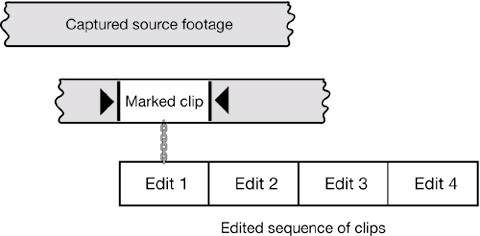
Following a WorkflowBefore you work with projects, which you'll do in the next section, let's take a minute to review the non-linear editing process and some of the terminology you'll need to know. Final Cut Pro follows the normal conventions of the nonlinear editing process. That process usually begins with capturing material from the original source tape, thereby converting it into digital media files. The media files are actually QuickTime movies that play like any other QuickTime movie on your computer. One file is created for each portion of source footage you choose to capture. Each media file may be a different length, as measured in minutes, seconds, and frames .
The Final Cut Pro editing process is nondestructive, which means that you never make changes to the actual media files. Instead, you work with clips that represent these media files. For example, you can change the audio level or add an effect to a clip inside Final Cut Pro, which causes the media file to be played back with those changes. But the actual media file itself is still unchanged. You choose edit points on clips and combine clips with other edited clips to form a sequence. When you edit the sequence of shots together, you are not actually making changes to your original media. You are only specifying what portions and in what order you want Final Cut Pro to show you the original media. You can change your mind over and over again about the placement or length of a shot without affecting the original captured media clips.
You can also save the initial captured media files to a separate hard drive connected through FireWire, or to a CD or DVD. The material in the accompanying DVD in this book has already been captured for the purposes of preparing these lessons. You will learn to capture your own source footage and export it in different ways in later lessons. |
| < Day Day Up > |
| < Day Day Up > |
Working with ProjectsEvery time you begin editing a new body of material, you create a new project file to contain that material. Each project may have several kinds of elements, such as QuickTime clips, music, sound effects, narration, and graphics, which you will combine to form an edited version of the material. Project elements are displayed in the Browser window under a project tab. Opening and Closing ProjectsWhen you launch Final Cut Pro, it will open the last project you worked on or a new untitled project. In the Browser, there is a tab with the project name on it. To work with the project file created for this lesson, you will open it from the files you transferred from the DVD in this book.
Identifying Project ElementsLesson 1 Project has four different types of project elements. Each is represented by a unique icon, which can appear larger or smaller depending on what view you select. You'll learn about views in the next exercise, but in the following examples you can see two views for each icon. The first image represents the view you see in the current project, which is a list view. The second image represents an icon or picture view. ClipEach clip in your project represents some portion of your original captured source footage. It links back to a digital media file on your hard drive. This type of clip icon can represent video-only or video and audio combined. When viewed as a list, such as the current display in the Browser, the clip icon resembles a piece of film.
Audio ClipAn audio clip represents sound clips or files such as music, sound effects, narration, and so on. Like the video clips, these audio clips link back to the original audio files stored on your hard drive. Audio clips contain no video. The icon is an audio speaker.
SequenceA sequence is a group of audio and video clips that have been edited together. A sequence might also contain effects and transitions you may have applied to the edited clips. When you view a sequence in the Canvas or work with it in the Timeline, Final Cut Pro links back to the media clips on the hard drive and plays just the selected portions of the clips you have identified and marked . The sequence icon resembles two pieces of overlapping film.
BinA bin is a folder used to organize clips and sequences in the project. The term bin comes from the days of film editing when pieces of cut film hung on hooks over large canvas containers called bins . These pieces of film, or film clips, would hang in a bin until the film editor selected them to use in a sequence.
Viewing Project ElementsYou can view project elements in the Browser several different ways. You can view elements as image icons or as an alphabetized list. With a View As Icons option, you see a visual reference or thumbnail image of each video clip. Seeing a clip's thumbnail image can be a helpful reminder of your material. With the View As List option, you can see and have access to more clips in a smaller space.
NOTE The lessons in this book were prepared with the View As List option for this reason. You may choose whichever view you prefer for your own editing. |
| < Day Day Up > |
|
Apple Pro Training Series. Final Cut Pro 5 Authors: Weynand D Published year: 2005 Pages: 17-18/235 |