The Detail Window
| The Detail window displays various columns of song information. The visible columns in the Detail window vary depending on which source you select in the Source pane and which options you choose in the View Options window (see page 89).  Select and play songsTo play any song in the "Song Name" column, double-click its title. When that selection has finished, iTunes plays the next song in the list that has a checkmark next to it. When you insert a CD, by default all the song titles have a checkmark next to them, which means they will all play in order when you click the "Play" button. The checkmark also determines which songs will be encoded and placed in the iTunes Library when you click the "Import" button (page 102).
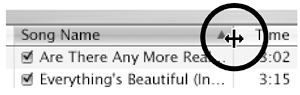
Resize or rearrange columnsIf song titles are cut off by the narrow width of the "Song Name" column or if one of the columns is too narrow or too wide, you can resize the column. Place your cursor over the thin gray dividing line that separates two columns. The cursor becomes a bi-directional arrow. Press-and-drag the line to the left or right as far as necessary to resize the column to your liking. Drag the divider line left or right to resize columns.
To rearrange the columns, press on a column's title bar. When you start to drag, the arrow turns into a grabber hand as shown below. Drag the column left or right to a new position. Above, you can see the grabber hand as it drags the "Time" column from its original position to the position between the "Artist" and the "Album" columns.  Organize the column informationThe Detail window is always organized by the selected column. In the example above, the information is organized alphabetically by song nameyou can see that the "Song Name" column heading is highlighted. Click the small triangle to the right of a selected column name to reverse the order in which the information is displayed. For instance, if you select the column head "My Rating" and then click its triangle, the songs will be listed in order of how you rated them; click the triangle again to reverse the order of the ratings. |

EAN: N/A
Pages: 277