| A playlist is your customized collection of audio files. You can create as many playlists as you like, and you can arrange the songs in any order you prefer by dragging selections up or down in the list. You create playlists so you can play custom collections of songs on your computer, download them to a portable MP3 player, or burn them onto CDs. When you create a new playlist, iTunes assumes you'll want to change its name so it highlights the text for you. Just type to replace the existing text. 
Create a new playlist and add songs to it 1. | Type Command N, or click the "New Playlist" button (the +) in the bottom-left corner of the iTunes window. A playlist icon appears in the Source pane with the default name "untitled playlist."
| 2. | Change the name of the new playlist to something descriptive by typing over the highlighted default name.
You can change a playlist name at any time: Click once on the title to highlight it, click a second time to make the text editable, then type a new name in the highlighted field.
|
To add selections to the playlist from a CD 1. | Insert a CD whose songs you want to add to a custom playlist.
| 2. | Click the CD icon in the Source pane to open its song list.
| 3. | Drag desired selections from the "Song Name" column and drop them on your new playlist in the Source pane, as shown below.
|
 When you drag a song directly from a CD to a playlist, the song is automatically encoded (imported) to the AAC format, or whatever format you last chose in the Importing preferences pane. The song is placed in the iTunes Library and added to the playlist. 
To add a song to a playlist from the Library 1. | In the Source pane, single-click the "Library" icon to display your entire Library collection in the "Song Name" column.
Note When you drag a song file from the Library to a playlist collection, as explained on these pages, the song remains in the Library. You're not actually moving the digital fileyou're creating a directory that tells iTunes which songs are attached to different collections. You can put the same song in as many playlist collections as you want without bloating your computer with extra copies of large music files. |
| 2. | Drag a selection from the "Song Name" column to a playlist in the Source pane.
|
There's another method for creating a new playlist that's even easier: 1. | In the Source pane, single-click the "Library" icon to display your entire Library collection in the "Song Name" column.
| 2. | Select all the songs you want from the "Song Name" column (see how to make multiple selections below).
Note: The checkmarks do not indicate that a file is selected. The checkmarks indicate two things: songs that will play when you click the "Play" button, or songs on a CD that will be imported when you click the "Import" button.
| 3. | From the File menu, select "New Playlist From Selection." iTunes automatically creates the playlist and adds the selected songs to it.
|
You can drag multiple selections all at once to a playlist: To make a contiguous selection of songs (songs that are next to each other in the list), Shift-click the song names. Or single-click on one song, then Shift-click on another song: all songs between the two clicks will be selected. To make a non-contiguous selection of songs (songs that are not next to each other in the list), click a song, then Command-click additional song names you want to add to the selection.
This example shows a non-contiguous selection of songs.  Smart Playlists Smart Playlists are collections of songs that are generated automatically when imported songs meet certain conditions that you define. iTunes provides several Smart Playlists (indicated by the gear symbols) in the Source pane: '60s Music, '90s Music, Top Rated, Recently Played, and Top 25 Most Played. You can create new Smart Playlists that meet other conditions, such as your favorite Hawaiian songs, flamenco music, or certain artists. Smart Playlists display a gear symbol. 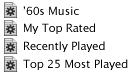
To create a new Smart Playlist 1. | From the File menu, choose "New Smart Playlist…." Or Option-click the "New Playlist" buttonthe "plus" symbol on the button changes to a "gear" symbol (Smart Playlist) when you press the Option key.
Press the Option key to change the "Play-list" button to a "Smart Playlist" button. 
| 2. | In the Smart Playlist window that appears (shown below), use the menus and text fields to set conditions for the new Smart Playlist.
| 3. | Click OK.
|
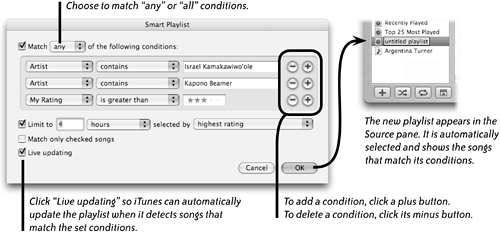 A new Smart Playlist appears in the Source pane (shown above-right). Any songs in your Library that meet the conditions you set are now listed in the "Song Name" column of the Detail window. Rename the playlist something descriptive. |
