Faster Smarter Microsoft Office FrontPage 2003
Authors: Stanek W.R. Holden G.
Published year: 2004
Pages: 94-95/179
Buy this book on amazon.com >>

Adding FrontPage-Based Web Searches

The ability to search a corporate Web site s contents by entering terms in a search form is one of the features most highly desired by Web surfers. Many visitors immediately turn to a search form to find something, rather than clicking on links.

Normally, making a site searchable requires programming. FrontPage enables you to make your site searchable by inserting a Web component that indexes your site s contents, and then searches the contents in response to search queries. First, you create a simple form for searching the current FrontPage Web:

  1. Open the Web you want to make searchable.

  2. Position the cursor at the spot where you want to insert the search form.

  3. Click the Web Component button.

  4. Click Web Search in the Component Type list.

  5. Click Current Web, and click Finish.

Aha!  

You Can Create a More Elaborate Search Form, Too
The Web Search component adds a search form to a FrontPage-based Web. If you are working on a SharePoint Web, the Full Text Search Web component becomes active in the Web Component dialog box. In either case, the form you add consists of one simple text box. You can create a more elaborate type of search form by choosing the FrontPage Search Page Template: choose Page Or Web from the New submenu of the File menu, click Page Templates in the Task Pane, and double-click Search Page.

When the Search Form Properties dialog box appears, you configure the Search Form and the results the user will receive:

  1. Type a text label that will appear next to the search form.

  2. Specify the width of the search form.

  3. Type a label for the button users click to start the search.

  4. Type a label for the button users click to clear the search box.

  5. Click the Search Results tab.

  6. Choose date and time formats for the search results the user will see after using the search form.

  7. Select the Display Score checkbox, if you want the results to be ranked with scores.

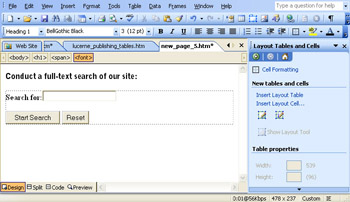
  8. Select the Display File Date and Display File Size checkboxes, if you want the results to display the file date and size . Click OK when you re finished to add the search form (see Figure 13-5).
    click to expand
    Figure 13-5: FrontPage makes it easy to configure the properties and search result options for this simple-looking search form.

Note  

It s a good idea to provide your visitors with some information about file size and creation dates of the files presented in your search results. Such data helps the user know how current the document is, and how much information the file contains.


Including Spreadsheet and Chart Components

Some of FrontPage s Web Components enable you to include Excel 2003 and other documents in your FrontPage-based Web. Not only that, but your visitors can directly interact with the data contained in the documents. By embedding a spreadsheet or a chart in a Web page, companies can make data available to employees without requiring them to install the original applications ”the Web browser becomes a uniform interface to databases, spreadsheets, charts , and many other types of information.

Add an Office Spreadsheet

By including a spreadsheet in a Web page, you not only save yourself a considerable amount of programming time, but you enable your visitors to interact with spreadsheets directly, without having to start up a separate Office application.

  1. Open the page where you want to add the spreadsheet.

  2. Click the Web Component button.

  3. Choose Spreadsheets And Charts.

  4. Choose Office Spreadsheet, and click Finish.

  5. Click Commands and Options on the Office Spreadsheet s toolbar (as shown in Figure 13-6), if you want to import data from another file.

    click to expand
    Figure 13-6: The Office Spreadsheet Web Component makes it easy to add a spreadsheet to a Web page.

  6. Click Import, and type the location of the data in the URL box.

  7. Check Refresh Data From URL At A Later Time, if you want to update your data whenever the spreadsheet loads.

You can also add content to a spreadsheet you add to a Web page by simply typing it, just as you would in Excel. Click in a cell and begin typing. You can also use the controls in the spreadsheet s own toolbar to format the data.

Aha!  

Link Your Spreadsheet to Live Data
You can link your spreadsheet to a data source by clicking Commands And Options, then clicking the Data Source tab in the Commands And Options dialog box. Enter the URL of the data source in the Connection box.

You can also add an Office chart or a PivotTable to a Web page. Both options enable you to graphically present data contained in a spreadsheet or other data source. Proceed as if you were inserting a spreadsheet, then choose Office Chart or PivotTable in the Insert Web Component dialog box.

Caution  

Don t expect all of your visitors to be able to interact with spreadsheets, or other Office Web Components. In order to use the interactive data, they need to use Internet Explorer 4.01 or later, and have Microsoft Office Web components installed.


Faster Smarter Microsoft Office FrontPage 2003
Authors: Stanek W.R. Holden G.
Published year: 2004
Pages: 94-95/179
Buy this book on amazon.com >>

Similar books on Amazon