Control Structures
| The control flow commands alter the order of execution of commands within a shell script. Control structures include the if...then, for...in, while, until, and case statements. In addition, the break and continue statements work in conjunction with the control structures to alter the order of execution of commands within a script. if...thenThe if...then control structure has the following syntax:
The bold words in the syntax description are the items you supply to cause the structure to have the desired effect. The nonbold words are the keywords the shell uses to identify the control structure.
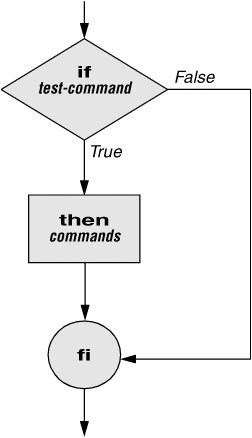
test builtin Figure 28-1 shows that the if statement tests the status returned by the test-command and transfers control based on this status. The end of the if structure is marked by a fi statement, (if spelled backward). The following script prompts for two words, reads them, and then uses an if structure to execute commands based on the result returned by the test builtin when it compares the two words. (See the test info page for information on the test utility, which is similar to the test builtin.) The test builtin returns a status of true if the two words are the same and false if they are not. Double quotation marks around $word1 and $word2 make sure that test works properly if you enter a string that contains a SPACE or other special character: $ cat if1 echo -n "word 1: " read word1 echo -n "word 2: " read word2 if test "$word1" = "$word2" then echo "Match" fi echo "End of program." $ if1 word 1: peach word 2: peach Match End of program. Figure 28-1. An if...then flowchart In the preceding example the test-command is test "$word1" = "$word2". The test builtin returns a true status if its first and third arguments have the relationship specified by its second argument. If this command returns a true status (= 0), the shell executes the commands between the then and fi statements. If the command returns a false status (not = 0), the shell passes control to the statement following fi without executing the statements between then and fi. The effect of this if statement is to display Match if the two words are the same. The script always displays End of program.
Builtins In the Bourne Again Shell, test is a builtinpart of the shell. It is also a stand-alone utility kept in /usr/bin/test. This chapter discusses and demonstrates many Bourne Again Shell builtins. You usually use the builtin version if it is available and the utility if it is not. Each version of a command may vary slightly from one shell to the next and from the utility to any of the shell builtins. See page 926 for more information on shell builtins.
Checking arguments The next program uses an if structure at the beginning of a script to check that you have supplied at least one argument on the command line. The eq test operator compares two integers, where the $# special parameter (page 921) takes on the value of the number of command line arguments. This structure displays a message and exits from the script with an exit status of 1 if you do not supply at least one argument: $ cat chkargs if test $# -eq 0 then echo "You must supply at least one argument." exit 1 fi echo "Program running." $ chkargs You must supply at least one argument. $ chkargs abc Program running. A test like the one shown in chkargs is a key component of any script that requires arguments. To prevent the user from receiving meaningless or confusing information from the script, the script needs to check whether the user has supplied the appropriate arguments. Sometimes the script simply tests whether arguments exist (as in chkargs). Other scripts test for a specific number or specific kinds of arguments. You can use test to ask a question about the status of a file argument or the relationship between two file arguments. After verifying that at least one argument has been given on the command line, the following script tests whether the argument is the name of an ordinary file (not a directory or other type of file) in the working directory. The test builtin with the f option and the first command line argument ($1) check the file: $ cat is_ordfile if test $# -eq 0 then echo "You must supply at least one argument." exit 1 fi if test -f "$1" then echo "$1 is an ordinary file in the working directory" else echo "$1 is NOT an ordinary file in the working directory" fiYou can test many other characteristics of a file with test and various options. Table 28-1 lists some of these options.
Other test options provide ways to test relationships between two files, such as whether one file is newer than another. Refer to later examples in this chapter for more detailed information. Tip: Always test the arguments To keep the examples in this book short and focused on specific concepts, the code to verify arguments is often omitted or abbreviated. It is a good practice to test arguments in shell programs that other people will use. Doing so results in scripts that are easier to run and debug.
[] is a synonym for test The following exampleanother version of chkargschecks for arguments in a way that is more traditional for Linux shell scripts. The example uses the bracket ([]) synonym for test. Rather than using the word test in scripts, you can surround the arguments to test with brackets. The brackets must be surrounded by whitespace (SPACEs or TABs). $ cat chkargs2 if [ $# -eq 0 ] then echo "Usage: chkargs2 argument..." 1>&2 exit 1 fi echo "Program running." exit 0 $ chkargs2 Usage: chkargs2 arguments $ chkargs2 abc Program running.
Usage message The error message that chkargs2 displays is called a usage message and uses the 1>&2 notation to redirect its output to standard error (page 270). After issuing the usage message, chkargs2 exits with an exit status of 1, indicating that an error has occurred. The exit 0 command at the end of the script causes chkargs2 to exit with a 0 status after the program runs without an error. The Bourne Again Shell returns a 0 status if you omit the status code. The usage message is commonly employed to specify the type and number of arguments the script takes. Many Linux utilities provide usage messages similar to the one in chkargs2. If you call a utility or other program with the wrong number or kind of arguments, you will often see a usage message. Following is the usage message that cp displays when you call it without any arguments: $ cp cp: missing file argument Try 'cp --help' for more information.if...then...elseThe introduction of an else statement turns the if structure into the two-way branch shown in Figure 28-2. The if...then...else control structure has the following syntax:
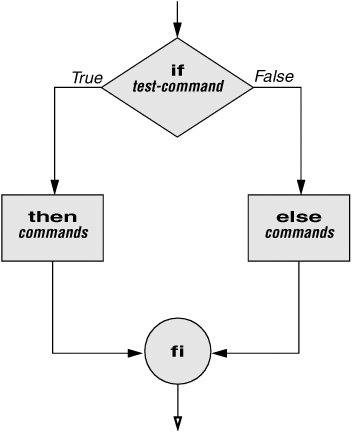
Figure 28-2. An if...then...else flowchart Because a semicolon (;) ends a command just as a NEWLINE does, you can place then on the same line as if by preceding it with a semicolon. (Because if and then are separate builtins, they require a command separator between them; a semicolon and NEWLINE work equally well.) Some people prefer this notation for aesthetic reasons, while others like it because it saves space:
If the test-command returns a true status, the if structure executes the commands between the then and else statements and then diverts control to the statement following fi. If the test-command returns a false status, the if structure executes the commands following the else statement. When you run the next script, named out, with arguments that are filenames, it displays the files on the terminal. If the first argument is v (called an option in this case), out uses less (page 128) to display the files one page at a time. After determining that it was called with at least one argument, out tests its first argument to see whether it is v. If the result of the test is true (if the first argument is v), out uses the shift builtin to shift the arguments to get rid of the v and displays the files using less. If the result of the test is false (if the first argument is not v), the script uses cat to display the files: $ cat out if [ $# -eq 0 ] then echo "Usage: out [-v] filenames..." 1>&2 exit 1 fi if [ "$1" = "-v" ] then shift less -- "$@" else cat -- "$@" fi
if...then...elifThe if...then...elif control structure (Figure 28-3) has the following syntax:
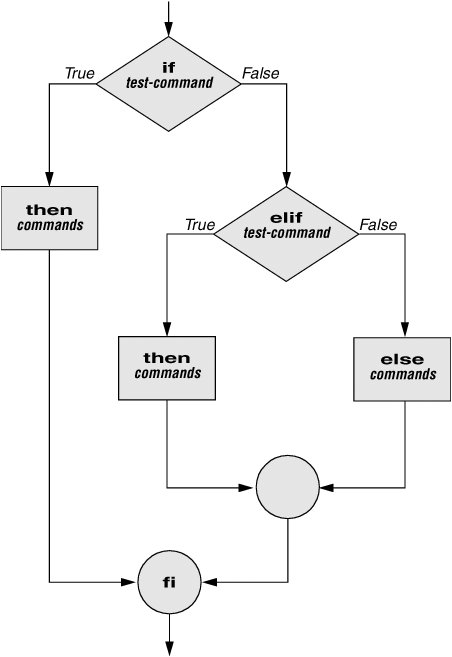
Figure 28-3. An if...then...elif flowchart The elif statement combines the else statement and the if statement and allows you to construct a nested set of if...then...else structures (Figure 28-3). The difference between the else statement and the elif statement is that each else statement must be paired with a fi statement, whereas multiple nested elif statements require only a single closing fi statement. The following example shows an if...then...elif control structure. This shell script compares three words that the user enters. The first if statement uses the Boolean operator AND (a) as an argument to test. The test builtin returns a true status only if the first and second logical comparisons are true (that is, if word1 matches word2 and word2 matches word3). If test returns a true status, the script executes the command following the next then statement, passes control to the statement following fi, and terminates: $ cat if3 echo -n "word 1: " read word1 echo -n "word 2: " read word2 echo -n "word 3: " read word3 if ["$word1" = "$word2" -a "$word2" ="$word3" ] then echo "Match: words 1, 2, & 3" elif [ "$word1" = "$word2" ] then echo "Match: words 1 & 2" elif ["$word1" = "$word3" ] then echo "Match: words 1 & 3" elif [ "$word2" = "$word3" ] then echo "Match: words 2 & 3" else echo "No match" fi $ if3 word 1: apple word 2: orange word 3: pear No match $ if3 word 1: apple word 2: orange word 3: apple Match: words 1 & 3 $ if3 word 1: apple word 2: apple word 3: apple Match: words 1, 2, & 3 If the three words are not the same, the structure passes control to the first elif, which begins a series of tests to see if any pair of words is the same. As the nesting continues, if any one of the if statements is satisfied, the structure passes control to the next then statement and subsequently to the statement following fi. Each time an elif statement is not satisfied, the structure passes control to the next elif statement. The double quotation marks around the arguments to echo that contain ampersands (&) prevent the shell from interpreting the ampersands as special characters.
Debugging Shell ScriptsWhen you are writing a script such as lnks, it is easy to make mistakes. You can use the shell's x option to help debug a script. This option causes the shell to display each command before it runs the command. Tracing a script's execution in this way can give you information about where a problem lies. You can run lnks as in the previous example and cause the shell to display each command before it is executed. Either set the x option for the current shell (set x) so that all scripts display commands as they are run or use the x option to affect only the shell that is running the script called by the command line. $ bash -x lnks letter /home + '[' 2 -eq 0 -o 2 -gt 2 ']' + '[' -d letter ']' + file=letter + '[' 2 -eq 1 ']' + '[' -d /home ']' + directory=/home + '[' '!' -f letter ']' ...
PS4 Each command that the script executes is preceded by the value of the PS4 variablea plus sign (+) by default, so you can distinguish debugging output from script-produced output. You must export PS4 if you set it in the shell that calls the script. The next command sets PS4 to >>>> followed by a SPACE and exports it: $ export PS4='>>>> 'You can also set the x option of the shell running the script by putting the following set command at the top of the script: set -x Put set x anywhere in the script you want to turn debugging on. Turn the debugging option off with a plus sign. set +x The set o xtrace and set +o xtrace commands do the same things as set x and set +x, respectively. for...inThe for...in control structure has the following syntax:
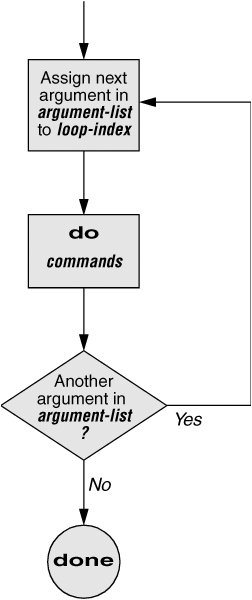
The for...in structure (Figure 28-4) assigns the value of the first argument in the argument-list to the loop-index and executes the commands between the do and done statements. The do and done statements mark the beginning and end of the for loop. Figure 28-4. A for...in flowchart After it passes control to the done statement, the structure assigns the value of the second argument in the argument-list to the loop-index and repeats the commands. The structure repeats the commands between the do and done statements one time for each argument in the argument-list. When the structure exhausts the argument-list, it passes control to the statement following done. The following for...in structure assigns apples to the user-created variable fruit and then displays the value of fruit, which is apples. Next the structure assigns oranges to fruit and repeats the process. When it exhausts the argument list, the structure transfers control to the statement following done, which displays a message. $ cat fruit for fruit in apples oranges pears bananas do echo "$fruit" done echo "Task complete." $ fruit apples oranges pears bananas Task complete. The next script lists the names of the directory files in the working directory by looping over all the files, using test to determine which files are directories: $ cat dirfiles for i in * do if [ -d "$i" ] then echo "$i" fi doneThe ambiguous file reference character * matches the names of all files (except hidden files) in the working directory. Prior to executing the for loop, the shell expands the * and uses the resulting list to assign successive values to the index variable i. forThe for control structure has the following syntax:
In the for structure the loop-index takes on the value of each of the command line arguments, one at a time. It is the same as the for...in structure (Figure 28-4) except for where it gets values for the loop-index. The for structure performs a sequence of commands, usually involving each argument in turn. The following shell script shows a for structure displaying each command line argument. The first line of the script, for arg, implies for arg in "$@", where the shell expands "$@" into a list of quoted command line arguments "$1" "$2" "$3" and so on. The balance of the script corresponds to the for...in structure. $ cat for_test for arg do echo "$arg" done $ for_test candy gum chocolate candy gum chocolate
whileThe while control structure has the following syntax:
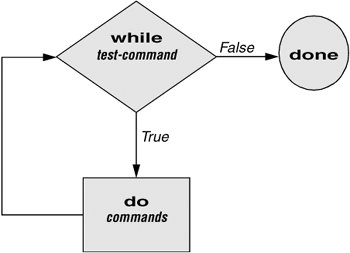
As long as the test-command (Figure 28-5) returns a true exit status, the while structure continues to execute the series of commands delimited by the do and done statements. Before each loop through the commands, the structure executes the test-command. When the exit status of the test-command is false, the structure passes control to the statement after the done statement. Figure 28-5. A while flowchart
test builtin The following shell script first initializes the number variable to zero. The test builtin then determines whether number is less than 10. The script uses test with the lt argument to perform a numerical test. For numerical comparisons, you must use ne (not equal), eq (equal), gt (greater than), ge (greater than or equal to), lt (less than), or le (less than or equal to). For string comparisons use = (equal) or != (not equal) when you are working with test. In this example, test has an exit status of 0 (true) as long as number is less than 10. As long as test returns true, the structure executes the commands between the do and done statements. See page 879 for information on the test utility, which is very similar to the test builtin. $ cat count #!/bin/bash number=0 while [ "$number" -lt 10 ] do echo -n "$number" ((number +=1)) done echo $ count 0123456789 $ The echo command following do displays number. The n prevents echo from issuing a NEWLINE following its output. The next command uses arithmetic evaluation [((...)); page 940] to increment the value of number by 1. The done statement terminates the loop and returns control to the while statement to start the loop over again. The final echo causes count to send a NEWLINE character to standard output, so that the next prompt occurs in the leftmost column on the display (rather than immediately following 9).
if ! grep -qw "$line" "$1"
untilThe until and while structures are very similar, differing only in the sense of the test performed at the top of the loop. Figure 28-6 shows that until continues to loop until the test-command returns a true exit status. The while structure loops while the test-command continues to return a true or nonerror condition. The until control structure has the following syntax:
Figure 28-6. An until flowchart The following script demonstrates an until structure that includes read. When the user enters the correct string of characters, the test-command is satisfied and the structure passes control out of the loop. $ cat until1 secretname=jenny name=noname echo "Try to guess the secret name!" echo until [ "$name" = "$secretname" ] do echo -n "Your guess: " read name done echo "Very good." $ until1 Try to guess the secret name! Your guess: helen Your guess: barbara Your guess: rachael Your guess: jenny Very good The following locktty script is similar to the lock command on Berkeley UNIX and the Lock Screen menu selection in GNOME. The script prompts you for a key (password) and uses an until control structure to lock the terminal. The until statement causes the system to ignore any characters typed at the keyboard until the user types in the key on a line by itself, which unlocks the terminal. The locktty script can keep people from using your terminal while you are away from it for short periods of time. It saves you from having to log out if you are concerned about other users using your login. $ cat locktty #! /bin/bash # UNIX/WORLD, III:4 trap '' 1 2 3 18 stty -echo echo -n "Key: " read key_1 echo echo -n "Again: " read key_2 echo key_3= if [ "$key_1" = "$key_2" ] then tput clear until [ "$key_3" = "$key_2" ] do read key_3 done else echo "locktty: keys do not match" 1>&2 fi stty echoTip: Forget your password for locktty? If you forget your key (password), you will need to log in from another (virtual) terminal and kill the process running locktty.
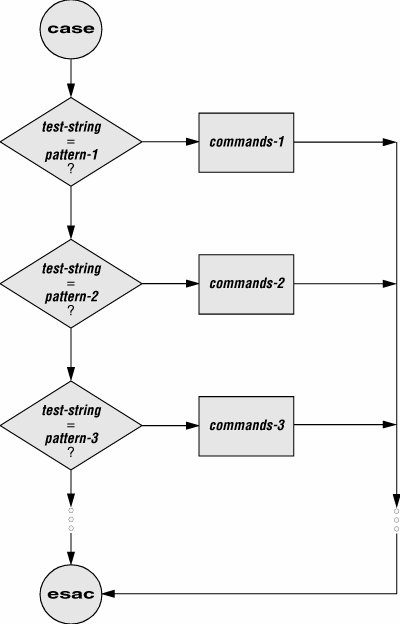
trap builtin The trap builtin (page 933) at the beginning of the locktty script stops a user from being able to terminate the script by sending it a signal (for example, by pressing the interrupt key). Trapping signal 18 means that no one can use CONTROL-Z (job control, a stop from a tty) to defeat the lock. (See Table 28-5 on page 933 for a list of signals.) The stty echo command causes the terminal not to display characters typed at the keyboard, thereby preventing the key that the user enters from appearing on the screen. After turning off keyboard echo, the script prompts the user for a key, reads it into the user-created variable key_1, prompts the user to enter the same key again, and saves it in key_2. The statement key_3= creates a variable with a NULL value. If key_1 and key_2 match, locktty clears the screen (with the tput command) and starts an until loop. The until loop keeps attempting to read from the terminal and assigning the input to the key_3 variable. Once the user types in a string that matches one of the original keys (key_2), the until loop terminates and keyboard echo is turned on again. break and continueYou can interrupt a for, while, or until loop by using a break or continue statement. The break statement transfers control to the statement after the done statement, which terminates execution of the loop. The continue command transfers control to the done statement, which continues execution of the loop. The following script demonstrates the use of these two statements. The for...in structure loops through the values 110. The first if statement executes its commands when the value of the index is less than or equal to 3 ($index le 3). The second if statement executes its commands when the value of the index is greater than or equal to 8 ($index ge 8). In between the two ifs, echo displays the value of the index. For all values up to and including 3, the first if statement displays continue and executes a continue statement that skips echo $index and the second if statement and continues with the next for statement. For the value of 8, the second if statement displays break and executes a break statement that exits from the for loop: $ cat brk for index in 1 2 3 4 5 6 7 8 9 10 do if [ $index -le 3 ] ; then echo "continue" continue fi # echo $index # if [ $index -ge 8 ] ; then echo "break" break fi done $ brk continue continue continue 4 5 6 7 8 break caseThe case structure (Figure 28-7, page 902) is a multiple-branch decision mechanism. The path taken through the structure depends on a match or lack of a match between the test-string and one of the patterns. The case control structure has the following syntax:
Figure 28-7. A case flowchart The following case structure examines the character that the user enters as the test-string. This value is held in the variable letter. If the test-string has a value of A, the structure executes the command following the pattern A. The right parenthesis is part of the case control structure, not part of the pattern. If the test-string has a value of B or C, the structure executes the command following the matching pattern. The asterisk (*) indicates any string of characters and serves as a catch-all in case there is no match. If no pattern matches the test-string and if there is no catch-all (*) pattern, control passes to the command following the esac statement, without the case structure taking any action. $ cat case1 echo -n "Enter A, B, or C: " read letter case "$letter" in A) echo "You entered A" ;; B) echo "You entered B" ;; C) echo "You entered C" ;; *) echo "You did not enter A, B, or C" ;; esac $ case1 Enter A, B, or C: B You entered B The next execution of case1 shows the user entering a lowercase b. Because the test-string b does not match the uppercase B pattern (or any other pattern in the case statement), the program executes the commands following the catchall pattern and displays a message: $ case1 Enter A, B, or C: b You did not enter A, B, or C The pattern in the case structure is analogous to an ambiguous file reference. It can include any of the special characters and strings shown in Table 28-2.
The next script accepts both uppercase and lowercase letters: $ cat case2 echo -n "Enter A, B, or C: " read letter case "$letter" in a|A) echo "You entered A" ;; b|B) echo "You entered B" ;; c|C) echo "You entered C" ;; *) echo "You did not enter A, B, or C" ;; esac $ case2 Enter A, B, or C: b You entered B
selectThe select control structure is based on the one found in the Korn Shell. It displays a menu, assigns a value to a variable based on the user's choice of items, and executes a series of commands. The select control structure has the following syntax:
The select structure displays a menu of the arg items. If you omit the keyword in and the list of arguments, select uses the positional parameters in place of the arg items. The menu is formatted with numbers before each item. For example, a select structure that begins with select fruit in apple banana blueberry kiwi orange watermelon STOP displays the following menu: 1) apple 3) blueberry 5) orange 7) STOP 2) banana 4) kiwi 6) watermelon The select structure uses the values of the LINES and COLUMNS variables to determine the size of the display. (LINES has a default value of 24; COLUMNS has a default value of 80.) With COLUMNS set to 20, the menu looks like this: 1) apple 2) banana 3) blueberry 4) kiwi 5) orange 6) watermelon 7) STOP
PS3 After displaying the menu select displays the value of PS3, the special select prompt. The default value of PS3 is ?# but you typically set PS3 to a more meaningful value. When you enter a valid number (one in the menu range) in response to the PS3 prompt, select sets varname to the argument corresponding to the number you entered. If you make an invalid entry, varname is set to null. Either way select stores your response in the keyword variable REPLY and then executes the commands between do and done. If you press RETURN without entering a choice, the shell redisplays the menu and the PS3 prompt. The select structure continues to issue the PS3 prompt and execute the commands until something causes it to exittypically a break or exit statement. A break statement exits from the loop and an exit statement exits from the script. The following script illustrates the use of select: $ cat fruit2 #!/bin/bash PS3="Choose your favorite fruit from these possibilities: " select FRUIT in apple banana blueberry kiwi orange watermelon STOP do if [ "$FRUIT" == "" ]; then echo -e "Invalid entry.\n" continue elif [ $FRUIT = STOP ]; then echo "Thanks for playing!" break fi echo "You chose $FRUIT as your favorite." echo -e "That is choice number $REPLY.\n" done $ fruit2 1) apple 3) blueberry 5) orange 7) STOP 2) banana 4) kiwi 6) watermelon Choose your favorite fruit from these possibilities: 3 You chose blueberry as your favorite. That is choice number 3. Choose your favorite fruit from these possibilities: 99 Invalid entry. Choose your favorite fruit from these possibilities: 7 Thanks for playing! After setting the PS3 prompt and establishing the menu with the select statement, fruit2 executes the commands between do and done. If the user makes an invalid entry, the shell sets varname ($FRUIT) to a null value, so fruit2 first tests whether $FRUIT is null. If it is, echo displays an error and continue causes the shell to redisplay the PS3 prompt. If the entry is valid, the script tests whether the user wants to stop. If so, echo displays a message and break exits from the select structure (and from the script). If the user entered a valid response and does not want to stop, the script displays the name and number of the user's response. (See page 904 for information about the e option to echo.) Here DocumentA Here document allows you to redirect input to a shell script from within the shell script itself. A Here document is so called because it is hereimmediately accessible in the shell scriptinstead of there, perhaps in another file. The following script, named birthday, contains a Here document. The two less than (<<) symbols in the first line indicate that a Here document follows. One or more characters that delimit the Here document follow the less than symbolsthis example uses a plus sign. Whereas the opening delimiter must appear adjacent to the less than symbols, the closing delimiter must be on a line by itself. The shell sends everything between the two delimiters to the process as standard input. In the example it is as though you had redirected standard input to grep from a file, except that the file is embedded in the shell script: $ cat birthday grep -i "$1" <<+ Alex June 22 Barbara February 3 Darlene May 8 Helen March 13 Jenny January 23 Nancy June 26 + $ birthday Jenny Jenny January 23 $ birthday june Alex June 22 Nancy June 26 When you run birthday, it lists all the Here document lines that contain the argument you called it with. In this case the first time birthday is run, it displays Jenny's birthday because it is called with an argument of Jenny. The second run displays all the birthdays in June. The i argument causes grep's search not to be case sensitive.
|


EAN: 2147483647
Pages: 383