Easy Computer Basics
Authors: Miller M.
Published year: 2003
Pages: 73-78/196
Buy this book on amazon.com >>

EXTRACTING FILES FROM A COMPRESSED FOLDER

The process of decompressing a file is actually an extraction process. That's because you extract the original file(s) from the compressed folder. In Windows XP, this process is eased by the use of the Extraction Wizard.
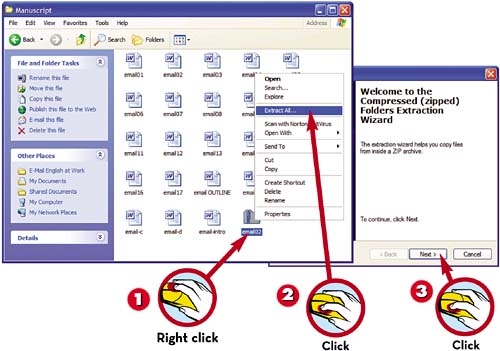
Right-click the compressed folder to display the pop-up menu.

Click Extract All .

When the Extraction Wizard launches, click the Next button.
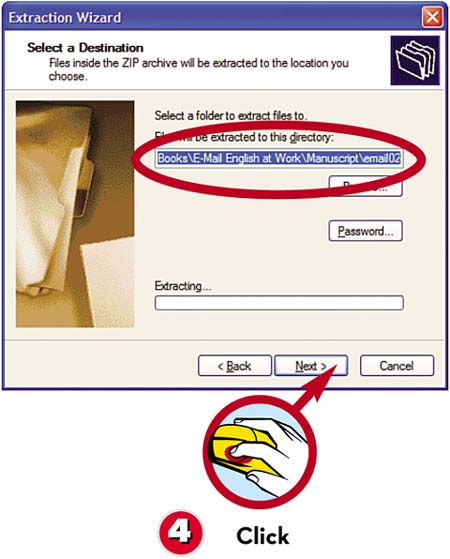
Select to which folder you want to extract the files and click Next .

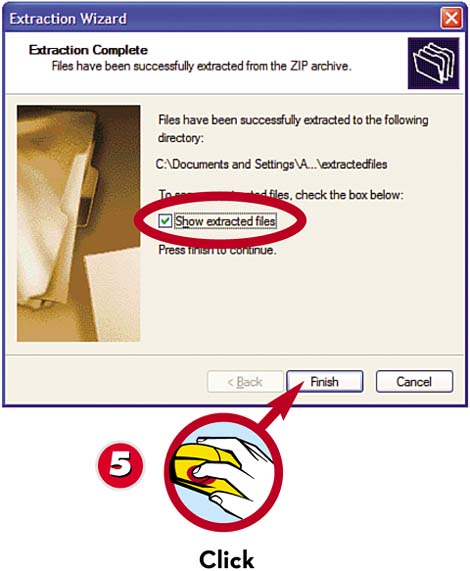
The wizard now extracts the files and displays the Extraction Complete page. Click the Finish button to view the files you ve just extracted.

TIP

Zipper Icon

Compressed folders are distinguished by the little zipper on the folder icon.


Part 5. USING MICROSOFT WORKS

Microsoft Works is a suite of five basic applications, all tied together by an interface called the Task Launcher. The key components of Works are Works Word Processor, Works Spreadsheet, Works Database, Works Calendar, and Address Book. (On many systems, the Works Word Processor is replaced by Microsoft Word, a more fully featured program.) Some computer manufacturers include the complete Microsoft Works Suite, which adds Microsoft Money, Microsoft Picture It!, Microsoft Streets & Trips, and Microsoft Encarta Encyclopedia.

When you launch Microsoft Works, the Works Task Launcher appears onscreen. Along the top of the Task Launcher are buttons that link to five pages; each page represents a different way to enter a program or document. The Home page includes tabs to view your Calendar and Contacts, as well as a Quick Launch bar that lets you launch any application directly. The Templates page helps you create particular types of documents. The Programs page lets you launch specific Works programs, whereas the Projects page helps you create large-scale projects. And the History page lets you reload any document you've recently edited with any Works application.

When Task Launcher is launched, select a page, select a program or task, and then you're ready to work!


THE WORKS TASK LAUNCHER


LAUNCHING A PROGRAM

You use the Programs page to launch individual Works applications. After you select a program and task, the Task Launcher opens the program you selected with the appropriate task-based template or wizard loaded.

Click the Start button and select All Programs, Microsoft Works, Microsoft Works Task Launcher .

From the Works Task Launcher, click the Programs page.

From the Choose a Program list, click a program icon.

From the tasks displayed for that program, click a task.


STARTING A NEW TASK

To create a specific type of document-and have Works automatically load the right program for that task-you use the Templates page. Select a task, and Works will launch the appropriate program with the selected template already loaded.

From the Works Task Launcher, click the Templates page.

From the Choose a Category list, click the type of task you want to start.

From the templates displayed for that category, click a specific template.

NOTE

Tasks Are Templates

In older versions of Microsoft Works, the Templates page is called the Tasks page.


OPENING AN EXISTING DOCUMENT

If you've been working with Works for awhile, you can use the History page to reopen documents you previously created. The History page lists all your recently used files, newest files first.

From the Works Task Launcher, click the History page.

Click the name of the file you want to open .

TIP

Older Files

If the file you want isn't listed on the History tab, Task Launcher lets you search for that file. When you click the Find Files and Folders link, Task Launcher displays a file/folder window with the search function enabled.


Easy Computer Basics
Authors: Miller M.
Published year: 2003
Pages: 73-78/196
Buy this book on amazon.com >>

Similar books on Amazon