| Really big files can be difficult to move or copy. They're especially hard to transfer to other users, whether by floppy disk or email. Fortunately, Windows XP includes a way to make big files smaller. Compressed folders take big files and compress them down in size, which makes them easier to copy or move. After the file has been transferred, you can then uncompress the file back to its original state. Compressing a File Compressing one or more files is a relatively easy task from within any Windows folder. Just follow these steps: Select the file(s) you want to compress.
Right-click the file(s) to display the pop-up menu.
Select Send to, Compressed (zipped) Folder.
 | The compressed folder is actually a file with a .ZIP extension, so it can be used with other compression/decompression programs, such as WinZip. |
Windows now creates a new folder that contains compressed versions of the file(s) you selected. (This folder is distinguished by a little zipper on the folder icon, as shown in Figure 6.9.) You can now copy, move, or email this folder, which is a lot smaller than the original file(s). Figure 6.9. A compressed folder containing one or more files. 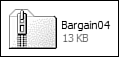
Extracting Files from a Compressed Folder The process of decompressing a file is actually an extraction process. That's because you extract the original file(s) from the compressed folder. In Windows XP, this process is eased by the use of the Extraction Wizard. Follow these steps: Right-click the compressed folder to display the pop-up menu.
Select Extract All.
When the Extraction Wizard launches, as shown in Figure 6.10, click the Next button.
Figure 6.10. Use the Extraction Wizard to decompress compressed files. 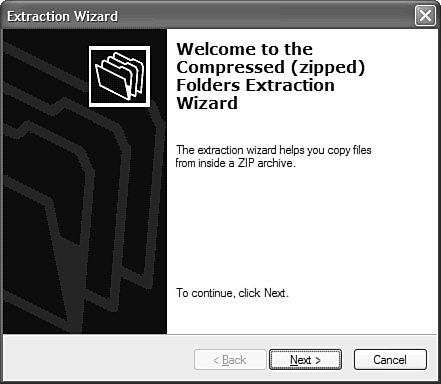
Select which folder you want to extract the files to and click Next.
The wizard now extracts the files and displays the Extraction Complete page.
Click the Finish button to view the files you've just extracted.
The Absolute Minimum Here are the key points to remember from this chapter: You can use either the My Documents or My Computer folders to work with your files and folders. Most of the operations you'll want to perform are listed in the Tasks pane, on the left side of the My Documents folder. There are many ways to copy and move files, but the easiest is to select the file, then select either Copy This File or Move This File from the Tasks pane. You can delete a file by selecting Delete This File from the Tasks pane, or by pressing the Del key on your keyboard. If you accidentally delete a file, you may be able to recover it by opening the Recycle Bin window. If you need to share a really big file, consider compressing it into a compressed folder (also called a .ZIP file).
|
|
