Getting Familiar with the Project Web Access Administration Interface
You control global Project Server application options through the Project Web Access interface, although creating custom fields and building a resource pool is handled through the Project 2002 Professional client. You configure application options in Project Web Access through the Admin menu and interface.
The organizational structure of the Admin menu is confusing. You must cull specific functionality from a hodgepodge of menu selections. The nine selections in the left navigation pane in Figure 8-5 are repeated in the page body (some of these are cut off in the figure) with descriptions. Table 8-1 contains the nine high-level menu choices and the submenu selections that they contain in the Admin interface. Note that the Implement Microsoft Project in the Enterprise selection covered in Chapter 2 isn’t counted in this list.
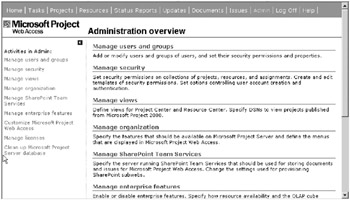
Figure 8-5. All Project Web Access Admin menu selections are represented in the left pane.
| ADMIN MENU SELECTION | SUBSELECTIONS |
|---|---|
| Manage users and groups | Users Groups |
| Manage security | Categories Security templates User authentication |
| Manage views | Views DSNs for views |
| Manage organization | Features Menus |
| Manage SharePoint Team Services | Connect to servers Subweb provisioning settings Manage subwebs Synchronize administrator accounts |
| Manage enterprise features | Features Update resource tables and OLAP cube Check in enterprise projects Check in enterprise resources Versions |
| Customize Microsoft Project Web Access | Tracking settings Gantt Chart formats Grouping formats Nonproject time categories Home page format Notifications and reminders |
| Manage licenses | N/A |
| Clean up Microsoft Project Server database | N/A |
The Project Web Access Admin menu organizational structure doesn’t group functionality in the way you’re likely to use it. You need to consider multiple menu selections when attempting to set system options and the same is true for maintenance routines. I’ve taken a functional approach to organizing selections into four categories:
-
Manage application options: This category includes selections that manipulate features and feature options that address global selections and system behaviors and don’t require frequent manipulation.
-
Application maintenance: Day-to-day and occasional maintenance routines, including the management of user accounts, are included in this category.
-
Manage security: This category includes all functionality to manage the security functions and templates that underlie data and user security.
-
Manage collaboration services: This category includes managing services provided by STS and SMTP connections.
If this helps you to make sense of the selections available to you, use Table 8-2 as a roadmap to locate the functionality you’re looking for.
| WORKING CATEGORY | MENU LOCATION |
|---|---|
| Manage application options | Manage organization Manage organization Manage enterprise features Manage enterprise features Manage enterprise features Manage views Manage views Customize Microsoft Project Web Access Customize Microsoft Project Web Access Customize Microsoft Project Web Access Customize Microsoft Project Web Access Customize Microsoft Project Web Access |
| Application maintenance | Manage users and groups Manage enterprise features Manage enterprise features Manage licenses Clean up Microsoft Project Server database |
| Manage security | Manage users and groups Manage security Manage security Manage security |
| Manage collaboration services | Manage SharePoint Team Services Manage SharePoint Team Services Manage SharePoint Team Services Manage SharePoint Team Services Customize Microsoft Project Web Access |

The point to the reorganized view is that you must bounce around the menu to perform tasks in any of these working categories. When you’re configuring Project Server, for instance, you must consider selections under four top-level selections. I describe the uses for each of these selections in depth when I cover the relevant related topics in this book. For the purposes of beginning a discussion on configuration, a high-level understanding of the Admin interface is all you need. To that end, I offer you one last table on the topic. Table 8-3 contains brief description of each selection in the Admin interface in its natural order.
| MENU/SELECTION | DESCRIPTION |
|---|---|
| Manage users and groups | Add, modify, and deactivate users. Set user password, global permissions, and categories. Merge accounts applies to nonenterprise resources only. |
| Manage users and groups | Add, modify, and delete groups. Set global permissions and categories, and users for a group. |
| Manage security | Add, modify, and delete categories. Select users, projects, resources, and views that belong to the category. Set global permissions and security relationships for category. |
| Manage security | Add, modify, and delete security templates that can be used to set global permissions for roles defined as groups. Manage security |
| | Set authentication standard for system, minimum password length, and an authentication option applicable to some workgroup installations to allow Project 2000. Manage views |
| | Add, modify, or delete views displayed in Project Web Access. Manage views |
| | Applies to workgroup installations only. |
| Manage organization | Turn system features on or off globally. Set base intranet and extranet addresses to be used in constructing URLs expressed by Project Server. |
| Manage organization | Add, change, delete, or reorder menu selections within Project Web Access. |
| Manage SharePoint Team Services | Add, modify, or remove an STS server connection. |
| Manage SharePoint Team Services | Manipulate automation settings for STS subweb creation when projects are published to Project Server. |
| Manage SharePoint Team Services | Create, edit, or delete subwebs and their data records. |
| Manage SharePoint Team Services | Publish Project Server administrator accounts to STS server. |
| Manage enterprise features | Enable or disable certain enterprise features in Project Server. |
| Manage enterprise features | Set parameters for automated OLAP cube generation and publication of resource availability data to the system. |
| Manage enterprise features | Feature to unlock a project record inadvertently left in a checked-out state. |
| Manage enterprise features | Feature to unlock a resource record inadvertently left in a checked-out state. |
| Manage enterprise features | Add, modify, or delete project save versions allowed on the server. |
| Customize Microsoft Project Web Access | Specify default and/or locked-down reporting methods for the system. Select timesheet settings. |
| Customize Microsoft Project Web Access | Set formats for Gantt charts that can be associated with Project Web Access views. |
| Customize Microsoft Project Web Access | Set grouping styles that can be applied to Project Web Access views. |
| Customize Microsoft Project Web Access | Set up the nonproject collection buckets that appear on the timesheet. |
| Customize Microsoft Project Web Access | Allow the user to add simple links and content to the Project Web Access home page. |
| Customize Microsoft Project Web Access | Set up a connection to a mail server and determine base message, and set time for daily notifications to run. |

EAN: 2147483647
Pages: 185