Creating Banners Dynamically with Tiled Backgrounds
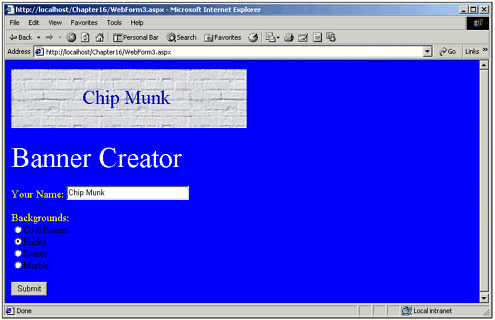
| Before I leave the topic of dynamically created banners, I want to add something to the previous application to show you how easy it is to fancy it up. I took the simple banner creation application and added the capability for users to select one of four background images. As a replacement for the single red rectangle, the background images were tiled into the background of the banner. This is actually a fairly easy change to make to the code that you saw in the Button1_Click() method. You can see the application executing in Figure 16.4. Notice that the banner has a background of white bricks . Figure 16.4. This version creates banners with tiled backgrounds. Look at the code now in Listing 16.4. You can see a Button1_Click() method. I did a direct copy and paste from the other application to get started here. Notice that the first part of this method matches the Button1_Click() method of the earlier application identically. Where it is different, though, is after the Bitmap object is created and the Graphics object is retrieved from it. Look at the line where the variable STRBackgroundNamed is declared. The background image is set after that, depending on which radio button was checked. After the background image has been set in the variable, a second bitmap is created. Unlike the first bitmap constructor in this method, it simply specifies as its one and only argument the filename of the image file to be loaded. And notice that I use the Request.MapPath() method to form a fully qualified file path on my server. After I have created the second bitmap, which contains the background image, I get its width and height. I then loop through and draw this background image into my banner image. Because the width and height of the background image that is loaded can vary, the loop takes this into account by using the width and height variables of the background image for its increment amount. After this double loop are five lines of additional code, which are identical to the Button1_Click() method of the earlier application in Listing 16.3. In Listing 16.6 you can see how a background image can be tiled into a banner image. Listing 16.6 Adding the Capability to Tile a Background Image into the Banner private void Button1_Click(object sender, System.EventArgs e) { DateTime dt = DateTime.Now; Label3.Text = "" + dt.Second + "" + dt.Millisecond; String strFilename = "BannerImages\Image" + Label3.Text + ".jpg"; String strName = TextBox1.Text; if( strName.Length == 0 ) { strName = "No Name"; } Bitmap newBitmap = new Bitmap( 400, 100, PixelFormat.Format24bppRgb ); Graphics g = Graphics.FromImage( newBitmap ); String strBackgroundName = ""; if( RadioButton1.Checked ) { strBackgroundName = "BannerImages\B1.jpg"; } else if( RadioButton2.Checked ) { strBackgroundName = "BannerImages\B2.jpg"; } else if( RadioButton3.Checked ) { strBackgroundName = "BannerImages\B3.jpg"; } else if( RadioButton4.Checked ) { strBackgroundName = "BannerImages\B4.jpg"; } Bitmap backgroundBitmap = new Bitmap( Request.MapPath( strBackgroundName ) ); int nWidth = backgroundBitmap.Width; int nHeight = backgroundBitmap.Height; for( int y=0; y<100; y+=nHeight ) { for( int x=0; x<400; x+=nWidth ) { g.DrawImage( backgroundBitmap, x, y ); } } Font newFont = new Font( "Times New Roman", 25 ); SizeF TextSize = g.MeasureString( strName, newFont ); g.DrawString( strName, newFont, new SolidBrush( Color.Blue ), ( 400 - TextSize.Width ) / 2, ( 100 - TextSize.Height ) / 2 ); newBitmap.Save( Request.MapPath( strFilename ), ImageFormat.Jpeg ); } |

EAN: 2147483647
Pages: 233