Expos
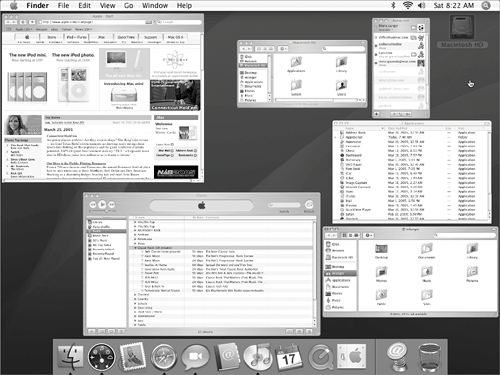
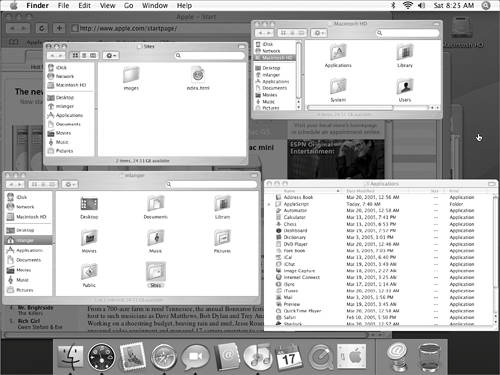
ExposéIf you're like most Mac OS X users, you probably have mul Tiple applications and windows open at the same time while you work. The result can be a cluttered screen, with many layers of windows hiding other windows and the desktop. Exposé helps solve the problem of screen clutter by making it easy to see all open windows in all applications (Figure 16), all open windows in a single application (Figure 18), or the entire desktop (Figure 20) at once. Simply press one of Exposé's shortcut keys (Table 1) to see what you need to see.
Figure 16. Pressing |


 Tips
Tips1. | Press |
2. | To activate a window, point to it to highlight its name (Figure 17) and click it or press Figure 17. Point to a window to highlight its name.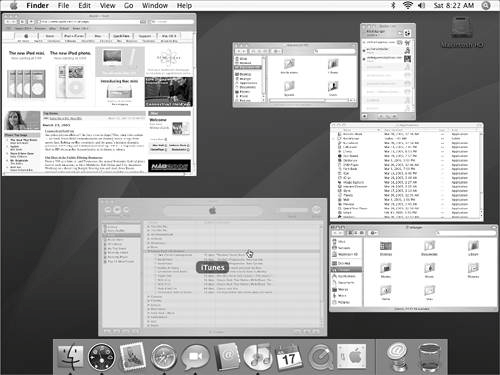 or To release Exposé without activating a specific window, press  again. again. |
To see all open windows in the current application
1. | Press |
2. | To activate a window, point to it to highlight its name (Figure 19)and click it or press Figure 19. Point to a window to highlight its name.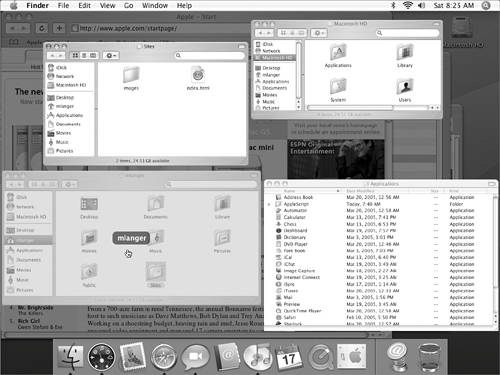 or To release Exposé without activating a specific window, press  again. again. |
To see the desktop
1. | Press |
2. | To release Exposé, press |
To switch from one Exposé view to another
Press the shortcut key for the other view.

EAN: 2147483647
Pages: 301