Office Automation Executables
This section considers each of these three patterns of Office solutions in more detail. Office solutions that use the automation executable pattern start up an Office application in a very straightforward mannerby creating a new instance of the Application object associated with the Office application. Because the automation executable controls the Office application, the automation executable runs code at startup and any time thereafter when executing control returns to the automation executable.
When an automation executable uses new to create an Application object, the automation executable controls the lifetime of the application by holding the created Application object in a variable. The Office application determines whether it can shut down by determining the reference count or number of clients that are using its Application object.
In Listing 2-1, as soon as new is used to create the myExcelApp variable, Excel starts and adds one to its count of clients that it knows are holding a reference to Excel's Application object. When the myExcelApp variable goes out of scope (when Main exits), .NET garbage collection releases the object and Excel is notified that the console application no longer needs Excel's Application object. This causes Excel's count of clients holding a reference to Excel's Application object to go to zero, and Excel exits because no clients are using Excel anymore.
When you create an Office application by creating a new instance of the Application object, the application starts up without showing its window, which proves useful because you can automate the application without distracting the user by popping up windows. If you need to show the application window, you can set the Visible property of the Application object to TRue. If you make the main window visible, the user controls the lifetime of the application. In Excel, the application will not exit until the user quits the application and your variable holding the Excel Application object is garbage collected. Word behaves differentlythe application exits when the user quits the application even if a variable is still holding an instance of the Word Application object.
Listing 2-1 sets the status bar of Excel to say "Hello World" and opens a new blank workbook in Excel by calling the Add method of Excel's Workbooks collection. Chapters 3 through 5"Programming Excel," "Working with Excel Events," and "Working with Excel Objects," respectivelycover the Excel object model in more detail.
Listing 2-1. Automation of Excel via a Console Application
using System;
using Excel = Microsoft.Office.Interop.Excel;
using System.Windows.Forms;

namespace ConsoleApplication
{
 class Program
 {
 static bool exit = false;

 static void Main(string[] args)
 {
 Excel.Application myExcelApp = new Excel.Application();
 myExcelApp.Visible = true;
 myExcelApp.StatusBar = "Hello World";
 myExcelApp.Workbooks.Add(System.Type.Missing);

 myExcelApp.SheetBeforeDoubleClick +=
 new Excel.AppEvents_SheetBeforeDoubleClickEventHandler(
 myExcelApp_SheetBeforeDoubleClick);

 while (exit == false)
 System.Windows.Forms.Application.DoEvents();
 }

 static void myExcelApp_SheetBeforeDoubleClick(object sheet,
 Excel.Range target, ref bool cancel)
 {
 exit = true;
 }
 }
}
Listing 2-1 also illustrates how an automation executable can yield time back to the Office application. A reference to the System.Windows.Forms assembly must be added to the project. After event handlers are hooked up, System.Windows.Forms.Application.DoEvents() is called in a loop to allow the Excel application to run normally. If the user double-clicks a cell, Office yields time back to the event handler in the automation executable. In the handler for the Double-Click event, we set the static variable exit to true, which will cause the loop calling DoEvents to exit and the automation executable to exit.
You can see the lifetime management of Excel in action by running the automation executable in Listing 2-1 and exiting Excel without double-clicking a cell. Excel will continue to run in a hidden state, waiting for the console application to release its reference to Excel's Application object.
Creating a Console Application That Automates Word
This section walks you through the creation of a simple console application that automates Word to create a table specified in wiki text format. A wiki is a kind of online encyclopedia that users can contribute to. For an example, see http://www.officewiki.net for a wiki that documents the Office primary interop assemblies (PIAs). Wikis use simple, easy-to-edit text files that any visitor to the wiki can edit without having to know HTML. These text files have simple representations of even complex elements such as tables. Our console application will read a simple text file that specifies a table in wiki text format. It will then automate Word to create a Word table that matches the text file specification.
In the wiki text format, a table that looks like Table 2-1 is specified by the text in Listing 2-2.
Listing 2-2. A Wiki Text Representation of Table 2-1
||Property or Method||Name||Return Type||
||Property||Application||Application||
||Property||Autoload||Boolean||
||Property||Compiled||Boolean||
||Property||Creator||Int32||
||Method||Delete||Void||
||Property||Index||Int32||
||Property||Installed||Boolean||
||Property||Name||String||
||Property||Parent||Object||
||Property||Path||String||
|
Property or Method |
Name |
Return Type |
|---|---|---|
|
Property |
Application |
Application |
|
Property |
Autoload |
Boolean |
|
Property |
Compiled |
Boolean |
|
Property |
Creator |
Int32 |
|
Method |
Delete |
Void |
|
Property |
Index |
Int32 |
|
Property |
Installed |
Boolean |
|
Property |
Name |
String |
|
Property |
Parent |
Object |
|
Property |
Path |
String |
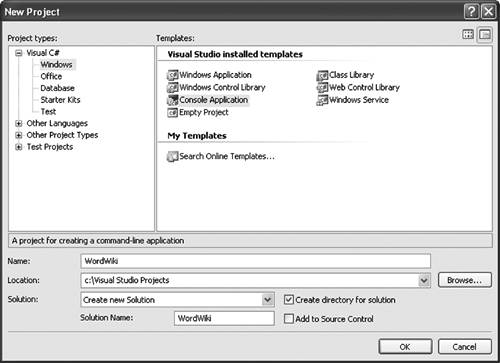
We will use Visual Studio 2005 to create a console application. After launching Visual Studio, choose New Project from the File menu. The New Project dialog box shows a variety of project types. Choose the Visual C# node from the list of project types, and choose the Windows node under the Visual C# node. This is slightly counterintuitive because there is an Office node available, too, but the Office node only shows VSTO code behind document projects and the VSTO Outlook add-in project.
After you choose the Windows node, you will see in the window to the right the available templates. Choose the Console Application template. Name your console application project, and then click the OK button to create your project. In Figure 2-1, we have created a console application called WordWiki. Note that the new project dialog can have a different appearance than the one shown in Figure 2-1 depending on the profile you are using. In this book, we assume you are using the Visual C# Development Settings profile. You can change your profile by choosing Import and Export Settings from the Tools menu.
Figure 2-1. Creating a console application from the New Project dialog.
When you click the OK button, Visual Studio creates a console application project for you. Visual Studio displays the contents of the project in the Solution Explorer window, as shown in Figure 2-2.
Figure 2-2. The Console application project WordWiki shown in Solution Explorer.
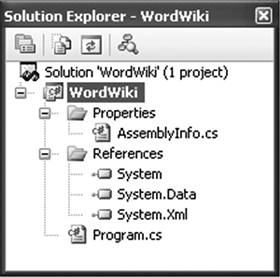
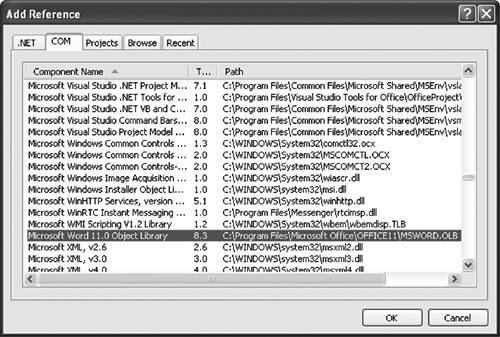
By default, a newly created console application references the assemblies System, System.Data, and System.Xml. We also need to add a reference to the Word 2003 PIA. We do this by right-clicking the References folder and choosing Add Reference from the pop-up menu that appears. This shows the Add Reference dialog in Figure 2-3. Click the COM tab and choose the Microsoft Word 11.0 Object Library to add a reference to the Word 2003 PIA, and then click the OK button.
Figure 2-3. Adding a reference to the Microsoft Word 2003 PIA.
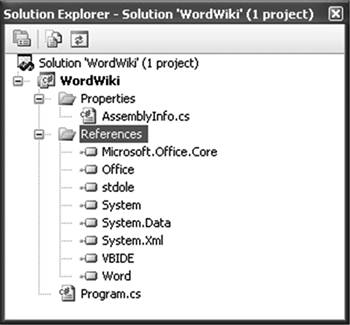
Visual Studio adds the reference to the Word 2003 PIA and adds additional references to the stdole, VBIDE, and Microsoft.Office.Core PIAs, as shown in Figure 2-4. These additional PIAs are ones that the Word PIA depends on. Stdole is a PIA that contains the definition of some of the types that COM object models need. VBIDE is the PIA for the object model associated with the VBA editor integrated into Office. Microsoft.Office.Core (office.dll) is the PIA for common functionality shared by all the Office applications, such as the object model for the toolbars and menus.
Figure 2-4. When you add the Word 2003 PIA, dependent PIA references are automatically added to the project.
Now that the proper references have been added to the console application, let's start writing code. Double-click Program.cs in the Solution Explorer window to edit the main source code file for the console application. If you have outlining turned on, you will see the text "using …" at the top of the Program.cs file with a + sign next to it. Click the + sign to expand out the code where the using directives are placed. Add the following three using directives so that you can more easily use objects from the Word PIA and the Microsoft.Office.Core PIA as well as classes in the System.IO namespace.
using Office = Microsoft.Office.Core;
using Word = Microsoft.Office.Interop.Word;
using System.IO;
We alias some of these namespaces so we do not have to type out the entire namespace, such as Microsoft.Office.Interop.Word, every time we want to declare a Word object. With the alias in place, we can just type Word to specify the namespace. We keep an alias namespace in place for Word and Office instead of just typing using Microsoft.Office.Interop.Word and importing all the types into global scope. This is because Word and Office define hundreds of types, and we do not want all these type names potentially colliding with types we define in our code or with other referenced types. Also for the purpose of this book, the code is clearer when it says Word.Application rather than Application, so you know what namespace the Application type is coming from.
We are now ready to write some code that automates Word to create a table after reading a text input file in the wiki table format. Listing 2-3 shows the entire listing of our program. Rather than explain every line of code in that listing, we focus on the lines of code that automate Word. We assume the reader has some knowledge of how to read a text file in .NET and parse a string via the Split method. We briefly touch on some objects in the Word object model here, but Chapters 6 through 8"Programming Word," "Working with Word Events," and "Working with Word Objects," respectivelycover the Word object model in much more detail.
The first thing we do in Listing 2-3 is declare a new instance of the Word application object by adding this line of code to the Main method of our program class.
Word.Application theApplication = new Word.Application();
Although Word.Application is an interface, we are allowed to create a new instance of this interface because the compiler knows that the Word.Application interface is associated with a COM object that it knows how to start. When Word starts in response to an automation executable creating a new instance of its Application object, it starts up without showing any windows. You can automate Word in this invisible state when you want to automate Word without confusing the user by bringing up the Word window. For this example, we want to make Word show its main window, and we do so by adding this line of code:
theApplication.Visible = true;
Next, we want to create a new empty Word document into which we will generate our table. We do this by calling the Add method on the Documents collection returned by Word's Application object. The Add method takes four optional parameters that we want to omit. Optional parameters in Word methods are specified as omitted by passing by reference a variable containing the special value Type.Missing. We declare a variable called missing that we set to Type.Missing and pass it by reference to each parameter we want to omit, as shown here:
object missing = Type.Missing;
Word.Document theDocument = theApplication.Documents.Add(
 ref missing, ref missing, ref missing, ref missing);
With a document created, we want to read the input text file specified by the command-line argument passed to our console application. We want to parse that text file to calculate the number of columns and rows. When we know the number of columns and rows, we use the following line of code to get a Range object from the Document object. By passing our missing variable to the optional parameters, the Range method will return a range that includes the entire text of the document.
Word.Range range = theDocument.Range(ref missing, ref missing);
We then use our Range object to add a table by calling the Add method of the Tables collection returned by the Range object. We pass the Range object again as the first parameter to the Add method to specify that we want to replace the entire contents of the document with the table. We also specify the number of rows and columns we want:
Word.Table table = range.Tables.Add(range, rowCount,
 columnCount, ref missing, ref missing);
The Table object has a Cell method that takes a row and column and returns a Cell object. The Cell object has a Range property that returns a Range object for the cell in question that we can use to set the text and formatting of the cell. The code that sets the cells of the table is shown here. Note that as in most of the Office object models, the indices are 1-based, meaning they start with 1 as the minimum value rather than being 0-based and starting with 0 as the minimum value:
for (columnIndex = 1; columnIndex <= columnCount; columnIndex++)
{
 Word.Cell cell = table.Cell(rowIndex, columnIndex);
 cell.Range.Text = splitRow[columnIndex];
}
Code to set the formatting of the table by setting the table to size to fit contents and bolding the header row is shown below. We use the Row object returned by table.Rows[1], which also has a Range property that returns a Range object for the row in question. Also, we encounter code that sets the first row of the table to be bolded. One would expect to be able to write the code table.Rows[1].Range.Bold = true, but Word's object model expects an int value (0 for false and 1 for true) rather than a bool. The Bold property doesn't return a bool because the range of text could be all bold, all not bold, or partially bold. Word uses the enumerated constant WdConstants.WdUndefined to specify the partially bold case.
// Format table
table.Rows[1].Range.Bold = 1;
table.AutoFitBehavior(Word.WdAutoFitBehavior.wdAutoFitContent);
Finally, some code at the end of the program forces Word to quit without saving changes:
// Quit without saving changes
object saveChanges = false;
theApplication.Quit(ref saveChanges, ref missing, ref missing);
If you do not write this code, Word will stay running even after the console application exits. When you show the Word window by setting the Application object's Visible property to TRue, Word puts the lifetime of the application in the hands of the end user rather than the automating program. So even when the automation executable exits, Word continues running. To force Word to exit, you must call the Quit method on Word's Application object. If this program didn't make the Word window visiblesay for example, it created the document with the table and then saved it to a file all without showing the Word windowit would not have to call Quit because Word would exit when the program exited and released all its references to the Word objects.
To run the console application in Listing 2-3, you must create a text file that contains the text in Listing 2-2. Then pass the filename of the text file as a command-line argument to the console application. You can set up the debugger to do this by right-clicking the WordWiki project in Solution Explorer and choosing Properties. Then click the Debug tab and set the Command line arguments field to the name of your text file.
Listing 2-3. The Complete WordWiki Implementation
using System;
using System.Collections.Generic;
using System.Text;
using System.IO;
using Office = Microsoft.Office.Core;
using Word = Microsoft.Office.Interop.Word;

namespace WordWiki
{
 class Program
 {
 static void Main(string[] args)
 {
 Word.Application theApplication = new Word.Application();
 theApplication.Visible = true;

 object missing = System.Type.Missing;
 Word.Document theDocument = theApplication.Documents.Add(
 ref missing, ref missing, ref missing, ref missing);

 TextReader reader = new System.IO.StreamReader(args[0]);

 string[] separators = new string[1];
 separators[0] = "||";
 int rowCount = 0;
 int columnCount = 0;

 // Read rows and calculate number of rows and columns
 System.Collections.Generic.List rowList =
 new System.Collections.Generic.List();

 string row = reader.ReadLine();

 while (row != null)
 {
 rowCount++;
 rowList.Add(row);

 // If this is the first row,
 // calculate the number of columns
 if (rowCount == 1)
 {
 string[] splitHeaderRow = row.Split(
 separators, StringSplitOptions.None);

 // Ignore the first and last separator
 columnCount = splitHeaderRow.Length - 2;
 }

 row = reader.ReadLine();
 }

 // Create a table
 Word.Range range = theDocument.Range(ref missing,
 ref missing);
 Word.Table table = range.Tables.Add(range, rowCount,
 columnCount, ref missing, ref missing);

 // Populate table
 int columnIndex = 1;
 int rowIndex = 1;

 foreach (string r in rowList)
 {
 string[] splitRow = r.Split(separators,
 StringSplitOptions.None);

 for (columnIndex = 1; columnIndex <= columnCount;
 columnIndex++)
 {
 Word.Cell cell = table.Cell(rowIndex, columnIndex);
 cell.Range.Text = splitRow[columnIndex];
 }

 rowIndex++;
 }

 // Format table
 table.Rows[1].Range.Bold = 1;
 table.AutoFitBehavior(Word.WdAutoFitBehavior.
 wdAutoFitContent);

 // Wait for input from the command line before exiting
 System.Console.WriteLine("Table complete.");
 System.Console.ReadLine();

 // Quit without saving changes
 object saveChanges = false;
 theApplication.Quit(ref saveChanges, ref missing,
 ref missing);
 }
 }
}
Part One. An Introduction to VSTO
An Introduction to Office Programming
- Why Office Programming?
- Office Object Models
- Properties, Methods, and Events
- The Office Primary Interop Assemblies (PIAs)
- Conclusion
Introduction to Office Solutions
- The Three Basic Patterns of Office Solutions
- Office Automation Executables
- Office Add-Ins
- Code Behind a Document
- Conclusion
Part Two. Office Programming in .NET
Programming Excel
- Ways to Customize Excel
- Programming User-Defined Functions
- Introduction to the Excel Object Model
- Conclusion
Working with Excel Events
Working with Excel Objects
- Working with Excel Objects
- Working with the Application Object
- Working with the Workbooks Collection
- Working with the Workbook Object
- Working with the Worksheets, Charts, and Sheets Collections
- Working with Document Properties
- Working with the Windows Collections
- Working with the Window Object
- Working with the Names Collection and Name Object
- Working with the Worksheet Object
- Working with the Range Object
- Special Excel Issues
- Conclusion
Programming Word
Working with Word Events
Working with Word Objects
- Working with Word Objects
- Working with the Application Object
- Working with the Dialog Object
- Working with Windows
- Working with Templates
- Working with Documents
- Working with a Document
- Working with the Range Object
- Working with Bookmarks
- Working with Tables
- Conclusion
Programming Outlook
- Ways to Customize Outlook
- Introduction to the Outlook Object Model
- Introduction to the Collaboration Data Objects
- Conclusion
Working with Outlook Events
Working with Outlook Objects
- Working with Outlook Objects
- Working with the Application Object
- Working with the Explorers and Inspectors Collections
- Working with the Explorer Object
- Working with the Inspector Object
- Working with the NameSpace Object
- Working with the MAPIFolder Object
- Working with the Items Collection
- Properties and Methods Common to Outlook Items
- Outlook Issues
- Conclusion
Introduction to InfoPath
- What Is InfoPath?
- Getting Started
- Form Security
- Programming InfoPath
- Data Source Events
- Form Events, Properties, and Methods
- Conclusion
Part Three. Office Programming in VSTO
The VSTO Programming Model
- The VSTO Programming Model
- VSTO Extensions to Word and Excel Objects
- Dynamic Controls
- Advanced Topic: Dynamic Host Items
- Advanced Topic: Inspecting the Generated Code
- VSTO Extensions to the Word and Excel Object Models
- Conclusion
Using Windows Forms in VSTO
- Using Windows Forms in VSTO
- Introduction
- Adding Windows Forms Controls to Your Document
- Writing Code Behind a Control
- The Windows Forms Control Hosting Architecture
- Properties Merged from OLEObject or OLEControl
- Adding Controls at Runtime
- Conclusion
Working with Actions Pane
Working with Smart Tags in VSTO
- Introduction to Smart Tags
- Creating Document-Level Smart Tags with VSTO
- Creating Application-Level Smart Tags
- Conclusion
VSTO Data Programming
- VSTO Data Programming
- Creating a Data-Bound Customized Spreadsheet with VSTO
- Creating a Data-Bound Customized Word Document with VSTO
- Datasets, Adapters, and Sources
- Another Technique for Creating Data-Bound Spreadsheets
- Caching Data in the Data Island
- Advanced ADO.NET Data Binding: Looking Behind the Scenes
- Binding-Related Extensions to Host Items and Host Controls
- Conclusion
Server Data Scenarios
- Populating a Document with Data on the Server
- Using ServerDocument and ASP.NET
- A Handy Client-Side ServerDocument Utility
- The ServerDocument Object Model
- Conclusion
.NET Code Security
- .NET Code Security
- Code Access Security Versus Role-Based Security
- Code Access Security in .NET
- Location, Location, Location
- Strong Names
- Publisher Certificates
- Trusting the Document
- Deploying Policy to User Machines
- Conclusion
Deployment
- Deployment
- VSTO Prerequisites
- Deploying to an Intranet Shared Directory or Web Site
- Local Machine Deployment Without a Deployment Manifest
- Editing Manifests
- Creating Setup Packages
- Advanced Topic: Deploying Network Solutions to Be Cached Locally
- Conclusion
Part Four. Advanced Office Programming
Working with XML in Excel
- Introduction to Excels XML Features
- Introduction to XML Schema Creation in Visual Studio
- An End-to-End Scenario
- Advanced XML Features in Excel
- Excel-Friendly XML Schemas
- VSTO Support for Excel Schema Mapping
- Conclusion
Working with XML in Word
- Introduction to Words XML Features
- An End-to-End Scenario: Creating a Schema and Mapping It into a Word Document
- Exporting the Mapped XML in the Document to an XML Data File
- Importing an XML Data File into the Mapped Document
- The XML Options Dialog
- VSTO Support for Word Schema Mapping
- VSTO Support for the WordML File Format
- Conclusion
Developing COM Add-Ins for Word and Excel
- Introduction to Add-Ins
- Scenarios for Using Add-Ins
- How a COM Add-In Is Registered
- Implementing IDTExtensibility2
- Writing a COM Add-In Using Visual Studio
- The Pitfalls of MsCoree.dll
- COM Interop and Regasm.exe
- Shimming: A Solution to the Problems with MsCoree.dll
- Conclusion
Creating Outlook Add-Ins with VSTO

EAN: N/A
Pages: 214
