Lotus Notes gives you many options to customize how you view and work with it. In this section you will learn what these options are.
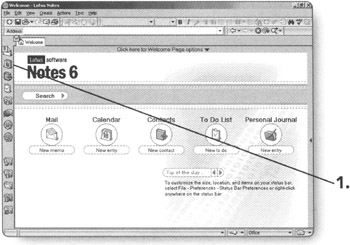
Click
on the
Calendar Bookmark.
Your calendar will
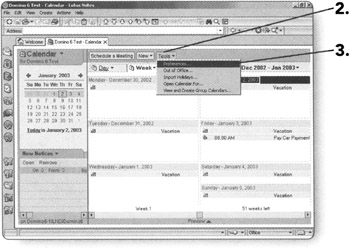
Click on Tools. The Tools menu will appear.
Click on Preferences. The Preferences dialog box will appear on the Calendar & To Do Basics tab.
On the Basics tab, you can change the following items:
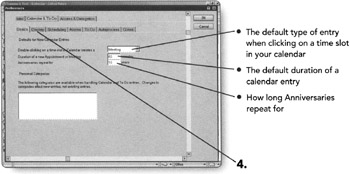
You can also set up Categories by clicking in the Personal Categories box.
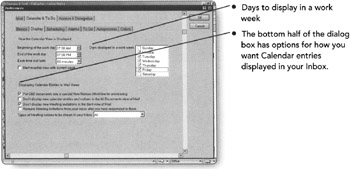
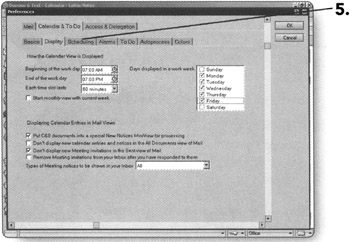
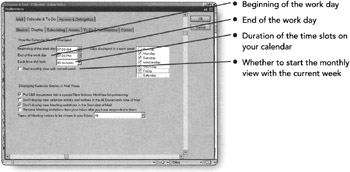
Click on the Display tab.
The Display tab lets you customize how your calendar is displayed.
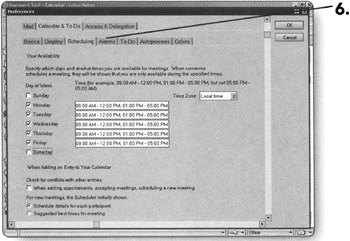
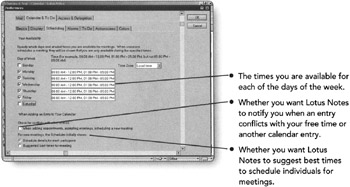
Click on the Scheduling tab.
This tab is where you specify your free time so that others will know when they can schedule you for meetings. The following items can be modified on the Scheduling tab:
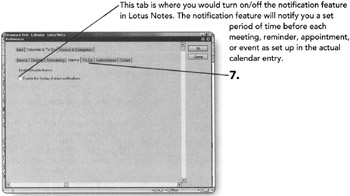
Click on the Alarms tab.
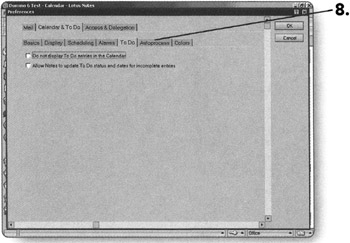
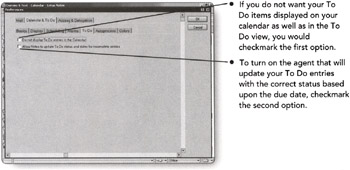
Click on the To Do tab.
The To Do tab gives you just two options.
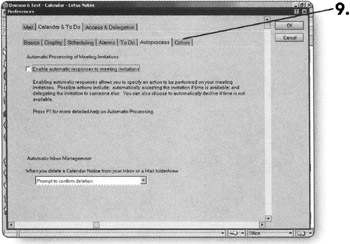
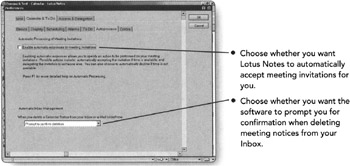
Click on the Autoprocess tab.
This tab regulates how meeting notices are handled when they come in to your Inbox or when you delete them.
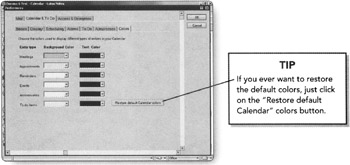
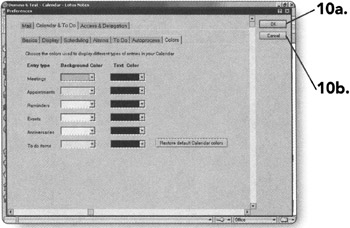
Click on the Colors tab.
The Colors tab allows you to
Click on OK to save the changes you have made. You will return to the Calendar.
OR
Click on Cancel to close the Preferences dialog box. The changes you made will not be saved and you will return to the Calendar.
Lotus Notes allows you to give other individuals rights to accept, create, and delete calendar entries on your
Click on Tools. The Tools menu will appear.
Click
on
Preferences.
The Preferences dialog box will
Click on the Access & Delegation tab. The screen will switch to the specified tab.
This is where you will set up who has rights to not only read and send mail from your mailfile, but also to update your calendar.
In sections 1, 2, and 3, you will choose what access you want the person/
Click on the Access to Your Schedule tab.
This tab allows you to specify who has rights to see what is on your calendar.
Click on the Shortcuts to Others' Mail tab.
This tab allows you to create shortcuts to other people's e-mail/calendar. This is very useful for those who manage multiple people's e-mail/calendar.
Click on OK to save any changes that you made. You will return to the Calendar.
OR
Click on Cancel to close the Preferences dialog box. The changes you made will not be saved and you will return to the Calendar.
There are several different ways to control your calendar. Lotus Notes offers you the ability to track just about any task that you need to accomplish throughout the day. In this chapter, you will learn about:
Calendar Entry Types
Creating an Appointment
Creating a Reminder
Creating an Event
Let's take a look at the different calendar entry types that are available for you to use within Lotus Notes.
Click
on the
Calendar Bookmark.
Your calendar will
Schedule a Meeting. This button would be used when you need to schedule someone else's time or a resource for a meeting.
Click on New. The New menu will appear.
Within the New menu, the options are:
Appointment. Use this option when you are scheduling something for only yourself and there is no need to reserve a resource.
Anniversary.
This option would be used for repeating reminders, such as your
Reminder. Use this type of entry to make note of things that need to be done on a certain day.
All Day Event. Use this type of entry to record items on your calendar that will be an entire day or longer, such as business trips or training classes.
Now we will take a look at each type of calendar entry a little closer.
The Appointment calendar entry form is used when only you need to participate. When you create an appointment, you cannot schedule
Click on New. The New menu will appear.
Click on Appointment . A new Appointment will appear.
Let's look at each section of the Appointment Entry Form.
Subject. This will be the title or subject of the appointment.
When.
Allows you to specify the beginning date and time as well as the ending date and time. If you need to specify a different time zone, check the box
Description. If you have documents pertaining to this appointment, click on the link provided to attach them to the appointment entry for future reference. Below the link for attachments is the body of the description where you can make notes regarding the purpose of the appointment.
Where. This is the location that you will be at during the time period of the appointment.
Categorize. If you have set up categories, you can choose which one this appointment belongs under in this section.
In the upper-right-hand corner there are more options for you to choose from by checking the checkboxes provided.
Notify me . If you want to set an alarm to notify you when it is time for this particular appointment, check this option. The Alarm dialog box will open.
Mark private. If you do not want everyone to be able to see this appointment on your calendar, check this option.
Pencil in. If you do not want your calendar and free time to be blocked by this appointment, check this option.
Click on Save and Close to save the appointment and return to your calendar.
OR
Click on the X on the New Calendar Entry tab if you do not want to save this appointment. You will return to your calendar.
The Anniversary form can be used to keep track of important dates that repeat for several
Click on New. The New menu will appear.
Click on Anniversary. A new Anniversary will appear.
Let's look at each section of the Anniversary Entry Form.
Subject. This will be the title or subject of the anniversary.
When. Allows you to specify the date of the anniversary.
Description. If you have documents pertaining to this anniversary, click on the link provided to attach them to the anniversary entry for future reference. Below the link for attachments is the body of the description where you can make notes regarding the anniversary.
Where. This is the location where the event will take place, if needed.
Categorize. If you have set up categories, you can choose which one this anniversary belongs under.
In the upper-right-hand corner, there are more options for you to choose from by checking the checkboxes provided.
Notify me. If you want to set an alarm to notify you when it is time for this particular anniversary, check this option and the Alarm dialog box will open.
Mark private. If you do not want anyone to be able to see this anniversary on your calendar, check this option.
Pencil in. For anniversaries, this option is checked by default so that it does not block your free time. If you want your free time blocked, uncheck this option.
Click on Save and Close to save the anniversary and return to your calendar.
OR
Click on the X on the New Calendar Entry tab if you do not want to save this anniversary. You will be returned to your calendar.
The Reminder form can be used to keep track of important things that you need to do throughout the day. You can set up as many reminders on your calendar as you would like and even have Lotus Notes notify you when the item should be completed.
Click on New. The New menu will appear.
Click on Reminder. A new Reminder will appear.
Let's look at each section of the Reminder Entry Form.
Subject. This will be the title or subject of the reminder.
When. Allows you to specify the date and time of the reminder. If you need to specify a different time zone, check the box next to that option. You can also make the reminder repeating, if necessary.
Description. If you have documents pertaining to this reminder, click on the link provided to attach them to the reminder entry for future reference. Below the link for attachments is the body of the description where you can make notes regarding the reminder.
Where. This is the location where the event will take place.
Categorize. If you have set up categories, you can choose which one this reminder belongs under.
In the upper-right-hand corner, there are more options for you to choose from by checking the checkboxes provided.
Notify me. If you want to set an alarm to notify you when it is time for this particular reminder, check this option.
Mark private. If you do not want anyone to be able to see this reminder on your calendar, check this option.
Click on Save and Close to save the reminder and return to your calendar.
OR
Click on the X on the New Calendar Entry tab if you do not want to save this reminder. You will be returned to your calendar.
The All Day Event calendar entry form is used when you need to schedule yourself for an entire day or more.
Click on New. The New menu will appear.
Click on All Day Event. A new Event will appear.
Let's look at each section of the All Day Event Entry Form.
Subject. This will be the title or subject of the event.
When. Allows you to specify the beginning and ending date of the event. You can also make the event repeating, if necessary.
Description. If you have documents pertaining to this event, click on the link provided to attach them to the event entry for future reference. Below the link for attachments is the body of the description where you can make notes regarding the purpose of the event.
Where. This is the location that you will be at during the time period of the event.
Categorize. If you have set up categories, you can choose which one this event belongs under.
In the upper-right-hand corner, there are more options for you to choose from by checking the checkboxes provided.
Notify me. If you want to set an alarm to notify you when it is time for this particular event, check this option and the Alarm dialog box will open.
Mark private. If you do not want anyone to be able to see this event on your calendar, check this option.
Pencil in. If you do not want your calendar and free time to be blocked by this event, check this option.
Click on Save and Close to save the event and return to your calendar.
OR
Click on the X on the New Calendar Entry tab if you do not want to save this event. You will be returned to your calendar.